編輯:關於android開發
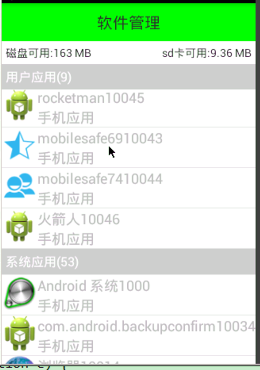
1.添加不同類型條目
 1 class MyAdapter extends BaseAdapter{
 2
 3     //獲取數據適配器中條目類型的總數,修改成兩種(純文本,圖片+文字)
 4     @Override
 5     public int getViewTypeCount() {
 6         return super.getViewTypeCount()+1;
 7     }
 8
 9     //指定索引指向的條目類型,條目類型狀態碼指定(0(復用系統),1)
10     @Override
11     public int getItemViewType(int position) {
12         if(position == 0 || position == mCustomerList.size()+1){
13             //返回0,代表純文本條目的狀態碼
14             return 0;
15         }else{
16             //返回1,代表圖片+文本條目狀態碼
17             return 1;
18         }
19     }
20
21     //listView中添加兩個描述條目
22     @Override
23     public int getCount() {
24         return mCustomerList.size()+mSystemList.size()+2;
25     }
26
27     @Override
28     public AppInfo getItem(int position) {
29         if(position == 0 || position == mCustomerList.size()+1){
30             return null;
31         }else{
32             if(position<mCustomerList.size()+1){
33                 return mCustomerList.get(position-1);
34             }else{
35                 //返回系統應用對應條目的對象
36                 return mSystemList.get(position - mCustomerList.size()-2);
37             }
38         }
39     }
40
41     @Override
42     public long getItemId(int position) {
43         return position;
44     }
45
46     @Override
47     public View getView(int position, View convertView, ViewGroup parent) {
48         int type = getItemViewType(position);
49
50         if(type == 0){
51             //展示灰色純文本條目
52             ViewTitleHolder holder = null;
53             if(convertView == null){
54                 convertView = View.inflate(getApplicationContext(), R.layout.listview_app_item_title, null);
55                 holder = new ViewTitleHolder();
56                 holder.tv_title = (TextView)convertView.findViewById(R.id.tv_title);
57                 convertView.setTag(holder);
58             }else{
59                 holder = (ViewTitleHolder) convertView.getTag();
60             }
61             if(position == 0){
62                 holder.tv_title.setText("用戶應用("+mCustomerList.size()+")");
63             }else{
64                 holder.tv_title.setText("系統應用("+mSystemList.size()+")");
65             }
66             return convertView;
67         }else{
68             //展示圖片+文字條目
69             ViewHolder holder = null;
70             if(convertView == null){
71                 convertView = View.inflate(getApplicationContext(), R.layout.listview_app_item, null);
72                 holder = new ViewHolder();
73                 holder.iv_icon = (ImageView)convertView.findViewById(R.id.iv_icon);
74                 holder.tv_name = (TextView)convertView.findViewById(R.id.tv_name);
75                 holder.tv_path = (TextView) convertView.findViewById(R.id.tv_path);
76                 convertView.setTag(holder);
77             }else{
78                 holder = (ViewHolder) convertView.getTag();
79             }
80             holder.iv_icon.setBackgroundDrawable(getItem(position).icon);
81             holder.tv_name.setText(getItem(position).name);
82             if(getItem(position).isSdCard){
83                 holder.tv_path.setText("sd卡應用");
84             }else{
85                 holder.tv_path.setText("手機應用");
86             }
87             return convertView;
88         }
89     }
90 }
2.常駐懸浮框使用
lv_app_list.setOnScrollListener(new OnScrollListener() {
	@Override
	public void onScrollStateChanged(AbsListView view, int scrollState) {
	}

	@Override
	public void onScroll(AbsListView view, int firstVisibleItem,
			int visibleItemCount, int totalItemCount) {
		//滾動過程中調用方法
		//AbsListView中view就是listView對象
		//firstVisibleItem第一個可見條目索引值
		//visibleItemCount當前一個屏幕的可見條目數
		//總共條目總數
		if(mCustomerList!=null && mSystemList!=null){
			if(firstVisibleItem>=mCustomerList.size()+1){
				//滾動到了系統條目
				tv_des.setText("系統應用("+mSystemList.size()+")");
			}else{
				//滾動到了用戶應用條目
				tv_des.setText("用戶應用("+mCustomerList.size()+")");
			}
		}

	}
});
3.activity_app_manager.xml
<FrameLayout
	android:layout_width="match_parent"
	android:layout_height="wrap_content">
	<ListView
		android:id="@+id/lv_app_list"
		android:layout_width="match_parent"
		android:layout_height="wrap_content">
	</ListView>
	<TextView
		android:background="#ccc"
		android:id="@+id/tv_des"
		android:textColor="#000"
		android:textSize="18sp"
		android:layout_width="match_parent"
		android:layout_height="wrap_content"/>
</FrameLayout>
 手機安全衛士——緩存清理,安全衛士緩存清理
手機安全衛士——緩存清理,安全衛士緩存清理CleanCacheActivity.java /** * 緩存清理*/ public class CleanCacheAc
 Android開發學習之路--Camera之初體驗
Android開發學習之路--Camera之初體驗 顧名思義Camera就是拍照和錄像的功能,像微信裡面,我們想拍照傳一下照片,就可以通過camera來拍照,然後存儲
 滑動指示選項卡android.support.design.widget.TabLayout的簡單使用,android選項卡滑動
滑動指示選項卡android.support.design.widget.TabLayout的簡單使用,android選項卡滑動 該TabLayout的功用,簡單的說,就
 Android 學習之路,android學習之路
Android 學習之路,android學習之路Android 學習之路 轉載:http://stormzhang.com/android/2014/07/07/lea