編輯:關於android開發
<animation-list android:oneshot="false">
    <item android:drawable="@drawable/img1" android:duration="100"/>
    <item android:drawable="@drawable/img2" android:duration="100"/>
    <item android:drawable="@drawable/img3" android:duration="100"/>
    <item android:drawable="@drawable/img4" android:duration="100"/>
</animation-list>
oneshot:是否只播放一次
drawable:一幀引用的圖片 duration:一幀播放的時間 播放動畫 將動畫作為控件的背景 ((AnimationDrawable)view.getBackground()).start(); Animation常用屬性 duration:動畫時間 repeatCount:重復次數 infinite無限次 fillAfter:是否停止在最後一幀 repeatMode:重復模式 值:restart重新開始,reserve反復 startOffset:開始延遲時間 補間動畫 Tween Animation 只能應用於View對象,只支持部分屬性,View animation值改變了View繪制的位置,並沒有改變對象本身的真實位置 可以使用XML定義也可以使用代碼定義 XML定義的動畫放在/res/anim/文件夾內 開始動畫 通過view的startAnimation(Animation a) 參數定義的動畫 四種補間動畫通過XML定義 AlphaAnimation:透明度動畫<?xml version="1.0" encoding="utf-8"?>
<alpha xmlns:android="http://schemas.android.com/apk/res/android"
android:fromAlpha="0"
android:toAlpha="1"
android:duration="2000">
<!--
fromAlpha 起始透明度 0為完全透明 1為不透明 0~1之間的浮點值
toAlpha 結束透明度
duration 動畫運行時間 單位毫秒
-->
</alpha>
        AlphaAnimation alphaAnimation=null;
        //加載XML中的動畫XML文件
        alphaAnimation= (AlphaAnimation) AnimationUtils.loadAnimation(MainActivity.this, R.anim.anim_alpha);
        //常用屬性設置  各種動畫通用
        alphaAnimation.setRepeatCount(3);//執行動畫效果結束後重復執行3次  一共4次
        alphaAnimation.setRepeatMode(Animation.REVERSE);//重復模式
        //動畫結束是否停止在最後一幀
        alphaAnimation.setFillAfter(true);
        //動畫結束是否停止在第一幀
        alphaAnimation.setFillBefore(false);
        //設置插值器 動畫執行速度  變速 加減速。。
        //AccelerateInterpolator減速
        //DecelerateInterpolator加速
        alphaAnimation.setInterpolator(new AccelerateDecelerateInterpolator());
ScaleAnimation:縮放動畫
代碼加載的方式和方法的使用與AlphaAnimation一樣
<?xml version="1.0" encoding="utf-8"?>
<scale xmlns:android="http://schemas.android.com/apk/res/android"
    android:toXScale="1"
    android:toYScale="1"
    android:fromXScale="0.1"
    android:fromYScale="0.1"
    android:pivotY="0%"
    android:pivotX="0%"
    android:duration="2000">
    <!--
            浮點值 表示倍數 自身幾倍
            fromXScale 動畫在X軸以自身幾倍伸縮開始
            toXScale   動畫在X軸以自身幾倍伸縮結束

            fromYScale 動畫在Y軸以自身幾倍伸縮開始
            toYScale   動畫在Y軸以自身幾倍伸縮結束

            pivotX  動畫相對於控件自身的X坐標的開始位置
            pivotY  動畫相對於控件自身的Y坐標的開始位置
            0% 0%  表示控件左上角 為0,0原點坐標
    -->
</scale>
TranslateAnimation:平移動畫
<?xml version="1.0" encoding="utf-8"?>
<translate xmlns:android="http://schemas.android.com/apk/res/android"
    android:fromXDelta="-100%p"
    android:fromYDelta="0"
    android:toXDelta="100%p"
    android:toYDelta="0"
    android:duration="2000">
    <!--
            fromXDelta x軸起始位置
            toXDelta   X軸結束位置
            fromYDelta y軸起始位置
            toYDelta   y軸結束位置
            100%p 表示相對於父級
            100%相對於自身
-->
</translate>
RotateAnimation:旋轉動畫
<?xml version="1.0" encoding="utf-8"?>
<rotate xmlns:android="http://schemas.android.com/apk/res/android"
    android:fromDegrees="0"
    android:toDegrees="360"
    android:duration="2000"
    android:pivotX="50%"
    android:pivotY="50%"
    android:interpolator="@android:anim/accelerate_decelerate_interpolator">
    <!--
      interpolator 指定動畫的插值器
      accelerate_decelerate_interpolator   加速-減速
      accelerate_interpolator               加速
      decelerate_interpolator               減速

      fromDegrees 動畫起始角度
      toDegrees   動畫結束旋轉的角度 可以大於360度
      負數表示逆時針旋轉  正數表示順時針旋轉

      pivotX相對於view的X坐標的開始位置
      pivotY相對於view的Y坐標的開始位置
      100 絕對尺寸 100px
      50% 相對尺寸 相對於自身的50%
      50%p 相對尺寸 相對於父容器的50%
      50%為物件的X或Y方向坐標上的中點位置
     duration  動畫播放時間 單位毫秒
-->
</rotate>
通過構造方法創建
構造參數詳解 此段內容選自 http://www.cnblogs.com/aimeng/archive/2011/10/10/2206710.html
//在代碼中定義 動畫實例對象
private Animation myAnimation_Alpha;
private Animation myAnimation_Scale;
private Animation myAnimation_Translate;
private Animation myAnimation_Rotate;

    //根據各自的構造方法來初始化一個實例對象
myAnimation_Alpha=new AlphaAnimation(0.1f, 1.0f);

myAnimation_Scale =new ScaleAnimation(0.0f, 1.4f, 0.0f, 1.4f,
             Animation.RELATIVE_TO_SELF, 0.5f, Animation.RELATIVE_TO_SELF, 0.5f);

myAnimation_Translate=new TranslateAnimation(30.0f, -80.0f, 30.0f, 300.0f);

myAnimation_Rotate=new RotateAnimation(0.0f, +350.0f,
               Animation.RELATIVE_TO_SELF,0.5f,Animation.RELATIVE_TO_SELF, 0.5f);
AlphaAnimation
 AnimationAlphaAnimation(float fromAlpha, float toAlpha)
//第一個參數fromAlpha為 動畫開始時候透明度
//第二個參數toAlpha為 動畫結束時候透明度
myAnimation_Alpha=new AlphaAnimation(0.1f, 1.0f);
//說明:
//                0.0表示完全透明
//                1.0表示完全不透明


myAnimation_Alpha.setDuration(5000);
//設置時間持續時間為 5000毫秒
ScaleAnimation
        ScaleAnimation(float fromX, float toX, float fromY, float toY,
                   int pivotXType, float pivotXValue, int pivotYType, float pivotYValue)
        //第一個參數fromX為動畫起始時 X坐標上的伸縮尺寸
        //第二個參數toX為動畫結束時 X坐標上的伸縮尺寸
        //第三個參數fromY為動畫起始時Y坐標上的伸縮尺寸
        //第四個參數toY為動畫結束時Y坐標上的伸縮尺寸
        /*說明:
                            以上四種屬性值
                            0.0表示收縮到沒有
                            1.0表示正常無伸縮
                            值小於1.0表示收縮
                            值大於1.0表示放大
        */
        //第五個參數pivotXType為動畫在X軸相對於物件位置類型
        //第六個參數pivotXValue為動畫相對於物件的X坐標的開始位置
        //第七個參數pivotXType為動畫在Y軸相對於物件位置類型
        //第八個參數pivotYValue為動畫相對於物件的Y坐標的開始位置
        myAnimation_Scale =new ScaleAnimation(0.0f, 1.4f, 0.0f, 1.4f,
                     Animation.RELATIVE_TO_SELF, 0.5f, Animation.RELATIVE_TO_SELF, 0.5f);

        myAnimation_Scale.setDuration(700);
        //設置時間持續時間為 700毫秒
TranslateAnimation
        TranslateAnimation(float fromXDelta, float toXDelta,
                               float fromYDelta, float toYDelta)
        //第一個參數fromXDelta為動畫起始時 X坐標上的移動位置
        //第二個參數toXDelta為動畫結束時 X坐標上的移動位置
        //第三個參數fromYDelta為動畫起始時Y坐標上的移動位置
        //第四個參數toYDelta為動畫結束時Y坐標上的移動位置
RotateAnimation
        RotateAnimation(float fromDegrees, float toDegrees,
                    int pivotXType, float pivotXValue, int pivotYType, float pivotYValue)
        //第一個參數fromDegrees為動畫起始時的旋轉角度
        //第二個參數toDegrees為動畫旋轉到的角度
        //第三個參數pivotXType為動畫在X軸相對於物件位置類型
        //第四個參數pivotXValue為動畫相對於物件的X坐標的開始位置
        //第五個參數pivotXType為動畫在Y軸相對於物件位置類型
        //第六個參數pivotYValue為動畫相對於物件的Y坐標的開始位置
        myAnimation_Rotate=new RotateAnimation(0.0f, +350.0f,
               Animation.RELATIVE_TO_SELF,0.5f,Animation.RELATIVE_TO_SELF, 0.5f);
屬性動畫 相對補間動畫 屬性動畫會真正的使目標對象的屬性值發生改變,不像補間動畫只是影像的改變 只能修改具有get/set方法的屬性值 因為可以修改對象的屬性,屬性動畫可以做到更多的效果,改變文本大小,背景顏色等等 屬性動畫創建在 res/animator ValueAnimator
包含屬性動畫的所有核心功能,動畫時間,開始、結束屬性值,屬性值計算方法等。
ValuAnimiator設置開始結束值 實現ValueAnimator.onUpdateListener接口,
這個接口只有一個函數onAnimationUpdate(),在這個函數中會傳入ValueAnimator對象做為參數,通過這個ValueAnimator對象的getAnimatedValue()函數可以得到當前的屬性值
把屬性值設置給某個控件的某個屬性
使用xml<?xml version="1.0" encoding="utf-8"?>
<animator xmlns:android="http://schemas.android.com/apk/res/android"
android:duration="1000"
android:valueFrom="0"
android:valueTo="300"
android:valueType="intType"
android:interpolator="@android:interpolator/overshoot">
<!--
valueFrom 起始值
valueTo 結束值
valueType 值的類型
intType整數值、floatType浮點值、colorType顏色值
interpolator插值器
-->
</animator>
        ValueAnimator valueAnimator=null;
        //通過AnimatorInflater.loadAnimator()加載xml 創建ValueAnimator
        valueAnimator= (ValueAnimator) AnimatorInflater.loadAnimator(this,R.animator.animator_value);
        //動畫執行時間
        valueAnimator.setDuration(3000);
        //值改變監聽
        valueAnimator.addUpdateListener(listener);
        //開始動畫
        valueAnimator.start();
   private ValueAnimator.AnimatorUpdateListener listener=new ValueAnimator.AnimatorUpdateListener() {
        @Override
        public void onAnimationUpdate(ValueAnimator animation) {
       //獲取值
            int value= (int) animation.getAnimatedValue();
       //btnValueAnimator為測試控件
        //設置控件X軸平移
        btnValueAnimator.setTranslationX(value);
        }
    };
使用代碼
        /**
         * valueAnimator 單個值
         */
        //代碼創建  ValueAnimator類自身的方法
        //ofFloat值類型float
        ValueAnimator valueAnimator=ValueAnimator.ofFloat(0,1);
        //ofInt值類型int 從0~300
        valueAnimator=ValueAnimator.ofInt(0,300);
        //也可以用來設置顏色 在顏色改變過程中會將顏色變化情況顯示出來
        //紅色到藍色的改變過程 顯示N種顏色
        valueAnimator=ValueAnimator.ofInt(Color.RED,Color.BLUE);
        //ofArgb設置顏色 如果無法使用  是的sdk版本低了
        //這個方法改變顏色過程中只顯示紅色和藍色
        //valueAnimator=ValueAnimator.ofArgb(Color.RED,Color.BLUE);
        //設置插值器
        valueAnimator.setInterpolator(new CycleInterpolator());


        /**
         *
         * ValueAnimator.ofPropertyValuesHolder 設置多個值
         */
        //設置動畫屬性  參數1:名字  參數2,3值的變化區間
        PropertyValuesHolder alphaHolder=PropertyValuesHolder.ofFloat("alpha",0f,1f);
        PropertyValuesHolder widthHolder=PropertyValuesHolder.ofInt("width",0,300);
        //ValueAnimator.ofPropertyValuesHolder 添加holder 創建動畫
        valueAnimator=ValueAnimator.ofPropertyValuesHolder(alphaHolder,widthHolder);
        //動畫執行時間
        valueAnimator.setDuration(3000);
        //值改變監聽
        valueAnimator.addUpdateListener(listener);
   private ValueAnimator.AnimatorUpdateListener listener=new ValueAnimator.AnimatorUpdateListener() {
        @Override
        public void onAnimationUpdate(ValueAnimator animation) {
            /**
             * 單個值獲取 getAnimatedValue取出變化值 根據設置類型強轉
             * btnValueAnimator 測試用的button
             */
//            int value= (int) animation.getAnimatedValue();
//            btnValueAnimator.setTranslationX(value);橫坐標平移

//            float value= (float) valueAnimator.getAnimatedValue();
//            btnValueAnimator.setAlpha(value);透明度改變

//            int value= (int) animation.getAnimatedValue();
//            btnValueAnimator.setTextColor(value);文字顏色改變
            /**
             * PropertyValuesHolder存了多個值  通過名字獲取 強制轉換
             */
            float alpha= (float) valueAnimator.getAnimatedValue("alpha");
            int width= (int) valueAnimator.getAnimatedValue("width");
            btnValueAnimator.setAlpha(alpha);//改變透明度
            //圖像繪制 左邊不變從右邊慢慢增加
            //修改控件的width height不能使用setWidth或setHeight
            btnValueAnimator.setRight(width);
            //btnValueAnimator.setBottom(width);

        }
    };
ObjectAnimator:
繼承自ValueAnimator,要指定一個對象及該對象的一個屬性,當屬性值計算完成時自動設置為該對象的相應屬性,不需要設置監聽,底層自動完成,一般會用ObjectAnimator來改變某一對象的某一屬性
        //用來測試的button
        Button btnObjectAnimator= (Button) findViewById(R.id.btn_object_animator);
        //加載動畫
        ObjectAnimator objectAnimator= (ObjectAnimator) AnimatorInflater.loadAnimator(this,R.animator.animator_object);
        //綁定控件
        objectAnimator.setTarget(btnObjectAnimator);

        //參數1 綁定控件 參數2 設置 屬性 參數3 設置值
        objectAnimator=ObjectAnimator.ofInt(btnObjectAnimator,"textColor",Color.RED);
        //PropertyValuesHolder設置多個屬性
        PropertyValuesHolder translationXHolder=PropertyValuesHolder.ofFloat("translationX",0,300);
        PropertyValuesHolder translationYHolder=PropertyValuesHolder.ofFloat("translationY",0,200);
        objectAnimator=ObjectAnimator.ofPropertyValuesHolder(btnObjectAnimator,translationXHolder,translationYHolder);
        objectAnimator.setDuration(3000);
     //開始動畫
     objectAnimator.start();
轉載請注明出處:http://www.cnblogs.com/r-decade/
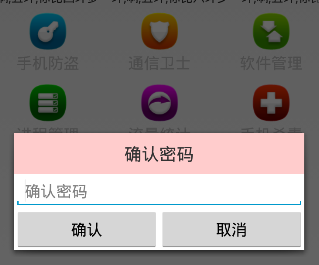 Android 手機衛士--確認密碼對話框編寫,android確認密碼
Android 手機衛士--確認密碼對話框編寫,android確認密碼本文接著實現“確認密碼”功能,也即是用戶以前設置過密碼,現在只需要輸入確認密
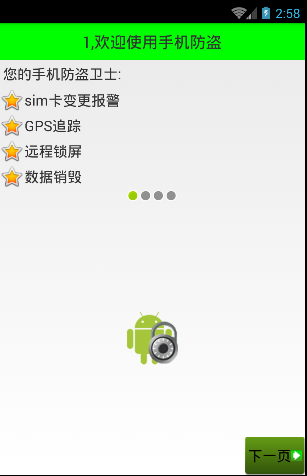 Android 手機衛士--設置界面&功能列表界面跳轉邏輯處理,android衛士--界面
Android 手機衛士--設置界面&功能列表界面跳轉邏輯處理,android衛士--界面在《Android 手機衛士--md5加密過程》中已經實現了加密類,這裡
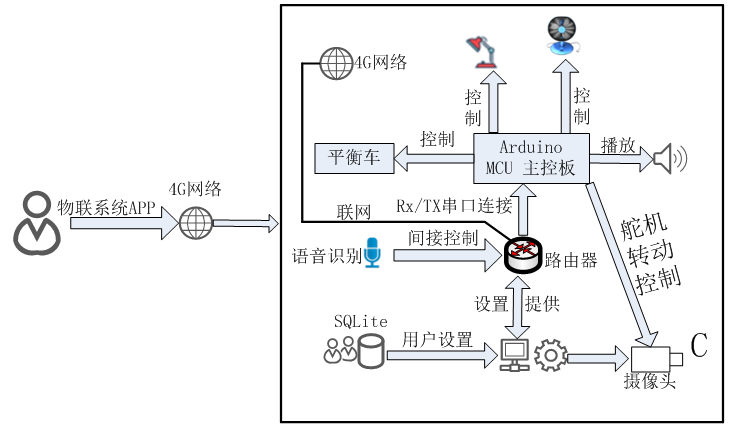 安卓APP與智能硬件相結合的簡易方案,安卓app智能相結合
安卓APP與智能硬件相結合的簡易方案,安卓app智能相結合第1章 概 述 (作者小波QQ463431476) (來源http://blog.chin
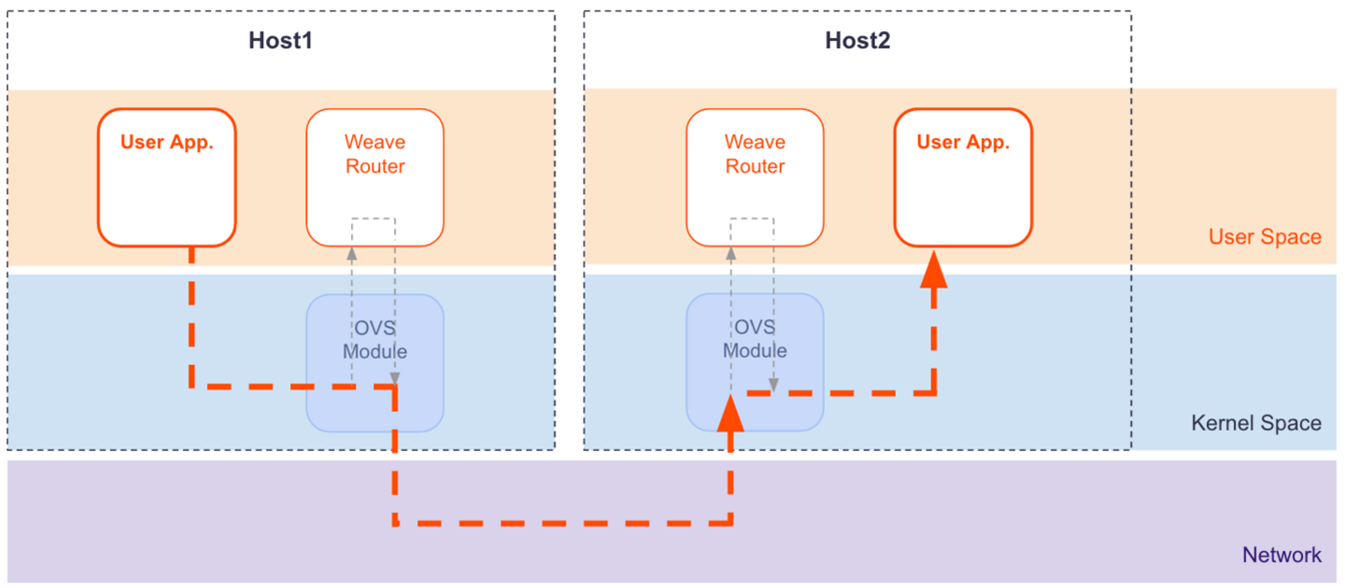 docker的跨主機解決方案weave----遇到的坑(1)
docker的跨主機解決方案weave----遇到的坑(1)在weave的1.2版本之後,考慮到原先sleeve模式的網絡性能很差,增加了fastdp的模式,該模式是we