編輯:關於android開發
在sdk中找到/sdk/docs/guide/topics/media/camera.html#custom-camera,裡面有詳細的api參考
在清單文件中添加相應的權限:
    <uses-permission android:name="android.permission.CAMERA" />
    <uses-feature android:name="android.hardware.camera" />
    <uses-permission android:name="android.permission.WRITE_EXTERNAL_STORAGE" />
    <uses-permission android:name="android.permission.RECORD_AUDIO" />
按照官方文檔,分為下面幾步:
SurfaceView and implements theSurfaceHolder interface. This class previews the live images from the camera.接下來分別實現:
1、檢查設備是否有照相機
    /** 檢查設備是否存在照相機 */
    private boolean checkCameraHardware(Context context) {
        if (context.getPackageManager().hasSystemFeature(PackageManager.FEATURE_CAMERA)){
            // this device has a camera
            return true;
        } else {
            // no camera on this device
            return false;
        }
    }
2、得到一個照相機
 /** 一種安全的方式獲取Cameer對象的實例. */
    public static Camera getCameraInstance(){
        Camera c = null;
        try {
            c = Camera.open(); // attempt to get a Camera instance
        }
        catch (Exception e){
            // Camera is not available (in use or does not exist)
        }
        return c; // returns null if camera is unavailable
    }
3、新建一個名為CameraPreview的類
package com.wuyudong.mycamera;

import java.io.IOException;

import android.content.Context;
import android.hardware.Camera;
import android.util.Log;
import android.view.SurfaceHolder;
import android.view.SurfaceView;

/** A basic Camera preview class */
public class CameraPreview extends SurfaceView implements
        SurfaceHolder.Callback {
    private static final String TAG = "CameraPreview";
    private SurfaceHolder mHolder;
    private Camera mCamera;

    public CameraPreview(Context context, Camera camera) {
        super(context);
        mCamera = camera;

        // Install a SurfaceHolder.Callback so we get notified when the
        // underlying surface is created and destroyed.
        mHolder = getHolder();
        mHolder.addCallback(this);
        // deprecated setting, but required on Android versions prior to 3.0
        mHolder.setType(SurfaceHolder.SURFACE_TYPE_PUSH_BUFFERS);
    }

    public void surfaceCreated(SurfaceHolder holder) {
        // The Surface has been created, now tell the camera where to draw the
        // preview.
        try {
            mCamera.setPreviewDisplay(holder);
            mCamera.startPreview();
        } catch (IOException e) {
            Log.d(TAG, "Error setting camera preview: " + e.getMessage());
        }
    }

    public void surfaceDestroyed(SurfaceHolder holder) {
        // empty. Take care of releasing the Camera preview in your activity.
    }

    public void surfaceChanged(SurfaceHolder holder, int format, int w, int h) {
        // If your preview can change or rotate, take care of those events here.
        // Make sure to stop the preview before resizing or reformatting it.

        if (mHolder.getSurface() == null) {
            // preview surface does not exist
            return;
        }

        // stop preview before making changes
        try {
            mCamera.stopPreview();
        } catch (Exception e) {
            // ignore: tried to stop a non-existent preview
        }

        // set preview size and make any resize, rotate or
        // reformatting changes here

        // start preview with new settings
        try {
            mCamera.setPreviewDisplay(mHolder);
            mCamera.startPreview();

        } catch (Exception e) {
            Log.d(TAG, "Error starting camera preview: " + e.getMessage());
        }
    }
}
4、設置一個預覽功能的layout,將原來布局文件中的內容替換成下面的代碼
<?xml version="1.0" encoding="utf-8"?>
<LinearLayout xmlns:android="http://schemas.android.com/apk/res/android"
    android:orientation="horizontal"
    android:layout_width="fill_parent"
    android:layout_height="fill_parent"
    >
  <FrameLayout
    android:id="@+id/camera_preview"
    android:layout_width="fill_parent"
    android:layout_height="fill_parent"
    android:layout_weight="1"
    />

  <Button
    android:id="@+id/button_capture"
    android:text="Capture"
    android:layout_width="wrap_content"
    android:layout_height="wrap_content"
    android:layout_gravity="center"
    />
</LinearLayout>
5、在清單文件中加入 android:screenOrientation="landscape" 調整相機為橫向拍攝
6、在MainActivity中添加
public class MainActivity extends Activity {

    private Camera mCamera;
    private CameraPreview mPreview;

    @Override
    public void onCreate(Bundle savedInstanceState) {
        super.onCreate(savedInstanceState);
        setContentView(R.layout.main);

        // Create an instance of Camera
        mCamera = getCameraInstance();

        // Create our Preview view and set it as the content of our activity.
        mPreview = new CameraPreview(this, mCamera);
        FrameLayout preview = (FrameLayout) findViewById(R.id.camera_preview);
        preview.addView(mPreview);
    }
}
7、實現拍攝按鈕的功能
(1)添加拍照回調方法
    private PictureCallback mPicture = new PictureCallback() {

        @Override
        public void onPictureTaken(byte[] data, Camera camera) {

            File pictureFile = new File("/sdcard/" + System.currentTimeMillis()+".jpg");
            try {
                FileOutputStream fos = new FileOutputStream(pictureFile);
                fos.write(data);
                fos.close();
            } catch (IOException e) {
                Log.d("TAG", "Error accessing file: " + e.getMessage());
            }
        }
    };
給拍照按鈕添加注冊事件:
        // Add a listener to the Capture button
        Button captureButton = (Button) findViewById(R.id.button_capture);
        captureButton.setOnClickListener(
            new View.OnClickListener() {
                @Override
                public void onClick(View v) {
                    // get an image from the camera
                    mCamera.takePicture(null, null, mPicture);
                }
            }
        );
完整的代碼如下:
package com.wuyudong.mycamera;

import java.io.File;
import java.io.FileNotFoundException;
import java.io.FileOutputStream;
import java.io.IOException;
import java.sql.Date;

import android.os.Bundle;
import android.app.Activity;
import android.content.Context;
import android.content.pm.PackageManager;
import android.hardware.Camera;
import android.hardware.Camera.AutoFocusCallback;
import android.hardware.Camera.PictureCallback;
import android.util.Log;
import android.view.Menu;
import android.view.View;
import android.widget.Button;
import android.widget.FrameLayout;

public class MainActivity extends Activity {

    private Camera mCamera;
    private CameraPreview mPreview;

    @Override
    protected void onCreate(Bundle savedInstanceState) {
        super.onCreate(savedInstanceState);
        setContentView(R.layout.activity_main);

        // 創建一個 Camera 的實例
        mCamera = getCameraInstance();

        // 創建一個預覽界面
        mPreview = new CameraPreview(this, mCamera);
        FrameLayout preview = (FrameLayout) findViewById(R.id.camera_preview);
        preview.addView(mPreview);

        // Add a listener to the Capture button
        Button captureButton = (Button) findViewById(R.id.button_capture);
        captureButton.setOnClickListener(
            new View.OnClickListener() {
                @Override
                public void onClick(View v) {
                    mCamera.autoFocus(new AutoFocusCallback() {  // 對焦

                        @Override
                        public void onAutoFocus(boolean success, Camera camera) {
                            // get an image from the camera
                            mCamera.takePicture(null, null, mPicture);

                        }
                    });

                }
            }
        );
    }

    /** 檢查設備是否存在照相機 */
    private boolean checkCameraHardware(Context context) {
        if (context.getPackageManager().hasSystemFeature(
                PackageManager.FEATURE_CAMERA)) {
            // this device has a camera
            return true;
        } else {
            // no camera on this device
            return false;
        }
    }

    /** 一種安全的方式獲取Cameer對象的實例. */
    public static Camera getCameraInstance() {
        Camera c = null;
        try {
            c = Camera.open(); // attempt to get a Camera instance
        } catch (Exception e) {
            // Camera is not available (in use or does not exist)
        }
        return c; // returns null if camera is unavailable
    }

    private PictureCallback mPicture = new PictureCallback() {

        @Override
        public void onPictureTaken(byte[] data, Camera camera) {

            File pictureFile = new File("/sdcard/" + System.currentTimeMillis()+".jpg");
            try {
                FileOutputStream fos = new FileOutputStream(pictureFile);
                fos.write(data);
                fos.close();
            } catch (IOException e) {
                Log.d("TAG", "Error accessing file: " + e.getMessage());
            }
        }
    };

    protected void onDestory() {
        if(mCamera != null) {    //釋放資源
            mCamera.release();
            mCamera = null;
        }
    }

}
 仿煎蛋jiandan應用客戶端源碼,煎蛋jiandan
仿煎蛋jiandan應用客戶端源碼,煎蛋jiandan項目源碼下載: http://code.662p.com/view/10654.html 效果圖 &
 Android學習第五篇——動畫效果
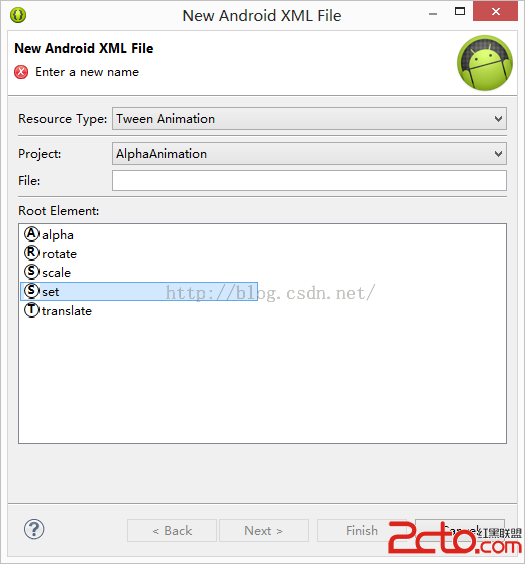
Android學習第五篇——動畫效果 接下來我要介紹的是Android的一些動畫效果 一、AlphaAnimation透明動畫 這裡我用到了兩種不同的方法來實現透明動畫效
 Android應用開發教程之十七:新浪微博XAuth方式授權與發送
開發新浪微博 首先須要使用官方提供的API接口weibo4android.jar 下載地址:http://download.csdn.net/so
 android開發之wheel控件使用詳解
android開發之wheel控件使用詳解 出門在外生不起病呀,隨便兩盒藥60多塊錢。好吧,不廢話了,今天我們來看看wheel控件的使用,這是GitHub上的一個開源控件