編輯:關於android開發
DrawerLayout布局,通常在裡面添加兩個子控件,程序主界面添加到NavitagionView前面。
<android.support.v4.widget.DrawerLayout xmlns:android="http://schemas.android.com/apk/res/android"
    xmlns:app="http://schemas.android.com/apk/res-auto"
    xmlns:tools="http://schemas.android.com/tools"
    android:id="@+id/drawer_layout"
    android:layout_width="match_parent"
    android:layout_height="match_parent"
    android:fitsSystemWindows="true"
    tools:openDrawer="start">
    <include
        layout="@layout/app_main"
        android:layout_width="match_parent"
        android:layout_height="match_parent" />

    <android.support.design.widget.NavigationView
        android:id="@+id/nav_view"
        android:layout_width="wrap_content"
        android:layout_height="match_parent"
        android:layout_gravity="start"
        android:fitsSystemWindows="true"
        app:headerLayout="@layout/nav_header_main"
        app:menu="@menu/activity_main_drawer" />
</android.support.v4.widget.DrawerLayout>
這裡有兩個重要的屬性headerLayout和menu,分別表示header部分布局和menu菜單資源。
程序主界面布局app_main,包含AppBarLayout和content_main,以及一個FloatingActionButton。
<android.support.design.widget.CoordinatorLayout xmlns:android="http://schemas.android.com/apk/res/android"
    xmlns:app="http://schemas.android.com/apk/res-auto"
    xmlns:tools="http://schemas.android.com/tools"
    android:layout_width="match_parent"
    android:layout_height="match_parent"
    android:fitsSystemWindows="true">

    <android.support.design.widget.AppBarLayout
        android:layout_width="match_parent"
        android:layout_height="wrap_content"
        android:theme="@style/AppTheme.AppBarOverlay">

        <android.support.v7.widget.Toolbar
            android:id="@+id/toolbar"
            android:layout_width="match_parent"
            android:layout_height="?attr/actionBarSize"
            android:background="?attr/colorPrimary"
            app:popupTheme="@style/AppTheme.PopupOverlay" />
    </android.support.design.widget.AppBarLayout>

    <include layout="@layout/content_main" />
    <android.support.design.widget.FloatingActionButton
        android:id="@+id/fab"
        android:layout_width="wrap_content"
        android:layout_height="wrap_content"
        android:layout_gravity="bottom|end"
        android:layout_margin="@dimen/fab_margin"
        android:src="@android:drawable/ic_dialog_email" />
</android.support.design.widget.CoordinatorLayout>
上面的主界面布局也以隨意切換成其它布局。
注意事項:
1.DrawerLayout指定openDrawer為start,NavigationView指定layout_gravity為start。
2.指定NavigationView的headerLayout屬性和menu屬性,分別為layout布局文件和menu文件。
headerLayout
<?xml version="1.0" encoding="utf-8"?>
<LinearLayout xmlns:android="http://schemas.android.com/apk/res/android"
    android:layout_width="match_parent"
    android:layout_height="@dimen/nav_header_height"
    android:background="@drawable/side_nav_bar"
    android:gravity="bottom"
    android:orientation="vertical"
    android:theme="@style/ThemeOverlay.AppCompat.Dark">
    <ImageView
        android:id="@+id/imageView"
        android:layout_width="wrap_content"
        android:layout_height="wrap_content"
        android:paddingTop="@dimen/nav_header_vertical_spacing"
        android:src="@android:drawable/sym_def_app_icon" />
    <TextView
        android:layout_width="match_parent"
        android:layout_height="wrap_content"
        android:paddingTop="@dimen/nav_header_vertical_spacing"
        android:text="Android Studio"
        android:textAppearance="@style/TextAppearance.AppCompat.Body1" />
    <TextView
        android:id="@+id/textView"
        android:layout_width="wrap_content"
        android:layout_height="wrap_content"
        android:text="android.studio@android.com" />
</LinearLayout>
menu菜單資源
調用 setNavigationItemSelectedListener() 後,在菜單項被選中的時候,你會通過OnNavigationItemSelectedListener 得到回調。在處理回調時,你會知道是哪個菜單項被點擊,此時你可以處理選擇事件,修改選中狀態,加載新的內容,以及通過代碼來關閉 drawer,或者其他任何你想執行的操作。
<menu xmlns:android="http://schemas.android.com/apk/res/android">
<group android:checkableBehavior="single">
<item
android:id="@+id/nav_camera"
android:icon="@drawable/ic_menu_camera"
android:title="Import" />
<item
android:id="@+id/nav_gallery"
android:icon="@drawable/ic_menu_gallery"
android:title="Gallery" />
<item
android:id="@+id/nav_slideshow"
android:icon="@drawable/ic_menu_slideshow"
android:title="Slideshow" />
<item
android:id="@+id/nav_manage"
android:icon="@drawable/ic_menu_manage"
android:title="Tools" />
</group>
<item android:title="Communicate">
<menu>
<item
android:id="@+id/nav_share"
android:icon="@drawable/ic_menu_share"
android:title="Share" />
<item
android:id="@+id/nav_send"
android:icon="@drawable/ic_menu_send"
android:title="Send" />
</menu>
</item>
</menu>
下面是涉及到的styles文件
<resources>
    <!-- Base application theme. -->
    <style name="AppTheme" parent="Theme.AppCompat.Light.DarkActionBar">
        <!-- Customize your theme here. -->
        <item name="colorPrimary">@color/colorPrimary</item>
        <item name="colorPrimaryDark">@color/colorPrimaryDark</item>
        <item name="colorAccent">@color/colorAccent</item>
    </style>
    <style name="AppTheme.NoActionBar">
        <item name="windowActionBar">false</item>
        <item name="windowNoTitle">true</item>
    </style>
    <style name="AppTheme.AppBarOverlay" parent="ThemeOverlay.AppCompat.Dark.ActionBar" />
    <style name="AppTheme.PopupOverlay" parent="ThemeOverlay.AppCompat.Light" />
</resources>
Activity
public class MainActivity extends AppCompatActivity implements NavigationView.OnNavigationItemSelectedListener {
    @Override
    protected void onCreate(Bundle savedInstanceState) {
        super.onCreate(savedInstanceState);
        setContentView(R.layout.activity_main);
        Toolbar toolbar = (Toolbar) findViewById(R.id.toolbar);
        setSupportActionBar(toolbar);
        FloatingActionButton fab = (FloatingActionButton) findViewById(R.id.fab);
        fab.setOnClickListener(new View.OnClickListener() {
            @Override
            public void onClick(View view) {
                Snackbar.make(view, "Replace with your own action", Snackbar.LENGTH_LONG)
                        .setAction("Action", null).show();
            }
        });
        DrawerLayout drawer = (DrawerLayout) findViewById(R.id.drawer_layout);
        ActionBarDrawerToggle toggle = new ActionBarDrawerToggle(
                this, drawer, toolbar, R.string.navigation_drawer_open, R.string.navigation_drawer_close);
        drawer.setDrawerListener(toggle);
        toggle.syncState();
        NavigationView navigationView = (NavigationView) findViewById(R.id.nav_view);
        navigationView.setNavigationItemSelectedListener(this);
    }
    @Override
    public void onBackPressed() {
        DrawerLayout drawer = (DrawerLayout) findViewById(R.id.drawer_layout);
        if (drawer.isDrawerOpen(GravityCompat.START)) {
            drawer.closeDrawer(GravityCompat.START);
        } else {
            super.onBackPressed();
        }
    }
    @Override
    public boolean onCreateOptionsMenu(Menu menu) {
        getMenuInflater().inflate(R.menu.main, menu);
        return true;
    }
    @Override
    public boolean onOptionsItemSelected(MenuItem item) {
        int id = item.getItemId();
        if (id == R.id.action_settings) {
            return true;
        }
        return super.onOptionsItemSelected(item);
    }
    @SuppressWarnings("StatementWithEmptyBody")
    @Override
    public boolean onNavigationItemSelected(MenuItem item) {
        int id = item.getItemId();
        DrawerLayout drawer = (DrawerLayout) findViewById(R.id.drawer_layout);
        drawer.closeDrawer(GravityCompat.START);
        return true;
    }
}
Toolbar設置
        mToolbar = (Toolbar) findViewById(R.id.toolbar);
        mToolbar.setTitle("Rocko");
        // 標題的文字需在setSupportActionBar之前,不然會無效
        // toolbar.setSubtitle("副標題");
        setSupportActionBar(mToolbar);
        /* 這些通過ActionBar來設置也是一樣的,注意要在setSupportActionBar(toolbar);之後,不然就報錯了 */
        // getSupportActionBar().setTitle("標題");
        // getSupportActionBar().setSubtitle("副標題");
        // getSupportActionBar().setLogo(R.drawable.ic_launcher);
        /* 菜單的監聽可以在toolbar裡設置,也可以像ActionBar那樣,通過下面的兩個回調方法來處理 */
        mToolbar.setOnMenuItemClickListener(new Toolbar.OnMenuItemClickListener() {
            @Override
            public boolean onMenuItemClick(MenuItem item) {
                switch (item.getItemId()) {
                    case R.id.action_settings:
                        Toast.makeText(MainActivity.this, "action_settings", Toast.LENGTH_SHORT).show();
                        break;
                    case R.id.action_share:
                        Toast.makeText(MainActivity.this, "action_share", Toast.LENGTH_SHORT).show();
                        break;
                    default:
                        Log.e("tag", item.toString());
                        break;
                }
                return true;
            }
        });
設置ActionBar及StatusBar背景顏色,在Api21及以上才有。
        if (null != vibrant) {
                /* 界面顏色UI統一性處理,看起來更Material一些 */
            mPagerSlidingTabStrip.setBackgroundColor(vibrant.getRgb());
            mPagerSlidingTabStrip.setTextColor(vibrant.getTitleTextColor());
            // 其中狀態欄、游標、底部導航欄的顏色需要加深一下,也可以不加,具體情況在代碼之後說明
            mPagerSlidingTabStrip.setIndicatorColor(colorBurn(vibrant.getRgb()));
            mToolbar.setBackgroundColor(vibrant.getRgb());
            if (android.os.Build.VERSION.SDK_INT >= 21) {
                Window window = getWindow();
                // 很明顯,這兩貨是新API才有的。
                window.setStatusBarColor(colorBurn(vibrant.getRgb()));
                window.setNavigationBarColor(colorBurn(vibrant.getRgb()));
            }
        }
colorBurn
    private int colorBurn(int RGBValues) {
        int alpha = RGBValues >> 24;
        int red = RGBValues >> 16 & 0xFF;
        int green = RGBValues >> 8 & 0xFF;
        int blue = RGBValues & 0xFF;
        red = (int) Math.floor(red * (1 - 0.1));
        green = (int) Math.floor(green * (1 - 0.1));
        blue = (int) Math.floor(blue * (1 - 0.1));
        return Color.rgb(red, green, blue);
    }
根據圖片來決定標題的顏色和標題欄的背景色,這樣視覺上更具有沖擊力和新鮮感,而不像統一色調那樣呆板。
Palette是什麼?它能讓你從圖像中提取突出的顏色。這個類能提取以下突出的顏色:
Vibrant(充滿活力的)
Vibrant dark(充滿活力的黑)
Vibrant light(充滿活力的亮)
Muted(柔和的)
Muted dark(柔和的黑)
Muted lighr(柔和的亮)
如何使用?
要提取這些顏色,在你加載圖片的後台線程中傳遞一個位圖對象給Palette.generate()靜態方法。如果不使用線程,則調用Palette.generateAsync()方法並且提供一個監聽器去替代。
你可以在Palette類中使用getter方法來從檢索突出的顏色,比如Palette.getVibrantColor。
Palette.from(bitmap).generate(new Palette.PaletteAsyncListener() {
@Override
public void onGenerated(Palette palette) {
      xx.setBackgroundColor(palette.getVibrantColor(mContext
             .getResources().getColor(R.color.black_translucent_60)));
  }
});
2.
Palette.from(bitmap).generate(new Palette.PaletteAsyncListener() {
@Override
public void onGenerated(Palette palette) {
      xx.setBackgroundColor(palette.getVibrantColor(mContext
             .getResources().getColor(R.color.black_translucent_60)));
  }
});
Palette.generateAsync(bitmap,new Palette.PaletteAsyncListener() {
   @Override
   public void onGenerated(Palette palette) {
        Palette.Swatch vibrant =palette.getVibrantSwatch();
         if (swatch != null) {
             // If we have a vibrant color
             // update the title TextView
             titleView.setBackgroundColor(vibrant.getRgb());
             titleView.setTextColor(vibrant.getTitleTextColor());
         }
   }
});
上面的代碼展示了如何從一張圖片中提取顏色將textView的背景色設置成圖片的主色調,然後再使用getTitleTextColor()來設置一個匹配的文字顏色。
比如如果你的TextView 有個背景圖片,要想讓字體顏色能夠和背景圖片匹配,則使用getBodyTextColor()比較合適,getTitleTextColor()其實應該和getBodyTextColor()差不多。
size的問題
你還可以使用如下方法一次性獲得所有的swatch:
List<Palette.Swatch> swatches = palette.getSwatches();
在上面的代碼中,你可能注意到了可以設置palette的size。size越大,花費的時間越長,而越小,可以選擇的色彩也越小。最佳的選擇是根據image的用途:
有四種創建Palette實例的方法:
// Synchronous methods.
// --------------------------------
// These should be used when you have access to the underlying image loading thread.
// Picasso allows this through a Transformation. For other libraries, YMMV.
// Uses the default palette size (16).
Palette p = Palette.generate(bitmap);
// Allows you to specify the maximum palette size, in this case 24.
Palette p = Palette.generate(bitmap, 24);
// Asynchronous methods
// --------------------------------
// This is the quick and easy integration path. Internally uses an AsyncTask so
// this may not be optimal (since you're dipping in and out of threads)
// Uses the default palette size (16).
Palette.generateAsync(bitmap, new Palette.PaletteAsyncListener() {
    @Override
    public void onGenerated(Palette palette) {
       // Here's your generated palette
    }
});
// Allows you to specify the maximum palette size, in this case 24.
Palette.generateAsync(bitmap, 24, new Palette.PaletteAsyncListener() {
    @Override
    public void onGenerated(Palette palette) {
       // Here's your generated palette
    }
});
創建完一個實例之後,我們還需要得到一種采集的樣本(swatch),有6中樣本(swatch):
Vibrant. Palette.getVibrantSwatch()
Vibrant dark. Palette.getDarkVibrantSwatch()
Vibrant light. Palette.getLightVibrantSwatch()
Muted. Palette.getMutedSwatch()
Muted dark. Palette.getDarkMutedSwatch()
Muted light. Palette.getLightMutedSwatch()
具體選擇哪一種取決於你自己,大多數情況下我們都使用Vibrant and Dark Vibrant。
使用樣本(swatch)
swatch有以下方法:
getPopulation(): the amount of pixels which this swatch represents.
getRgb(): the RGB value of this color.
getHsl(): the HSL value of this color.
getBodyTextColor(): the RGB value of a text color which can be displayed on top of this color.
getTitleTextColor(): the RGB value of a text color which can be displayed on top of this color.
 Android帶頭像的用戶注冊頁面,android用戶注冊
Android帶頭像的用戶注冊頁面,android用戶注冊詳細的圖文可以到我的百度經驗去查看:http://jingyan.baidu.com/article/cd4c2
 Creating Lists and Cards 創建列表和卡片,
Creating Lists and Cards 創建列表和卡片,To create complex lists and cards with material des
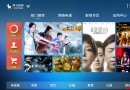 神馬視頻應用安卓項目源碼,神馬安卓項目源碼
神馬視頻應用安卓項目源碼,神馬安卓項目源碼SMTVLauncher 神馬視頻是一款包含直播、回看、點播、設置於一體的TVLauncher 注意:大家導入工程時,遇到報錯。
 定制 黑色描邊、白色背景、帶圓角 的背景,描邊圓角
定制 黑色描邊、白色背景、帶圓角 的背景,描邊圓角首先,在drawable文件夾寫一個xml文件solid_c9c9c9.xml 1 <?xml versi