編輯:關於android開發
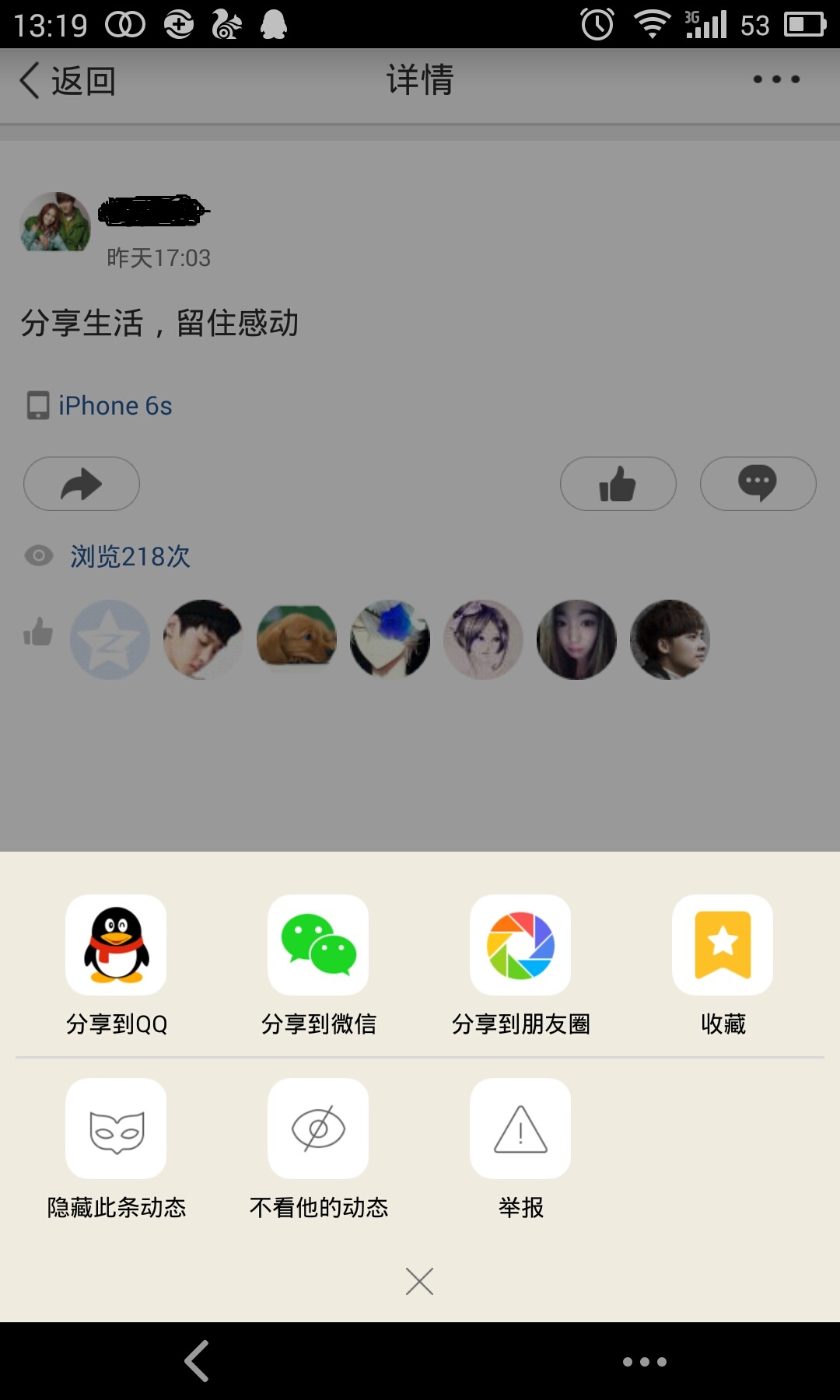
這是一張QQ空間說說詳情的截圖。
分析:
1、點擊右上角三個點的圖標,在界面底部彈出一個區域,這個區域有一些按鈕提供給我們操作
2、當該區域出現的時候,詳情界面便灰了,也說成透明度變化了
3、當任意選了一個按鈕或者點擊了該區域以外的部分,該區域消失,灰色界面變回亮白色,並執行點擊的按鈕對應的操作
顯然,這個功能我們需要用PopupWindow實現更好~
--------------------------------------------------------------------------------------
下面通過一個Demo來實現這個需求~~
效果圖:

首先還是布局文件:
1、主界面:
我們只需要在界面的右上角放一個按鈕來彈出PopupWindow ,注意 父容器需要有一個id,因為我們需要它來給PopupWindow設置彈出的位置
<RelativeLayout xmlns:android="http://schemas.android.com/apk/res/android"
    xmlns:tools="http://schemas.android.com/tools"
    android:layout_width="match_parent"
    android:layout_height="match_parent"
    tools:context=".MainActivity"
    android:id="@+id/mainlayout"
    >

    <ImageButton
        android:id="@+id/btn_more"
        android:layout_width="wrap_content"
        android:layout_height="wrap_content"
        android:src="@mipmap/btn_more"
        android:background="#0000"
        android:layout_alignParentRight="true"
        android:layout_margin="5dp"
        />

</RelativeLayout>
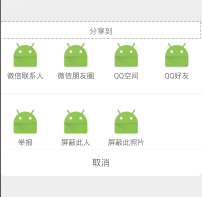
2、PopupWindow界面

--------------------------------------------------------------------------------------
java代碼部分:
1、首先我們要自定義一個繼承PopupWindow的類(根據項目需求決定定義的內容)/**
 * 自定義PopupWindow , 實現仿QQ空間分享效果
 */
public class SelectPopupWindow extends PopupWindow {

    //一個LinearLayout 表示一個可選操作
    private LinearLayout fp_hide_all,fp_hide_pic,fp_report,fp_linear_sharetoWeixin,fp_linear_sharetoquan,fp_linear_sharetoQzone,fp_linear_sharetoQQ;
    //popupWindow 取消文本按鈕
    private TextView fp_cancel;

    private View mMenuView;
    public SelectPopupWindow(Activity context, OnClickListener itemsOnClick) {
        super(context);
        LayoutInflater inflater = (LayoutInflater) context
                .getSystemService(Context.LAYOUT_INFLATER_SERVICE);
        mMenuView = inflater.inflate(R.layout.feed_popuwindow, null);

        fp_hide_pic = (LinearLayout) mMenuView.findViewById(R.id.fp_hide_pic);
        fp_hide_all = (LinearLayout) mMenuView.findViewById(R.id.fp_hide_all);
        fp_report = (LinearLayout) mMenuView.findViewById(R.id.fp_report);
        fp_linear_sharetoWeixin = (LinearLayout) mMenuView.findViewById(R.id.fp_linear_sharetoWeixin);
        fp_linear_sharetoquan = (LinearLayout) mMenuView.findViewById(R.id.fp_linear_sharetoquan);
        fp_linear_sharetoQzone = (LinearLayout) mMenuView.findViewById(R.id.fp_linear_sharetoQzone);
        fp_linear_sharetoQQ = (LinearLayout) mMenuView.findViewById(R.id.fp_linear_sharetoQQ);
        fp_cancel = (TextView) mMenuView.findViewById(R.id.fp_cancel);
        //點擊取消按鈕,關閉popupWindow
        fp_cancel.setOnClickListener(new OnClickListener() {
            @Override
            public void onClick(View v) {
                dismiss();
            }
        });
        fp_hide_pic.setOnClickListener(itemsOnClick);
        fp_hide_all.setOnClickListener(itemsOnClick);
        fp_report.setOnClickListener(itemsOnClick);
        fp_linear_sharetoWeixin.setOnClickListener(itemsOnClick);
        fp_linear_sharetoquan.setOnClickListener(itemsOnClick);
        fp_linear_sharetoQzone.setOnClickListener(itemsOnClick);
        fp_linear_sharetoQQ.setOnClickListener(itemsOnClick);

        this.setContentView(mMenuView);
        this.setWidth(LayoutParams.MATCH_PARENT);
        this.setHeight(LayoutParams.WRAP_CONTENT);
        ColorDrawable dw = new ColorDrawable(0x000000);
        this.setBackgroundDrawable(dw);
        this.setFocusable(true);

        //點擊popupWindow之外的部分  關閉popupWindow
        mMenuView.setOnTouchListener(new OnTouchListener() {
            public boolean onTouch(View v, MotionEvent event) {
                int height = mMenuView.findViewById(R.id.fp_linear_share).getTop();
                int y = (int) event.getY();
                if (event.getAction() == MotionEvent.ACTION_UP){
                    if(y<height){
                        dismiss();
                    }
                }
                return true;
            }
        });
    }
    // 可自主添加其他功能需求方法
}
最後看MainActivity.java
public class MainActivity extends Activity implements View.OnClickListener {
    // 自定義PopupWindow
    private SelectPopupWindow feedSelectPopupWindow;
    // 界面父容器
    private RelativeLayout relativeLayout;
    // 打開popupWindow的按鈕
    private ImageButton btn_more;

    @Override
    protected void onCreate(Bundle savedInstanceState) {
        super.onCreate(savedInstanceState);
        setContentView(R.layout.activity_main);
        relativeLayout = (RelativeLayout) findViewById(R.id.mainlayout);
        btn_more = (ImageButton) findViewById(R.id.btn_more);
        btn_more.setOnClickListener(this);
    }

    // popupWindow 點擊事件監聽
    private View.OnClickListener selectItemsOnClick = new View.OnClickListener() {
        public void onClick(View v) {
            switch (v.getId()) {
                //根據popupWindow 布局文件中的id 來執行相應的點擊事件
                case R.id.fp_linear_sharetoWeixin:
                    Toast.makeText(MainActivity.this,"點擊了微信分享",Toast.LENGTH_SHORT).show();
                    break;
                // ....
            }
            //每次點擊popupWindow中的任意按鈕,記得關閉此popupWindow,
            feedSelectPopupWindow.dismiss();
        }
    };

    /**
     * 設置添加屏幕的背景透明度
     * @param bgAlpha
     */
    public void backgroundAlpha(float bgAlpha)
    {
        WindowManager.LayoutParams lp = getWindow().getAttributes();
        lp.alpha = bgAlpha; //0.0-1.0
        getWindow().setAttributes(lp);
    }

    @Override
    public void onClick(View v) {
        switch (v.getId()) {
            //點擊分享按鈕,彈出PopupWindow
            case R.id.btn_more:
                feedSelectPopupWindow = new SelectPopupWindow(this, selectItemsOnClick);
                // 設置popupWindow顯示的位置
                // 此時設在界面底部並且水平居中
                feedSelectPopupWindow.showAtLocation(relativeLayout,
                        Gravity.BOTTOM| Gravity.CENTER_HORIZONTAL, 0, 0);
                // 當popupWindow 出現的時候 屏幕的透明度  ,設為0.5 即半透明 灰色效果
                backgroundAlpha(0.5f);
                // 設置popupWindow取消的點擊事件,即popupWindow消失後,屏幕的透明度,全透明,就回復原狀態
                feedSelectPopupWindow.setOnDismissListener(new PopupWindow.OnDismissListener() {
                    @Override
                    public void onDismiss() {
                        backgroundAlpha(1f);
                    }
                });
                break;
        }
    }
}
注意點:
如果你在你自己的項目中使用了彈出PopupWindow,報錯如下:
Unable to add window -- token null is not valid; is your activity running?
一般是錯誤在 .showAtLocation()方法上,那麼要注意PopupWindow和Dialog一樣是需要依賴於Activity存在的
所以不要在onCreate()方法中使用 .showAtLocation()方法 ,因為這個時候Activity還沒有Create()完成
--------------------------------------------------------------------------------------
相關知識:
QQ空間實現(一)—— 展示說說中的評論內容並有相應點擊事件
博主現在從事社交類社區類APP開發,有同領域的朋友歡迎關注交流~~~
 BaseHttpListActivity,幾行代碼搞定Android Http列表請求、加載和緩存,baseactivity
BaseHttpListActivity,幾行代碼搞定Android Http列表請求、加載和緩存,baseactivityAndroid開發中,向服務器請求一個列表並顯
 安卓 應用程序修改圖標不更新,安卓圖標
安卓 應用程序修改圖標不更新,安卓圖標自己在做項目時,真機測試時想更換應用程序的圖標(虛擬機更換後可以更新),但是更換後重新運行並沒有更新圖標。經過嘗試,最終通過重啟手機
 Android 手機衛士15--程序鎖,android衛士15--
Android 手機衛士15--程序鎖,android衛士15-- 1.基本思路 ①.創建已加鎖應用的數據庫(字段:_id,packagename),如果應
 Android Studio NDK開發
Android Studio NDK開發 以前接觸過NDK的開發,是在Eclipse環境下開發的。今天嘗試了下用Android Studio來配置,結果真是處處都是坑,現