編輯:Android開發實例
TabWidget類似於Android 中查看電話薄的界面,通過多個標簽切換顯示不同內容。要實現這一效果,首先要了解TabHost,它是一個用來存放多個Tab標簽的容器。每一個Tab都可以對應自己的布局,比如,電話薄中的Tab布局就是一個List的線性布局了。
要使用TabHost,首先需要通過getTabHost方法來獲取TabHost的對象,然後通過addTab方法來向TabHost中添加 Tab。當然每個Tab在切換時都會產生一個事件,要捕捉這個事件需要設置TabActivity的事件監聽 setOnTabChangedListener。
1、布局文件
<TabHost xmlns:android="http://schemas.android.com/apk/res/android"
android:id="@android:id/tabhost"
android:layout_width="fill_parent"
android:layout_height="fill_parent" >
<LinearLayout
android:layout_width="fill_parent"
android:layout_height="fill_parent"
android:orientation="vertical" >
<TabWidget
android:id="@android:id/tabs"
android:layout_width="fill_parent"
android:layout_height="wrap_content" />
<FrameLayout
android:id="@android:id/tabcontent"
android:layout_width="fill_parent"
android:layout_height="fill_parent" >
<TextView
android:id="@+id/textview1"
android:layout_width="fill_parent"
android:layout_height="fill_parent"
android:text="Linux"
android:textColor="#FF0000" />
<TextView
android:id="@+id/textview2"
android:layout_width="fill_parent"
android:layout_height="fill_parent"
android:text="MAC"
android:textColor="#385E0F" />
<TextView
android:id="@+id/textview3"
android:layout_width="fill_parent"
android:layout_height="fill_parent"
android:text="Windows"
android:textColor="#1E90FF" />
</FrameLayout>
</LinearLayout>
</TabHost>
2、修改MainActivity,注意是繼承自TabActivity
public class MainActivity extends TabActivity {

 private TabHost tabHost;

 @Override
 protected void onCreate(Bundle savedInstanceState) {
 super.onCreate(savedInstanceState);
 setContentView(R.layout.activity_main);

 tabHost = getTabHost();

 addTab();// 添加標簽
 // 設置TabHost背景顏色
 tabHost.setBackgroundColor(Color.argb(150, 20, 80, 150));
 // 設置TabHost背景圖片資源
 tabHost.setBackgroundResource(R.drawable.ic_launcher);
 // 設置當前顯示哪一個標簽 我的理解就是當你第一次啟動程序默認顯示那個標簽 這裡是指定的選項卡的ID從0開始
 tabHost.setCurrentTab(0);
 // 標簽切換事件處理,setOnTabChangedListener 注意是標簽切換事件不是點擊事件,而是從一個標簽切換到另外一個標簽會觸發的事件
 tabHost.setOnTabChangedListener(new OnTabChangeListener() {
  @Override
  public void onTabChanged(String tabId) {
  AlertDialog.Builder builder = new AlertDialog.Builder(MainActivity.this);
  Dialog dia;
  builder.setTitle("提示");
  builder.setMessage("當前選中了" + tabId + "標簽");
  builder.setPositiveButton("確定", new OnClickListener() {
   @Override
   public void onClick(DialogInterface dialog, int which) {
   dialog.cancel();
   }
  });
  dia = builder.create();
  dia.show();
  }
 });
 }

 // 為TabHost添加標簽 新建一個newTabSped(new TabSpec) 設置其標簽和圖標(setIndicator)、設置內容(setContent)
 // TabSpec是TabHost的內部類 TabHost對象的 newTabSpec()方法返回一個TabSpec對象
 // 源碼裡邊是這麼寫的 public TabSpec newTabSpec(String tag)
 // { return new TabSpec(tag); }
 private void addTab() {
 tabHost.addTab(tabHost
  .newTabSpec("tab1")
  .setIndicator("TAB1",
   getResources().getDrawable(R.drawable.ic_launcher))// setIndicator()此方法用來設置標簽和圖表
  .setContent(R.id.textview1));
 // 指定內容為一個TextView --->public TabHost.TabSpec setContent(int viewId) 此方法需要一個 viewId 作為參數
 tabHost.addTab(tabHost
  .newTabSpec("tab2")
  .setIndicator("TAB2",
   getResources().getDrawable(R.drawable.ic_launcher))
  .setContent(R.id.textview2));

 tabHost.addTab(tabHost
  .newTabSpec("tab3")
  .setIndicator("TAB3",
   getResources().getDrawable(R.drawable.ic_launcher))
  .setContent(R.id.textview3));
 }
}
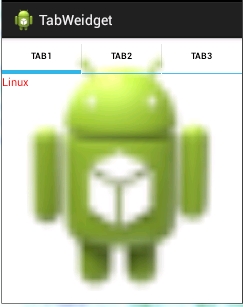
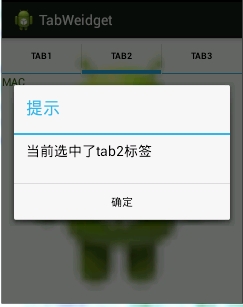
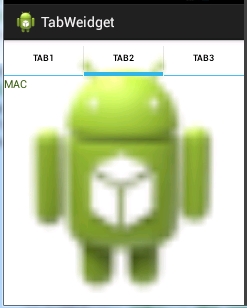
3、運行程序:如下!
 Android基礎之使用Fragment適應不同屏幕和分辨率(分享)
最近事情很忙,一個新項目趕著出來,但是很多功能都要重新做,一直在編寫代碼、Debug。今天因為一個新程序要使用Fragment來做,雖然以前也使用過Fragmen
 Android MediaPlayer(多媒體播放)
Android提供了許多方法來控制播放的音頻/視頻文件和流。其中該方法是通過一類稱為MediaPlayer。Android是提供MediaPlayer類訪問內置的媒體播放
 Android開發自學筆記(五):使用代碼控制界面
酷酷的外表已經具備了,那就開始讓我們真正把它的功能給實現起來吧,外強中干,花拳繡腿可不行哦,我們需要真正的本領,需要一顆自強不息的心哦,常常想想自己的夢想什麼,這
 Android簡易版音樂播放器
1. 布局XML/HTML代碼 <?xml version=&q