編輯:Android資訊
在Android的輸入框中加入清除按鈕,是很常見的設計,本文介紹如何創建一個控件,在輸入框中加入清除按鈕。
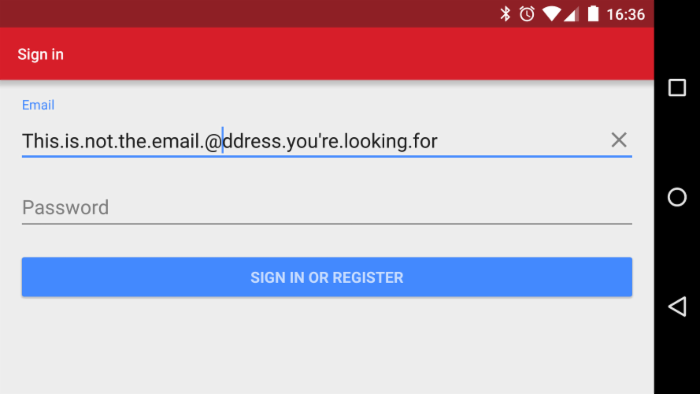
我們來看看實現這個控件都需要做什麼:
實現第一點,我們可以通過加入TextWatcher來監聽EditText的變化,在onFocusChangeListener方法中處理清除按鈕是否可見。
實現第二點,我們需要使用compound drawable作為清除按鈕,然後在 OnTouch listener中處理點擊事件。
我們使用AppCompatEditText作為基類
public class ClearableEditText extends AppCompatEditText
implements View.OnTouchListener, View.OnFocusChangeListener, TextWatcher {
接著加入構造函數
public ClearableEditText(final Context context) {
    super(context);
    init(context);
}

public ClearableEditText(final Context context, final AttributeSet attrs) {
    super(context, attrs);
    init(context);
}

public ClearableEditText(final Context context, final AttributeSet attrs, final int defStyleAttr) {
    super(context, attrs, defStyleAttr);
    init(context);
}
實現init方法
private void init(final Context context) {
    final Drawable drawable = ContextCompat.getDrawable(context, R.drawable.abc_ic_clear_mtrl_alpha);
    final Drawable wrappedDrawable = DrawableCompat.wrap(drawable); //Wrap the drawable so that it can be tinted pre Lollipop
    DrawableCompat.setTint(wrappedDrawable, getCurrentHintTextColor());
    mClearTextIcon = wrappedDrawable;
    mClearTextIcon.setBounds(0, 0, mClearTextIcon.getIntrinsicHeight(), mClearTextIcon.getIntrinsicHeight());
    setClearIconVisible(false);
    super.setOnTouchListener(this);
    super.setOnFocusChangeListener(this);
    addTextChangedListener(this);
}
我們默認使用setClearIconVisible(false)隱藏了清除按鈕,在輸入文本時才會顯示
private void setClearIconVisible(final boolean visible) {
    mClearTextIcon.setVisible(visible, false);
    final Drawable[] compoundDrawables = getCompoundDrawables();
    setCompoundDrawables(
            compoundDrawables[0],
            compoundDrawables[1],
            visible ? mClearTextIcon : null,
            compoundDrawables[3]);
}
private Drawable mClearTextIcon;
private OnFocusChangeListener mOnFocusChangeListener;
private OnTouchListener mOnTouchListener;

@Override
public void setOnFocusChangeListener(final OnFocusChangeListener onFocusChangeListener) {
    mOnFocusChangeListener = onFocusChangeListener;
}

@Override
public void setOnTouchListener(final OnTouchListener onTouchListener) {
    mOnTouchListener = onTouchListener;
}
最後我們來實現3個Listener,先來看focus Listener
@Override
public void onFocusChange(final View view, final boolean hasFocus) {
    if (hasFocus) {
        setClearIconVisible(getText().length() > 0);
    } else {
        setClearIconVisible(false);
    }
    if (mOnFocusChangeListener != null) {
        mOnFocusChangeListener.onFocusChange(view, hasFocus);
    }
}
在獲取焦點時,判斷輸入框中內容是否大於0,有內容則顯示清除按鈕。
接著我們來看onTouch方法:
@Override
public boolean onTouch(final View view, final MotionEvent motionEvent) {
    final int x = (int) motionEvent.getX();
    if (mClearTextIcon.isVisible() && x > getWidth() - getPaddingRight() - mClearTextIcon.getIntrinsicWidth()) {
        if (motionEvent.getAction() == MotionEvent.ACTION_UP) {
            setText("");
        }
        return true;
    }
    return mOnTouchListener != null && mOnTouchListener.onTouch(view, motionEvent);
}
在這裡,我們首先檢查了清除按鈕是否為顯示狀態,然後判斷點擊的范圍是否在清除按鈕內,如果在范圍內的話,在ACTION_UP時清空輸入框內容,否則執行mOnTouchListener的onTouch方法。
最後,我們實現TextWatcher:
@Override
public final void onTextChanged(final CharSequence s, final int start, final int before, final int count) {
    if (isFocused()) {
        setClearIconVisible(s.length() > 0);
    }
}

@Override
public void beforeTextChanged(CharSequence s, int start, int count, int after) {
}

@Override
public void afterTextChanged(Editable s) {
}
判斷輸入框中的字數,大於0則顯示清除按鈕,否則隱藏。
如果你使用的是AutoCompleteTextView,我們也可以使用同樣的方法添加清除按鈕:
public class ClearableAutoCompleteTextView extends AppCompatAutoCompleteTextView
implements View.OnTouchListener, View.OnFocusChangeListener, TextWatcher {
該控件的源碼已上傳到Github: ClearableEditText
本文譯自:Giving your Edit Texts the All Clear
 Android自定義日歷控件的實現過程詳解
為什麼要自定義控件 有時,原生控件不能滿足我們對於外觀和功能的需求,這時候可以自定義控件來定制外觀或功能;有時,原生控件可以通過復雜的編碼實現想要的功能,這時候可
 6 個可以讓代碼變得更整潔的 Android 庫
本文由碼農網 – 小峰原創翻譯,轉載請看清文末的轉載要求,歡迎參與我們的付費投稿計劃! Android開發是有趣的——這毫無疑問。然而,還是有很多平台迫使
 Android 更換皮膚思路及解決方案
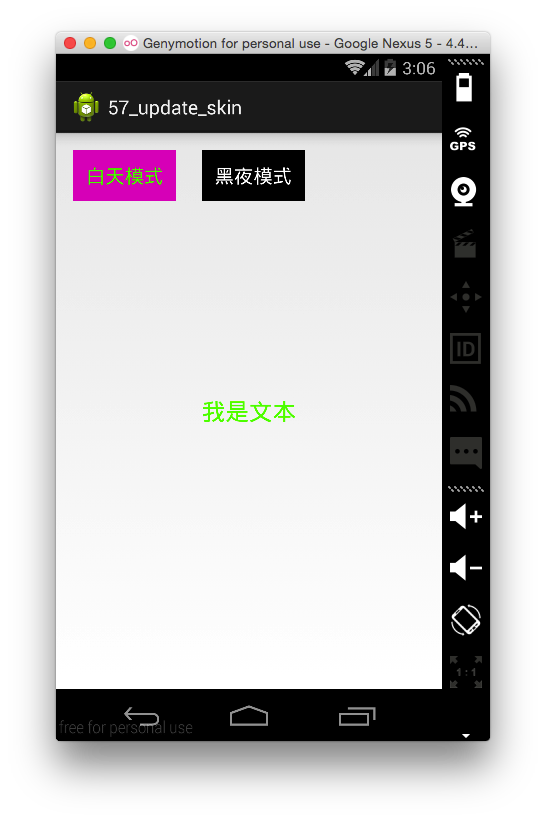
本篇博客要給大家分享的一個關於Android應用換膚的Demo,大家可以到我的github去下載demo,以後博文涉及到的代碼均會上傳到github中統一管理。
 Android aidl Binder框架淺析
1、概述 Binder能干什麼?Binder可以提供系統中任何程序都可以訪問的全局服務。這個功能當然是任何系統都應該提供的,下面我們簡單看一下Android的Bi