編輯:關於Android編程
看下效果圖
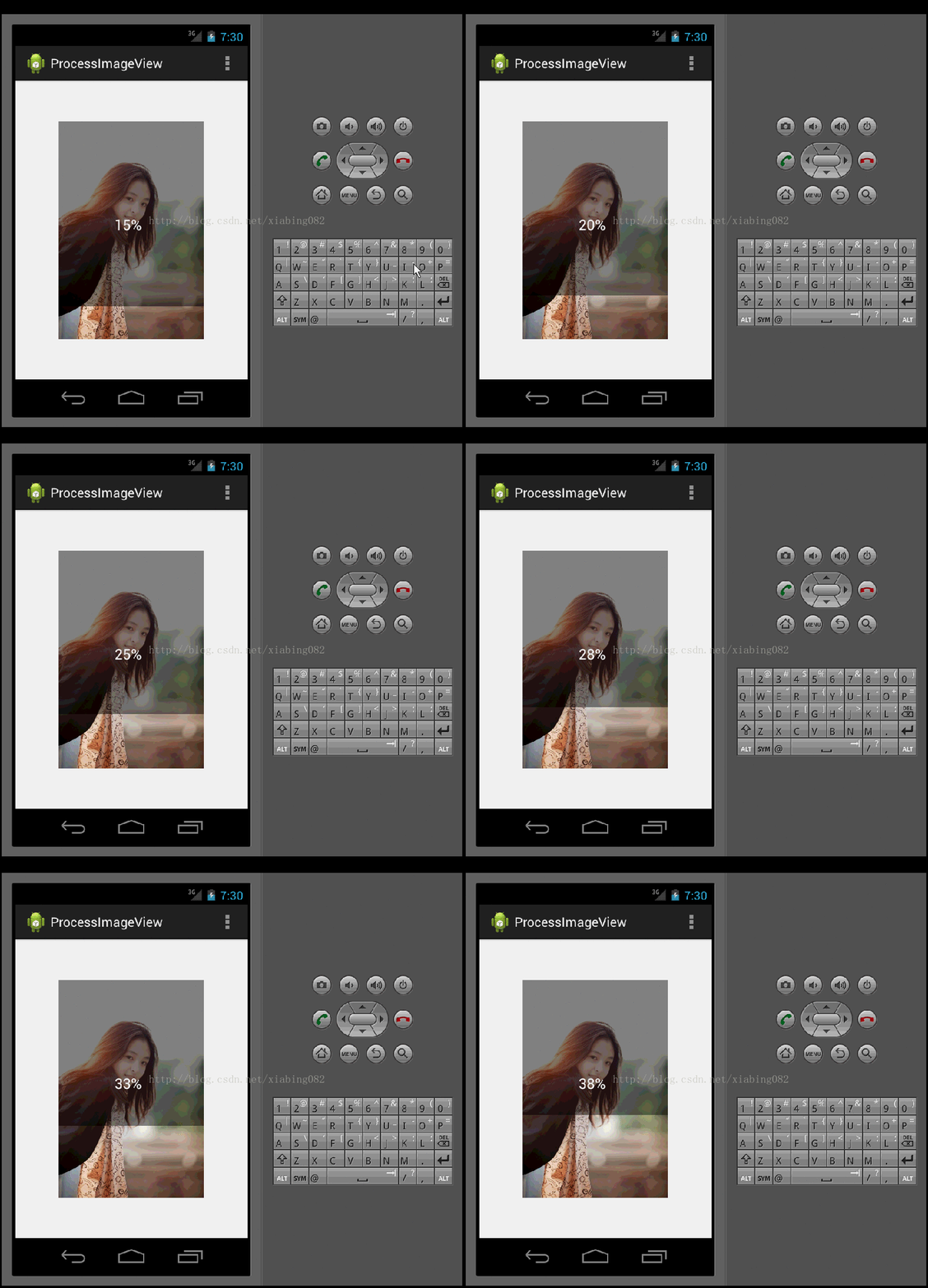
主要看下自定義view 代碼
public class ProcessImageView extends ImageView{
  private Context context;
  private Paint paint;
  private LogUtil log=LogUtil.getInstance();
  int progress = 0;
  private boolean flag;

  public ProcessImageView(Context context) {
    super(context);
  }

  public ProcessImageView(Context context, AttributeSet attrs) {
    this(context, attrs,0);
  }

  public ProcessImageView(Context context, AttributeSet attrs, int defStyleAttr) {
    super(context, attrs, defStyleAttr);
    this.context=context;
    paint=new Paint();
  }

  @Override
  protected void onDraw(Canvas canvas) {
    super.onDraw(canvas);
    paint.setAntiAlias(true); //消除鋸齒
    paint.setStyle(Paint.Style.FILL); //設置paint為實心, Paint.Style.STROKE為空心
    paint.setColor(Color.parseColor("#70000000")); //設置為半透明
    canvas.drawRect(0,0,getWidth(),getHeight()-getHeight()*progress/100,paint); //這裡getWidth() 獲取的是image對象寬高度 xml值*2

    paint.setColor(Color.parseColor("#00000000"));// 全透明
    canvas.drawRect(0, getHeight() - getHeight() * progress / 100,
        getWidth(), getHeight(), paint);

    if(!flag){
      paint.setTextSize(30);
      paint.setColor(Color.parseColor("#FFFFFF"));
      paint.setStrokeWidth(2);
      Rect rect = new Rect();
      paint.getTextBounds("100%", 0, "100%".length(), rect);// 確定文字的寬度
      canvas.drawText(progress + "%", getWidth() / 2 - rect.width() / 2,
          getHeight() / 2, paint);
    }
  }

  public void setProgress(int progress) {
    this.progress = progress;
    if(progress==100){
      flag=true;
    }
    postInvalidate();
  }
}
裡面代碼很詳細了。
然後看下 Activity代碼
public class MainActivity extends AppCompatActivity {
  ProcessImageView processImageView =null;
  int progress=0;

  @Override
  protected void onCreate(Bundle savedInstanceState) {
    super.onCreate(savedInstanceState);
    setContentView(R.layout.activity_main);

    processImageView=(ProcessImageView) findViewById(R.id.image);
    //模擬圖片上傳進度
    new Thread(new Runnable() {
      @Override
      public void run() {
        while (true){
          if(progress==100){//圖片上傳完成
            return;
          }
          progress++;
          processImageView.setProgress(progress);
          try{
            Thread.sleep(200); //暫停0.2秒
          } catch (InterruptedException e){
            e.printStackTrace();
          }
        }
      }
    }).start();
  }
}
下面來詳細介紹view代碼。
首先從圖中可以看到 中間有個參數變化,這個進度值不斷變化,我們再activity 中使用了一個線程 ,每隔0.2 秒會增加progress這個值,然後通過 processImageView.setProgress(progress); 改變view類中 progress重繪制這個定義view.
然後看下自定義view 類,主要onDraw()方法中.
繪制中分為三部分,
第一部分為上部分半透明區域
第二部分為下部分全透明區域
第三部分就是中間的progress值變化
先看第一個部分畫出上部分半透明,
paint.setAntiAlias(true); //消除鋸齒
    paint.setStyle(Paint.Style.FILL); //設置paint為實心, Paint.Style.STROKE為空心
    paint.setColor(Color.parseColor("#70000000")); //設置為半透明
    canvas.drawRect(0,0,getWidth(),getHeight()-getHeight()*progress/100,paint);
第二部分畫出下面透明區域
paint.setColor(Color.parseColor("#00000000"));// 全透明
    canvas.drawRect(0, getHeight() - getHeight() * progress / 100,
        getWidth(), getHeight(), paint);
第三部分動態改變字符串
if(!flag){
      paint.setTextSize(30);
      paint.setColor(Color.parseColor("#FFFFFF"));
      paint.setStrokeWidth(2);
      Rect rect = new Rect();
      paint.getTextBounds("100%", 0, "100%".length(), rect);// 確定文字的寬度
      canvas.drawText(progress + "%", getWidth() / 2 - rect.width() / 2,
          getHeight() / 2, paint);
    }
源碼地址 http://xiazai.jb51.net/201701/yuanma/ProcessImageDemo_jb51.rar
以上就是本文的全部內容,希望對大家的學習有所幫助,也希望大家多多支持本站。
 Android - 查看Android應用(apk)簽名
查看Android應用(apk)簽名 在微博、微信開放平台注冊應用時,需要填寫應用(apk)的簽名,可以使用keytool工具找
 [android]Android中圖形圖片及處理相關Api的小總結
開發應用中圖片的使用是必不可少的,Android系統提供了豐富的圖片支持功能。我們除了可以使Drawable資源庫,還可以使用Bitmap、Picture類去創建圖片,也
 從零開始學android(RatingBar評分組件.二十三.)
如果現在用戶要對某個應用程序打分往往會使用圖所示的組件,通過選擇的“五角星”的個數來決定最終的打分成績 這樣的功能在Android之中,可以使用RatingBar組件實現
 《Android源碼設計模式解析與實戰》讀書筆記(十六)
第十六章、訪問者模式 訪問者模式是一種行為型模式,它是23種設計模式中最復雜的一個,雖然使用頻率不高,但是並不代表可以忽略,在合適的地方,它會帶來意想不到的靈活性。訪問者