編輯:關於Android編程
了解二維碼這個東西還是從微信中,當時微信推出二維碼掃描功能,自己感覺挺新穎的,從一張圖片中掃一下竟然能直接加好友,不可思議啊,那時候還不了解二維碼,呵呵,然後做項目的時候,老板說要加上二維碼掃描功能,然後自己的屁顛屁顛的去百度,google啥的,發現很多朋友都有介紹二維碼掃描的功能,然後我就跟著人家的介紹自己搞起了二維碼掃描功能,跟著人家的帖子,很快我的項目就加入了掃描二維碼的功能,然後自己還很開心。
隨著微信的到來,二維碼越來越火爆,隨處能看到二維碼,比如商城裡面,肯德基,餐廳等等,對於二維碼掃描我們使用的是google的開源框架Zxing,我們可以去http://code.google.com/p/zxing/下載源碼和Jar包,之前我項目中的二維碼掃描功能只實現了掃描功能,其UI真的是其丑無比,一個好的應用軟件,其UI界面也要被大眾所接納,不然人家就不會用你的軟件啦,所以說應用軟件功能和界面一樣都很重要,例如微信,相信微信UI被很多應用軟件所模仿,我也仿照微信掃描二維碼效果進行模仿,雖然沒有微信做的那麼精致,但是效果還是可以的,所以將自己修改UI的代碼和掃描二維碼的代碼分享給大家,一是自己以後項目遇到同樣的功能直接拷貝來用,二是給還沒有加入二維碼功能的人一個參考,站在巨人的肩膀上,哈哈,我之前也是站在巨人的肩膀上加上此功能,接下來跟著我一步一步來實現此項功能,裡面去除了很多不必要的文件
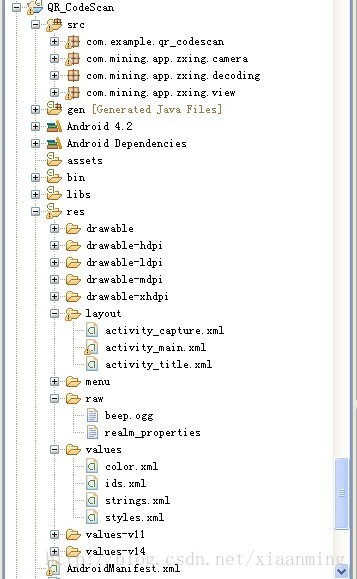
我們先看下項目的結構
/**
 * 處理掃描結果
 * @param result
 * @param barcode
 */
public void handleDecode(Result result, Bitmap barcode) {
 inactivityTimer.onActivity();
 playBeepSoundAndVibrate();
 String resultString = result.getText();
 if (resultString.equals("")) {
 Toast.makeText(MipcaActivityCapture.this, "Scan failed!", Toast.LENGTH_SHORT).show();
 }else {
 Intent resultIntent = new Intent();
 Bundle bundle = new Bundle();
 bundle.putString("result", resultString);
 bundle.putParcelable("bitmap", barcode);
 resultIntent.putExtras(bundle);
 this.setResult(RESULT_OK, resultIntent);
 }
 MipcaActivityCapture.this.finish();
}
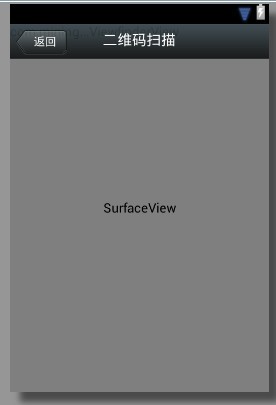
布局代碼如下
<?xml version="1.0" encoding="utf-8"?>
<FrameLayout xmlns:android="http://schemas.android.com/apk/res/android"
 android:layout_width="fill_parent"
 android:layout_height="fill_parent" >
 <RelativeLayout
 android:layout_width="fill_parent"
 android:layout_height="fill_parent" >
 <SurfaceView
 android:id="@+id/preview_view"
 android:layout_width="fill_parent"
 android:layout_height="fill_parent"
 android:layout_gravity="center" />
 <com.mining.app.zxing.view.ViewfinderView
 android:id="@+id/viewfinder_view"
 android:layout_width="wrap_content"
 android:layout_height="wrap_content" />
 <include
 android:id="@+id/include1"
 android:layout_width="fill_parent"
 android:layout_height="wrap_content"
 android:layout_alignParentTop="true"
 layout="@layout/activity_title" />
 </RelativeLayout>
</FrameLayout>
<?xml version="1.0" encoding="utf-8"?>
<RelativeLayout xmlns:android="http://schemas.android.com/apk/res/android"
 android:layout_width="fill_parent"
 android:layout_height="wrap_content"
 android:background="@drawable/mmtitle_bg_alpha" >
 <Button
 android:id="@+id/button_back"
 android:layout_width="75.0dip"
 android:text="返回"
 android:background="@drawable/mm_title_back_btn"
 android:textColor="@android:color/white"
 android:layout_height="wrap_content"
 android:layout_centerVertical="true"
 android:layout_marginLeft="2dip" />
 <TextView
 android:id="@+id/textview_title"
 android:layout_width="wrap_content"
 android:layout_height="wrap_content"
 android:layout_alignBaseline="@+id/button_back"
 android:layout_alignBottom="@+id/button_back"
 android:layout_centerHorizontal="true"
 android:gravity="center_vertical"
 android:text="二維碼掃描"
 android:textColor="@android:color/white"
 android:textSize="18sp" />
</RelativeLayout>
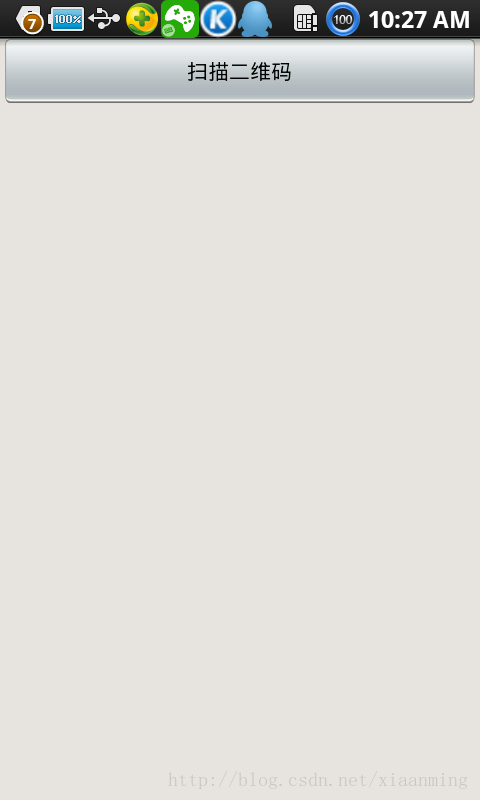
在我這個demo裡面,有一個主界面MainActivity,裡面一個Button, 一個ImageView和一個TextView,點擊Button進入到二維碼掃描界面,當掃描OK的時候,回到主界面,將掃描的結果顯示到TextView,將圖片顯示到ImageView裡面,然後你可以不處理圖片,我這裡隨帶的加上圖片,主界面的布局很簡單如下
<RelativeLayout xmlns:android="http://schemas.android.com/apk/res/android"
 xmlns:tools="http://schemas.android.com/tools"
 android:layout_width="match_parent"
 android:layout_height="match_parent"
 android:background="#ffe1e0de" >
 <Button
 android:id="@+id/button1"
 android:layout_width="fill_parent"
 android:layout_height="wrap_content"
 android:layout_alignParentTop="true"
 android:text="掃描二維碼" />
 <TextView
 android:id="@+id/result"
 android:layout_width="fill_parent"
 android:layout_height="wrap_content"
 android:layout_below="@+id/button1"
 android:lines="2"
 android:gravity="center_horizontal"
 android:textColor="@android:color/black"
 android:textSize="16sp" />
 <ImageView
 android:id="@+id/qrcode_bitmap"
 android:layout_width="fill_parent"
 android:layout_height="fill_parent"
 android:layout_alignParentLeft="true"
 android:layout_below="@+id/result"/>
</RelativeLayout>
package com.example.qr_codescan;
import android.app.Activity;
import android.content.Intent;
import android.graphics.Bitmap;
import android.os.Bundle;
import android.view.View;
import android.view.View.OnClickListener;
import android.widget.Button;
import android.widget.ImageView;
import android.widget.TextView;
public class MainActivity extends Activity {
 private final static int SCANNIN_GREQUEST_CODE = 1;
 /**
 * 顯示掃描結果
 */
 private TextView mTextView ;
 /**
 * 顯示掃描拍的圖片
 */
 private ImageView mImageView;
 @Override
 protected void onCreate(Bundle savedInstanceState) {
 super.onCreate(savedInstanceState);
 setContentView(R.layout.activity_main);
 mTextView = (TextView) findViewById(R.id.result);
 mImageView = (ImageView) findViewById(R.id.qrcode_bitmap);
 //點擊按鈕跳轉到二維碼掃描界面,這裡用的是startActivityForResult跳轉
 //掃描完了之後調到該界面
 Button mButton = (Button) findViewById(R.id.button1);
 mButton.setOnClickListener(new OnClickListener() {
 @Override
 public void onClick(View v) {
 Intent intent = new Intent();
 intent.setClass(MainActivity.this, MipcaActivityCapture.class);
 intent.setFlags(Intent.FLAG_ACTIVITY_CLEAR_TOP);
 startActivityForResult(intent, SCANNIN_GREQUEST_CODE);
 }
 });
 }
 @Override
 protected void onActivityResult(int requestCode, int resultCode, Intent data) {
 super.onActivityResult(requestCode, resultCode, data);
 switch (requestCode) {
 case SCANNIN_GREQUEST_CODE:
 if(resultCode == RESULT_OK){
 Bundle bundle = data.getExtras();
 //顯示掃描到的內容
 mTextView.setText(bundle.getString("result"));
 //顯示
 mImageView.setImageBitmap((Bitmap) data.getParcelableExtra("bitmap"));
 }
 break;
 }
 }
}
/*
 * Copyright (C) 2008 ZXing authors
 *
 * Licensed under the Apache License, Version 2.0 (the "License");
 * you may not use this file except in compliance with the License.
 * You may obtain a copy of the License at
 *
 * http://www.apache.org/licenses/LICENSE-2.0
 *
 * Unless required by applicable law or agreed to in writing, software
 * distributed under the License is distributed on an "AS IS" BASIS,
 * WITHOUT WARRANTIES OR CONDITIONS OF ANY KIND, either express or implied.
 * See the License for the specific language governing permissions and
 * limitations under the License.
 */
package com.mining.app.zxing.view;
import java.util.Collection;
import java.util.HashSet;
import android.content.Context;
import android.content.res.Resources;
import android.graphics.Bitmap;
import android.graphics.Canvas;
import android.graphics.Color;
import android.graphics.Paint;
import android.graphics.Rect;
import android.graphics.Typeface;
import android.util.AttributeSet;
import android.view.View;
import com.example.qr_codescan.R;
import com.google.zxing.ResultPoint;
import com.mining.app.zxing.camera.CameraManager;
/**
 * This view is overlaid on top of the camera preview. It adds the viewfinder
 * rectangle and partial transparency outside it, as well as the laser scanner
 * animation and result points.
 *
 */
public final class ViewfinderView extends View {
 private static final String TAG = "log";
 /**
 * 刷新界面的時間
 */
 private static final long ANIMATION_DELAY = 10L;
 private static final int OPAQUE = 0xFF;
 /**
 * 四個綠色邊角對應的長度
 */
 private int ScreenRate;
 /**
 * 四個綠色邊角對應的寬度
 */
 private static final int CORNER_WIDTH = 10;
 /**
 * 掃描框中的中間線的寬度
 */
 private static final int MIDDLE_LINE_WIDTH = 6;
 /**
 * 掃描框中的中間線的與掃描框左右的間隙
 */
 private static final int MIDDLE_LINE_PADDING = 5;
 /**
 * 中間那條線每次刷新移動的距離
 */
 private static final int SPEEN_DISTANCE = 5;
 /**
 * 手機的屏幕密度
 */
 private static float density;
 /**
 * 字體大小
 */
 private static final int TEXT_SIZE = 16;
 /**
 * 字體距離掃描框下面的距離
 */
 private static final int TEXT_PADDING_TOP = 30;
 /**
 * 畫筆對象的引用
 */
 private Paint paint;
 /**
 * 中間滑動線的最頂端位置
 */
 private int slideTop;
 /**
 * 中間滑動線的最底端位置
 */
 private int slideBottom;
 private Bitmap resultBitmap;
 private final int maskColor;
 private final int resultColor;
 private final int resultPointColor;
 private Collection<ResultPoint> possibleResultPoints;
 private Collection<ResultPoint> lastPossibleResultPoints;
 boolean isFirst;
 public ViewfinderView(Context context, AttributeSet attrs) {
 super(context, attrs);
 density = context.getResources().getDisplayMetrics().density;
 //將像素轉換成dp
 ScreenRate = (int)(20 * density);
 paint = new Paint();
 Resources resources = getResources();
 maskColor = resources.getColor(R.color.viewfinder_mask);
 resultColor = resources.getColor(R.color.result_view);
 resultPointColor = resources.getColor(R.color.possible_result_points);
 possibleResultPoints = new HashSet<ResultPoint>(5);
 }
 @Override
 public void onDraw(Canvas canvas) {
 //中間的掃描框,你要修改掃描框的大小,去CameraManager裡面修改
 Rect frame = CameraManager.get().getFramingRect();
 if (frame == null) {
 return;
 }
 //初始化中間線滑動的最上邊和最下邊
 if(!isFirst){
 isFirst = true;
 slideTop = frame.top;
 slideBottom = frame.bottom;
 }
 //獲取屏幕的寬和高
 int width = canvas.getWidth();
 int height = canvas.getHeight();
 paint.setColor(resultBitmap != null ? resultColor : maskColor);
 //畫出掃描框外面的陰影部分,共四個部分,掃描框的上面到屏幕上面,掃描框的下面到屏幕下面
 //掃描框的左邊面到屏幕左邊,掃描框的右邊到屏幕右邊
 canvas.drawRect(0, 0, width, frame.top, paint);
 canvas.drawRect(0, frame.top, frame.left, frame.bottom + 1, paint);
 canvas.drawRect(frame.right + 1, frame.top, width, frame.bottom + 1,
 paint);
 canvas.drawRect(0, frame.bottom + 1, width, height, paint);
 if (resultBitmap != null) {
 // Draw the opaque result bitmap over the scanning rectangle
 paint.setAlpha(OPAQUE);
 canvas.drawBitmap(resultBitmap, frame.left, frame.top, paint);
 } else {
 //畫掃描框邊上的角,總共8個部分
 paint.setColor(Color.GREEN);
 canvas.drawRect(frame.left, frame.top, frame.left + ScreenRate,
  frame.top + CORNER_WIDTH, paint);
 canvas.drawRect(frame.left, frame.top, frame.left + CORNER_WIDTH, frame.top
  + ScreenRate, paint);
 canvas.drawRect(frame.right - ScreenRate, frame.top, frame.right,
  frame.top + CORNER_WIDTH, paint);
 canvas.drawRect(frame.right - CORNER_WIDTH, frame.top, frame.right, frame.top
  + ScreenRate, paint);
 canvas.drawRect(frame.left, frame.bottom - CORNER_WIDTH, frame.left
  + ScreenRate, frame.bottom, paint);
 canvas.drawRect(frame.left, frame.bottom - ScreenRate,
  frame.left + CORNER_WIDTH, frame.bottom, paint);
 canvas.drawRect(frame.right - ScreenRate, frame.bottom - CORNER_WIDTH,
  frame.right, frame.bottom, paint);
 canvas.drawRect(frame.right - CORNER_WIDTH, frame.bottom - ScreenRate,
  frame.right, frame.bottom, paint);
 //繪制中間的線,每次刷新界面,中間的線往下移動SPEEN_DISTANCE
 slideTop += SPEEN_DISTANCE;
 if(slideTop >= frame.bottom){
 slideTop = frame.top;
 }
 canvas.drawRect(frame.left + MIDDLE_LINE_PADDING, slideTop - MIDDLE_LINE_WIDTH/2, frame.right - MIDDLE_LINE_PADDING,slideTop + MIDDLE_LINE_WIDTH/2, paint);
 //畫掃描框下面的字
 paint.setColor(Color.WHITE);
 paint.setTextSize(TEXT_SIZE * density);
 paint.setAlpha(0x40);
 paint.setTypeface(Typeface.create("System", Typeface.BOLD));
 canvas.drawText(getResources().getString(R.string.scan_text), frame.left, (float) (frame.bottom + (float)TEXT_PADDING_TOP *density), paint);
 Collection<ResultPoint> currentPossible = possibleResultPoints;
 Collection<ResultPoint> currentLast = lastPossibleResultPoints;
 if (currentPossible.isEmpty()) {
 lastPossibleResultPoints = null;
 } else {
 possibleResultPoints = new HashSet<ResultPoint>(5);
 lastPossibleResultPoints = currentPossible;
 paint.setAlpha(OPAQUE);
 paint.setColor(resultPointColor);
 for (ResultPoint point : currentPossible) {
  canvas.drawCircle(frame.left + point.getX(), frame.top
  + point.getY(), 6.0f, paint);
 }
 }
 if (currentLast != null) {
 paint.setAlpha(OPAQUE / 2);
 paint.setColor(resultPointColor);
 for (ResultPoint point : currentLast) {
  canvas.drawCircle(frame.left + point.getX(), frame.top
  + point.getY(), 3.0f, paint);
 }
 }
 //只刷新掃描框的內容,其他地方不刷新
 postInvalidateDelayed(ANIMATION_DELAY, frame.left, frame.top,
  frame.right, frame.bottom);
 }
 }
 public void drawViewfinder() {
 resultBitmap = null;
 invalidate();
 }
 /**
 * Draw a bitmap with the result points highlighted instead of the live
 * scanning display.
 *
 * @param barcode
 * An image of the decoded barcode.
 */
 public void drawResultBitmap(Bitmap barcode) {
 resultBitmap = barcode;
 invalidate();
 }
 public void addPossibleResultPoint(ResultPoint point) {
 possibleResultPoints.add(point);
 }

}
上面的代碼中,中間那根線微信是用的圖片,我這裡是畫的,如果你想更加仿真點就將下面的代碼
canvas.drawRect(frame.left + MIDDLE_LINE_PADDING, slideTop - MIDDLE_LINE_WIDTH/2, frame.right - MIDDLE_LINE_PADDING,slideTop + MIDDLE_LINE_WIDTH/2, paint);
改成
Rect lineRect = new Rect();
 lineRect.left = frame.left;
 lineRect.right = frame.right;
 lineRect.top = slideTop;
 lineRect.bottom = slideTop + 18;
 canvas.drawBitmap(((BitmapDrawable)(getResources().getDrawable(R.drawable.qrcode_scan_line))).getBitmap(), null, lineRect, paint);
那條掃描線自己去微信裡面找一下,我貼出來的失真了,下載微信apk,將後綴名改成zip,然後解壓就行了
畫掃描框下面字體的代碼需要修改下,這樣子能根據字體自動排列在中間,如果字太長我沒有處理,那個要自動換行,你可以自行處理
paint.setColor(Color.WHITE);
paint.setTextSize(TEXT_SIZE * density);
paint.setAlpha(0x40);
paint.setTypeface(Typeface.DEFAULT_BOLD);
String text = getResources().getString(R.string.R.string.scan_text);
float textWidth = paint.measureText(text);
canvas.drawText(text, (width - textWidth)/2, (float) (frame.bottom + (float)TEXT_PADDING_TOP *density), paint)
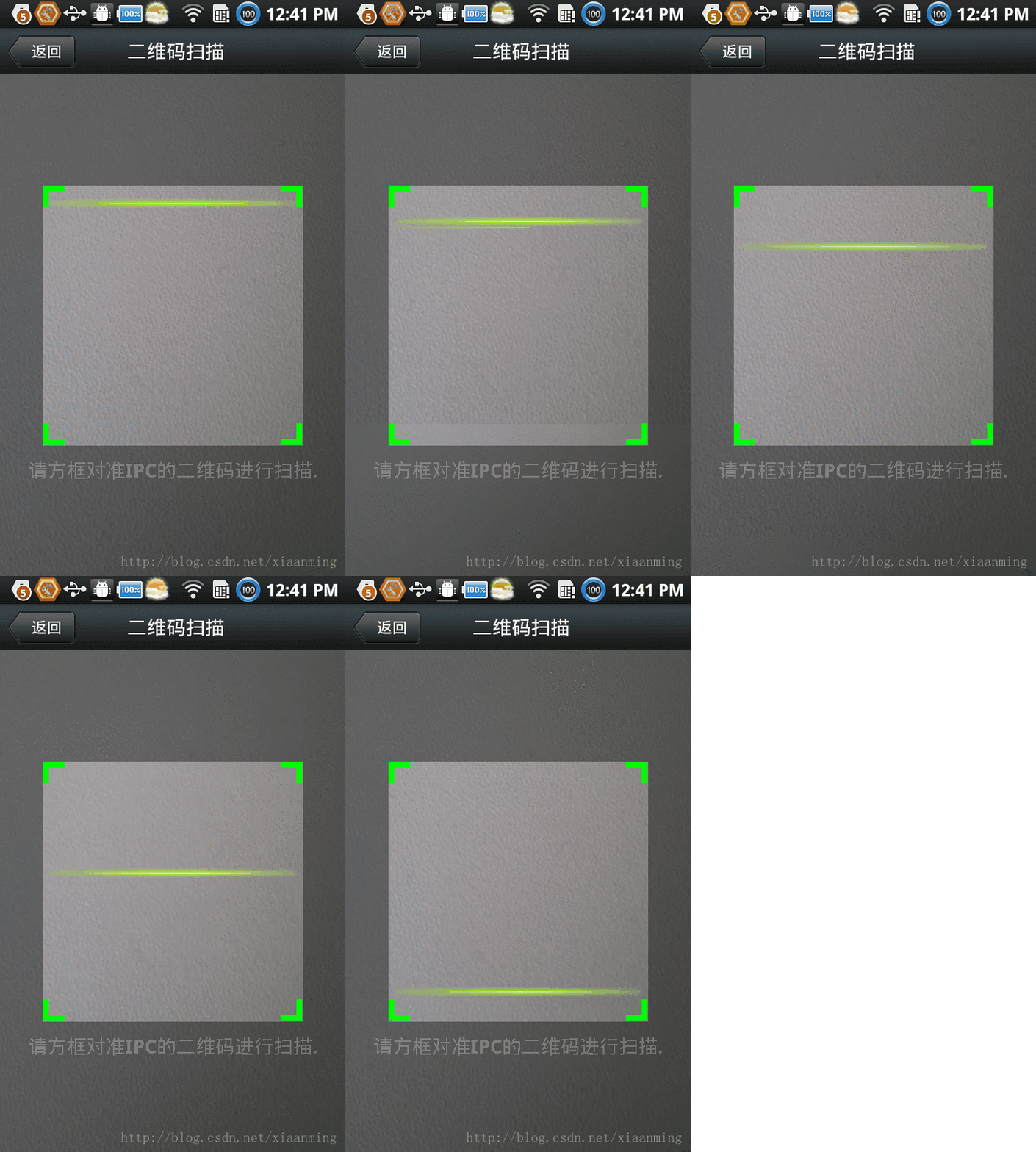
運行界面截圖,其中中間的那根綠色的線會上下移動,跟微信的效果差不多,當然運行你還需要相對應的權限問題,有興趣的朋友可以去下載demo
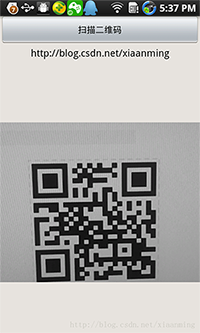
從8點多寫這篇博客寫到現在,看起來這麼點字,但實際上還是比較耗時間的,如果你覺得這篇文章對你有幫助,你就頂一下,哈哈,洗澡睡覺去了,上面的項目中還有一些資源文件我沒有貼出來,想要看效果可以下載源碼
我在Android 基於google Zxing實現對手機中的二維碼進行掃描這篇文章中實現了對手機中二維碼照片的掃描,並且替換了中間的掃描線,和微信效果更加相似,建議大家去下那文章的項目源碼
項目源碼,點擊下載
以上所述是小編給大家介紹的Android 基於google Zxing實現二維碼、條形碼掃描,仿微信二維碼掃描效果,希望對大家有所幫助,如果大家有任何疑問請給我留言,小編會及時回復大家的。在此也非常感謝大家對本站網站的支持!
 使用新版Android Studio檢測內存洩露和性能
內存洩露,是Android開發者最頭疼的事。可能一處小小的內存洩露,都可能是毀於千裡之堤的蟻穴。 怎麼才能檢測內存洩露呢?網上教程非常多,不過很多都是使用Eclipse
 安卓-屏幕適配方式
適配:即當前應用在相同的手機上面顯示相同的效果。適配前需要首先確定當前手機所屬像素密度類型(如:xhdpi、hdpi、mdpi等) 像素密度:每英寸上分布的像素點個數,單
 Android實現三級聯動下拉框 下拉列表spinner的實例代碼
主要實現辦法:動態加載各級下拉值的適配器在監聽本級下拉框,當本級下拉框的選中值改變時,隨之修改下級的適配器的綁定值 &
 美團Android DEX自動拆包及動態加載簡介
概述作為一個android開發者,在開發應用時,隨著業務規模發展到一定程度,不斷地加入新功能、添加新的類庫,代碼在急劇的膨脹,相應的apk包的大小也急劇增加,