編輯:關於Android編程
Toast大家都很熟,不多說。直接上圖上代碼。
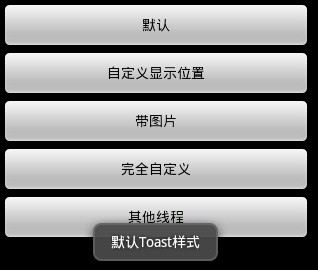
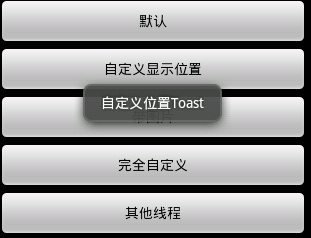
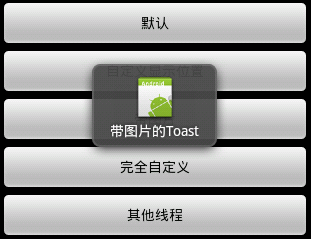
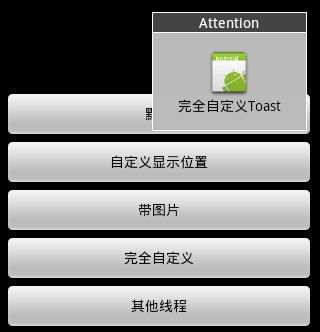
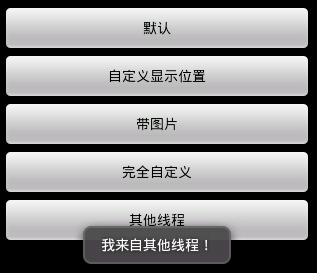
具體代碼如下:
main.xml:
<?xml version="1.0" encoding="utf-8"?>
<LinearLayout xmlns:android="http://schemas.android.com/apk/res/android"
  android:layout_width="fill_parent"
  android:layout_height="fill_parent"
  android:gravity="center"
  android:orientation="vertical"
  android:padding="5dip" >

  <Button
    android:id="@+id/btnSimpleToast"
    android:layout_width="fill_parent"
    android:layout_height="wrap_content"
    android:text="默認" >
  </Button>

  <Button
    android:id="@+id/btnSimpleToastWithCustomPosition"
    android:layout_width="fill_parent"
    android:layout_height="wrap_content"
    android:text="自定義顯示位置" >
  </Button>

  <Button
    android:id="@+id/btnSimpleToastWithImage"
    android:layout_width="fill_parent"
    android:layout_height="wrap_content"
    android:text="帶圖片" >
  </Button>

  <Button
    android:id="@+id/btnCustomToast"
    android:layout_width="fill_parent"
    android:layout_height="wrap_content"
    android:text="完全自定義" >
  </Button>

  <Button
    android:id="@+id/btnRunToastFromOtherThread"
    android:layout_width="fill_parent"
    android:layout_height="wrap_content"
    android:text="其他線程" >
  </Button>

</LinearLayout>
custom.xml:
<?xml version="1.0" encoding="utf-8"?>
<LinearLayout xmlns:android="http://schemas.android.com/apk/res/android"
  android:id="@+id/llToast"
  android:layout_width="wrap_content"
  android:layout_height="wrap_content"
  android:background="#ffffffff"
  android:orientation="vertical" >

  <TextView
    android:id="@+id/tvTitleToast"
    android:layout_width="fill_parent"
    android:layout_height="wrap_content"
    android:layout_margin="1dip"
    android:background="#bb000000"
    android:gravity="center"
    android:textColor="#ffffffff" />

  <LinearLayout
    android:id="@+id/llToastContent"
    android:layout_width="wrap_content"
    android:layout_height="wrap_content"
    android:layout_marginBottom="1dip"
    android:layout_marginLeft="1dip"
    android:layout_marginRight="1dip"
    android:background="#44000000"
    android:orientation="vertical"
    android:padding="15dip" >

    <ImageView
      android:id="@+id/tvImageToast"
      android:layout_width="wrap_content"
      android:layout_height="wrap_content"
      android:layout_gravity="center" />

    <TextView
      android:id="@+id/tvTextToast"
      android:layout_width="wrap_content"
      android:layout_height="wrap_content"
      android:gravity="center"
      android:paddingLeft="10dip"
      android:paddingRight="10dip"
      android:textColor="#ff000000" />
  </LinearLayout>

</LinearLayout>
package com.example.test;

import android.app.Activity;
import android.app.ActionBar;
import android.app.Fragment;
import android.content.Intent;
import android.os.Bundle;
import android.os.Handler;
import android.view.Gravity;
import android.view.LayoutInflater;
import android.view.Menu;
import android.view.MenuItem;
import android.view.View;
import android.view.View.OnClickListener;
import android.view.ViewGroup;
import android.widget.Button;
import android.widget.EditText;
import android.widget.ImageView;
import android.widget.LinearLayout;
import android.widget.TextView;
import android.widget.Toast;
import android.os.Build;

public class MainActivity extends Activity implements OnClickListener {
  Handler handler = new Handler();

  @Override
  public void onCreate(Bundle savedInstanceState) {
    super.onCreate(savedInstanceState);
    setContentView(R.layout.main);

    findViewById(R.id.btnSimpleToast).setOnClickListener(this);
    findViewById(R.id.btnSimpleToastWithCustomPosition).setOnClickListener(
        this);
    findViewById(R.id.btnSimpleToastWithImage).setOnClickListener(this);
    findViewById(R.id.btnCustomToast).setOnClickListener(this);
    findViewById(R.id.btnRunToastFromOtherThread).setOnClickListener(this);

  }

  public void showToast() {
    handler.post(new Runnable() {

      @Override
      public void run() {
        Toast.makeText(getApplicationContext(), "我來自其他線程!",
            Toast.LENGTH_SHORT).show();

      }
    });
  }

  @Override
  public void onClick(View v) {
    Toast toast = null;
    switch (v.getId()) {
    case R.id.btnSimpleToast:
      Toast.makeText(getApplicationContext(), "默認Toast樣式",
          Toast.LENGTH_SHORT).show();
      break;
    case R.id.btnSimpleToastWithCustomPosition:
      toast = Toast.makeText(getApplicationContext(), "自定義位置Toast",
          Toast.LENGTH_LONG);
      toast.setGravity(Gravity.CENTER, 0, 0);
      toast.show();
      break;
    case R.id.btnSimpleToastWithImage:
      toast = Toast.makeText(getApplicationContext(), "帶圖片的Toast",
          Toast.LENGTH_LONG);
      toast.setGravity(Gravity.CENTER, 0, 0);
      LinearLayout toastView = (LinearLayout) toast.getView();
      ImageView imageCodeProject = new ImageView(getApplicationContext());
      imageCodeProject.setImageResource(R.drawable.ic_launcher);
      toastView.addView(imageCodeProject, 0);
      toast.show();
      break;
    case R.id.btnCustomToast:
      LayoutInflater inflater = getLayoutInflater();
      View layout = inflater.inflate(R.layout.custom,
          (ViewGroup) findViewById(R.id.llToast));
      ImageView image = (ImageView) layout
          .findViewById(R.id.tvImageToast);
      image.setImageResource(R.drawable.ic_launcher);
      TextView title = (TextView) layout.findViewById(R.id.tvTitleToast);
      title.setText("Attention");
      TextView text = (TextView) layout.findViewById(R.id.tvTextToast);
      text.setText("完全自定義Toast");
      toast = new Toast(getApplicationContext());
      toast.setGravity(Gravity.RIGHT | Gravity.TOP, 12, 40);
      toast.setDuration(Toast.LENGTH_LONG);
      toast.setView(layout);
      toast.show();
      break;
    case R.id.btnRunToastFromOtherThread:
      new Thread(new Runnable() {
        public void run() {
          showToast();
        }
      }).start();
      break;

    }

  }

}
運行即可。
以上就是本文的全部內容,希望對大家的學習有所幫助,也希望大家多多支持本站。
 深入理解Binder
Binder概述一句話概括進程通信:進程間的數據傳遞。Binder是Anroid系統裡最重要的進程通信方式,很多文章會直接用代碼、原理類的文字進行描述,對於接觸Andro
 手機屏幕怎麼看好壞?分辨率辨手機屏幕好壞你懂嗎?
手機屏幕怎麼看好壞?屏幕是否夠清晰?接下來小編將教教大家怎麼從分辨率去看手機屏幕的好壞,快來圍觀吧!手機屏幕怎麼看好壞?手機屏幕怎麼看好壞?你的手機屏幕分辨
 android canvas常用的方法解析(一)
我們知道要想繪制一些特別的效果的話,離不開Paint和Canvas,Paint是你所畫圖形的一些基本屬性,按照面向對象的思想,你要把一個圓畫在畫布上,那麼是有畫筆和畫布,
 Android筆記 Intent用法總結
Intent: 官方解釋: An intent is an abstract description of an operation to be performed. I