編輯:關於Android編程
一、首先看下支付寶上芝麻信用分的效果圖:

二、思路
1、確定雷達圖中心點坐標
2、繪制多邊形及連接線
3、根據維度值繪制覆蓋區域
4、繪制分數
5、繪制每個維度的標題文字和圖標
三、實現
獲取布局的中心坐標
在onSizeChanged(int w, int h, int oldw, int oldh)方法裡面,根據View的長寬,計算出雷達圖的半徑(這裡取布局寬高最小值的四分之一,可以自定義),獲取整個布局的中心坐標。
public class CreditScoreView extends View {

 //數據個數
 private int dataCount = 5;
 //每個角的弧度
 private float radian = (float) (Math.PI * 2 / dataCount);
 //雷達圖半徑
 private float radius;
 //中心X坐標
 private int centerX;
 //中心Y坐標
 private int centerY;
 //各維度標題
 private String[] titles = {"履約能力", "信用歷史", "人脈關系", "行為偏好", "身份特質"};
 //各維度圖標
 private int[] icons = {R.mipmap.ic_performance, R.mipmap.ic_history, R.mipmap.ic_contacts,
   R.mipmap.ic_predilection, R.mipmap.ic_identity};
 //各維度分值
 private float[] data = {170, 180, 160, 170, 180};
 //數據最大值
 private float maxValue = 190;
 //雷達圖與標題的間距
 private int radarMargin = DensityUtils.dp2px(getContext(), 15);
 //雷達區畫筆
 private Paint mainPaint;
 //數據區畫筆
 private Paint valuePaint;
 //分數畫筆
 private Paint scorePaint;
 //標題畫筆
 private Paint titlePaint;
 //圖標畫筆
 private Paint iconPaint;
 //分數大小
 private int scoreSize = DensityUtils.dp2px(getContext(), 28);
 //標題文字大小
 private int titleSize = DensityUtils.dp2px(getContext(), 13);

 ...

 @Override
 protected void onSizeChanged(int w, int h, int oldw, int oldh) {
  //雷達圖半徑
  radius = Math.min(h, w) / 2 * 0.5f;
  //中心坐標
  centerX = w / 2;
  centerY = h / 2;
  postInvalidate();
  super.onSizeChanged(w, h, oldw, oldh);
 }

 ...
}
繪制多邊形和連接線
主要看下getPoint方法,此方法封裝了獲取雷達圖上各個點坐標的計算邏輯。
/**
 * 繪制多邊形
 *
 * @param canvas 畫布
 */
private void drawPolygon(Canvas canvas) {
 Path path = new Path();
 for (int i = 0; i < dataCount; i++) {
  if (i == 0) {
   path.moveTo(getPoint(i).x, getPoint(i).y);
  } else {
   path.lineTo(getPoint(i).x, getPoint(i).y);
  }
 }

 //閉合路徑
 path.close();
 canvas.drawPath(path, mainPaint);
}

/**
 * 繪制連接線
 *
 * @param canvas 畫布
 */
private void drawLines(Canvas canvas) {
 Path path = new Path();
 for (int i = 0; i < dataCount; i++) {
  path.reset();
  path.moveTo(centerX, centerY);
  path.lineTo(getPoint(i).x, getPoint(i).y);
  canvas.drawPath(path, mainPaint);
 }
}
getPoint方法,參數radarMargin與percent在此步驟賦予默認值。
/**
 * 獲取雷達圖上各個點的坐標
 *
 * @param position 坐標位置(右上角為0,順時針遞增)
 * @return 坐標
 */
private Point getPoint(int position) {
 return getPoint(position, 0, 1);
}

/**
 * 獲取雷達圖上各個點的坐標(包括維度標題與圖標的坐標)
 *
 * @param position 坐標位置
 * @param radarMargin 雷達圖與維度標題的間距
 * @param percent  覆蓋區的的百分比
 * @return 坐標
 */
private Point getPoint(int position, int radarMargin, float percent) {
 int x = 0;
 int y = 0;

 if (position == 0) {
  x = (int) (centerX + (radius + radarMargin) * Math.sin(radian) * percent);
  y = (int) (centerY - (radius + radarMargin) * Math.cos(radian) * percent);

 } else if (position == 1) {
  x = (int) (centerX + (radius + radarMargin) * Math.sin(radian / 2) * percent);
  y = (int) (centerY + (radius + radarMargin) * Math.cos(radian / 2) * percent);

 } else if (position == 2) {
  x = (int) (centerX - (radius + radarMargin) * Math.sin(radian / 2) * percent);
  y = (int) (centerY + (radius + radarMargin) * Math.cos(radian / 2) * percent);

 } else if (position == 3) {
  x = (int) (centerX - (radius + radarMargin) * Math.sin(radian) * percent);
  y = (int) (centerY - (radius + radarMargin) * Math.cos(radian) * percent);

 } else if (position == 4) {
  x = centerX;
  y = (int) (centerY - (radius + radarMargin) * percent);
 }

 return new Point(x, y);
}

多邊形和連接線
繪制覆蓋區域
/**
 * 繪制覆蓋區域
 *
 * @param canvas 畫布
 */
private void drawRegion(Canvas canvas) {
 Path path = new Path();

 for (int i = 0; i < dataCount; i++) {
  //計算百分比
  float percent = data[i] / maxValue;
  int x = getPoint(i, 0, percent).x;
  int y = getPoint(i, 0, percent).y;
  if (i == 0) {
   path.moveTo(x, y);
  } else {
   path.lineTo(x, y);
  }
 }

 //繪制填充區域的邊界
 path.close();
 valuePaint.setStyle(Paint.Style.STROKE);
 canvas.drawPath(path, valuePaint);

 //繪制填充區域
 valuePaint.setStyle(Paint.Style.FILL_AND_STROKE);
 canvas.drawPath(path, valuePaint);
}

覆蓋區域
繪制分數
/**
 * 繪制分數
 *
 * @param canvas 畫布
 */
private void drawScore(Canvas canvas) {
 int score = 0;
 //計算總分
 for (int i = 0; i < dataCount; i++) {
  score += data[i];
 }
 canvas.drawText(score + "", centerX, centerY + scoreSize / 2, scorePaint);
}

分數
繪制標題
/**
 * 繪制標題
 *
 * @param canvas 畫布
 */
private void drawTitle(Canvas canvas) {
 for (int i = 0; i < dataCount; i++) {
  int x = getPoint(i, radarMargin, 1).x;
  int y = getPoint(i, radarMargin, 1).y;

  Bitmap bitmap = BitmapFactory.decodeResource(getResources(), icons[i]);
  int iconHeight = bitmap.getHeight();
  float titleWidth = titlePaint.measureText(titles[i]);

  //底下兩個角的坐標需要向下移動半個圖片的位置(1、2)
  if (i == 1) {
   y += (iconHeight / 2);
  } else if (i == 2) {
   x -= titleWidth;
   y += (iconHeight / 2);
  } else if (i == 3) {
   x -= titleWidth;
  } else if (i == 4) {
   x -= titleWidth / 2;
  }
  canvas.drawText(titles[i], x, y, titlePaint);
 }
}
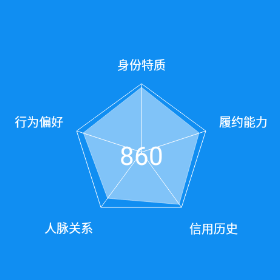
標題
繪制圖標
/**
 * 繪制圖標
 *
 * @param canvas 畫布
 */
private void drawIcon(Canvas canvas) {
 for (int i = 0; i < dataCount; i++) {
  int x = getPoint(i, radarMargin, 1).x;
  int y = getPoint(i, radarMargin, 1).y;

  Bitmap bitmap = BitmapFactory.decodeResource(getResources(), icons[i]);
  int iconWidth = bitmap.getWidth();
  int iconHeight = bitmap.getHeight();
  float titleWidth = titlePaint.measureText(titles[i]);

  //上面獲取到的x、y坐標是標題左下角的坐標
  //需要將圖標移動到標題上方居中位置
  if (i == 0) {
   x += (titleWidth - iconWidth) / 2;
   y -= (iconHeight + getTextHeight(titlePaint));
  } else if (i == 1) {
   x += (titleWidth - iconWidth) / 2;
   y -= (iconHeight / 2 + getTextHeight(titlePaint));
  } else if (i == 2) {
   x -= (iconWidth + (titleWidth - iconWidth) / 2);
   y -= (iconHeight / 2 + getTextHeight(titlePaint));
  } else if (i == 3) {
   x -= (iconWidth + (titleWidth - iconWidth) / 2);
   y -= (iconHeight + getTextHeight(titlePaint));
  } else if (i == 4) {
   x -= iconWidth / 2;
   y -= (iconHeight + getTextHeight(titlePaint));
  }

  canvas.drawBitmap(bitmap, x, y, titlePaint);
 }
}
/**
 * 獲取文本的高度
 *
 * @param paint 文本繪制的畫筆
 * @return 文本高度
 */
private int getTextHeight(Paint paint) {
 Paint.FontMetrics fontMetrics = paint.getFontMetrics();
 return (int) (fontMetrics.descent - fontMetrics.ascent);
}

圖標
總結
好了,到這裡主要的繪制工作就完成了,有些圖標實在找不到,就用相似的代替了。希望這篇文章的內容對各位Android開發者們能有所幫助,如果有疑問大家可以留言交流。
 Android 中自定義View的初步總結
概述在開發過程中,經常會遇到系統中提供的控件無法滿足產品的設計需求,這時可能就需要考慮使用自定義的View來實現產品的設計細節了。對於自定義View,可以分為兩種,一種是
 Android性能調優工具之 TraceView
從1月份Google發布的16個關於性能優化的系列視頻起,這段時間在各大社區都有看到很多優秀的關於優化系列的文章。有分析了性能產生的原因、有分享如何優化我們的應用、有介紹
 android--UI--listview使用和優化
listview一般使用步驟:1.定制實體類,加入要填入list的變量,設置好set,get方法。2.自定義item布局,根據要填入的數據。3.自定義適配器類,繼承Arr
 ViewPager初體驗
這個是第一種方法,將View轉為對象來加載。下面還會有第二種方法通過Fragment加載視圖。先上圖下面放碼過來了先上資源母乳!2個java文件,5個xml,View1-