編輯:關於Android編程
Tab與TabHost:

這就是Tab,而盛放Tab的容器就是TabHost 。
如何實現??
每一個Tab還對應了一個布局,這個就有點好玩了。一個Activity,對應了多個功能布局。
新建一個Tab項目,注意,不要生成main Activity 。
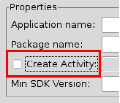
注意IDE,這裡不要選...
在包裡面新建一個類MyTab,繼承於TabActivity。
其實,TabActivity是Activity的子類
package zyf.tab.test;

import android.app.TabActivity;

public class MyTab extends TabActivity {

}
從父類繼承OnCreate()入口方法
package zyf.tab.test;
import android.app.TabActivity;
import android.os.Bundle;
public class MyTab extends TabActivity {
  @Override
  protected void onCreate(Bundle savedInstanceState) {
    // TODO Auto-generated method stub
    super.onCreate(savedInstanceState);
  }
}
在Manifest.xml文件中注冊一下MyTab類(Activity)
<activity android:name=".MyTab">
  <intent-filter>
    <action android:name="android.intent.action.MAIN"></action>
    <category android:name="android.intent.category.LAUNCHER"></category>
  </intent-filter>
</activity>
這時候,需要設計一下標簽頁對應的布局,一般采用FrameLayout作為根布局,每個標簽頁面對應一個子節點的Layout
<?xml version="1.0" encoding="utf-8"?>
<!-- 這裡是根節點布局 -- >
<FrameLayout xmlns:android="http://schemas.android.com/apk/res/android"
  android:layout_width="fill_parent" android:layout_height="fill_parent">

<!-- 第一個Tab 對應的布局 -- >
  <LinearLayout android:id="@+id/widget_layout_Blue"
    android:layout_width="fill_parent" android:layout_height="fill_parent"
    androidrientation="vertical" >
    <EditText android:id="@+id/widget34" android:layout_width="fill_parent"
      android:layout_height="wrap_content" android:text="EditText"
      android:textSize="18sp">
    </EditText>
    <Button android:id="@+id/widget30" android:layout_width="wrap_content"
      android:layout_height="wrap_content" android:text="Button">
    </Button>
  </LinearLayout>
<!-- 第二個Tab 對應的布局 -- >
  <LinearLayout android:id="@+id/widget_layout_red"
    android:layout_width="fill_parent" android:layout_height="fill_parent"
    androidrientation="vertical" >
    <AnalogClock android:id="@+id/widget36"
      android:layout_width="wrap_content" android:layout_height="wrap_content">
    </AnalogClock>
  </LinearLayout>
<!-- 第三個Tab 對應的布局 -- >
  <LinearLayout android:id="@+id/widget_layout_green"
    android:layout_width="fill_parent" android:layout_height="fill_parent"
    androidrientation="vertical">
    <RadioGroup android:id="@+id/widget43"
      android:layout_width="166px" android:layout_height="98px"
      androidrientation="vertical">
      <RadioButton android:id="@+id/widget44"
        android:layout_width="wrap_content" android:layout_height="wrap_content"
        android:text="RadioButton">
      </RadioButton>
      <RadioButton android:id="@+id/widget45"
        android:layout_width="wrap_content" android:layout_height="wrap_content"
        android:text="RadioButton">
      </RadioButton>
    </RadioGroup>
  </LinearLayout>
</FrameLayout>
首先,應該聲明TabHost,然後用LayoutInflater過濾出布局來,給TabHost加上含有Tab頁面的FrameLayout
private TabHost myTabhost;
myTabhost=this.getTabHost();//從TabActivity上面獲取放置Tab的TabHost
LayoutInflater.from(this).inflate(R.layout.main, myTabhost.getTabContentView(), true);
//from(this)從這個TabActivity獲取LayoutInflater
//R.layout.main 存放Tab布局
//通過TabHost獲得存放Tab標簽頁內容的FrameLayout
//是否將inflate 拴系到根布局元素上
myTabhost.setBackgroundColor(Color.argb(150, 22, 70, 150));
//設置一下TabHost的顏色
接著,在TabHost創建一個標簽,然後設置一下標題/圖標/標簽頁布局
myTabhost.addTab(myTabhost.newTabSpec("TT")// 制造一個新的標簽TT
   .setIndicator("KK",getResources().getDrawable(R.drawable.ajjc))
            // 設置一下顯示的標題為KK,設置一下標簽圖標為ajjc
            .setContent(R.id.widget_layout_red));
    //設置一下該標簽頁的布局內容為R.id.widget_layout_red,這是FrameLayout中的一個子Layout
標簽切換事件處理,setOnTabChangedListener
myTabhost.setOnTabChangedListener(new OnTabChangeListener(){
      @Override
      public void onTabChanged(String tabId) {
        // TODO Auto-generated method stub
      }
    });
各個標簽頁的動態MENU
先把在XML中設計好的MENU放到一個int數組裡
private static final int myMenuResources[] = { R.menu.phonebook_menu,
      R.menu.addphone_menu, R.menu.chatting_menu, R.menu.userapp_menu };
在setOnTabChangedListener()方法中根據標簽的切換情況來設置myMenuSettingTag
Override
  public void onTabChanged(String tagString) {
    // TODO Auto-generated method stub
    if (tagString.equals("One")) {
      myMenuSettingTag = 1;
    }
    if (tagString.equals("Two")) {
      myMenuSettingTag = 2;
    }
    if (tagString.equals("Three")) {
      myMenuSettingTag = 3;
    }
    if (tagString.equals("Four")) {
      myMenuSettingTag = 4;
    }
    if (myMenu != null) {
      onCreateOptionsMenu(myMenu);
    }
  }
然後onCreateOptionsMenu(Menu menu) 方法中通過MenuInflater過濾器動態加入MENU
  @Override
  public boolean onCreateOptionsMenu(Menu menu) {
    // TODO Auto-generated method stub
    // Hold on to this
    myMenu = menu;
    myMenu.clear();//清空MENU菜單
    // Inflate the currently selected menu XML resource.
    MenuInflater inflater = getMenuInflater();
//從TabActivity這裡獲取一個MENU過濾器
    switch (myMenuSettingTag) {
    case 1:
      inflater.inflate(myMenuResources[0], menu);
      //動態加入數組中對應的XML MENU菜單
      break;
    case 2:
      inflater.inflate(myMenuResources[1], menu);
      break;
    case 3:
      inflater.inflate(myMenuResources[2], menu);
      break;
    case 4:
      inflater.inflate(myMenuResources[3], menu);
      break;
    default:
      break;
    }
    return super.onCreateOptionsMenu(menu);
  }
menu 布局
<?xml version="1.0" encoding="utf-8"?>
<menu
 xmlns:android="http://schemas.android.com/apk/res/android">
<group android:id="@+id/group_a"><item android:id="@+id/item_a" android:icon="@drawable/gimp" android:title="Gimp"></item>
</group>
</menu>
運行效果
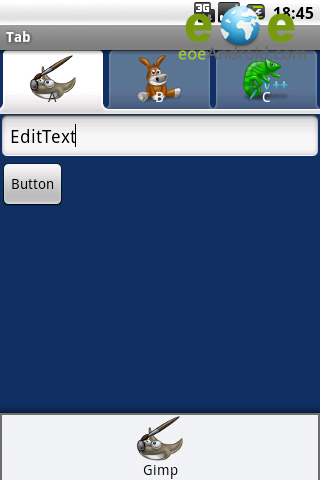
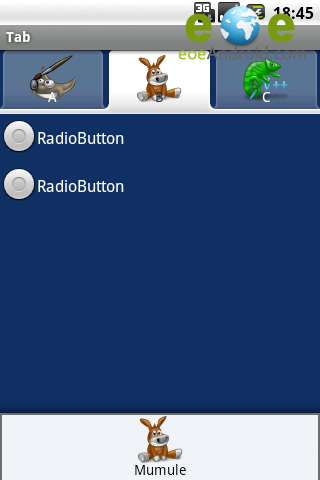
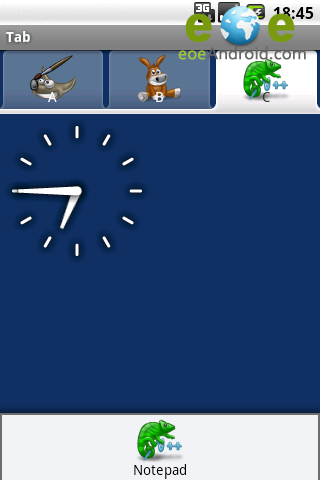
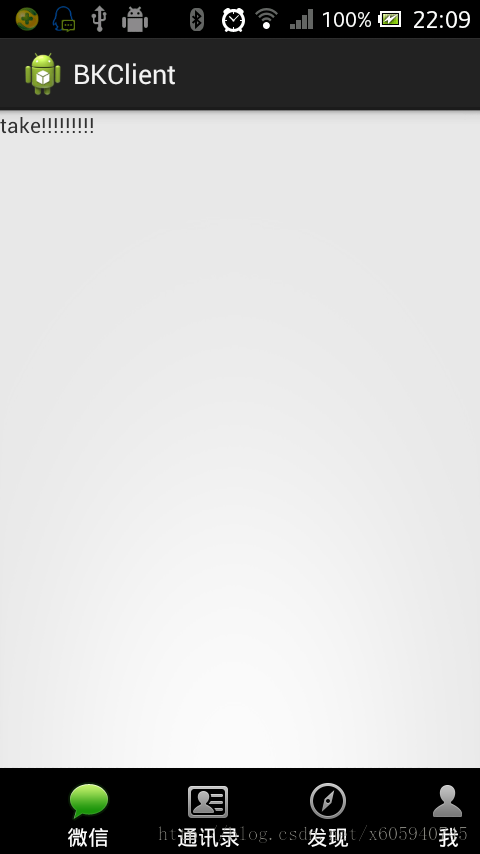
模仿微信導航實例:
<?xml version="1.0" encoding="utf-8"?>
<TabHost xmlns:android="http://schemas.android.com/apk/res/android"
  android:id="@android:id/tabhost"
  android:layout_width="match_parent"
  android:layout_height="match_parent" >

  <LinearLayout
    android:layout_width="match_parent"
    android:layout_height="match_parent"
    android:orientation="vertical" >

    <FrameLayout
      android:id="@android:id/tabcontent"
      android:layout_width="match_parent"
      android:layout_height="0.0dip"
      android:layout_weight="1.0" >
    </FrameLayout>

    <TabWidget
      android:id="@android:id/tabs"
      android:layout_width="match_parent"
      android:layout_height="wrap_content"
      android:visibility="gone" >
    </TabWidget>

    <RadioGroup
      android:layout_width="match_parent"
      android:layout_height="wrap_content"
      android:layout_gravity="bottom"
      android:background="@android:color/black"
      android:orientation="horizontal" >

      <RadioButton
        android:id="@+id/talk"

        android:drawableTop="@drawable/take_bottom"
        android:text="@string/talk" />

      <RadioButton
        android:id="@+id/address"

        android:drawableTop="@drawable/adrress_bottom"
        android:text="@string/address" />

      <RadioButton
        android:id="@+id/find"

        android:drawableTop="@drawable/find_bottom"
        android:text="@string/find" />

      <RadioButton
        android:id="@+id/me"

        android:drawableTop="@drawable/me_bottom"
        android:text="@string/me" />
    </RadioGroup>
  </LinearLayout>

</TabHost>
<?xml version="1.0" encoding="utf-8"?>
<selector xmlns:android="http://schemas.android.com/apk/res/android">

  <item android:drawable="@drawable/n_address_l" android:state_checked="true" android:state_enabled="true"/>
  <item android:drawable="@drawable/n_address_h"/>

</selector>
package com.android.xiong.bkclient;

import android.app.TabActivity;
import android.content.Intent;
import android.os.Bundle;
import android.widget.CompoundButton;
import android.widget.CompoundButton.OnCheckedChangeListener;
import android.widget.RadioButton;
import android.widget.TabHost;

@SuppressWarnings("deprecation")
public class MainActivity extends TabActivity implements
    OnCheckedChangeListener {

  private TabHost tabHost;
  private Intent addressIntent;
  private Intent meIntent;
  private Intent takeIntent;
  private Intent findIntent;

  private RadioButton findBt;
  private RadioButton addressBt;
  private RadioButton meBt;
  private RadioButton takeBt;

  @Override
  protected void onCreate(Bundle savedInstanceState) {
    super.onCreate(savedInstanceState);
    setContentView(R.layout.tabhostmain);
    addressIntent = new Intent(this, AddressActivity.class);
    meIntent = new Intent(this, MeActivity.class);
    takeIntent = new Intent(this, TakeActivity.class);
    findIntent = new Intent(this, FindActivity.class);
    findBt = (RadioButton) findViewById(R.id.find);
    addressBt = (RadioButton) findViewById(R.id.address);
    meBt = (RadioButton) findViewById(R.id.me);
    takeBt = (RadioButton) findViewById(R.id.talk);
    tabHost =getTabHost();
    tabHost.addTab(tabHost.newTabSpec("take").setIndicator("take")
        .setContent(takeIntent));
    tabHost.addTab(tabHost.newTabSpec("address").setIndicator("address")
        .setContent(addressIntent));
    tabHost.addTab(tabHost.newTabSpec("find").setIndicator("find")
        .setContent(findIntent));
    tabHost.addTab(tabHost.newTabSpec("me").setIndicator("me")
        .setContent(meIntent));
    findBt.setOnCheckedChangeListener(this);
    meBt.setOnCheckedChangeListener(this);
    takeBt.setOnCheckedChangeListener(this);
    addressBt.setOnCheckedChangeListener(this);
  }

  @Override
  public void onCheckedChanged(CompoundButton view, boolean ischeak) {
    if (ischeak) {
      switch (view.getId()) {
      case R.id.talk:
        tabHost.setCurrentTabByTag("take");
        break;
      case R.id.find:
        tabHost.setCurrentTabByTag("find");
        break;
      case R.id.me:
        tabHost.setCurrentTabByTag("me");
        break;
      case R.id.address:
        tabHost.setCurrentTabByTag("address");
        break;
      default:
        break;
      }
    }

  }
}
<manifest xmlns:android="http://schemas.android.com/apk/res/android"
  package="com.android.xiong.bkclient"
  android:versionCode="1"
  android:versionName="1.0" >

  <uses-sdk
    android:minSdkVersion="8"
    android:targetSdkVersion="19" />

  <application
    android:allowBackup="true"
    android:icon="@drawable/ic_launcher"
    android:label="@string/app_name"
    android:theme="@style/AppTheme" >
    <activity android:name="com.android.xiong.bkclient.MainActivity">
      <intent-filter>
        <action android:name="android.intent.action.MAIN" />

        <category android:name="android.intent.category.LAUNCHER" />
      </intent-filter>
    </activity>
    <activity android:name="com.android.xiong.bkclient.AddressActivity"></activity>
    <activity android:name="com.android.xiong.bkclient.FindActivity"></activity>
    <activity android:name="com.android.xiong.bkclient.MeActivity"></activity>
    <activity android:name="com.android.xiong.bkclient.TakeActivity"></activity>
  </application>

</manifest>
 android blur 詳解 ---- 配效果圖
在android 中,邊緣模糊的效果是通過BlurMaskFilter實現的 , 它定義了一個邊緣模糊半徑和模糊效果 (Blur)。Blur 有四種模糊效果, inner
 Android 屏幕旋轉 處理 AsyncTask 和 ProgressDialog 的最佳方案
1、概述 眾所周知,Activity在不明確指定屏幕方向和configChanges時,當用戶旋轉屏幕會重新啟動。當然了,應對這種情況,Android給
 React-Native系列Android——Touch事件原理及狀態效果
Native原生相比於Hybrid或H5最大優點是具有流暢和復雜的交互效果,觸摸事件便是其中重要一項,包括點擊(Click)、長按(LongClick)、手勢(gestu
 仿制慕課網app實現斗魚,全民k歌視頻引導頁(ViewVideoViewPaper)炫酷效果
在幾個月前,我第一次玩全民k歌,下載完app,它彈出來的引導頁吸引了我,不像以前的引導頁一樣千篇一律,而是用了視頻的方式,用一種動態的方式來實現。在今天,我突然又想起了這