編輯:關於Android編程
在消息通知的時候,我們經常用到兩個控件Notification和Toast。特別是重要的和需要長時間顯示的信息,用Notification最合適不過了。他可以在頂部顯示一個圖標以標示有了新的通知,當我們拉下通知欄的時候,可以看到詳細的通知內容。
最典型的應用就是未看短信和未接來電的顯示,還有QQ微信,我們一看就知道有一個未接來電或者未看短信,收到QQ離線信息。同樣,我們也可以自定義一個Notification來定義我們自己的程序想要傳達的信息。
Notification我把他分為兩種,一種是默認的顯示方式,另一種是自定義的,今天為大家講述默認的顯示方式:
1、程序框架結構圖如下
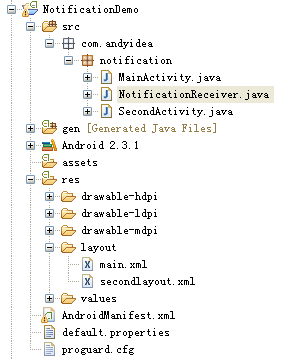
2、布局文件 main.xml 源碼如下
<?xml version="1.0" encoding="utf-8"?>
<LinearLayout xmlns:android="http://schemas.android.com/apk/res/android"
 android:orientation="vertical"
 android:layout_width="fill_parent"
 android:layout_height="fill_parent"
 >
<TextView
 android:layout_width="fill_parent"
 android:layout_height="wrap_content"
 android:gravity="center"
 android:textColor="#EEE"
 android:text
 android:textSize="25sp"
 android:text="NotificationDemo實例" />
<Button
 android:id="@+id/btnSend"
 android:text="send notification"
 android:layout_width="wrap_content"
 android:layout_height="wrap_content"
 android:layout_gravity="center"/>
</LinearLayout>
3、MainActivity.java源碼如下:
package com.andyidea.notification;

import android.app.Activity;
import android.content.Intent;
import android.os.Bundle;
import android.view.View;
import android.widget.Button;

public class MainActivity extends Activity {
 private Button btnSend;

 //定義BroadcastReceiver的action
 private static final String NotificationDemo_Action = "com.andyidea.notification.NotificationDemo_Action";

 /** Called when the activity is first created. */
 @Override
 public void onCreate(Bundle savedInstanceState) {
  super.onCreate(savedInstanceState);
  setContentView(R.layout.main);

  btnSend = (Button)findViewById(R.id.btnSend);
  btnSend.setOnClickListener(new View.OnClickListener() {
   @Override
   public void onClick(View v) {
    Intent intent = new Intent();
    intent.setAction(NotificationDemo_Action);
    sendBroadcast(intent);
   }
  });
 }

}
4、布局文件 secondlayou.xml 源碼如下:
<?xml version="1.0" encoding="utf-8"?>
<LinearLayout
 xmlns:android="http://schemas.android.com/apk/res/android"
 android:orientation="vertical"
 android:layout_width="fill_parent"
 android:layout_height="fill_parent">
 <TextView
 android:layout_width="fill_parent"
 android:layout_height="wrap_content"
 android:gravity="center"
 android:textColor="#EEE"
 android:text
 android:textSize="25sp"
 android:text="顯示通知界面" />
<Button
 android:id="@+id/btnCancel"
 android:text="cancel notification"
 android:layout_width="wrap_content"
 android:layout_height="wrap_content"
 android:layout_gravity="center" />
</LinearLayout>
5、SecondActivity.java源碼如下:
package com.andyidea.notification;

import android.app.Activity;
import android.app.Notification;
import android.app.NotificationManager;
import android.app.PendingIntent;
import android.content.Intent;
import android.os.Bundle;
import android.view.View;
import android.widget.Button;

public class SecondActivity extends Activity {

 private Button btnCancel;
 //聲明Notification
 private Notification notification;
 //聲明NotificationManager
 private NotificationManager mNotification;
 //標識Notification的ID
 private static final int ID = 1;

 @Override
 protected void onCreate(Bundle savedInstanceState) {
  super.onCreate(savedInstanceState);
  setContentView(R.layout.secondlayout);

  btnCancel = (Button)findViewById(R.id.btnCancel);
  //怎樣獲得NotificationManager的實例?
  String service = NOTIFICATION_SERVICE;
  mNotification = (NotificationManager)getSystemService(service);

  //獲得Notification的實例
  notification = new Notification();

  //設置該圖標 會在狀態欄顯示
  int icon = notification.icon = android.R.drawable.stat_sys_phone_call;
  //設置提示信息
  String tickerText = "Test Notification";
  //設置顯示時間
  long when = System.currentTimeMillis();
  notification.icon = icon;
  notification.tickerText = tickerText;
  notification.when = when;

  Intent intent = new Intent(this, MainActivity.class);
  PendingIntent pi = PendingIntent.getActivity(this, 0, intent, 0);
  notification.setLatestEventInfo(this, "消息", "SMS Android", pi);
  mNotification.notify(ID, notification);

  btnCancel.setOnClickListener(new View.OnClickListener() {
   @Override
   public void onClick(View v) {
    mNotification.cancel(ID); //--->取消通知
   }
  });
 }

}
6、NotificationReceiver.java源碼如下:
package com.andyidea.notification;

import com.andyidea.notification.SecondActivity;

import android.content.BroadcastReceiver;
import android.content.Context;
import android.content.Intent;

public class NotificationReceiver extends BroadcastReceiver {

 @Override
 public void onReceive(Context context, Intent intent) {
  //實例化Intent
  Intent i = new Intent();
  //在新任務中啟動Activity
  i.setFlags(Intent.FLAG_ACTIVITY_NEW_TASK);
  //設置Intent啟動的組件名稱
  i.setClass(context, SecondActivity.class);
  //啟動Activity,顯示通知
  context.startActivity(i);
 }

}
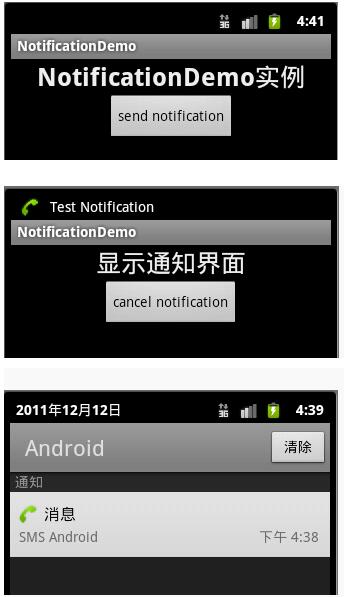
7、程序運行效果如下:
以上就是針對Android中Notification使用方法進行的詳細介紹,希望對大家的學習有所啟發,幫助大家更好地學習Android軟件編程。
 詳解Android中Activity的四大啟動模式實驗簡述
作為Android四大組件之一,Activity可以說是最基本也是最常見的組件,它提供了一個顯示界面,從而實現與用戶的交互,作為初學者,必須熟練掌握。今天我們就來通過實驗
 必須懂的Intent Filter匹配規則
Intent簡介Android中提供了Intent機制來協助應用間的交互與通訊,Intent負責對應用中一次操作的動作、動作涉及數據、附加數據進行描述,Android則根
 [Android初級]android與netty4初體驗
博主曾經對netty4的helloword很感興趣,也曾單純的寫過一個小小的聊天室java代碼,現在重新來看看,浏覽了這位牛人的博客 點擊去看看 我覺得受益匪淺,故拿來分
 Android自定義popupwindow實例代碼
先來看看效果圖:一、布局 <?xml version=1.0 encoding=utf-8?><LinearLayout xm