編輯:關於Android編程
本文實例講述了Android實現ListView異步加載圖片的方法。分享給大家供大家參考。具體如下:
ListView異步加載圖片是非常實用的方法,凡是是要通過網絡獲取圖片資源一般使用這種方法比較好,用戶體驗好,不用讓用戶等待下去,下面就說實現方法,先貼上主方法的代碼:
package cn.wangmeng.test;
import java.io.IOException;
import java.io.InputStream;
import java.lang.ref.SoftReference;
import java.net.MalformedURLException;
import java.net.URL;
import java.util.HashMap;
import android.graphics.drawable.Drawable;
import android.os.Handler;
import android.os.Message;
public class AsyncImageLoader {
 private HashMap<String, SoftReference<Drawable>> imageCache;
 public AsyncImageLoader() {
  imageCache = new HashMap<String, SoftReference<Drawable>>();
  }
 public Drawable loadDrawable(final String imageUrl, final ImageCallback imageCallback) {
  if (imageCache.containsKey(imageUrl)) {
   SoftReference<Drawable> softReference = imageCache.get(imageUrl);
   Drawable drawable = softReference.get();
   if (drawable != null) {
   return drawable;
   }
  }
  final Handler handler = new Handler() {
   public void handleMessage(Message message) {
   imageCallback.imageLoaded((Drawable) message.obj, imageUrl);
   }
  };
  new Thread() {
   @Override
   public void run() {
   Drawable drawable = loadImageFromUrl(imageUrl);
   imageCache.put(imageUrl, new SoftReference<Drawable>(drawable));
   Message message = handler.obtainMessage(0, drawable);
   handler.sendMessage(message);
   }
  }.start();
  return null;
  }
 public static Drawable loadImageFromUrl(String url) {
  URL m;
  InputStream i = null;
  try {
  m = new URL(url);
  i = (InputStream) m.getContent();
  } catch (MalformedURLException e1) {
  e1.printStackTrace();
  } catch (IOException e) {
  e.printStackTrace();
  }
  Drawable d = Drawable.createFromStream(i, "src");
  return d;
 }
 public interface ImageCallback {
  public void imageLoaded(Drawable imageDrawable, String imageUrl);
  }
}
以上代碼是實現異步獲取圖片的主方法,SoftReference是軟引用,是為了更好的為了系統回收變量,重復的URL直接返回已有的資源,實現回調函數,讓數據成功後,更新到UI線程。
幾個輔助類文件:
package cn.wangmeng.test;
public class ImageAndText {
 private String imageUrl;
 private String text;
 public ImageAndText(String imageUrl, String text) {
  this.imageUrl = imageUrl;
  this.text = text;
 }
 public String getImageUrl() {
  return imageUrl;
 }
 public String getText() {
  return text;
 }
}
package cn.wangmeng.test;
import android.view.View;
import android.widget.ImageView;
import android.widget.TextView;
public class ViewCache {
 private View baseView;
 private TextView textView;
 private ImageView imageView;
 public ViewCache(View baseView) {
  this.baseView = baseView;
 }
 public TextView getTextView() {
  if (textView == null) {
  textView = (TextView) baseView.findViewById(R.id.text);
  }
  return textView;
 }
 public ImageView getImageView() {
  if (imageView == null) {
  imageView = (ImageView) baseView.findViewById(R.id.image);
  }
  return imageView;
 }
}
ViewCache是輔助獲取adapter的子元素布局:
package cn.wangmeng.test;
import java.util.List;
import cn.wangmeng.test.AsyncImageLoader.ImageCallback;
import android.app.Activity;
import android.graphics.drawable.Drawable;
import android.view.LayoutInflater;
import android.view.View;
import android.view.ViewGroup;
import android.widget.ArrayAdapter;
import android.widget.ImageView;
import android.widget.ListView;
import android.widget.TextView;
public class ImageAndTextListAdapter extends ArrayAdapter<ImageAndText> {
 private ListView listView;
 private AsyncImageLoader asyncImageLoader;
 public ImageAndTextListAdapter(Activity activity, List<ImageAndText> imageAndTexts, ListView listView) {
  super(activity, 0, imageAndTexts);
  this.listView = listView;
  asyncImageLoader = new AsyncImageLoader();
 }
 public View getView(int position, View convertView, ViewGroup parent) {
  Activity activity = (Activity) getContext();
  // Inflate the views from XML
  View rowView = convertView;
  ViewCache viewCache;
  if (rowView == null) {
  LayoutInflater inflater = activity.getLayoutInflater();
  rowView = inflater.inflate(R.layout.image_and_text_row, null);
  viewCache = new ViewCache(rowView);
  rowView.setTag(viewCache);
  } else {
  viewCache = (ViewCache) rowView.getTag();
  }
  ImageAndText imageAndText = getItem(position);
  // Load the image and set it on the ImageView
  String imageUrl = imageAndText.getImageUrl();
  ImageView imageView = viewCache.getImageView();
  imageView.setTag(imageUrl);
  Drawable cachedImage = asyncImageLoader.loadDrawable(imageUrl, new ImageCallback() {
  public void imageLoaded(Drawable imageDrawable, String imageUrl) {
   ImageView imageViewByTag = (ImageView) listView.findViewWithTag(imageUrl);
   if (imageViewByTag != null) {
   imageViewByTag.setImageDrawable(imageDrawable);
   }
  }
  });
  if (cachedImage == null) {
  imageView.setImageResource(R.drawable.default_image);
  }else{
  imageView.setImageDrawable(cachedImage);
  }
  // Set the text on the TextView
  TextView textView = viewCache.getTextView();
  textView.setText(imageAndText.getText());
  return rowView;
 }
}
ImageAndTextListAdapter是實現ListView的Adapter,裡面有個技巧就是imageView.setTag(imageUrl),setTag是存儲數據的,這樣是為了保證在回調函數時,listview去更新自己對應item,大家仔細閱讀就知道了。
最後貼出布局文件:
<?xml version="1.0" encoding="utf-8"?>
<LinearLayout xmlns:android="http://schemas.android.com/apk/res/android"
  android:orientation="horizontal"
  android:layout_width="fill_parent"
  android:layout_height="wrap_content">
 <ImageView android:id="@+id/image"
   android:layout_width="wrap_content"
   android:layout_height="wrap_content"
   />
 <TextView android:id="@+id/text"
   android:layout_width="wrap_content"
   android:layout_height="wrap_content"/>
</LinearLayout>
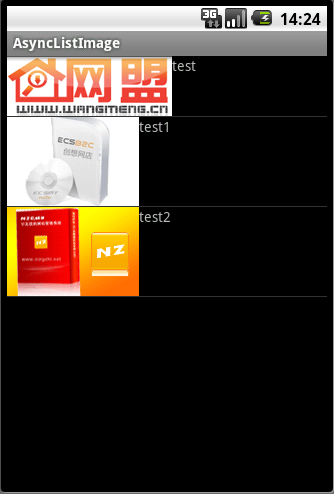
運行效果截圖如下:
希望本文所述對大家的C#程序設計有所幫助。
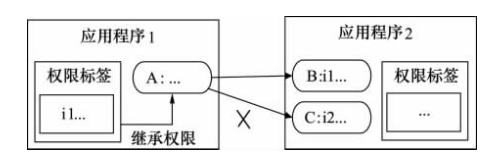 Android中Permission權限機制的具體使用
由上篇Android Permission權限機制引子,我們知道Android 通過在每台設備上實施了基於權限的安全策略來處理安全問題,采用權限來限制安裝應用程序的能力。
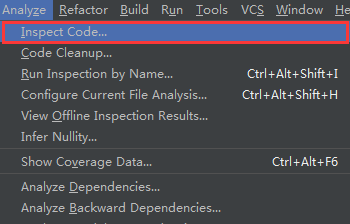 Android Studio使用Lint進行代碼檢查
Android Studio目前已經更新到1.4版本,它作為Google官方推薦的IDE,功能非常強大,其中提供了一套靜態代碼分析工具,它可以幫助我們檢查項目中存在的問題
 Android通過String.format格式化(動態改變)字符串資源的顯示內容
一、實現效果: 最近在項目中需要做類似於上圖顯示的效果,裡面的數字和稱謂是動態獲取的,對於這種顯示效果,有如下兩種解決方案來處理: (1)通過代碼動態設置TextVie
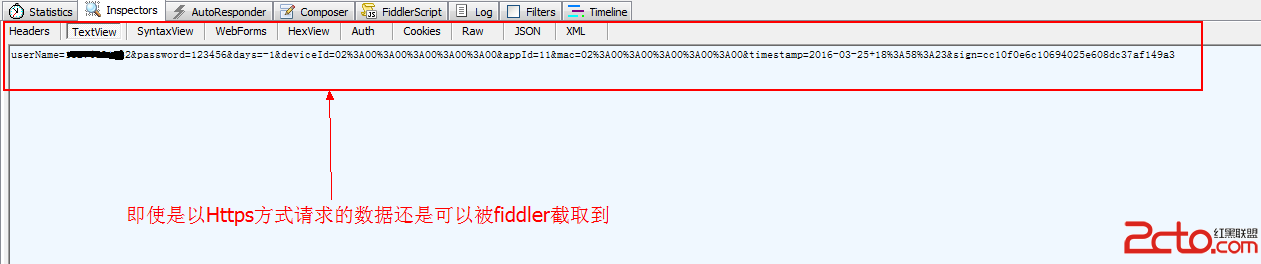 我的Android進階之旅------)Android采用AES+RSA的加密機制對http請求進行加密
前言 最近維護公司APP應用的登錄模塊,由於測試人員用Fiddler抓包工具抓取到了公司關於登錄時候的明文登錄信息。雖然使用的是HTTPS的方式進行http請求的,但還是