編輯:關於Android編程
南丁格爾玫瑰圖 在常規圖表中實在很驚艷,但我初看沒看懂,一查原來南丁格爾這麼偉大,確實值得尊敬。
再仔細研究了下這種圖的構成,發現原來就是把柱形圖的柱形換成了扇形圖的半徑來表示,當然,變種有好多,我這只是說我理解的這種。
知道了其構成方式後就好實現了,依傳入參數個數決定其扇形角度,依百分比決定其扇形的半徑長度,然後就一切都水到渠成了。
漂亮的美圖獻上:
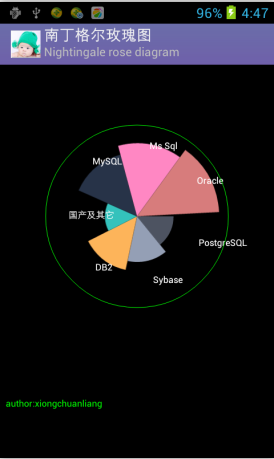
附上實現代碼:
package com.xcl.chart;


/**
 * Canvas練習
 * 	 自已畫南丁格爾玫瑰圖(Nightingale rose diagram)
 *
 * author:xiongchuanliang
 * date:2014-4-12
 */


import android.content.Context;
import android.graphics.Canvas;
import android.graphics.Color;
import android.graphics.Paint;
import android.graphics.Paint.Style;
import android.graphics.RectF;
import android.util.DisplayMetrics;
import android.view.View;

public class PanelRoseChart extends View{

	private int ScrWidth,ScrHeight;

	 //演示用的百分比例,實際使用中,即為外部傳入的比例參數
	private final float arrPer[] = new float[]{40f,50f,60f,35f,70f,80f,90f};
	//演示用標簽
	private final String arrPerLabel[] = new String[]{"PostgreSQL","Sybase","DB2","國產及其它","MySQL","Ms Sql","Oracle"};
	//RGB顏色數組
	private final int arrColorRgb[][] = { {77, 83, 97},
							       {148, 159, 181},
							       {253, 180, 90},
							       {52, 194, 188},
							       {39, 51, 72},
							       {255, 135, 195},
							       {215, 124, 124}} ;


public PanelRoseChart(Context context) {
		super(context);
		// TODO Auto-generated constructor stub

		//屏幕信息
		DisplayMetrics dm = getResources().getDisplayMetrics();
		ScrHeight = dm.heightPixels;
		ScrWidth = dm.widthPixels;
	}


	public void onDraw(Canvas canvas){
		//畫布背景
		canvas.drawColor(Color.BLACK);

    float cirX = ScrWidth / 2;
    float cirY = ScrHeight / 3 ;
    float radius = ScrHeight / 5 ;//150;

    float arcLeft = cirX - radius;
    float arcTop = cirY - radius ;
    float arcRight = cirX + radius ;
    float arcBottom = cirY + radius ;
    RectF arcRF0 = new RectF(arcLeft ,arcTop,arcRight,arcBottom);

    //畫筆初始化
		Paint PaintArc = new Paint();
		Paint PaintLabel = new Paint();
		PaintLabel.setColor(Color.WHITE);
		PaintLabel.setTextSize(16);

		PaintLabel.setAntiAlias(true);
		PaintArc.setAntiAlias(true);
    //位置計算類
    XChartCalc xcalc = new XChartCalc();

    float Percentage = 0.0f;
 		float CurrPer = 0.0f;
 		float NewRaidus = 0.0f;
		int i= 0;

		 //將百分比轉換為扇形半徑長度
		Percentage = 360 / arrPer.length;
		Percentage = (float)(Math.round(Percentage *100))/100;

    for(i=0; i<arrPer.length; i++)
    {
      //將百分比轉換為新扇區的半徑
      NewRaidus = radius * (arrPer[i]/ 100);
      NewRaidus = (float)(Math.round(NewRaidus *100))/100;

      float NewarcLeft = cirX - NewRaidus;
      float NewarcTop = cirY - NewRaidus ;
      float NewarcRight = cirX + NewRaidus ;
      float NewarcBottom = cirY + NewRaidus ;
      RectF NewarcRF = new RectF(NewarcLeft ,NewarcTop,NewarcRight,NewarcBottom);

      //分配顏色
      PaintArc.setARGB(255,arrColorRgb[i][0], arrColorRgb[i][1], arrColorRgb[i][2]);

      //在餅圖中顯示所占比例
      canvas.drawArc(NewarcRF, CurrPer, Percentage, true, PaintArc);
      //計算百分比標簽
      xcalc.CalcArcEndPointXY(cirX, cirY, radius - radius/2/2, CurrPer + Percentage/2);
			//標識
		  canvas.drawText(arrPerLabel[i],xcalc.getPosX(), xcalc.getPosY() ,PaintLabel);
      //下次的起始角度
      CurrPer += Percentage;
    }
    //外環
    PaintLabel.setStyle(Style.STROKE);
    PaintLabel.setColor(Color.GREEN);
    canvas.drawCircle(cirX,cirY,radius,PaintLabel);

    canvas.drawText("author:xiongchuanliang", 10, ScrHeight - 200, PaintLabel);

	}

}
代碼實現起來很容易,但這種圖的設計創意確實非常好。 歎服。
一定要附上南丁格爾維基百科的鏈接: http://zh.wikipedia.org/wiki/%E5%BC%97%E7%BE%85%E5%80%AB%E6%96%AF%C2%B7%E5%8D%97%E4%B8%81%E6%A0%BC%E7%88%BE
感興趣的可以看看。
 QQ火炬好友火炬排行榜怎麼看 你是第幾位火炬手呢
你是qq火炬手嗎?在這個騰訊QQ為巴西裡約奧運會推出的火炬傳遞活動中你是第幾位火炬手了呢?QQ火炬好友火炬排行榜怎麼看?下面小編就來教教你!QQ火炬好友火炬
 Android之下拉與上拉刷新
Android日常開發中,對於下拉與上拉刷新控件的使用非常之頻繁。一般都會采用第三方庫,但是下拉刷新做到簡單優雅並不是太多,甚至有的兼容性都存在問題。這個是不能接受的。最
 【Android】ORM數據庫框架之GreenDao快速入門與使用
今天我們來介紹一款性能非常好的orm數據庫框架GreenDao,相信大家一定對它有所耳聞,或者已經在項目中在使用它了,雖然我在去年就開始使用這款框架,但是一直沒有做過系統
 Android手機衛士之設置密碼對話框
本文實現初次設置密碼驗證過程,首先實現如下效果布局如下:<?xml version=1.0 encoding=utf-8?><Linea