編輯:關於Android編程
效果圖如圖所示: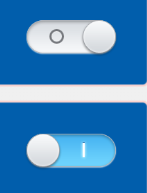
注解:此方法類 是本人在網上找的。並非本人的,拿來自己修改就直接用了
import me.imid.movablecheckbox.R;

import android.content.Context;
import android.content.res.Resources;
import android.graphics.Bitmap;
import android.graphics.BitmapFactory;
import android.graphics.Canvas;
import android.graphics.Color;
import android.graphics.Paint;
import android.graphics.PorterDuff;
import android.graphics.PorterDuffXfermode;
import android.graphics.RectF;
import android.util.AttributeSet;
import android.view.MotionEvent;
import android.view.ViewConfiguration;
import android.view.ViewParent;
import android.widget.CheckBox;

public class SwitchButton extends CheckBox {
    private Paint mPaint;

    private ViewParent mParent;

    private Bitmap mBottom;

    private Bitmap mCurBtnPic;

    private Bitmap mBtnPressed;

    private Bitmap mBtnNormal;

    private Bitmap mFrame;

    private Bitmap mMask;

    private RectF mSaveLayerRectF;

    private PorterDuffXfermode mXfermode;

    private float mFirstDownY; // 首次按下的Y

    private float mFirstDownX; // 首次按下的X

    private float mRealPos; // 圖片的繪制位置

    private float mBtnPos; // 按鈕的位置

    private float mBtnOnPos; // 開關打開的位置

    private float mBtnOffPos; // 開關關閉的位置

    private float mMaskWidth;

    private float mMaskHeight;

    private float mBtnWidth;

    private float mBtnInitPos;

    private int mClickTimeout;

    private int mTouchSlop;

    private final int MAX_ALPHA = 255;

    private int mAlpha = MAX_ALPHA;

    private boolean mChecked = false;

    private boolean mBroadcasting;

    private boolean mTurningOn;

    private PerformClick mPerformClick;

    private OnCheckedChangeListener mOnCheckedChangeListener;

    private OnCheckedChangeListener mOnCheckedChangeWidgetListener;

    private boolean mAnimating;

    private final float VELOCITY = 350;

    private float mVelocity;

    private final float EXTENDED_OFFSET_Y = 15;

    private float mExtendOffsetY; // Y軸方向擴大的區域,增大點擊區域

    private float mAnimationPosition;

    private float mAnimatedVelocity;

    public SwitchButton(Context context, AttributeSet attrs) {
        this(context, attrs, android.R.attr.checkboxStyle);
    }

    public SwitchButton(Context context) {
        this(context, null);
    }

    public SwitchButton(Context context, AttributeSet attrs, int defStyle) {
        super(context, attrs, defStyle);
        initView(context);
    }

    private void initView(Context context) {
        mPaint = new Paint();
        mPaint.setColor(Color.WHITE);
        Resources resources = context.getResources();

        // get viewConfiguration
        mClickTimeout = ViewConfiguration.getPressedStateDuration()
                + ViewConfiguration.getTapTimeout();
        mTouchSlop = ViewConfiguration.get(context).getScaledTouchSlop();

        // get Bitmap
        mBottom = BitmapFactory.decodeResource(resources, R.drawable.bottom);
        mBtnPressed = BitmapFactory.decodeResource(resources, R.drawable.btn_pressed);
        mBtnNormal = BitmapFactory.decodeResource(resources, R.drawable.btn_unpressed);
        mFrame = BitmapFactory.decodeResource(resources, R.drawable.frame);
        mMask = BitmapFactory.decodeResource(resources, R.drawable.mask);
        mCurBtnPic = mBtnNormal;

        mBtnWidth = mBtnPressed.getWidth();
        mMaskWidth = mMask.getWidth();
        mMaskHeight = mMask.getHeight();

        mBtnOffPos = mBtnWidth / 2;
        mBtnOnPos = mMaskWidth - mBtnWidth / 2;

        mBtnPos = mChecked ? mBtnOnPos : mBtnOffPos;
        mRealPos = getRealPos(mBtnPos);

        final float density = getResources().getDisplayMetrics().density;
        mVelocity = (int) (VELOCITY * density + 0.5f);
        mExtendOffsetY = (int) (EXTENDED_OFFSET_Y * density + 0.5f);

        mSaveLayerRectF = new RectF(0, mExtendOffsetY, mMask.getWidth(), mMask.getHeight()
                + mExtendOffsetY);
        mXfermode = new PorterDuffXfermode(PorterDuff.Mode.SRC_IN);
    }

    @Override
    public void setEnabled(boolean enabled) {
        mAlpha = enabled ? MAX_ALPHA : MAX_ALPHA / 2;
        super.setEnabled(enabled);
    }

    public boolean isChecked() {
        return mChecked;
    }

    public void toggle() {
        setChecked(!mChecked);
    }

    /**
     * 內部調用此方法設置checked狀態,此方法會延遲執行各種回調函數,保證動畫的流暢度
     *
     * @param checked
     */
    private void setCheckedDelayed(final boolean checked) {
        this.postDelayed(new Runnable() {

            @Override
            public void run() {
                setChecked(checked);
            }
        }, 10);
    }

    /**
     *
* Changes the checked state of this button. *

* * @param checked true to check the button, false to uncheck it */ public void setChecked(boolean checked) { if (mChecked != checked) { mChecked = checked; mBtnPos = checked ? mBtnOnPos : mBtnOffPos; mRealPos = getRealPos(mBtnPos); invalidate(); // Avoid infinite recursions if setChecked() is called from a // listener if (mBroadcasting) { return; } mBroadcasting = true; if (mOnCheckedChangeListener != null) { mOnCheckedChangeListener.onCheckedChanged(SwitchButton.this, mChecked); } if (mOnCheckedChangeWidgetListener != null) { mOnCheckedChangeWidgetListener.onCheckedChanged(SwitchButton.this, mChecked); } mBroadcasting = false; } } /** * Register a callback to be invoked when the checked state of this button * changes. * * @param listener the callback to call on checked state change */ public void setOnCheckedChangeListener(OnCheckedChangeListener listener) { mOnCheckedChangeListener = listener; } /** * Register a callback to be invoked when the checked state of this button * changes. This callback is used for internal purpose only. * * @param listener the callback to call on checked state change * @hide */ void setOnCheckedChangeWidgetListener(OnCheckedChangeListener listener) { mOnCheckedChangeWidgetListener = listener; } @Override public boolean onTouchEvent(MotionEvent event) { int action = event.getAction(); float x = event.getX(); float y = event.getY(); float deltaX = Math.abs(x - mFirstDownX); float deltaY = Math.abs(y - mFirstDownY); switch (action) { case MotionEvent.ACTION_DOWN: attemptClaimDrag(); mFirstDownX = x; mFirstDownY = y; mCurBtnPic = mBtnPressed; mBtnInitPos = mChecked ? mBtnOnPos : mBtnOffPos; break; case MotionEvent.ACTION_MOVE: float time = event.getEventTime() - event.getDownTime(); mBtnPos = mBtnInitPos + event.getX() - mFirstDownX; if (mBtnPos >= mBtnOffPos) { mBtnPos = mBtnOffPos; } if (mBtnPos <= mBtnOnPos) { mBtnPos = mBtnOnPos; } mTurningOn = mBtnPos > (mBtnOffPos - mBtnOnPos) / 2 + mBtnOnPos; mRealPos = getRealPos(mBtnPos); break; case MotionEvent.ACTION_UP: mCurBtnPic = mBtnNormal; time = event.getEventTime() - event.getDownTime(); if (deltaY < mTouchSlop && deltaX < mTouchSlop && time < mClickTimeout) { if (mPerformClick == null) { mPerformClick = new PerformClick(); } if (!post(mPerformClick)) { performClick(); } } else { startAnimation(!mTurningOn); } break; } invalidate(); return isEnabled(); } private final class PerformClick implements Runnable { public void run() { performClick(); } } @Override public boolean performClick() { startAnimation(!mChecked); return true; } /** * Tries to claim the user's drag motion, and requests disallowing any * ancestors from stealing events in the drag. */ private void attemptClaimDrag() { mParent = getParent(); if (mParent != null) { mParent.requestDisallowInterceptTouchEvent(true); } } /** * 將btnPos轉換成RealPos * * @param btnPos * @return */ private float getRealPos(float btnPos) { return btnPos - mBtnWidth / 2; } @Override protected void onDraw(Canvas canvas) { canvas.saveLayerAlpha(mSaveLayerRectF, mAlpha, Canvas.MATRIX_SAVE_FLAG | Canvas.CLIP_SAVE_FLAG | Canvas.HAS_ALPHA_LAYER_SAVE_FLAG | Canvas.FULL_COLOR_LAYER_SAVE_FLAG | Canvas.CLIP_TO_LAYER_SAVE_FLAG); // 繪制蒙板 canvas.drawBitmap(mMask, 0, mExtendOffsetY, mPaint); mPaint.setXfermode(mXfermode); // 繪制底部圖片 canvas.drawBitmap(mBottom, mRealPos, mExtendOffsetY, mPaint); mPaint.setXfermode(null); // 繪制邊框 canvas.drawBitmap(mFrame, 0, mExtendOffsetY, mPaint); // 繪制按鈕 canvas.drawBitmap(mCurBtnPic, mRealPos, mExtendOffsetY, mPaint); canvas.restore(); } @Override protected void onMeasure(int widthMeasureSpec, int heightMeasureSpec) { setMeasuredDimension((int) mMaskWidth, (int) (mMaskHeight + 2 * mExtendOffsetY)); } private void startAnimation(boolean turnOn) { mAnimating = true; mAnimatedVelocity = turnOn ? -mVelocity : mVelocity; mAnimationPosition = mBtnPos; new SwitchAnimation().run(); } private void stopAnimation() { mAnimating = false; } private final class SwitchAnimation implements Runnable { @Override public void run() { if (!mAnimating) { return; } doAnimation(); FrameAnimationController.requestAnimationFrame(this); } } private void doAnimation() { mAnimationPosition += mAnimatedVelocity * FrameAnimationController.ANIMATION_FRAME_DURATION / 1000; if (mAnimationPosition <= mBtnOnPos) { stopAnimation(); mAnimationPosition = mBtnOnPos; setCheckedDelayed(true); } else if (mAnimationPosition >= mBtnOffPos) { stopAnimation(); mAnimationPosition = mBtnOffPos; setCheckedDelayed(false); } moveView(mAnimationPosition); } private void moveView(float position) { mBtnPos = position; mRealPos = getRealPos(mBtnPos); invalidate(); } }
SwitchButton switchButton=new SwitchButton();
new一個這個類的對象 接下來就是自己設置屬性和監聽 實現自己所需要的方法 即可。
下面是用到的圖片:




 Android 藍牙技術 帶你實現終端間數據傳輸
藍牙技術在智能硬件方面有很多用武之地,今天我就為大家分享一下藍牙在Android系統下的使用方法技巧,並實現一下兩個終端間數據的傳輸。藍牙(Bluetooth)是一種短距
 Android各種各樣的Drawable-更新中
概述通常情況下,我們很少直接使用Drawable的實現類,大部分的情況下還是使用xml的方式進行開發。只有在程序中需要動態的修改drawable的屬性時,才需要使用具體的
 生活管家app
這篇文章給大家帶來的是一款android的生活管家app實現。主要實現功能及其要求:1、個人收入支出的管理。主要完成收入管理、支出管理、類別管理、收入查詢、支出查詢、統計
 Android上下文服務管理查詢過程
在開發Android應用程序時,如果需要使用系統提供的服務,可以通過服務名稱調用山下文的getSystemService(String name)來獲取服務管理者,那麼該