編輯:關於Android編程
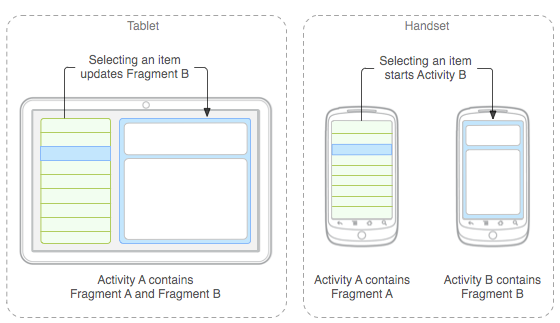 圖 1. 有關由Fragment定義的兩個 UI 模塊如何適應不同設計的示例:通過組合成一個 Activity 來適應平板電腦設計,通過單獨Fragment來適應手機設計。
例如—仍然以新聞應用為例—在平板電腦尺寸的設備上運行時,該應用可以在Activity A 中嵌入兩個Fragment。不過,在手機尺寸的屏幕上,沒有足以儲存兩個Fragment的空間,因此Activity A只包括用於顯示文章列表的Fragment,當用戶選擇文章時,它會啟動Activity B,其中包括用於閱讀文章的第二個Fragment。因此,應用可通過重復使用不同組合的Fragment來同時支持平板電腦和手機,如圖 1 所示。
圖 1. 有關由Fragment定義的兩個 UI 模塊如何適應不同設計的示例:通過組合成一個 Activity 來適應平板電腦設計,通過單獨Fragment來適應手機設計。
例如—仍然以新聞應用為例—在平板電腦尺寸的設備上運行時,該應用可以在Activity A 中嵌入兩個Fragment。不過,在手機尺寸的屏幕上,沒有足以儲存兩個Fragment的空間,因此Activity A只包括用於顯示文章列表的Fragment,當用戶選擇文章時,它會啟動Activity B,其中包括用於閱讀文章的第二個Fragment。因此,應用可通過重復使用不同組合的Fragment來同時支持平板電腦和手機,如圖 1 所示。
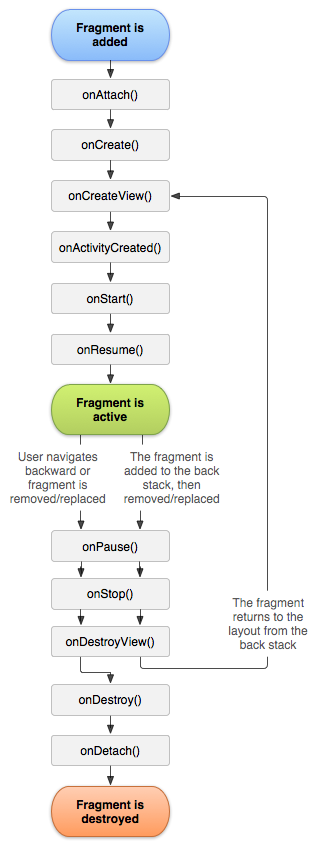 圖 2. Fragmen的生命周期(其 Activity 運行時)
您可能還想擴展幾個子類,而不是 Fragment 基類:
(1)DialogFragment
圖 2. Fragmen的生命周期(其 Activity 運行時)
您可能還想擴展幾個子類,而不是 Fragment 基類:
(1)DialogFragment
public static class ExampleFragment extends Fragment {
    @Override
    public View onCreateView(LayoutInflater inflater, ViewGroup container,
                             Bundle savedInstanceState) {
        // Inflate the layout for this fragment
        return inflater.inflate(R.layout.example_fragment, container, false);
    }
}
傳遞至 onCreateView() 的 container 參數是您的Fragment布局將插入到的父 ViewGroup(來自 Activity 的布局)。savedInstanceState 參數是在恢復Fragment時,提供上一片段實例相關數據的 Bundle(處理Fragment生命周期部分對恢復狀態做了詳細闡述)。
inflate() 方法帶有三個參數:
(1)您想要擴展的布局的資源 ID;
fragment中的 android:name 屬性指定要在布局中實例化的 Fragment 類。
FragmentManager fragmentManager = getFragmentManager()
FragmentTransaction fragmentTransaction = fragmentManager.beginTransaction();
然後,您可以使用 add() 方法添加一個Fragment,指定要添加的Fragment以及將其插入哪個視圖。例如:
ExampleFragment fragment = new ExampleFragment();
fragmentTransaction.add(R.id.fragment_container, fragment);
fragmentTransaction.commit();
傳遞到 add() 的第一個參數是 ViewGroup,即應該放置片段的位置,由資源 ID 指定,第二個參數是要添加的Fragment。
FragmentManager fragmentManager = getFragmentManager();
FragmentTransaction fragmentTransaction = fragmentManager.beginTransaction();
每個事務都是您想要同時執行的一組更改。您可以使用 add()、remove() 和 replace() 等方法為給定事務設置您想要執行的所有更改。然後,要想將事務應用到 Activity,您必須調用 commit()。 不過,在您調用 commit() 之前,您可能想調用 addToBackStack(),以將事務添加到片段事務返回棧。 該返回棧由 Activity 管理,允許用戶通過按“返回” 按鈕返回上一Fragment狀態。 例如,以下示例說明了如何將一個Fragment替換成另一個Fragment,以及如何在返回棧中保留先前狀態:
// Create new fragment and transaction
Fragment newFragment = new ExampleFragment();
FragmentTransaction transaction = getFragmentManager().beginTransaction();

// Replace whatever is in the fragment_container view with this fragment,
// and add the transaction to the back stack
transaction.replace(R.id.fragment_container, newFragment);
transaction.addToBackStack(null);

// Commit the transaction
transaction.commit();
在上例中,newFragment 會替換目前在 R.id.fragment_container ID 所標識的布局容器中的任何Fragment(如有)。通過調用 addToBackStack() 可將替換事務保存到返回棧,以便用戶能夠通過按“返回” 按鈕撤消事務並回退到上一片段。 如果您向事務添加了多個更改(如又一個 add() 或 remove()),並且調用了 addToBackStack(),則在調用 commit() 前應用的所有更改都將作為單一事務添加到返回棧,並且“返回” 按鈕會將它們一並撤消。 向 FragmentTransaction 添加更改的順序無關緊要,不過: (1)您必須最後調用 commit()
View listView = getActivity().findViewById(R.id.list);同樣地,您的 Activity 也可以使用 findFragmentById() 或 findFragmentByTag(),通過從 FragmentManager 獲取對 Fragment 的引用來調用片段中的方法。例如:
public static class FragmentA extends ListFragment {
    ...
    // Container Activity must implement this interface
    public interface OnArticleSelectedListener {
        public void onArticleSelected(Uri articleUri);
    }
    ...
}
public static class FragmentA extends ListFragment {
    OnArticleSelectedListener mListener;
    ...
    @Override
    public void onAttach(Activity activity) {
        super.onAttach(activity);
        try {
            mListener = (OnArticleSelectedListener) activity;
        } catch (ClassCastException e) {
            throw new ClassCastException(activity.toString() + " must implement OnArticleSelectedListener");
        }
    }
    ...
}
public static class FragmentA extends ListFragment {
    OnArticleSelectedListener mListener;
    ...
    @Override
    public void onListItemClick(ListView l, View v, int position, long id) {
        // Append the clicked item's row ID with the content provider Uri
        Uri noteUri = ContentUris.withAppendedId(ArticleColumns.CONTENT_URI, id);
        // Send the event and Uri to the host activity
        mListener.onArticleSelected(noteUri);
    }
    ...
}
傳遞到 onListItemClick() 的 id 參數是被點擊項的行 ID,即 Activity(或其他Fragment)用來從應用的 ContentProvider 獲取文章的 ID。
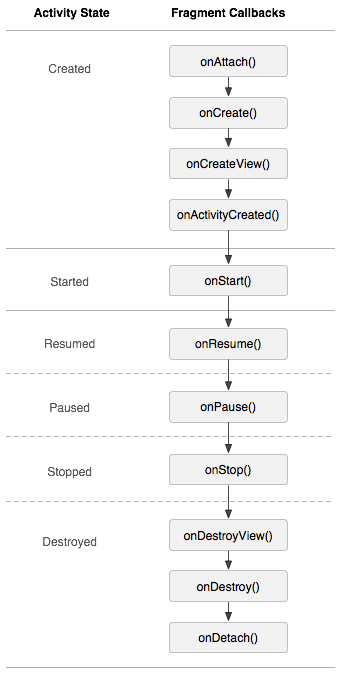 圖 3. Activity 生命周期對Fragmnet生命周期的影響
@Override
protected void onCreate(Bundle savedInstanceState) {
    super.onCreate(savedInstanceState);

    setContentView(R.layout.fragment_layout);
}
應用的布局為 fragment_layout.xml:
通過使用此布局,系統可在 Activity 加載布局時立即實例化 TitlesFragment(列出戲劇標題),而 FrameLayout(用於顯示戲劇摘要的Fragment所在位置)則會占用屏幕右側的空間,但最初處於空白狀態。 正如您將在下文所見的那樣,用戶從列表中選擇某個項目後,系統才會將Fragment放入 FrameLayout。 不過,並非所有屏幕配置都具有足夠的寬度,可以並排顯示戲劇列表和摘要。 因此,以上布局僅用於橫向屏幕配置(布局保存在 res/layout-land/fragment_layout.xml)。<framelayout android:background="?android:attr/detailsElementBackground" android:id="@+id/details" android:layout_height="match_parent" android:layout_weight="1" android:layout_width="0px"> </framelayout>
<framelayout android:layout_height="match_parent" android:layout_width="match_parent" xmlns:android="http://schemas.android.com/apk/res/android">

</framelayout>
此布局僅包括 TitlesFragment。這意味著,當設備縱向顯示時,只有戲劇標題列表可見。 因此,當用戶在此配置中點擊某個列表項時,應用會啟動一個新 Activity 來顯示摘要,而不是加載另一個Fragment。
接下來,您可以看到如何在Fragment類中實現此目的。第一個片段是 TitlesFragment,它顯示莎士比亞戲劇標題列表。該Fragment擴展了 ListFragment,並依靠它來處理大多數列表視圖工作。
當您檢查此代碼時,請注意,用戶點擊列表項時可能會出現兩種行為:系統可能會創建並顯示一個新Fragment,從而在同一活動中顯示詳細信息(將Fragment添加到 FrameLayout),也可能會啟動一個新活動(在該活動中可顯示Fragment),具體取決於這兩個布局中哪一個處於活動狀態。
public static class TitlesFragment extends ListFragment {
    boolean mDualPane;
    int mCurCheckPosition = 0;

    @Override
    public void onActivityCreated(Bundle savedInstanceState) {
        super.onActivityCreated(savedInstanceState);

        // Populate list with our static array of titles.
        setListAdapter(new ArrayAdapter(getActivity(),
                android.R.layout.simple_list_item_activated_1, Shakespeare.TITLES));

        // Check to see if we have a frame in which to embed the details
        // fragment directly in the containing UI.
        View detailsFrame = getActivity().findViewById(R.id.details);
        mDualPane = detailsFrame != null && detailsFrame.getVisibility() == View.VISIBLE;

        if (savedInstanceState != null) {
            // Restore last state for checked position.
            mCurCheckPosition = savedInstanceState.getInt("curChoice", 0);
        }

        if (mDualPane) {
            // In dual-pane mode, the list view highlights the selected item.
            getListView().setChoiceMode(ListView.CHOICE_MODE_SINGLE);
            // Make sure our UI is in the correct state.
            showDetails(mCurCheckPosition);
        }
    }

    @Override
    public void onSaveInstanceState(Bundle outState) {
        super.onSaveInstanceState(outState);
        outState.putInt("curChoice", mCurCheckPosition);
    }

    @Override
    public void onListItemClick(ListView l, View v, int position, long id) {
        showDetails(position);
    }

    /**
     * Helper function to show the details of a selected item, either by
     * displaying a fragment in-place in the current UI, or starting a
     * whole new activity in which it is displayed.
     */
    void showDetails(int index) {
        mCurCheckPosition = index;

        if (mDualPane) {
            // We can display everything in-place with fragments, so update
            // the list to highlight the selected item and show the data.
            getListView().setItemChecked(index, true);

            // Check what fragment is currently shown, replace if needed.
            DetailsFragment details = (DetailsFragment)
                    getFragmentManager().findFragmentById(R.id.details);
            if (details == null || details.getShownIndex() != index) {
                // Make new fragment to show this selection.
                details = DetailsFragment.newInstance(index);

                // Execute a transaction, replacing any existing fragment
                // with this one inside the frame.
                FragmentTransaction ft = getFragmentManager().beginTransaction();
                if (index == 0) {
                    ft.replace(R.id.details, details);
                } else {
                    ft.replace(R.id.a_item, details);
                }
                ft.setTransition(FragmentTransaction.TRANSIT_FRAGMENT_FADE);
                ft.commit();
            }

        } else {
            // Otherwise we need to launch a new activity to display
            // the dialog fragment with selected text.
            Intent intent = new Intent();
            intent.setClass(getActivity(), DetailsActivity.class);
            intent.putExtra("index", index);
            startActivity(intent);
        }
    }
}
public static class DetailsFragment extends Fragment {
    /**
     * Create a new instance of DetailsFragment, initialized to
     * show the text at 'index'.
     */
    public static DetailsFragment newInstance(int index) {
        DetailsFragment f = new DetailsFragment();

        // Supply index input as an argument.
        Bundle args = new Bundle();
        args.putInt("index", index);
        f.setArguments(args);

        return f;
    }

    public int getShownIndex() {
        return getArguments().getInt("index", 0);
    }

    @Override
    public View onCreateView(LayoutInflater inflater, ViewGroup container,
            Bundle savedInstanceState) {
        if (container == null) {
            // We have different layouts, and in one of them this
            // fragment's containing frame doesn't exist.  The fragment
            // may still be created from its saved state, but there is
            // no reason to try to create its view hierarchy because it
            // won't be displayed.  Note this is not needed -- we could
            // just run the code below, where we would create and return
            // the view hierarchy; it would just never be used.
            return null;
        }

        ScrollView scroller = new ScrollView(getActivity());
        TextView text = new TextView(getActivity());
        int padding = (int)TypedValue.applyDimension(TypedValue.COMPLEX_UNIT_DIP,
                4, getActivity().getResources().getDisplayMetrics());
        text.setPadding(padding, padding, padding, padding);
        scroller.addView(text);
        text.setText(Shakespeare.DIALOGUE[getShownIndex()]);
        return scroller;
    }
}
public static class DetailsActivity extends Activity {

    @Override
    protected void onCreate(Bundle savedInstanceState) {
        super.onCreate(savedInstanceState);

        if (getResources().getConfiguration().orientation
                == Configuration.ORIENTATION_LANDSCAPE) {
            // If the screen is now in landscape mode, we can show the
            // dialog in-line with the list so we don't need this activity.
            finish();
            return;
        }

        if (savedInstanceState == null) {
            // During initial setup, plug in the details fragment.
            DetailsFragment details = new DetailsFragment();
            details.setArguments(getIntent().getExtras());
            getFragmentManager().beginTransaction().add(android.R.id.content, details).commit();
        }
    }
}
 輕松實現Android仿淘寶地區選擇功能
最近用淘寶客戶端的時候,編輯地址的時候有個地區選擇的功能。看上面的效果覺得挺酷,滾動的時候,是最後一個從下面飛上來挨著前一個。就自己鼓搗一個出來玩玩。說了效果可能不太直觀
 Android 界面跳轉及數據交換
本文演示:Android 界面跳轉及數據交換,通過一個小Demo展示全部過程。 效果如下所示: 1)MainActivity.java &n
 android快速上手(二)android開發環境搭建及hello world
基本了解了java語法,下一步,我們一起開啟hello world的神秘之旅。 (一)android開發環境搭建 之前搭建android開發環境是件非常費力的事情,
 Android中設置RadioButton在文字右邊的方法實例
<?xml version=1.0 encoding=utf-8?> <LinearLayout xmlns:android=http: