編輯:關於Android編程
Launcher也是一個普通的應用程序,只不過在主入口中加入<
那分析Launcher的加載流程時,也可以按照一般的應用來分析就行了。
一、Application類的加載
如果應用繼承了Application類,那麼該應用啟動時就會首先執行繼承了Application的類的onCreate()方法,在Launcher3中就是LauncherApplication類了。
代碼位置:launcher3\src\main\java\com\android\launcher3\LauncherApplication.java
public class LauncherApplication extends Application {
    @Override
    public void onCreate() {
        super.onCreate();
        LauncherAppState.setApplicationContext(this);
        LauncherAppState.getInstance();
    }

    @Override
    public void onTerminate() {
        super.onTerminate();
        LauncherAppState.getInstance().onTerminate();
    }
}
可以看到,其主要工作是在LauncherAppState類裡執行的:
1)設置Application的上下文,賦值給sContext,sContext是一個靜態變量;
2)設置LauncherAppState實例,是一個單例模式,在創建對象時進行了各個變量的初始化以及廣播的注冊、數據變化觀察者。
    public static void setApplicationContext(Context context) {
        if (sContext != null) {
            Log.w(Launcher.TAG, "setApplicationContext called twice! old=" + sContext + " new=" + context);
        }
        sContext = context.getApplicationContext();
    }
    private LauncherAppState() {
        if (sContext == null) {
            throw new IllegalStateException("LauncherAppState inited before app context set");
        }

        Log.v(Launcher.TAG, "LauncherAppState inited");

        if (sContext.getResources().getBoolean(R.bool.debug_memory_enabled)) {
            MemoryTracker.startTrackingMe(sContext, "L");
        }

        // set sIsScreenXLarge and mScreenDensity *before* creating icon cache
        mIsScreenLarge = isScreenLarge(sContext.getResources());// 判斷是否大屏幕
        mScreenDensity = sContext.getResources().getDisplayMetrics().density;// 像素密度

        recreateWidgetPreviewDb();// 小部件和快捷圖標數據庫操作對象
        mIconCache = new IconCache(sContext);// 應用圖標緩存對象

        mAppFilter = AppFilter.loadByName(sContext.getString(R.string.app_filter_class));
        mBuildInfo = BuildInfo.loadByName(sContext.getString(R.string.build_info_class));
        mModel = new LauncherModel(this, mIconCache, mAppFilter);//初始化LauncherModel
        final LauncherAppsCompat launcherApps = LauncherAppsCompat.getInstance(sContext);
        launcherApps.addOnAppsChangedCallback(mModel);

        // Register intent receivers
        IntentFilter filter = new IntentFilter();
        filter.addAction(Intent.ACTION_LOCALE_CHANGED);//Locale發生了變化,如中英文的切換
        filter.addAction(Intent.ACTION_CONFIGURATION_CHANGED);//Configuration發生變化,如橫豎屏切換
        sContext.registerReceiver(mModel, filter);
        filter = new IntentFilter();
        filter.addAction(SearchManager.INTENT_GLOBAL_SEARCH_ACTIVITY_CHANGED);//搜索提供者發生了變化
        sContext.registerReceiver(mModel, filter);
        filter = new IntentFilter();
        filter.addAction(SearchManager.INTENT_ACTION_SEARCHABLES_CHANGED);//搜索類別或者默認的發生了變化
        sContext.registerReceiver(mModel, filter);

        // Register for changes to the favorites
        ContentResolver resolver = sContext.getContentResolver();
        resolver.registerContentObserver(LauncherSettings.Favorites.CONTENT_URI, true,
                mFavoritesObserver);// 觀察桌面快捷方式是否發生變化
    }
二、Launcher類
初始化完成之後就進入到主Activity--Launcher。
代碼位置:launcher3\src\main\java\com\android\launcher3\Launcher.java
public class Launcher extends Activity
        implements View.OnClickListener, OnLongClickListener, LauncherModel.Callbacks,
                   View.OnTouchListener, PageSwitchListener, LauncherProviderChangeListener {
Launcher繼承於Activity,實現各個接口,這樣就構成了整個Launcher的展示(桌面和抽屜)和操作(點擊、長按、拖拽等等),從onCreate開始分析。
        // LauncherCallbacks在LauncherExtension中實現,LauncherExtension繼承於Launcher,是Launcher的擴展,
        // 用來擴展Launcher的功能,但是目前沒有啟用,android:enabled="false",涉及到相關的內容就不需要關注了。
        if (mLauncherCallbacks != null) {
            mLauncherCallbacks.preOnCreate();
        }
LauncherCallbacks在LauncherExtension中實現,LauncherExtension繼承於Launcher,是Launcher的擴展,用來擴展Launcher的功能,但是目前沒有啟用(android:enabled="false"),涉及到相關的內容就直接忽略掉。
        LauncherAppState.setApplicationContext(getApplicationContext());
        LauncherAppState app = LauncherAppState.getInstance();
        LauncherAppState.getLauncherProvider().setLauncherProviderChangeListener(this);
前面兩行跟LauncherApplication中一樣的,第三行設置了LauncherProviderChangeListener監聽,用來監聽LauncherProvider中數據變化,該監聽接口在Launcher中實現,
    @Override
    public void onLauncherProviderChange() {
        if (mLauncherCallbacks != null) {
            mLauncherCallbacks.onLauncherProviderChange();
        }
    }
在LauncherExtension中這個方法的實現為空,就當是一個預留,在回到onCreate中,
        // Lazy-initialize the dynamic grid
        DeviceProfile grid = app.initDynamicGrid(this);

        // the LauncherApplication should call this, but in case of Instrumentation it might not be present yet
        mSharedPrefs = getSharedPreferences(LauncherAppState.getSharedPreferencesKey(),
                Context.MODE_PRIVATE);// 初始化SharedPreference,文件名為com.android.launcher3.prefs
        mIsSafeModeEnabled = getPackageManager().isSafeMode();// 是否是安全模式,關機啟動Recovery Mode可以選擇打開安全模式
        mModel = app.setLauncher(this);// 獲取LauncherModel對象,在LauncherAppState已經初始化
        mIconCache = app.getIconCache();// 獲取IconCache對象,在LauncherAppState已經初始化
        mIconCache.flushInvalidIcons(grid);// 清除尺寸不符的icon緩存對象
        mDragController = new DragController(this);// 初始化DragController對象,DragController用來處理拖拽操作
        mInflater = getLayoutInflater();// 獲取LayoutInflater

        mStats = new Stats(this);

        mAppWidgetManager = AppWidgetManagerCompat.getInstance(this);// 獲取AppWidgetManager實例

        mAppWidgetHost = new LauncherAppWidgetHost(this, APPWIDGET_HOST_ID);// LauncherAppWidgetHost,桌面插件宿主
        mAppWidgetHost.startListening();// 開啟LauncherAppWidgetHost的監聽,以便發生變化時做出響應

        // If we are getting an onCreate, we can actually preempt onResume and unset mPaused here,
        // this also ensures that any synchronous binding below doesn't re-trigger another
        // LauncherModel load.
        mPaused = false;
還是一些初始化的工作,看注釋就可以了。
checkForLocaleChange();// 檢查Locale的變化
    // 檢查Locale是否發生變化,獲取系統當前的Local和Launcher中保存的相比較,如果Locale、mcc、mnc中有一個發生了變化就認為Locale變化了
    private void checkForLocaleChange() {
        if (sLocaleConfiguration == null) {// 啟動Launcher時sLocaleConfiguration肯定為null,先初始化,然後讀取保存的值,賦值給sLocaleConfiguration,再回調checkForLocaleChange
            new AsyncTask() {
                @Override
                protected LocaleConfiguration doInBackground(Void... unused) {
                    LocaleConfiguration localeConfiguration = new LocaleConfiguration();
                    readConfiguration(Launcher.this, localeConfiguration);
                    return localeConfiguration;
                }

                @Override
                protected void onPostExecute(LocaleConfiguration result) {
                    sLocaleConfiguration = result;
                    checkForLocaleChange();  // recursive, but now with a locale configuration
                }
            }.execute();
            return;
        }

        final Configuration configuration = getResources().getConfiguration();// 讀取系統當前的Configuration,裡面保存了Locale、mcc、mnc

        final String previousLocale = sLocaleConfiguration.locale;
        final String locale = configuration.locale.toString();

        final int previousMcc = sLocaleConfiguration.mcc;
        final int mcc = configuration.mcc;

        final int previousMnc = sLocaleConfiguration.mnc;
        final int mnc = configuration.mnc;

        boolean localeChanged = !locale.equals(previousLocale) || mcc != previousMcc || mnc != previousMnc;// 比較

        if (localeChanged) {// 如果發生了變化,將新的值寫入到launcher.preferences文件中
            sLocaleConfiguration.locale = locale;
            sLocaleConfiguration.mcc = mcc;
            sLocaleConfiguration.mnc = mnc;

            mIconCache.flush();

            final LocaleConfiguration localeConfiguration = sLocaleConfiguration;
            new AsyncTask() {
                public Void doInBackground(Void ... args) {
                    writeConfiguration(Launcher.this, localeConfiguration);
                    return null;
                }
            }.executeOnExecutor(AsyncTask.THREAD_POOL_EXECUTOR, (Void) null);
        }
    }

    private static class LocaleConfiguration {
        public String locale;// 語言環境,如zh_CN
        public int mcc = -1;// 移動國家碼
        public int mnc = -1;// 移動網絡碼
    }
readConfiguration和writeConfiguration時讀文件和寫文件,代碼就不貼了。
回到onCreate中,
setContentView(R.layout.launcher);
Launcher是一個Activity,當然也需要加載布局了,這裡layout-land和layout-port中都有launcher.xml,是為了區分橫豎屏切換的情況,一般手機屏幕比較小,Launcher固定豎屏,但是在平板中,是可以橫豎屏切換的,這裡我們只要看豎屏port目錄下的就可以了。
        setupViews();// 獲取控件並初始化
        grid.layout(this);// 放置布局中的各個控件

        registerContentObservers();// 注冊內容觀察者,AppWidgetResetObserver,監聽AppWidget是否重置,以便做出響應的處理

        lockAllApps();// 空方法

        mSavedState = savedInstanceState;
        restoreState(mSavedState);// 從保存的狀態恢復
上面的代碼片段也都有注釋沒啥說的,繼續往下看,
        // 調運startLoader方法加載app
        if (!mRestoring) {// 判斷是否正在恢復,如果第一次啟動mSavedState為null,restoreState直接返回,mRestoring為false,然後執行大括號代碼
            if (DISABLE_SYNCHRONOUS_BINDING_CURRENT_PAGE) {
                // If the user leaves launcher, then we should just load items asynchronously when
                // they return.
                mModel.startLoader(true, PagedView.INVALID_RESTORE_PAGE);
            } else {
                // We only load the page synchronously if the user rotates (or triggers a
                // configuration change) while launcher is in the foreground
                mModel.startLoader(true, mWorkspace.getRestorePage());
            }
        }
這一段代碼是用來異步加載桌面的應用快捷圖標、小部件和所有應用圖標,是最重要的一步,待會兒單獨分析其流程。
        // For handling default keys
        mDefaultKeySsb = new SpannableStringBuilder();
        Selection.setSelection(mDefaultKeySsb, 0);

        IntentFilter filter = new IntentFilter(Intent.ACTION_CLOSE_SYSTEM_DIALOGS);
        registerReceiver(mCloseSystemDialogsReceiver, filter);

        // On large interfaces, we want the screen to auto-rotate based on the current orientation
        // 對大屏幕,希望Launcher可以橫豎屏切換
        unlockScreenOrientation(true);

        if (mLauncherCallbacks != null) {
            mLauncherCallbacks.onCreate(savedInstanceState);
            if (mLauncherCallbacks.hasLauncherOverlay()) {
                ViewStub stub = (ViewStub) findViewById(R.id.launcher_overlay_stub);
                mLauncherOverlayContainer = (InsettableFrameLayout) stub.inflate();
                mLauncherOverlay = mLauncherCallbacks.setLauncherOverlayView(
                        mLauncherOverlayContainer, mLauncherOverlayCallbacks);
                mWorkspace.setLauncherOverlay(mLauncherOverlay);
            }
        }

        // 第一次啟動時加載用戶提示界面
        if (shouldShowIntroScreen()) {
            showIntroScreen();
        } else {
            showFirstRunActivity();
            showFirstRunClings();
        }
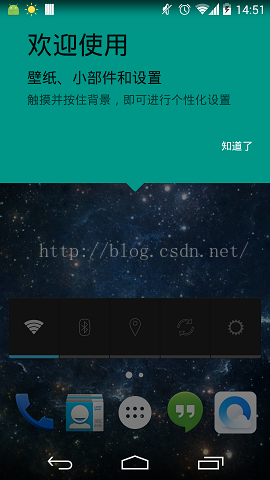
第一次啟動時的提示界面,沒啥說的,自己開發應用時可以借鑒下。
三、數據加載和展示
在Launcher的onCreate過程中會加載數據,我們將這個過程單獨拎出來,startLoader在LauncherModel中實現,
代碼位置:launcher3\src\main\java\com\android\launcher3\LauncherModel.java
    public void startLoader(boolean isLaunching, int synchronousBindPage) {
        startLoader(isLaunching, synchronousBindPage, LOADER_FLAG_NONE);
    }

    public void startLoader(boolean isLaunching, int synchronousBindPage, int loadFlags) {
        synchronized (mLock) {// 將該代碼塊鎖住,同時只能有一個線程執行它
            if (DEBUG_LOADERS) {
                Log.d(TAG, "startLoader isLaunching=" + isLaunching);
            }

            // Clear any deferred bind-runnables from the synchronized load process
            // We must do this before any loading/binding is scheduled below.
            // 清除延遲執行的綁定app的線程
            synchronized (mDeferredBindRunnables) {
                mDeferredBindRunnables.clear();
            }

            // Don't bother to start the thread if we know it's not going to do anything
            if (mCallbacks != null && mCallbacks.get() != null) {// Callbacks在Launcher中實現
                // If there is already one running, tell it to stop.
                // also, don't downgrade isLaunching if we're already running
                isLaunching = isLaunching || stopLoaderLocked();
                mLoaderTask = new LoaderTask(mApp.getContext(), isLaunching, loadFlags);
                if (synchronousBindPage != PagedView.INVALID_RESTORE_PAGE
                        && mAllAppsLoaded && mWorkspaceLoaded) {// launcher不在前台運行 && 所有app已經加載 && workspace已經加載
                    mLoaderTask.runBindSynchronousPage(synchronousBindPage);
                } else {
                    sWorkerThread.setPriority(Thread.NORM_PRIORITY);
                    sWorker.post(mLoaderTask);
                }
            }
        }
    }
執行到mLoaderTask執行塊,直接看到LoaderTask的run方法,
        public void run() {
            boolean isUpgrade = false;

            synchronized (mLock) {
                mIsLoaderTaskRunning = true;
            }
            // Optimize for end-user experience: if the Launcher is up and // running with the
            // All Apps interface in the foreground, load All Apps first. Otherwise, load the
            // workspace first (default).
            keep_running: {
                // Elevate priority when Home launches for the first time to avoid
                // starving at boot time. Staring at a blank home is not cool.
                synchronized (mLock) {
                    if (DEBUG_LOADERS) Log.d(TAG, "Setting thread priority to " +
                            (mIsLaunching ? "DEFAULT" : "BACKGROUND"));
                    android.os.Process.setThreadPriority(mIsLaunching
                            ? Process.THREAD_PRIORITY_DEFAULT : Process.THREAD_PRIORITY_BACKGROUND);
                }
                // 分兩步執行:1.loading workspace 2.loading workspace
                if (DEBUG_LOADERS) Log.d(TAG, "step 1: loading workspace");
                isUpgrade = loadAndBindWorkspace();

                if (mStopped) {
                    break keep_running;
                }

                // Whew! Hard work done.  Slow us down, and wait until the UI thread has
                // settled down.
                synchronized (mLock) {
                    if (mIsLaunching) {
                        if (DEBUG_LOADERS) Log.d(TAG, "Setting thread priority to BACKGROUND");
                        android.os.Process.setThreadPriority(Process.THREAD_PRIORITY_BACKGROUND);
                    }
                }
                waitForIdle();// loading all apps之前等待

                // second step
                if (DEBUG_LOADERS) Log.d(TAG, "step 2: loading all apps");
                loadAndBindAllApps();

                // Restore the default thread priority after we are done loading items
                synchronized (mLock) {
                    android.os.Process.setThreadPriority(Process.THREAD_PRIORITY_DEFAULT);
                }
            }

            // Update the saved icons if necessary
            if (DEBUG_LOADERS) Log.d(TAG, "Comparing loaded icons to database icons");
            synchronized (sBgLock) {
                for (Object key : sBgDbIconCache.keySet()) {
                    updateSavedIcon(mContext, (ShortcutInfo) key, sBgDbIconCache.get(key));
                }
                sBgDbIconCache.clear();
            }

            if (LauncherAppState.isDisableAllApps()) {
                // Ensure that all the applications that are in the system are
                // represented on the home screen.
                if (!UPGRADE_USE_MORE_APPS_FOLDER || !isUpgrade) {
                    verifyApplications();
                }
            }

            // Clear out this reference, otherwise we end up holding it until all of the
            // callback runnables are done.
            mContext = null;

            synchronized (mLock) {
                // If we are still the last one to be scheduled, remove ourselves.
                if (mLoaderTask == this) {
                    mLoaderTask = null;
                }
                mIsLoaderTaskRunning = false;
            }
        }
分兩大步執行:
第一步:加載和綁定workspace--loadAndBindWorkspace
        /** Returns whether this is an upgrade path */
        private boolean loadAndBindWorkspace() {
            mIsLoadingAndBindingWorkspace = true;

            // Load the workspace
            if (DEBUG_LOADERS) {
                Log.d(TAG, "loadAndBindWorkspace mWorkspaceLoaded=" + mWorkspaceLoaded);
            }

            boolean isUpgradePath = false;
            if (!mWorkspaceLoaded) {
                isUpgradePath = loadWorkspace();
                synchronized (LoaderTask.this) {
                    if (mStopped) {
                        return isUpgradePath;
                    }
                    mWorkspaceLoaded = true;
                }
            }

            // Bind the workspace
            bindWorkspace(-1, isUpgradePath);
            return isUpgradePath;
        }
並沒有直接進行加載,只是對一些狀態進行了更新和條件判斷,loadWorkspace和bindWorkspace才是實際操作。
1.loadWorkspace(加載Workspace上要顯示的數據)
loadWorkspace方法非常長,代碼就不全部貼出了,但是執行步驟還是非常清晰的。1)初始化後面要用到的對象實例
final Context context = mContext;
final ContentResolver contentResolver = context.getContentResolver();// 用來保存加載數據後的一些信息
final PackageManager manager = context.getPackageManager();// 初始化PackageManager
final AppWidgetManager widgets = AppWidgetManager.getInstance(context);// 初始化AppWidgetManager
final boolean isSafeMode = manager.isSafeMode();// 是否安全模式啟動
final LauncherAppsCompat launcherApps = LauncherAppsCompat.getInstance(context);
final boolean isSdCardReady = context.registerReceiver(null,
new IntentFilter(StartupReceiver.SYSTEM_READY)) != null;// SdCard是否就緒

LauncherAppState app = LauncherAppState.getInstance();
DeviceProfile grid = app.getDynamicGrid().getDeviceProfile();
int countX = (int) grid.numColumns;// workspace列數
int countY = (int) grid.numRows;// workspace行數
2)加載默認配置
LauncherAppState.getLauncherProvider().loadDefaultFavoritesIfNecessary();
    // 加載默認的配置,保存到數據庫中
    synchronized public void loadDefaultFavoritesIfNecessary() {
        String spKey = LauncherAppState.getSharedPreferencesKey();
        SharedPreferences sp = getContext().getSharedPreferences(spKey, Context.MODE_PRIVATE);
        // 判斷數據庫是否未創建,
        if (sp.getBoolean(EMPTY_DATABASE_CREATED, false)) {
            Log.d(TAG, "loading default workspace");

            AutoInstallsLayout loader = AutoInstallsLayout.get(getContext(),
                    mOpenHelper.mAppWidgetHost, mOpenHelper);

            if (loader == null) {
                final Partner partner = Partner.get(getContext().getPackageManager());
                if (partner != null && partner.hasDefaultLayout()) {
                    final Resources partnerRes = partner.getResources();
                    int workspaceResId = partnerRes.getIdentifier(Partner.RES_DEFAULT_LAYOUT,
                            "xml", partner.getPackageName());
                    if (workspaceResId != 0) {
                        loader = new DefaultLayoutParser(getContext(), mOpenHelper.mAppWidgetHost,
                                mOpenHelper, partnerRes, workspaceResId);
                    }
                }
            }

            final boolean usingExternallyProvidedLayout = loader != null;
            if (loader == null) {
                loader = getDefaultLayoutParser();
            }
            // Populate favorites table with initial favorites
            if ((mOpenHelper.loadFavorites(mOpenHelper.getWritableDatabase(), loader) <= 0)
                    && usingExternallyProvidedLayout) {
                // Unable to load external layout. Cleanup and load the internal layout.
                createEmptyDB();
                mOpenHelper.loadFavorites(mOpenHelper.getWritableDatabase(),
                        getDefaultLayoutParser());
            }
            clearFlagEmptyDbCreated();
        }
    }
如果數據庫還沒有創建,就會加載默認的配置(default_workspace_xxx.xml),並保存到數據庫中。
3)讀取數據庫,獲取需要加載的應用快捷方式和AppWidget
整個讀取的過程是在一個同步代碼塊中,在此之前我們先看幾個重要的全局變量,
          sBgWorkspaceItems--保存ItemInfo
          sBgAppWidgets--保存AppWidget
          sBgFolders--存放文件夾
          sBgItemsIdMap--保存ItemInfo和其Id
          sBgDbIconCache--應用圖標
          sBgWorkspaceScreens--保存Workspace
a)遍歷cursor,讀取每一個app信息,根據itemType不同類型,分類保存到剛才的幾個變量中。分這幾種類型:ITEM_TYPE_APPLICATION、ITEM_TYPE_SHORTCUT、ITEM_TYPE_SHORTCUT、ITEM_TYPE_APPWIDGET
b)讀取完數據庫之後,將需要移除和更新的item進行移除和更新;
c)讀取workspace screen數據庫信息,如果有未使用過的則將其從數據庫中移除。
2.bindWorkspace
應用信息讀取完之後,剛才的幾個變量中就存儲了該信息,然後將其綁定到workspace中去,這個過程也是很復雜的,我們一步一步來看。
1)不直接使用上面提到的幾個全局變量,重新定義局部變量來處理
            // Save a copy of all the bg-thread collections
            // 不直接操作全局變量,將其賦值給局部變量
            ArrayList workspaceItems = new ArrayList();
            ArrayList appWidgets = new ArrayList();
            HashMap folders = new HashMap();
            HashMap itemsIdMap = new HashMap();
            ArrayList orderedScreenIds = new ArrayList();
            synchronized (sBgLock) {
                workspaceItems.addAll(sBgWorkspaceItems);
                appWidgets.addAll(sBgAppWidgets);
                folders.putAll(sBgFolders);
                itemsIdMap.putAll(sBgItemsIdMap);
                orderedScreenIds.addAll(sBgWorkspaceScreens);
            }

            final boolean isLoadingSynchronously = synchronizeBindPage != PagedView.INVALID_RESTORE_PAGE;
            int currScreen = isLoadingSynchronously ? synchronizeBindPage : oldCallbacks.getCurrentWorkspaceScreen();
            if (currScreen >= orderedScreenIds.size()) {
                // There may be no workspace screens (just hotseat items and an empty page).
                currScreen = PagedView.INVALID_RESTORE_PAGE;
            }
            final int currentScreen = currScreen;// 當前screen
            final long currentScreenId = currentScreen < 0 ? INVALID_SCREEN_ID : orderedScreenIds.get(currentScreen);// 當前screen id

            // Load all the items that are on the current page first (and in the process, unbind
            // all the existing workspace items before we call startBinding() below.
            unbindWorkspaceItemsOnMainThread();// 先解除綁定
2)根據item中的screenID將items分成當前screen和其他screen,並進行排序
            // Separate the items that are on the current screen, and all the other remaining items
            ArrayList currentWorkspaceItems = new ArrayList();// 存放當前workspace上的items
            ArrayList otherWorkspaceItems = new ArrayList();// 存放除當前workspace之外的items
            ArrayList currentAppWidgets = new ArrayList();// 存放當前workspace上的appwidgets
            ArrayList otherAppWidgets = new ArrayList();// 存放除當前workspace之外的appwidgets
            HashMap currentFolders = new HashMap();// 存放當前workspace上的folder
            HashMap otherFolders = new HashMap();// 存放除當前workspace之外的folder

            filterCurrentWorkspaceItems(currentScreenId, workspaceItems, currentWorkspaceItems, otherWorkspaceItems);// 過濾items,區分當前screen和其他screen上的items
            filterCurrentAppWidgets(currentScreenId, appWidgets, currentAppWidgets, otherAppWidgets);// 同上
            filterCurrentFolders(currentScreenId, itemsIdMap, folders, currentFolders, otherFolders);// 同上
            sortWorkspaceItemsSpatially(currentWorkspaceItems);// 對workspace上的items進行排序,按照從上到下和從左到右的順序
            sortWorkspaceItemsSpatially(otherWorkspaceItems);// 同上
3)runnable執行塊,告訴workspace要開始綁定items了,startBinding方法在Launcher中實現,做一些清除工作
            // Tell the workspace that we're about to start binding items
            r = new Runnable() {
                public void run() {
                    Callbacks callbacks = tryGetCallbacks(oldCallbacks);
                    if (callbacks != null) {
                        callbacks.startBinding();
                    }
                }
            };
            runOnMainThread(r, MAIN_THREAD_BINDING_RUNNABLE);
代碼位置:launcher3\src\main\java\com\android\launcher3\Launcher.java
    /**
     * Refreshes the shortcuts shown on the workspace.
     *
     * Implementation of the method from LauncherModel.Callbacks.
     */
    public void startBinding() {
        setWorkspaceLoading(true);

        // If we're starting binding all over again, clear any bind calls we'd postponed in
        // the past (see waitUntilResume) -- we don't need them since we're starting binding
        // from scratch again
        mBindOnResumeCallbacks.clear();

        // Clear the workspace because it's going to be rebound
        mWorkspace.clearDropTargets();
        mWorkspace.removeAllWorkspaceScreens();

        mWidgetsToAdvance.clear();
        if (mHotseat != null) {
            mHotseat.resetLayout();
        }
    }
4)綁定workspace screen
bindWorkspaceScreens(oldCallbacks, orderedScreenIds);
        private void bindWorkspaceScreens(final Callbacks oldCallbacks,
                final ArrayList orderedScreens) {
            final Runnable r = new Runnable() {
                @Override
                public void run() {
                    Callbacks callbacks = tryGetCallbacks(oldCallbacks);
                    if (callbacks != null) {
                        callbacks.bindScreens(orderedScreens);
                    }
                }
            };
            runOnMainThread(r, MAIN_THREAD_BINDING_RUNNABLE);
        }
有兩個參數,一個是Callback對象,回調方法都在Launcher中實現,另一個是已經排序好的screen id,
代碼位置:launcher3\src\main\java\com\android\launcher3\Launcher.java
    @Override
    public void bindScreens(ArrayList orderedScreenIds) {
        bindAddScreens(orderedScreenIds);

        // If there are no screens, we need to have an empty screen
        // 如果沒有需要添加screen,那我們就添加一個空白的screen
        if (orderedScreenIds.size() == 0) {
            mWorkspace.addExtraEmptyScreen();
        }

        // Create the custom content page (this call updates mDefaultScreen which calls
        // setCurrentPage() so ensure that all pages are added before calling this).
        if (hasCustomContentToLeft()) {
            mWorkspace.createCustomContentContainer();
            populateCustomContentContainer();
        }
    }
    @Override
    public void bindAddScreens(ArrayList orderedScreenIds) {
        // Log to disk
        Launcher.addDumpLog(TAG, "11683562 - bindAddScreens()", true);
        Launcher.addDumpLog(TAG, "11683562 -   orderedScreenIds: " +
                TextUtils.join(", ", orderedScreenIds), true);
        int count = orderedScreenIds.size();
        for (int i = 0; i < count; i++) {
            mWorkspace.insertNewWorkspaceScreenBeforeEmptyScreen(orderedScreenIds.get(i));
        }
    }
通過for循環遍歷,分別插入一個新的workspace screen,該方法在Workspace中實現,
代碼位置:launcher3\src\main\java\com\android\launcher3\Workspace.java
    public long insertNewWorkspaceScreenBeforeEmptyScreen(long screenId) {
        // Find the index to insert this view into.  If the empty screen exists, then
        // insert it before that.
        int insertIndex = mScreenOrder.indexOf(EXTRA_EMPTY_SCREEN_ID);
        if (insertIndex < 0) {
            insertIndex = mScreenOrder.size();
        }
        return insertNewWorkspaceScreen(screenId, insertIndex);
    }
    // 插入一個新的workspace screen
    public long insertNewWorkspaceScreen(long screenId, int insertIndex) {
        // Log to disk
        Launcher.addDumpLog(TAG, "11683562 - insertNewWorkspaceScreen(): " + screenId + " at index: " + insertIndex, true);

        if (mWorkspaceScreens.containsKey(screenId)) {
            throw new RuntimeException("Screen id " + screenId + " already exists!");
        }

        CellLayout newScreen = (CellLayout) mLauncher.getLayoutInflater().inflate(R.layout.workspace_screen, null);

        newScreen.setOnLongClickListener(mLongClickListener);
        newScreen.setOnClickListener(mLauncher);
        newScreen.setSoundEffectsEnabled(false);
        mWorkspaceScreens.put(screenId, newScreen);
        mScreenOrder.add(insertIndex, screenId);
        addView(newScreen, insertIndex);
        return screenId;
    }
其實就是創建一個CellLayout,然後添加到Workspace中。
5)Workspace綁定完成之後,就是將items、widgets和folders放到上面去
            // Load items on the current page
            bindWorkspaceItems(oldCallbacks, currentWorkspaceItems, currentAppWidgets, currentFolders, null);
            if (isLoadingSynchronously) {
                r = new Runnable() {
                    public void run() {
                        Callbacks callbacks = tryGetCallbacks(oldCallbacks);
                        if (callbacks != null && currentScreen != PagedView.INVALID_RESTORE_PAGE) {
                            callbacks.onPageBoundSynchronously(currentScreen);
                        }
                    }
                };
                runOnMainThread(r, MAIN_THREAD_BINDING_RUNNABLE);
            }

            // Load all the remaining pages (if we are loading synchronously, we want to defer this
            // work until after the first render)
            synchronized (mDeferredBindRunnables) {
                mDeferredBindRunnables.clear();
            }
            bindWorkspaceItems(oldCallbacks, otherWorkspaceItems, otherAppWidgets, otherFolders,
                    (isLoadingSynchronously ? mDeferredBindRunnables : null));
當前頁和其它頁分別加載,都是調運bindWorkspaceItems來實現的,看一下該方法的實現過程,
a)批量加載itmes
            // Bind the workspace items
            int N = workspaceItems.size();
            for (int i = 0; i < N; i += ITEMS_CHUNK) {
                final int start = i;
                final int chunkSize = (i+ITEMS_CHUNK <= N) ? ITEMS_CHUNK : (N-i);// 批量綁定,批量大小為ITEMS_CHUNK,如果一共少於ITEMS_CHUNK,那就一次全部綁定
                final Runnable r = new Runnable() {
                    @Override
                    public void run() {
                        Callbacks callbacks = tryGetCallbacks(oldCallbacks);
                        if (callbacks != null) {
                            callbacks.bindItems(workspaceItems, start, start+chunkSize,
                                    false);
                        }
                    }
                };
                if (postOnMainThread) {
                    synchronized (deferredBindRunnables) {
                        deferredBindRunnables.add(r);
                    }
                } else {
                    runOnMainThread(r, MAIN_THREAD_BINDING_RUNNABLE);
                }
            }
回調到Launcher的bindItems方法,
    /**
     * Bind the items start-end from the list.
     *
     * Implementation of the method from LauncherModel.Callbacks.
     */
    public void bindItems(final ArrayList shortcuts, final int start, final int end,
                          final boolean forceAnimateIcons) {
        Runnable r = new Runnable() {
            public void run() {
                bindItems(shortcuts, start, end, forceAnimateIcons);
            }
        };
        if (waitUntilResume(r)) {// 當Launcher處於pause狀態時,不進行綁定,待resume時再執行
            return;
        }

        // Get the list of added shortcuts and intersect them with the set of shortcuts here
        final AnimatorSet anim = LauncherAnimUtils.createAnimatorSet();
        final Collection bounceAnims = new ArrayList();
        final boolean animateIcons = forceAnimateIcons && canRunNewAppsAnimation();
        Workspace workspace = mWorkspace;
        long newShortcutsScreenId = -1;
        for (int i = start; i < end; i++) {
            final ItemInfo item = shortcuts.get(i);

            // Short circuit if we are loading dock items for a configuration which has no dock
            if (item.container == LauncherSettings.Favorites.CONTAINER_HOTSEAT &&
                    mHotseat == null) {// 如果綁定的item要放置在Hotseat,但是又沒有配置Hotseat,直接跳過
                continue;
            }

            // 根據item的類型,區分綁定
            switch (item.itemType) {
                case LauncherSettings.Favorites.ITEM_TYPE_APPLICATION:
                case LauncherSettings.Favorites.ITEM_TYPE_SHORTCUT:// 快捷圖標
                    ShortcutInfo info = (ShortcutInfo) item;
                    View shortcut = createShortcut(info);// 創建快捷圖標視圖

                    /*
                     * TODO: FIX collision case
                     */
                    if (item.container == LauncherSettings.Favorites.CONTAINER_DESKTOP) {
                        CellLayout cl = mWorkspace.getScreenWithId(item.screenId);
                        if (cl != null && cl.isOccupied(item.cellX, item.cellY)) {// 判斷item將要放置的位置是否被占據了
                            View v = cl.getChildAt(item.cellX, item.cellY);
                            Object tag = v.getTag();
                            String desc = "Collision while binding workspace item: " + item + ". Collides with " + tag;
                            if (LauncherAppState.isDogfoodBuild()) {
                                throw (new RuntimeException(desc));
                            } else {
                                Log.d(TAG, desc);
                            }
                        }
                    }

                    workspace.addInScreenFromBind(shortcut, item.container, item.screenId, item.cellX,
                            item.cellY, 1, 1);// 將快捷圖標添加到Workspace screen的指定位置,占據一格
                    if (animateIcons) {
                        // Animate all the applications up now
                        shortcut.setAlpha(0f);
                        shortcut.setScaleX(0f);
                        shortcut.setScaleY(0f);
                        bounceAnims.add(createNewAppBounceAnimation(shortcut, i));
                        newShortcutsScreenId = item.screenId;
                    }
                    break;
                case LauncherSettings.Favorites.ITEM_TYPE_FOLDER:// 文件夾
                    FolderIcon newFolder = FolderIcon.fromXml(R.layout.folder_icon, this,
                            (ViewGroup) workspace.getChildAt(workspace.getCurrentPage()),
                            (FolderInfo) item, mIconCache);// 創建文件夾圖標
                    workspace.addInScreenFromBind(newFolder, item.container, item.screenId, item.cellX,
                            item.cellY, 1, 1);
                    break;
                default:
                    throw new RuntimeException("Invalid Item Type");
            }
        }

        if (animateIcons) {
            // Animate to the correct page
            if (newShortcutsScreenId > -1) {
                long currentScreenId = mWorkspace.getScreenIdForPageIndex(mWorkspace.getNextPage());
                final int newScreenIndex = mWorkspace.getPageIndexForScreenId(newShortcutsScreenId);
                final Runnable startBounceAnimRunnable = new Runnable() {
                    public void run() {
                        anim.playTogether(bounceAnims);
                        anim.start();
                    }
                };
                if (newShortcutsScreenId != currentScreenId) {
                    // We post the animation slightly delayed to prevent slowdowns
                    // when we are loading right after we return to launcher.
                    mWorkspace.postDelayed(new Runnable() {
                        public void run() {
                            if (mWorkspace != null) {
                                mWorkspace.snapToPage(newScreenIndex);
                                mWorkspace.postDelayed(startBounceAnimRunnable,
                                        NEW_APPS_ANIMATION_DELAY);
                            }
                        }
                    }, NEW_APPS_PAGE_MOVE_DELAY);
                } else {
                    mWorkspace.postDelayed(startBounceAnimRunnable, NEW_APPS_ANIMATION_DELAY);
                }
            }
        }
        workspace.requestLayout();
    }
根據item的類型,分別加載,首先獲取item信息,創建快捷圖標,然後將快捷圖標放置到指定位置addInScreenFromBind,
    // At bind time, we use the rank (screenId) to compute x and y for hotseat items.
    // See implementation for parameter definition.
    void addInScreenFromBind(View child, long container, long screenId, int x, int y,
            int spanX, int spanY) {
        addInScreen(child, container, screenId, x, y, spanX, spanY, false, true);
    }
    /**
     * Adds the specified child in the specified screen. The position and dimension of
     * the child are defined by x, y, spanX and spanY.
     *
     * @param child The child to add in one of the workspace's screens.
     * @param screenId The screen in which to add the child.
     * @param x The X position of the child in the screen's grid.
     * @param y The Y position of the child in the screen's grid.
     * @param spanX The number of cells spanned horizontally by the child.
     * @param spanY The number of cells spanned vertically by the child.
     * @param insert When true, the child is inserted at the beginning of the children list.
     * @param computeXYFromRank When true, we use the rank (stored in screenId) to compute
     *                          the x and y position in which to place hotseat items. Otherwise
     *                          we use the x and y position to compute the rank.
     */
    void addInScreen(View child, long container, long screenId, int x, int y, int spanX, int spanY,
                     boolean insert, boolean computeXYFromRank) {
        if (container == LauncherSettings.Favorites.CONTAINER_DESKTOP) {
            if (getScreenWithId(screenId) == null) {
                Log.e(TAG, "Skipping child, screenId " + screenId + " not found");
                // DEBUGGING - Print out the stack trace to see where we are adding from
                new Throwable().printStackTrace();
                return;
            }
        }
        if (screenId == EXTRA_EMPTY_SCREEN_ID) {
            // This should never happen
            throw new RuntimeException("Screen id should not be EXTRA_EMPTY_SCREEN_ID");
        }

        final CellLayout layout;// 先要獲取快捷圖標的父視圖
        if (container == LauncherSettings.Favorites.CONTAINER_HOTSEAT) {
            layout = mLauncher.getHotseat().getLayout();
            child.setOnKeyListener(new HotseatIconKeyEventListener());

            // Hide folder title in the hotseat
            if (child instanceof FolderIcon) {
                ((FolderIcon) child).setTextVisible(false);
            }

            if (computeXYFromRank) {
                x = mLauncher.getHotseat().getCellXFromOrder((int) screenId);
                y = mLauncher.getHotseat().getCellYFromOrder((int) screenId);
            } else {
                screenId = mLauncher.getHotseat().getOrderInHotseat(x, y);
            }
        } else {
            // Show folder title if not in the hotseat
            if (child instanceof FolderIcon) {
                ((FolderIcon) child).setTextVisible(true);
            }
            layout = getScreenWithId(screenId);
            child.setOnKeyListener(new IconKeyEventListener());
        }

        ViewGroup.LayoutParams genericLp = child.getLayoutParams();
        CellLayout.LayoutParams lp;// 設置布局參數
        if (genericLp == null || !(genericLp instanceof CellLayout.LayoutParams)) {
            lp = new CellLayout.LayoutParams(x, y, spanX, spanY);
        } else {
            lp = (CellLayout.LayoutParams) genericLp;
            lp.cellX = x;
            lp.cellY = y;
            lp.cellHSpan = spanX;
            lp.cellVSpan = spanY;
        }

        if (spanX < 0 && spanY < 0) {
            lp.isLockedToGrid = false;
        }

        // Get the canonical child id to uniquely represent this view in this screen
        ItemInfo info = (ItemInfo) child.getTag();
        int childId = mLauncher.getViewIdForItem(info);

        boolean markCellsAsOccupied = !(child instanceof Folder);// 添加快捷圖標的時候,是否需要標記所占據的位置,除了folder外,都需要標記
        if (!layout.addViewToCellLayout(child, insert ? 0 : -1, childId, lp, markCellsAsOccupied)) {
            // TODO: This branch occurs when the workspace is adding views
            // outside of the defined grid
            // maybe we should be deleting these items from the LauncherModel?
            Launcher.addDumpLog(TAG, "Failed to add to item at (" + lp.cellX + "," + lp.cellY + ") to CellLayout", true);
        }

        if (!(child instanceof Folder)) {
            child.setHapticFeedbackEnabled(false);
            child.setOnLongClickListener(mLongClickListener);
        }
        if (child instanceof DropTarget) {
            mDragController.addDropTarget((DropTarget) child);// 添加拖拽對象
        }
    }
先獲取快捷圖標的父視圖,分Hotseat和Desktop;設置布局參數,確定快捷圖標放置的位置;父視圖將快捷圖標添加到指定位置,
代碼位置:launcher3\src\main\java\com\android\launcher3\CellLayout.java
public boolean addViewToCellLayout(View child, int index, int childId, LayoutParams params, boolean markCells) { final LayoutParams lp = params; // Hotseat icons - remove text if (child instanceof BubbleTextView) {// 如果是在Hotseat上的圖標,將文字去除 BubbleTextView bubbleChild = (BubbleTextView) child; bubbleChild.setTextVisibility(!mIsHotseat); } child.setScaleX(getChildrenScale()); child.setScaleY(getChildrenScale()); // Generate an id for each view, this assumes we have at most 256x256 cells // per workspace screen if (lp.cellX >= 0 && lp.cellX <= mCountX - 1 && lp.cellY >= 0 && lp.cellY <= mCountY - 1) {// 判斷位置是否合法 // If the horizontal or vertical span is set to -1, it is taken to // mean that it spans the extent of the CellLayout if (lp.cellHSpan < 0) lp.cellHSpan = mCountX; if (lp.cellVSpan < 0) lp.cellVSpan = mCountY; child.setId(childId); mShortcutsAndWidgets.addView(child, index, lp);// 最終放入指定位置 if (markCells) markCellsAsOccupiedForView(child);// 標記所占據的位置,除了folder外,都需要標記 return true; } return false; }
最後設置觸摸反饋和長安監聽以及拖拽對象的添加。
b)加載folder
            // Bind the folders
            if (!folders.isEmpty()) {
                final Runnable r = new Runnable() {
                    public void run() {
                        Callbacks callbacks = tryGetCallbacks(oldCallbacks);
                        if (callbacks != null) {
                            callbacks.bindFolders(folders);
                        }
                    }
                };
                if (postOnMainThread) {
                    synchronized (deferredBindRunnables) {
                        deferredBindRunnables.add(r);
                    }
                } else {
                    runOnMainThread(r, MAIN_THREAD_BINDING_RUNNABLE);
                }
            }
也是回調到Launcher的bindFolders方法.
    /**
     * Implementation of the method from LauncherModel.Callbacks.
     */
    public void bindFolders(final HashMap folders) {
        Runnable r = new Runnable() {
            public void run() {
                bindFolders(folders);
            }
        };
        if (waitUntilResume(r)) {
            return;
        }
        sFolders.clear();
        sFolders.putAll(folders);
    }
這樣就結束了,將folders添加到sFolders的HaspMap中。可能有點奇怪,怎麼沒有像綁定Workspace items那樣將其添加到父視圖中?因為之前的過程已經添加過了,對於folder而言,它的快捷圖標也是保存在workspaceItems中的,這裡綁定folders只是獲取folders的信息,用於對文件夾的操作,並不需要將其添加到父視圖中。
c)加載widget
            // Bind the widgets, one at a time
            N = appWidgets.size();
            for (int i = 0; i < N; i++) {
                final LauncherAppWidgetInfo widget = appWidgets.get(i);
                final Runnable r = new Runnable() {
                    public void run() {
                        Callbacks callbacks = tryGetCallbacks(oldCallbacks);
                        if (callbacks != null) {
                            callbacks.bindAppWidget(widget);
                        }
                    }
                };
                if (postOnMainThread) {
                    deferredBindRunnables.add(r);
                } else {
                    runOnMainThread(r, MAIN_THREAD_BINDING_RUNNABLE);
                }
            }
回調到Launcher的bindAppWidget方法中去了,
    /**
     * Add the views for a widget to the workspace.
     *
     * Implementation of the method from LauncherModel.Callbacks.
     */
    public void bindAppWidget(final LauncherAppWidgetInfo item) {
        Runnable r = new Runnable() {
            public void run() {
                bindAppWidget(item);
            }
        };
        if (waitUntilResume(r)) {
            return;
        }

        final long start = DEBUG_WIDGETS ? SystemClock.uptimeMillis() : 0;
        if (DEBUG_WIDGETS) {
            Log.d(TAG, "bindAppWidget: " + item);
        }
        final Workspace workspace = mWorkspace;

        AppWidgetProviderInfo appWidgetInfo;
        if (!mIsSafeModeEnabled
                && ((item.restoreStatus & LauncherAppWidgetInfo.FLAG_PROVIDER_NOT_READY) == 0)
                && ((item.restoreStatus & LauncherAppWidgetInfo.FLAG_ID_NOT_VALID) != 0)) {

            appWidgetInfo = mModel.findAppWidgetProviderInfoWithComponent(this, item.providerName);// 獲取AppWidgetProviderInfo
            if (appWidgetInfo == null) {
                if (DEBUG_WIDGETS) {
                    Log.d(TAG, "Removing restored widget: id=" + item.appWidgetId
                            + " belongs to component " + item.providerName
                            + ", as the povider is null");
                }
                LauncherModel.deleteItemFromDatabase(this, item);// 如果系統中找不到該AppWidget,將其從數據庫中刪除
                return;
            }
            // Note: This assumes that the id remap broadcast is received before this step.
            // If that is not the case, the id remap will be ignored and user may see the
            // click to setup view.
            PendingAddWidgetInfo pendingInfo = new PendingAddWidgetInfo(appWidgetInfo, null, null);// 創建PendingAddWidgetInfo實例
            pendingInfo.spanX = item.spanX;
            pendingInfo.spanY = item.spanY;
            pendingInfo.minSpanX = item.minSpanX;
            pendingInfo.minSpanY = item.minSpanY;
            Bundle options = AppsCustomizePagedView.getDefaultOptionsForWidget(this, pendingInfo);// 獲取appwidget最大最小寬度、高度

            int newWidgetId = mAppWidgetHost.allocateAppWidgetId();// 給AppWidget分配一個id
            boolean success = mAppWidgetManager.bindAppWidgetIdIfAllowed(newWidgetId, appWidgetInfo, options);// 用AppWidgetManager來綁定AppWidget

            // TODO consider showing a permission dialog when the widget is clicked.
            if (!success) {// 如果綁定失敗了,刪除剛剛分配的id,並將其從數據庫中移除,不在繼續執行
                mAppWidgetHost.deleteAppWidgetId(newWidgetId);
                if (DEBUG_WIDGETS) {
                    Log.d(TAG, "Removing restored widget: id=" + item.appWidgetId
                            + " belongs to component " + item.providerName
                            + ", as the launcher is unable to bing a new widget id");
                }
                LauncherModel.deleteItemFromDatabase(this, item);
                return;
            }

            item.appWidgetId = newWidgetId;

            // If the widget has a configure activity, it is still needs to set it up, otherwise
            // the widget is ready to go.
            item.restoreStatus = (appWidgetInfo.configure == null)
                    ? LauncherAppWidgetInfo.RESTORE_COMPLETED
                    : LauncherAppWidgetInfo.FLAG_UI_NOT_READY;

            LauncherModel.updateItemInDatabase(this, item);// 更新AppWidget在數據庫中的信息
        }

        if (!mIsSafeModeEnabled && item.restoreStatus == LauncherAppWidgetInfo.RESTORE_COMPLETED) {
            final int appWidgetId = item.appWidgetId;
            appWidgetInfo = mAppWidgetManager.getAppWidgetInfo(appWidgetId);
            if (DEBUG_WIDGETS) {
                Log.d(TAG, "bindAppWidget: id=" + item.appWidgetId + " belongs to component " + appWidgetInfo.provider);
            }

            item.hostView = mAppWidgetHost.createView(this, appWidgetId, appWidgetInfo);// 創建AppWidget視圖
        } else {
            appWidgetInfo = null;
            PendingAppWidgetHostView view = new PendingAppWidgetHostView(this, item,
                    mIsSafeModeEnabled);
            view.updateIcon(mIconCache);
            item.hostView = view;
            item.hostView.updateAppWidget(null);
            item.hostView.setOnClickListener(this);
        }

        item.hostView.setTag(item);
        item.onBindAppWidget(this);

        workspace.addInScreen(item.hostView, item.container, item.screenId, item.cellX,
                item.cellY, item.spanX, item.spanY, false);// 將AppWidget添加到Workspace的指定位置
        addWidgetToAutoAdvanceIfNeeded(item.hostView, appWidgetInfo);

        workspace.requestLayout();

        if (DEBUG_WIDGETS) {
            Log.d(TAG, "bound widget id="+item.appWidgetId+" in "
                    + (SystemClock.uptimeMillis()-start) + "ms");
        }
    }
其做法跟添加items類似的,就不在贅述了。
最後通知items的綁定完成,
            // Tell the workspace that we're done binding items
            r = new Runnable() {
                public void run() {
                    Callbacks callbacks = tryGetCallbacks(oldCallbacks);
                    if (callbacks != null) {
                        callbacks.finishBindingItems(isUpgradePath);
                    }

                    // If we're profiling, ensure this is the last thing in the queue.
                    if (DEBUG_LOADERS) {
                        Log.d(TAG, "bound workspace in "
                                + (SystemClock.uptimeMillis()-t) + "ms");
                    }

                    mIsLoadingAndBindingWorkspace = false;
                }
            };
            if (isLoadingSynchronously) {
                synchronized (mDeferredBindRunnables) {
                    mDeferredBindRunnables.add(r);
                }
            } else {
                runOnMainThread(r, MAIN_THREAD_BINDING_RUNNABLE);
            }
    /**
     * Callback saying that there aren't any more items to bind.
     *
     * Implementation of the method from LauncherModel.Callbacks.
     */
    public void finishBindingItems(final boolean upgradePath) {
        Runnable r = new Runnable() {
            public void run() {
                finishBindingItems(upgradePath);
            }
        };
        if (waitUntilResume(r)) {
            return;
        }
        if (mSavedState != null) {
            if (!mWorkspace.hasFocus()) {
                mWorkspace.getChildAt(mWorkspace.getCurrentPage()).requestFocus();
            }
            mSavedState = null;
        }

        mWorkspace.restoreInstanceStateForRemainingPages();

        setWorkspaceLoading(false); //  workspace已經加載結束了
        sendLoadingCompleteBroadcastIfNecessary();// 第一次加載完成時會發送廣播

        // If we received the result of any pending adds while the loader was running (e.g. the
        // widget configuration forced an orientation change), process them now.
        if (sPendingAddItem != null) {
            final long screenId = completeAdd(sPendingAddItem);

            // TODO: this moves the user to the page where the pending item was added. Ideally,
            // the screen would be guaranteed to exist after bind, and the page would be set through
            // the workspace restore process.
            mWorkspace.post(new Runnable() {
                @Override
                public void run() {
                    mWorkspace.snapToScreenId(screenId);// // 滑動指定的screenId的screen上
                }
            });
            sPendingAddItem = null;
        }

        if (upgradePath) {
            mWorkspace.getUniqueComponents(true, null);
            mIntentsOnWorkspaceFromUpgradePath = mWorkspace.getUniqueComponents(true, null);
        }
        PackageInstallerCompat.getInstance(this).onFinishBind();

        if (mLauncherCallbacks != null) {
            mLauncherCallbacks.finishBindingItems(upgradePath);
        }
    }
這樣整個loadAndBindWorkspace過程就結束了,接著下一步。
第二步:loadAndBindAllApps
        private void loadAndBindAllApps() {
            if (DEBUG_LOADERS) {
                Log.d(TAG, "loadAndBindAllApps mAllAppsLoaded=" + mAllAppsLoaded);
            }
            if (!mAllAppsLoaded) {// 如果還沒有加載,就加載所有APP,否則是需要綁定就行了
                loadAllApps();
                synchronized (LoaderTask.this) {
                    if (mStopped) {
                        return;
                    }
                    mAllAppsLoaded = true;
                }
            } else {
                onlyBindAllApps();
            }
        }
分了兩種情況,如果所有app已經加載過了,就只需要綁定就行了,否則的話,加載所有app,第一次啟動肯定是加載所有的,我們按照這種情況來分析。
        private void loadAllApps() {
            final long loadTime = DEBUG_LOADERS ? SystemClock.uptimeMillis() : 0;

            final Callbacks oldCallbacks = mCallbacks.get();
            if (oldCallbacks == null) {
                // This launcher has exited and nobody bothered to tell us.  Just bail.
                Log.w(TAG, "LoaderTask running with no launcher (loadAllApps)");
                return;
            }

            final Intent mainIntent = new Intent(Intent.ACTION_MAIN, null);
            mainIntent.addCategory(Intent.CATEGORY_LAUNCHER);

            final List profiles = mUserManager.getUserProfiles();

            // Clear the list of apps
            mBgAllAppsList.clear();// 清除所有app列表
            SharedPreferences prefs = mContext.getSharedPreferences(
                    LauncherAppState.getSharedPreferencesKey(), Context.MODE_PRIVATE);
            for (UserHandleCompat user : profiles) {
                // Query for the set of apps
                final long qiaTime = DEBUG_LOADERS ? SystemClock.uptimeMillis() : 0;
                List apps = mLauncherApps.getActivityList(null, user);// 獲取需要顯示在Launcher上的activity列表
                if (DEBUG_LOADERS) {
                    Log.d(TAG, "getActivityList took "
                            + (SystemClock.uptimeMillis()-qiaTime) + "ms for user " + user);
                    Log.d(TAG, "getActivityList got " + apps.size() + " apps for user " + user);
                }
                // Fail if we don't have any apps
                // TODO: Fix this. Only fail for the current user.
                if (apps == null || apps.isEmpty()) {// 沒有需要顯示的,直接返回
                    return;
                }
                // Sort the applications by name
                final long sortTime = DEBUG_LOADERS ? SystemClock.uptimeMillis() : 0;
                Collections.sort(apps, new LauncherModel.ShortcutNameComparator(mLabelCache));// 排序
                if (DEBUG_LOADERS) {
                    Log.d(TAG, "sort took " + (SystemClock.uptimeMillis()-sortTime) + "ms");
                }

                // Create the ApplicationInfos
                for (int i = 0; i < apps.size(); i++) {
                    LauncherActivityInfoCompat app = apps.get(i);
                    // This builds the icon bitmaps.
                    mBgAllAppsList.add(new AppInfo(mContext, app, user, mIconCache, mLabelCache));// 創建應用圖標對象,並添加到所有APP列表中

                }

                if (ADD_MANAGED_PROFILE_SHORTCUTS && !user.equals(UserHandleCompat.myUserHandle())) {
                    // Add shortcuts for packages which were installed while launcher was dead.
                    String shortcutsSetKey = INSTALLED_SHORTCUTS_SET_PREFIX + mUserManager.getSerialNumberForUser(user);
                    Set packagesAdded = prefs.getStringSet(shortcutsSetKey, Collections.EMPTY_SET);
                    HashSet newPackageSet = new HashSet();

                    for (LauncherActivityInfoCompat info : apps) {
                        String packageName = info.getComponentName().getPackageName();
                        if (!packagesAdded.contains(packageName)
                                && !newPackageSet.contains(packageName)) {
                            InstallShortcutReceiver.queueInstallShortcut(info, mContext);
                        }
                        newPackageSet.add(packageName);
                    }

                    prefs.edit().putStringSet(shortcutsSetKey, newPackageSet).commit();
                }
            }
            // Huh? Shouldn't this be inside the Runnable below?
            final ArrayList added = mBgAllAppsList.added;// 獲取自上次更新(notify()廣播)後新增加的應用清單,如果是開機初次啟動Launcher,那麼added就是mBgAllAppsList
            mBgAllAppsList.added = new ArrayList();// 將AllAppsList的added清空,不影響後續新增的app

            // Post callback on main thread
            mHandler.post(new Runnable() {
                public void run() {
                    final long bindTime = SystemClock.uptimeMillis();
                    final Callbacks callbacks = tryGetCallbacks(oldCallbacks);
                    if (callbacks != null) {
                        callbacks.bindAllApplications(added);
                        if (DEBUG_LOADERS) {
                            Log.d(TAG, "bound " + added.size() + " apps in "
                                    + (SystemClock.uptimeMillis() - bindTime) + "ms");
                        }
                    } else {
                        Log.i(TAG, "not binding apps: no Launcher activity");
                    }
                }
            });

            if (DEBUG_LOADERS) {
                Log.d(TAG, "Icons processed in "
                        + (SystemClock.uptimeMillis() - loadTime) + "ms");
            }
        }

        public void dumpState() {
            synchronized (sBgLock) {
                Log.d(TAG, "mLoaderTask.mContext=" + mContext);
                Log.d(TAG, "mLoaderTask.mIsLaunching=" + mIsLaunching);
                Log.d(TAG, "mLoaderTask.mStopped=" + mStopped);
                Log.d(TAG, "mLoaderTask.mLoadAndBindStepFinished=" + mLoadAndBindStepFinished);
                Log.d(TAG, "mItems size=" + sBgWorkspaceItems.size());
            }
        }
    }
1.獲取需要顯示到Launcher中的app列表,創建app圖標
2.綁定app--bindAllApplications
    /**
     * Add the icons for all apps.
     *
     * Implementation of the method from LauncherModel.Callbacks.
     */
    public void bindAllApplications(final ArrayList apps) {
        if (LauncherAppState.isDisableAllApps()) {// 判斷是否禁用所有app,就是所有應用都顯示在一級目錄
            if (mIntentsOnWorkspaceFromUpgradePath != null) {
                if (LauncherModel.UPGRADE_USE_MORE_APPS_FOLDER) {
                    getHotseat().addAllAppsFolder(mIconCache, apps,
                            mIntentsOnWorkspaceFromUpgradePath, Launcher.this, mWorkspace);
                }
                mIntentsOnWorkspaceFromUpgradePath = null;
            }
            if (mAppsCustomizeContent != null) {
                mAppsCustomizeContent.onPackagesUpdated(
                        LauncherModel.getSortedWidgetsAndShortcuts(this));
            }
        } else {
            if (mAppsCustomizeContent != null) {
                mAppsCustomizeContent.setApps(apps);
                mAppsCustomizeContent.onPackagesUpdated(LauncherModel.getSortedWidgetsAndShortcuts(this));
            }
        }
        if (mLauncherCallbacks != null) {
            mLauncherCallbacks.bindAllApplications(apps);
        }
    }
首先判斷是否禁用所有app,就是所有應用都顯示在桌面上,我們這裡沒有禁用所有app頁面,直接到else代碼塊,
    // 設置需要顯示的app,並排序,更新數據
    public void setApps(ArrayList list) {
        if (!LauncherAppState.isDisableAllApps()) {
            mApps = list;
            Collections.sort(mApps, LauncherModel.getAppNameComparator());
            updatePageCountsAndInvalidateData();
        }
    }
我們跟一下updatePageCountsAndInvalidateData方法,看看到底怎麼個過程,
    private void updatePageCountsAndInvalidateData() {
        if (mInBulkBind) {
            mNeedToUpdatePageCountsAndInvalidateData = true;
        } else {
            updatePageCounts();
            invalidateOnDataChange();
            mNeedToUpdatePageCountsAndInvalidateData = false;
        }
    }
updatePageCounts是計算並更新需要的page數量,直接看invalidateOnDataChange方法,
    /**
     * We should call thise method whenever the core data changes (mApps, mWidgets) so that we can
     * appropriately determine when to invalidate the PagedView page data.  In cases where the data
     * has yet to be set, we can requestLayout() and wait for onDataReady() to be called in the
     * next onMeasure() pass, which will trigger an invalidatePageData() itself.
     */
    private void invalidateOnDataChange() {
        if (!isDataReady()) {
            // The next layout pass will trigger data-ready if both widgets and apps are set, so
            // request a layout to trigger the page data when ready.
            requestLayout();
        } else {
            cancelAllTasks();
            invalidatePageData();
        }
    }
    protected void invalidatePageData() {
        invalidatePageData(-1, false);
    }
    protected void invalidatePageData(int currentPage, boolean immediateAndOnly) {
        if (!mIsDataReady) {
            return;
        }

        if (mContentIsRefreshable) {
            // Force all scrolling-related behavior to end
            forceFinishScroller();

            // Update all the pages
            syncPages();

            // We must force a measure after we've loaded the pages to update the content width and
            // to determine the full scroll width
            measure(MeasureSpec.makeMeasureSpec(getMeasuredWidth(), MeasureSpec.EXACTLY),
                    MeasureSpec.makeMeasureSpec(getMeasuredHeight(), MeasureSpec.EXACTLY));

            // Set a new page as the current page if necessary
            // 設置當前顯示頁
            if (currentPage > -1) {
                setCurrentPage(Math.min(getPageCount() - 1, currentPage));
            }

            // Mark each of the pages as dirty
            final int count = getChildCount();
            mDirtyPageContent.clear();
            for (int i = 0; i < count; ++i) {
                mDirtyPageContent.add(true);
            }

            // Load any pages that are necessary for the current window of views
            loadAssociatedPages(mCurrentPage, immediateAndOnly);
            requestLayout();
        }
        if (isPageMoving()) {
            // If the page is moving, then snap it to the final position to ensure we don't get
            // stuck between pages
            snapToDestination();
        }
    }
這個方法是重點,也分了幾步來執行,我們分步來看:
1)syncPages
是一個抽象方法,在AppsCustomizePagedView中實現,
代碼位置:launcher3\src\main\java\com\android\launcher3\AppsCustomizePagedView.java
    @Override
    public void syncPages() {
        disablePagedViewAnimations();

        // 移除所有視圖和任務
        removeAllViews();
        cancelAllTasks();

        Context context = getContext();
        if (mContentType == ContentType.Applications) {
            for (int i = 0; i < mNumAppsPages; ++i) {
                AppsCustomizeCellLayout layout = new AppsCustomizeCellLayout(context);
                setupPage(layout);
                addView(layout, new PagedView.LayoutParams(LayoutParams.MATCH_PARENT,
                        LayoutParams.MATCH_PARENT));
            }
        } else if (mContentType == ContentType.Widgets) {
            for (int j = 0; j < mNumWidgetPages; ++j) {
                PagedViewGridLayout layout = new PagedViewGridLayout(context, mWidgetCountX,
                        mWidgetCountY);
                setupPage(layout);
                addView(layout, new PagedView.LayoutParams(LayoutParams.MATCH_PARENT,
                        LayoutParams.MATCH_PARENT));
            }
        } else {
            throw new RuntimeException("Invalid ContentType");
        }

        enablePagedViewAnimations();
    }
app和widget來分別添加,我們這裡只需了解如何添加app頁面的,widget完全類似。
a)生成
AppsCustomizeCellLayout對象
b)
setupPage,設置page
    // 設置page的表格、背景色
    private void setupPage(AppsCustomizeCellLayout layout) {
        layout.setGridSize(mCellCountX, mCellCountY);// 設置頁面表格數

        // Note: We force a measure here to get around the fact that when we do layout calculations
        // immediately after syncing, we don't have a proper width.  That said, we already know the
        // expected page width, so we can actually optimize by hiding all the TextView-based
        // children that are expensive to measure, and let that happen naturally later.
        setVisibilityOnChildren(layout, View.GONE);
        int widthSpec = MeasureSpec.makeMeasureSpec(mContentWidth, MeasureSpec.AT_MOST);
        int heightSpec = MeasureSpec.makeMeasureSpec(mContentHeight, MeasureSpec.AT_MOST);
        layout.measure(widthSpec, heightSpec);

        // 設置page背景色
        Drawable bg = getContext().getResources().getDrawable(R.drawable.quantum_panel);
        if (bg != null) {
            bg.setAlpha(mPageBackgroundsVisible ? 255: 0);
            layout.setBackground(bg);
        }

        setVisibilityOnChildren(layout, View.VISIBLE);
    }
c)addView,將CellLayout添加到page中
2)重新測量,設置當前頁等
// We must force a measure after we've loaded the pages to update the content width and // to determine the full scroll width measure(MeasureSpec.makeMeasureSpec(getMeasuredWidth(), MeasureSpec.EXACTLY), MeasureSpec.makeMeasureSpec(getMeasuredHeight(), MeasureSpec.EXACTLY)); // Set a new page as the current page if necessary // 設置當前顯示頁 if (currentPage > -1) { setCurrentPage(Math.min(getPageCount() - 1, currentPage)); }
3)loadAssociatedPages
    protected void loadAssociatedPages(int page, boolean immediateAndOnly) {
        if (mContentIsRefreshable) {
            final int count = getChildCount();
            if (page < count) {
                int lowerPageBound = getAssociatedLowerPageBound(page);
                int upperPageBound = getAssociatedUpperPageBound(page);
                if (DEBUG) Log.d(TAG, "loadAssociatedPages: " + lowerPageBound + "/"
                        + upperPageBound);
                // First, clear any pages that should no longer be loaded
                for (int i = 0; i < count; ++i) {
                    Page layout = (Page) getPageAt(i);
                    if ((i < lowerPageBound) || (i > upperPageBound)) {
                        if (layout.getPageChildCount() > 0) {
                            layout.removeAllViewsOnPage();
                        }
                        mDirtyPageContent.set(i, true);
                    }
                }
                // Next, load any new pages
                for (int i = 0; i < count; ++i) {
                    if ((i != page) && immediateAndOnly) {
                        continue;
                    }
                    if (lowerPageBound <= i && i <= upperPageBound) {
                        if (mDirtyPageContent.get(i)) {
                            syncPageItems(i, (i == page) && immediateAndOnly);
                            mDirtyPageContent.set(i, false);
                        }
                    }
                }
            }
        }
    }
先清除不需要加載的pages,然後加載page及items--syncPageItems,也是一個抽象方法在AppsCustomizePagedView中實現,
    @Override
    public void syncPageItems(int page, boolean immediate) {
        if (mContentType == ContentType.Widgets) {
            syncWidgetPageItems(page, immediate);
        } else {
            syncAppsPageItems(page, immediate);
        }
    }
    // 添加items到page上
    public void syncAppsPageItems(int page, boolean immediate) {
        // ensure that we have the right number of items on the pages
        final boolean isRtl = isLayoutRtl();// 是否從右向左排列,一般都是從左向右
        int numCells = mCellCountX * mCellCountY;// 每頁的格數,及可加載的app數量
        int startIndex = page * numCells;// 開始位置
        int endIndex = Math.min(startIndex + numCells, mApps.size());// 結束位置,如果不滿頁,就是app數量的總數
        AppsCustomizeCellLayout layout = (AppsCustomizeCellLayout) getPageAt(page);// 根據page號獲取AppsCustomizeCellLayout

        layout.removeAllViewsOnPage();
        ArrayList
代碼中都有注釋,比較好理解,先計算需要放置的位置,然後創建BubbleTextView實例,最後將其添加到page中。整個setApps的過程還是非常長的,最終目的就是將app顯示到所有app列表中。
接著會執行onPackagesUpdated,package的更新操作,就不再展開了。Widget也是類似的。這樣加載allapp的過程就結束了。
 Android開發四大組件之實現電話攔截和電話錄音
一、問題描述 使用BordercastReceiver和Service組件實現下述功能:1.當手機處於來電狀態,啟動監聽服務,對來電進行監聽錄音。2.設置電話黑名單,當
 Android ShareSDK快速實現分享功能
第一步 :獲取ShareSDK 為了集成ShareSDK,您首先需要到ShareSDK官方網站注冊並且創建應用,獲得ShareSDK的Appkey,然後到SDK的下載頁
 android:Activity啟動模式之singleTop
先看一下singleTop啟動模式的說明:可以有多個實例,但是不允許此Activity的多個實例疊加。即,如果此Activity有實例在棧頂的時候,啟動這個Activit
 Android 貝塞爾曲線實現QQ拖拽清除效果
純屬好奇心驅動寫的一個學習性Demo,效果如下:兩個帶圓弧的線就是由三點確認的一個貝塞爾曲線:在Android已經有提供畫貝塞爾曲線的接口,三個點傳進去,效果就出來了。貝