編輯:關於Android編程
public abstract class Window {
public static final int FEATURE_OPTIONS_PANEL = 0;
public static final int FEATURE_NO_TITLE = 1;
.......
public static final int FEATURE_CONTEXT_MENU = 6;
public static final int FEATURE_CUSTOM_TITLE = 7;
public static final int FEATURE_ACTION_BAR = 8;
public static final int FEATURE_ACTION_BAR_OVERLAY = 9;
.......
public interface Callback {
.....
public boolean dispatchKeyEvent(KeyEvent event);
......
public boolean dispatchTouchEvent(MotionEvent event);
.....
public boolean dispatchGenericMotionEvent(MotionEvent event);
....
public View onCreatePanelView(int featureId);
....
public boolean onMenuItemSelected(int featureId, MenuItem item);
.....
public void onWindowAttributesChanged(WindowManager.LayoutParams attrs);
public void onContentChanged();
public void onWindowFocusChanged(boolean hasFocus);
public void onAttachedToWindow();
public void onDetachedFromWindow();
public void onPanelClosed(int featureId, Menu menu);
public boolean onSearchRequested();
public ActionMode onWindowStartingActionMode(ActionMode.Callback callback);
public void onActionModeStarted(ActionMode mode);
public void onActionModeFinished(ActionMode mode);
}
public void setCallback(Callback callback) {
mCallback = callback;
}
public void setFlags(int flags, int mask) {
final WindowManager.LayoutParams attrs = getAttributes();
attrs.flags = (attrs.flags&~mask) | (flags&mask);
if ((mask&WindowManager.LayoutParams.FLAG_NEEDS_MENU_KEY) != 0) {
attrs.privateFlags |= WindowManager.LayoutParams.PRIVATE_FLAG_SET_NEEDS_MENU_KEY;
}
mForcedWindowFlags |= mask;
if (mCallback != null) {
mCallback.onWindowAttributesChanged(attrs);
}
}
public boolean requestFeature(int featureId) {
final int flag = 1<
首先,正如我們所知道的通過回調的方式Activity implements Window.Callback
而 Callback主要用來處理
按鍵事件(dispatchKeyEvent)
觸摸事件 (dispatchTouchEvent) 滑動事件(dispatchTrackballEvent)等等一系列事件
設置菜單、ActionMOde、監控內容等一系列動作
正是因為 mWindow = PolicyManager.makeNewWindow(this);
mWindow.setCallback(this);
監聽回調,所以一系列最終的處理交給了Activity 當然,這裡對於處理不做具體分析 接下來,我們看看 Window屬性
FEATURE_OPTIONS_PANEL = 0; 功能不明,參見後面的說明(默認使能)
FEATURE_NO_TITLE = 1; 無標題欄
FEATURE_PROGRESS = 2; 在標題欄上顯示加載進度,例如webview加載網頁時(條狀進度條)
FEATURE_LEFT_ICON = 3; 在標題欄左側顯示一個圖標
FEATURE_RIGHT_ICON = 4; 在標題欄右側顯示一個圖標
FEATURE_INDETERMINATE_PROGRESS = 5; 不確定的進度(圓圈狀等待圖標)
FEATURE_CONTEXT_MENU = 6; 上下文菜單,相當於PC上的右鍵菜單(默認使能)
FEATURE_CUSTOM_TITLE = 7; 自定義標題欄,該屬性不能與其他標題欄屬性合用
FEATURE_OPENGL = 8; 如果開啟OpenGL,那麼2D將由OpenGL處理(OpenGL中2D是3D的子集)
PROGRESS_VISIBILITY_ON = -1; 進度條可見
PROGRESS_VISIBILITY_OFF = -2; 進度條不可見
PROGRESS_INDETERMINATE_ON = -3; 開啟不確定模式
PROGRESS_INDETERMINATE_OFF = -4; 關閉不確定模式
PROGRESS_START = 0; 第一進度條的最小值
PROGRESS_END = 10000; 第一進度條的最大值
PROGRESS_SECONDARY_START = 20000; 第二進度條的最小值
PROGRESS_SECONDARY_END = 30000; 第二進度條的最大值
這些 Feature 和 Flag 有什麼用呢,其實很明顯他們決定了我們Activity外貌(風格和樣式) 那麼,接下來我們就來看看Window的具體實現類PhoneWindow 目錄(Android 4.4/frameworks/base/policy/src/com/android/internal/policy/impl/PhoneWindow.java)
public class PhoneWindow extends Window implements MenuBuilder.Callback {
......
public PhoneWindow(Context context) {
super(context);
mLayoutInflater = LayoutInflater.from(context);
}
.....
}
還記得我們第一彈中給出的關於Window、PhoneWindow、DecorView的關系圖嗎,這裡我們稍作回顧
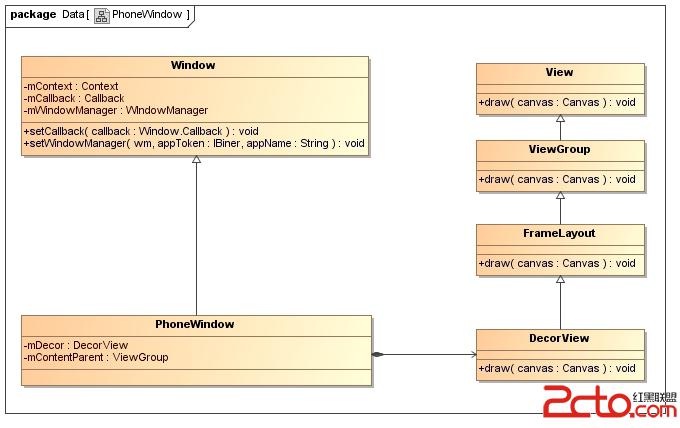
同樣,我們知道
知道,每一個應用程序窗口的視圖對象都有一個關聯的ViewRoot對象,這些關聯關系是由窗口管理器來維護的
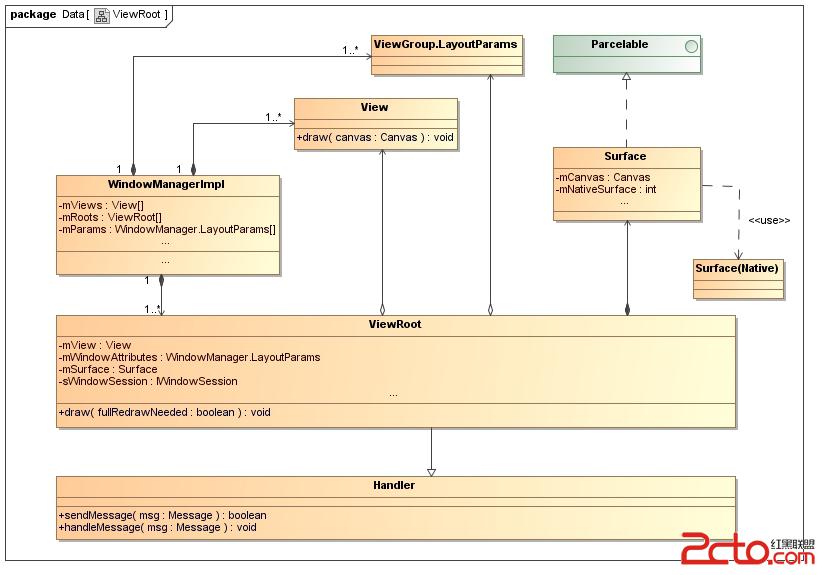
簡單來說,ViewRoot相當於是MVC模型中的Controller,它有以下職責:
1. 負責為應用程序窗口視圖創建Surface。
2. 配合WindowManagerService來管理系統的應用程序窗口。
3. 負責管理、布局和渲染應用程序窗口視圖的UI。
既然如此,那麼接下來我們便開始構建視圖UI 例如:我們創建自己的Activity,並在其中寫道
@Override
protected void onCreate(Bundle savedInstanceState) {
super.onCreate(savedInstanceState);
requestWindowFeature(Window.FEATURE_NO_TITLE);
setContentView(R.layout.activity_main);
}
同樣我們跟蹤發現
public class Activity extends ContextThemeWrapper
implements LayoutInflater.Factory,
Window.Callback, KeyEvent.Callback,
OnCreateContextMenuListener, ComponentCallbacks {
......
private Window mWindow;
......
public Window getWindow() {
return mWindow;
}
......
public final boolean requestWindowFeature(int featureId) {
return getWindow().requestFeature(featureId);
}
public void setContentView(int layoutResID) {
getWindow().setContentView(layoutResID);
}
......
}
他們最終交給了PhoneWindow(Window)處理 同樣在PhoneWindow中
public class PhoneWindow extends Window implements MenuBuilder.Callback {
......
// This is the view in which the window contents are placed. It is either
// mDecor itself, or a child of mDecor where the contents go.
private ViewGroup mContentParent;
......
public boolean requestFeature(int featureId) {
//這裡 requestFeature 必須在 setContentView之前
if (mContentParent != null) {
throw new AndroidRuntimeException("requestFeature() must be called before adding content");
}
final int features = getFeatures();
//最終在Window中處理
return super.requestFeature(featureId);
}
@Override
public void setContentView(int layoutResID) {
if (mContentParent == null) {
installDecor();
} else {
mContentParent.removeAllViews();
}
mLayoutInflater.inflate(layoutResID, mContentParent);
final Callback cb = getCallback();
if (cb != null) {
cb.onContentChanged();
}
}
......
}
PhoneWindow類的成員變量mContentParent用來描述一個類型為DecorView的視圖對象,或者這個類型為DecorView的視圖對象的一個子視圖對象,用作UI容器。當它的值等於null的時候,就說明正在處理的應用程序窗口的視圖對象還沒有創建。在這種情況下,就會調用成員函數installDecor來創建應用程序窗口視圖對象。否則的話,就說明是要重新設置應用程序窗口的視圖。在重新設置之前,首先調用成員變量mContentParent所描述的一個ViewGroup對象來移除原來的UI內空。
由於我們是在Activity組件啟動的過程中創建應用程序窗口視圖的,因此,我們就假設此時PhoneWindow類的成員變量mContentParent的值等於null。接下來,函數就會調用成員函數installDecor來創建應用程序窗口視圖對象,接著再通過調用PhoneWindow類的成員變量mLayoutInflater所描述的一個LayoutInflater對象的成員函數inflate來將參數layoutResID所描述的一個UI布局設置到前面所創建的應用程序窗口視圖中去,最後還會調用一個Callback接口的成員函數onContentChanged來通知對應的Activity組件,它的視圖內容發生改變了。
那麼接下來我們便開始初始化DecorView
public class PhoneWindow extends Window implements MenuBuilder.Callback {
......
// This is the top-level view of the window, containing the window decor.
private DecorView mDecor;
......
// This is the view in which the window contents are placed. It is either
// mDecor itself, or a child of mDecor where the contents go.
private ViewGroup mContentParent;
......
private TextView mTitleView;
......
private CharSequence mTitle = null;
......
private void installDecor() {
if (mDecor == null) {
mDecor = generateDecor();
......
}
if (mContentParent == null) {
mContentParent = generateLayout(mDecor);
mTitleView = (TextView)findViewById(com.android.internal.R.id.title);
if (mTitleView != null) {
if ((getLocalFeatures() & (1 << FEATURE_NO_TITLE)) != 0) {
View titleContainer =
findViewById(com.android.internal.R.id.title_container);
if (titleContainer != null) {
titleContainer.setVisibility(View.GONE);
} else {
mTitleView.setVisibility(View.GONE);
}
if (mContentParent instanceof FrameLayout) {
((FrameLayout)mContentParent).setForeground(null);
}
} else {
mTitleView.setText(mTitle);
}
}
}
}
......
}
接下來,我們便開始構建
private final class DecorView extends FrameLayout implements RootViewSurfaceTaker {
......
public DecorView(Context context, int featureId) {
super(context);
mFeatureId = featureId;
}
}
protected DecorView generateDecor() {
return new DecorView(getContext(), -1);
}
protected ViewGroup generateLayout(DecorView decor) {
TypedArray a = getWindowStyle();
mIsFloating = a.getBoolean(com.android.internal.R.styleable.Window_windowIsFloating, false);
mIsTranslucent = a.getBoolean(com.android.internal.R.styleable.Window_windowIsTranslucent, false);
int flagsToUpdate = (FLAG_LAYOUT_IN_SCREEN|FLAG_LAYOUT_INSET_DECOR)
& (~getForcedWindowFlags());
if (mIsFloating) {
setLayout(WRAP_CONTENT, WRAP_CONTENT);
setFlags(0, flagsToUpdate);
} else {
setFlags(FLAG_LAYOUT_IN_SCREEN|FLAG_LAYOUT_INSET_DECOR, flagsToUpdate);
}
if (a.getBoolean(com.android.internal.R.styleable.Window_windowNoTitle, false)) {
requestFeature(FEATURE_NO_TITLE);
} else if (a.getBoolean(com.android.internal.R.styleable.Window_windowActionBar, false)) {
requestFeature(FEATURE_ACTION_BAR);
}
if (a.getBoolean(com.android.internal.R.styleable.Window_windowActionBarOverlay, false)) {
requestFeature(FEATURE_ACTION_BAR_OVERLAY);
}
if (a.getBoolean(com.android.internal.R.styleable.Window_windowActionModeOverlay, false)) {
requestFeature(FEATURE_ACTION_MODE_OVERLAY);
}
if (a.getBoolean(com.android.internal.R.styleable.Window_windowFullscreen, false)) {
setFlags(FLAG_FULLSCREEN, FLAG_FULLSCREEN & (~getForcedWindowFlags()));
}
if (a.getBoolean(com.android.internal.R.styleable.Window_windowTranslucentStatus,
false)) {
setFlags(FLAG_TRANSLUCENT_STATUS, FLAG_TRANSLUCENT_STATUS
& (~getForcedWindowFlags()));
}
if (a.getBoolean(com.android.internal.R.styleable.Window_windowTranslucentNavigation,
false)) {
setFlags(FLAG_TRANSLUCENT_NAVIGATION, FLAG_TRANSLUCENT_NAVIGATION
& (~getForcedWindowFlags()));
}
if (a.getBoolean(com.android.internal.R.styleable.Window_windowOverscan, false)) {
setFlags(FLAG_LAYOUT_IN_OVERSCAN, FLAG_LAYOUT_IN_OVERSCAN&(~getForcedWindowFlags()));
}
if (a.getBoolean(com.android.internal.R.styleable.Window_windowShowWallpaper, false)) {
setFlags(FLAG_SHOW_WALLPAPER, FLAG_SHOW_WALLPAPER&(~getForcedWindowFlags()));
}
if (a.getBoolean(com.android.internal.R.styleable.Window_windowEnableSplitTouch,
getContext().getApplicationInfo().targetSdkVersion
>= android.os.Build.VERSION_CODES.HONEYCOMB)) {
setFlags(FLAG_SPLIT_TOUCH, FLAG_SPLIT_TOUCH&(~getForcedWindowFlags()));
}
a.getValue(com.android.internal.R.styleable.Window_windowMinWidthMajor, mMinWidthMajor);
a.getValue(com.android.internal.R.styleable.Window_windowMinWidthMinor, mMinWidthMinor);
if (a.hasValue(com.android.internal.R.styleable.Window_windowFixedWidthMajor)) {
if (mFixedWidthMajor == null) mFixedWidthMajor = new TypedValue();
a.getValue(com.android.internal.R.styleable.Window_windowFixedWidthMajor,
mFixedWidthMajor);
}
if (a.hasValue(com.android.internal.R.styleable.Window_windowFixedWidthMinor)) {
if (mFixedWidthMinor == null) mFixedWidthMinor = new TypedValue();
a.getValue(com.android.internal.R.styleable.Window_windowFixedWidthMinor,
mFixedWidthMinor);
}
if (a.hasValue(com.android.internal.R.styleable.Window_windowFixedHeightMajor)) {
if (mFixedHeightMajor == null) mFixedHeightMajor = new TypedValue();
a.getValue(com.android.internal.R.styleable.Window_windowFixedHeightMajor,
mFixedHeightMajor);
}
if (a.hasValue(com.android.internal.R.styleable.Window_windowFixedHeightMinor)) {
if (mFixedHeightMinor == null) mFixedHeightMinor = new TypedValue();
a.getValue(com.android.internal.R.styleable.Window_windowFixedHeightMinor,
mFixedHeightMinor);
}
final Context context = getContext();
final int targetSdk = context.getApplicationInfo().targetSdkVersion;
final boolean targetPreHoneycomb = targetSdk < android.os.Build.VERSION_CODES.HONEYCOMB;
final boolean targetPreIcs = targetSdk < android.os.Build.VERSION_CODES.ICE_CREAM_SANDWICH;
final boolean targetHcNeedsOptions = context.getResources().getBoolean(
com.android.internal.R.bool.target_honeycomb_needs_options_menu);
final boolean noActionBar = !hasFeature(FEATURE_ACTION_BAR) || hasFeature(FEATURE_NO_TITLE);
if (targetPreHoneycomb || (targetPreIcs && targetHcNeedsOptions && noActionBar)) {
addFlags(WindowManager.LayoutParams.FLAG_NEEDS_MENU_KEY);
} else {
clearFlags(WindowManager.LayoutParams.FLAG_NEEDS_MENU_KEY);
}
if (mAlwaysReadCloseOnTouchAttr || getContext().getApplicationInfo().targetSdkVersion
>= android.os.Build.VERSION_CODES.HONEYCOMB) {
if (a.getBoolean(
com.android.internal.R.styleable.Window_windowCloseOnTouchOutside,
false)) {
setCloseOnTouchOutsideIfNotSet(true);
}
}
WindowManager.LayoutParams params = getAttributes();
if (!hasSoftInputMode()) {
params.softInputMode = a.getInt(
com.android.internal.R.styleable.Window_windowSoftInputMode,
params.softInputMode);
}
if (a.getBoolean(com.android.internal.R.styleable.Window_backgroundDimEnabled,
mIsFloating)) {
/* All dialogs should have the window dimmed */
if ((getForcedWindowFlags()&WindowManager.LayoutParams.FLAG_DIM_BEHIND) == 0) {
params.flags |= WindowManager.LayoutParams.FLAG_DIM_BEHIND;
}
if (!haveDimAmount()) {
params.dimAmount = a.getFloat(
android.R.styleable.Window_backgroundDimAmount, 0.5f);
}
}
if (params.windowAnimations == 0) {
params.windowAnimations = a.getResourceId(
com.android.internal.R.styleable.Window_windowAnimationStyle, 0);
}
// The rest are only done if this window is not embedded; otherwise,
// the values are inherited from our container.
if (getContainer() == null) {
if (mBackgroundDrawable == null) {
if (mBackgroundResource == 0) {
mBackgroundResource = a.getResourceId(
com.android.internal.R.styleable.Window_windowBackground, 0);
}
if (mFrameResource == 0) {
mFrameResource = a.getResourceId(com.android.internal.R.styleable.Window_windowFrame, 0);
}
if (false) {
System.out.println("Background: "
+ Integer.toHexString(mBackgroundResource) + " Frame: "
+ Integer.toHexString(mFrameResource));
}
}
mTextColor = a.getColor(com.android.internal.R.styleable.Window_textColor, 0xFF000000);
}
// Inflate the window decor.
int layoutResource;
int features = getLocalFeatures();
// System.out.println("Features: 0x" + Integer.toHexString(features));
if ((features & ((1 << FEATURE_LEFT_ICON) | (1 << FEATURE_RIGHT_ICON))) != 0) {
if (mIsFloating) {
TypedValue res = new TypedValue();
getContext().getTheme().resolveAttribute(
com.android.internal.R.attr.dialogTitleIconsDecorLayout, res, true);
layoutResource = res.resourceId;
} else {
layoutResource = com.android.internal.R.layout.screen_title_icons;
}
// XXX Remove this once action bar supports these features.
removeFeature(FEATURE_ACTION_BAR);
// System.out.println("Title Icons!");
} else if ((features & ((1 << FEATURE_PROGRESS) | (1 << FEATURE_INDETERMINATE_PROGRESS))) != 0
&& (features & (1 << FEATURE_ACTION_BAR)) == 0) {
// Special case for a window with only a progress bar (and title).
// XXX Need to have a no-title version of embedded windows.
layoutResource = com.android.internal.R.layout.screen_progress;
// System.out.println("Progress!");
} else if ((features & (1 << FEATURE_CUSTOM_TITLE)) != 0) {
// Special case for a window with a custom title.
// If the window is floating, we need a dialog layout
if (mIsFloating) {
TypedValue res = new TypedValue();
getContext().getTheme().resolveAttribute(
com.android.internal.R.attr.dialogCustomTitleDecorLayout, res, true);
layoutResource = res.resourceId;
} else {
layoutResource = com.android.internal.R.layout.screen_custom_title;
}
// XXX Remove this once action bar supports these features.
removeFeature(FEATURE_ACTION_BAR);
} else if ((features & (1 << FEATURE_NO_TITLE)) == 0) {
// If no other features and not embedded, only need a title.
// If the window is floating, we need a dialog layout
if (mIsFloating) {
TypedValue res = new TypedValue();
getContext().getTheme().resolveAttribute(
com.android.internal.R.attr.dialogTitleDecorLayout, res, true);
layoutResource = res.resourceId;
} else if ((features & (1 << FEATURE_ACTION_BAR)) != 0) {
layoutResource = com.android.internal.R.layout.screen_action_bar;
} else {
layoutResource = com.android.internal.R.layout.screen_title;
}
// System.out.println("Title!");
} else if ((features & (1 << FEATURE_ACTION_MODE_OVERLAY)) != 0) {
layoutResource = com.android.internal.R.layout.screen_simple_overlay_action_mode;
} else {
// Embedded, so no decoration is needed.
layoutResource = com.android.internal.R.layout.screen_simple;
// System.out.println("Simple!");
}
mDecor.startChanging();
Trace.traceBegin(Trace.TRACE_TAG_VIEW, "DecorView-inflate");
View in = mLayoutInflater.inflate(layoutResource, null);
Trace.traceEnd(Trace.TRACE_TAG_VIEW);
//add for Multi window
if (mMultiWindow && !mIsFloating){
if (context.getPackageName().contains("launcher") || mIsTranslucent){
Log.d(TAG, "MW phoneWindow do nothing");
} else {
Log.d(TAG, "MW PhoneWindow decor start ");
in = prepareMultiWindow(context,in);
Log.d(TAG, "MW PhoneWindow decor end ");
}
}
//end
decor.addView(in, new ViewGroup.LayoutParams(MATCH_PARENT, MATCH_PARENT));
ViewGroup contentParent = (ViewGroup)findViewById(ID_ANDROID_CONTENT);
if (contentParent == null) {
throw new RuntimeException("Window couldn't find content container view");
}
if ((features & (1 << FEATURE_INDETERMINATE_PROGRESS)) != 0) {
ProgressBar progress = getCircularProgressBar(false);
if (progress != null) {
progress.setIndeterminate(true);
}
}
//Remaining setup - of background and title - that only applies
//to top-level windows.
if (getContainer() == null) {
Drawable drawable = mBackgroundDrawable;
if (mBackgroundResource != 0) {
drawable = getContext().getResources().getDrawable(mBackgroundResource);
}
mDecor.setWindowBackground(drawable);
drawable = null;
if (mFrameResource != 0) {
drawable = getContext().getResources().getDrawable(mFrameResource);
}
mDecor.setWindowFrame(drawable);
// System.out.println("Text=" + Integer.toHexString(mTextColor) +
// " Sel=" + Integer.toHexString(mTextSelectedColor) +
// " Title=" + Integer.toHexString(mTitleColor));
if (mTitleColor == 0) {
mTitleColor = mTextColor;
}
if (mTitle != null) {
setTitle(mTitle);
}
setTitleColor(mTitleColor);
}
mDecor.finishChanging();
return contentParent;
到了這裡,我們依據不同的Feature和Flag 來初始化layout 算是初步完成
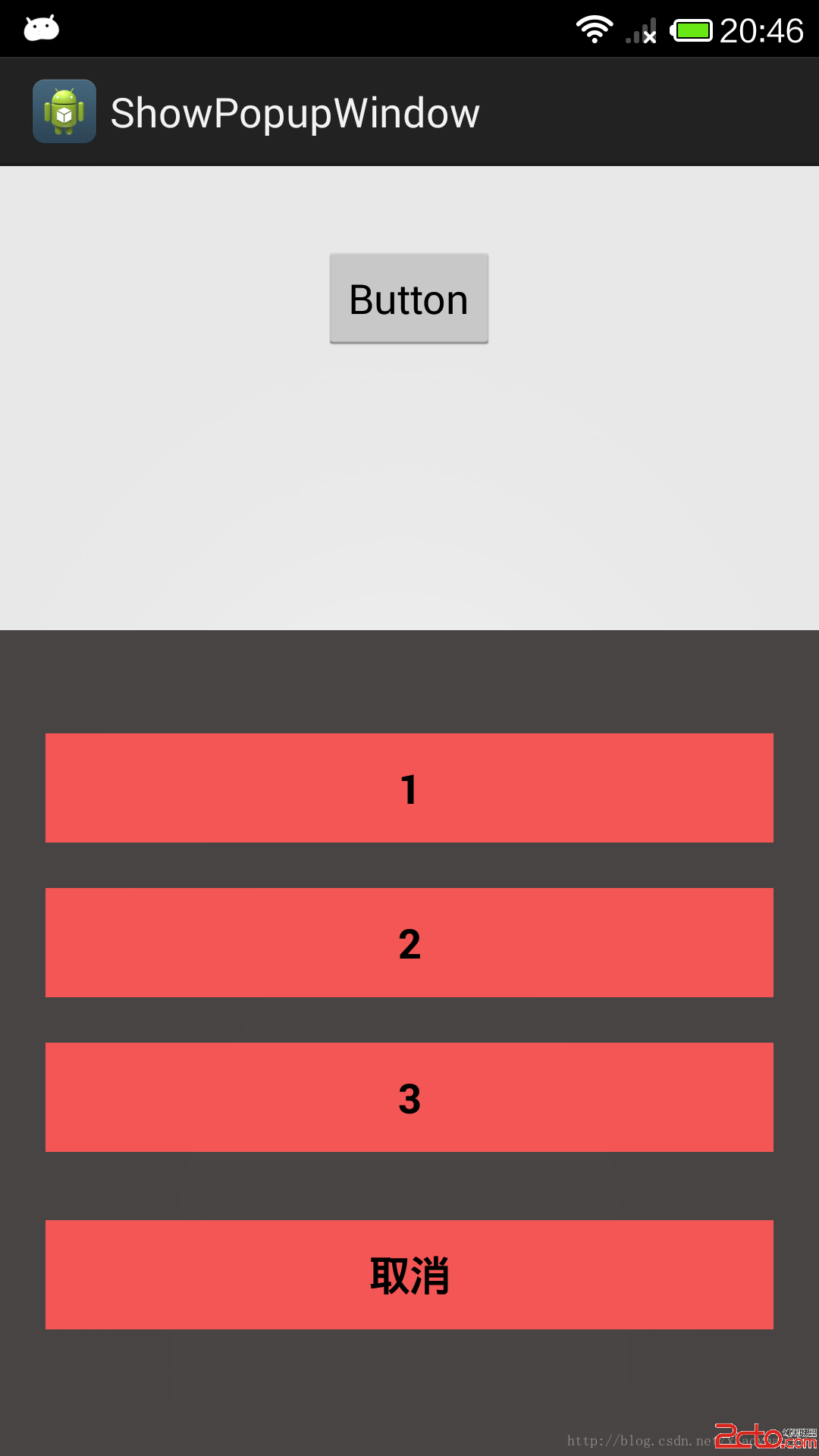 Android PopupWindow 仿微信彈出效果
項目中,我需要PopupWindow的時候特別多,這個東西也特別的好使,所以我今天給大家寫一款PopupWindow 仿微信彈出效果,這樣大家直接拿到項目裡就可以用了!首
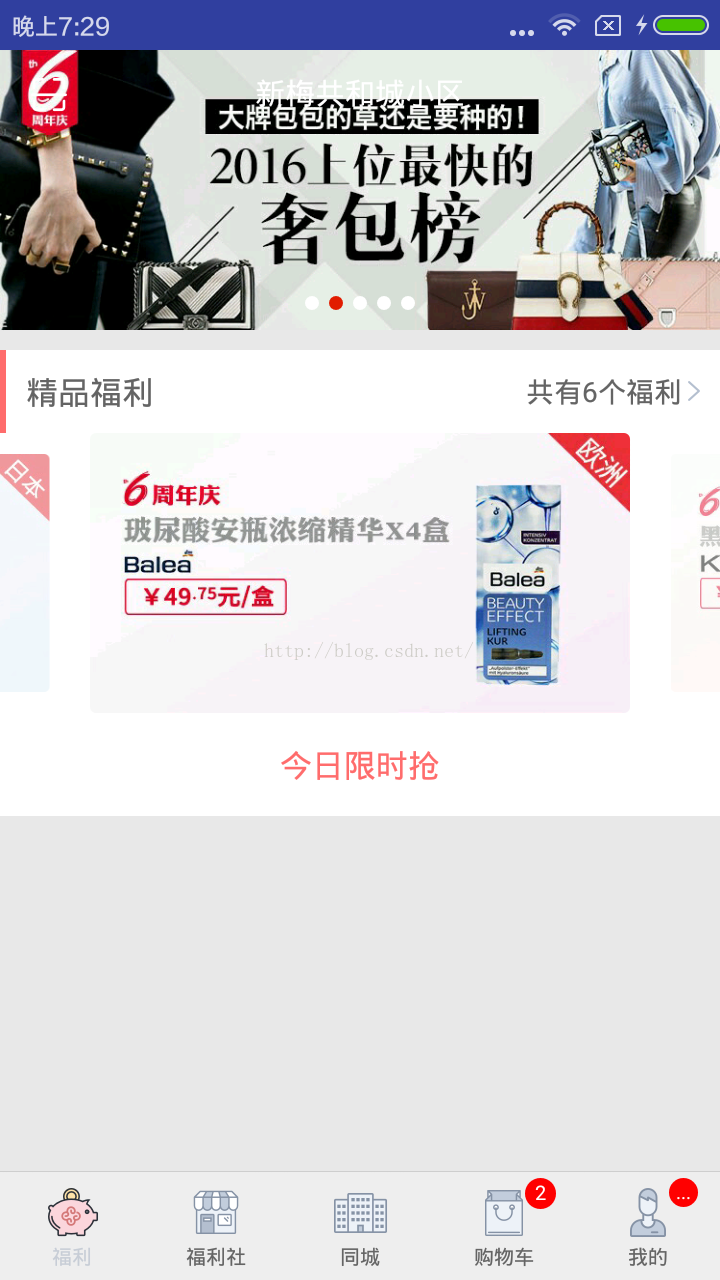 ViewPager 實現 Galler 效果, 中間大圖顯示,兩邊小圖展示
正常情況下, ViewPager 一頁只能顯示一項數據, 但是我們常常看到網上,特別是電視機頂盒的首頁經常出現中間大圖顯示兩端也都露出一點來,這種效果怎麼實現呢?先上一張
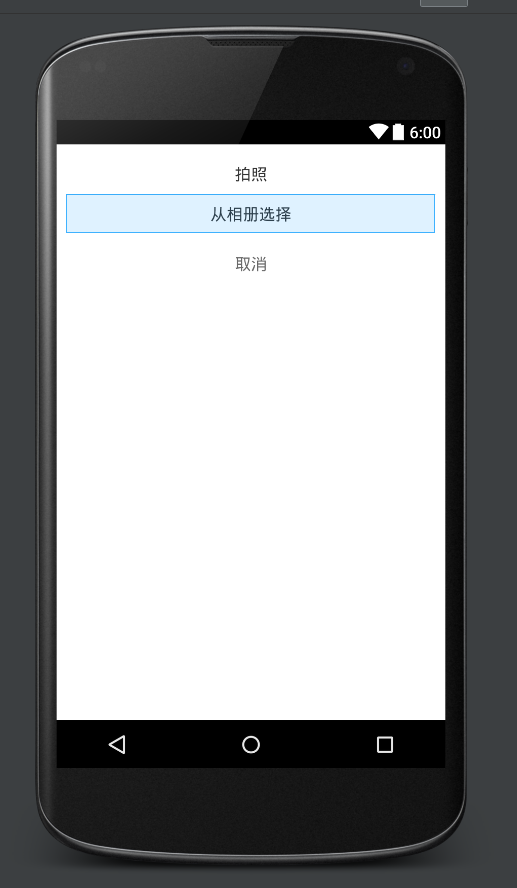 個人界面 ( 頭像 ) 圖片選擇(相冊,拍照)--如何調用系統的相冊,裁剪並且上傳
##需求:個人界面的,個人頭像圖片的切換方式一:點擊開始切換頭像的pop–相冊選擇二:這裡有兩種方式,從相冊選擇和直接拍照,假設現在是從相冊選擇選擇頭像*我在
 Android文件存儲的問題:ClassLoader和實現Parcelable接口後 詳解及用途
可能小伙伴們讀了我上一篇博客關於Android文件存儲的的,在文件操作的時候大家有沒有疑問呀,有就對了,可能在保存自定義對象的時候,如何序列化呀?ClassLoader到