編輯:關於Android編程

Toast的自定義使用原理與其類似。
老規矩,我們先去看Toast的源碼。
Toast有兩種顯示布局方式,一種最常見調用Toast.makeText(),看源碼是這樣寫的
public static Toast makeText(Context context, CharSequence text, @Duration int duration) {
Toast result = new Toast(context);

LayoutInflater inflate = (LayoutInflater)
context.getSystemService(Context.LAYOUT_INFLATER_SERVICE);
View v = inflate.inflate(com.android.internal.R.layout.transient_notification, null);
TextView tv = (TextView)v.findViewById(com.android.internal.R.id.message);
tv.setText(text);

result.mNextView = v;
result.mDuration = duration;

return result;
}
transient_notification這個布局文件代碼是這樣的
那麼我們想要修改Toast的文字消息樣式,其實就是修改Toast根布局和message這個TextView。
Toast的另外一種顯示模式就是自定義布局顯示。這個方法不調用Toast.makeText()方法,而是new一個Toast對象,然後調用setView()方法。當然自定義布局就不會加載transient_notification布局了。
先給大家看下我封裝的工具類ToastUtil。
import android.content.Context;
import android.view.View;
import android.widget.LinearLayout;
import android.widget.TextView;
import android.widget.Toast;

/**
 * Created by 趙晨璞 on 2016/8/11.
 */
public class ToastUtil {

private  Toast toast;
private LinearLayout toastView;

/**
 * 修改原布局的Toast
 */
public ToastUtil() {

}

/**
 * 完全自定義布局Toast
 * @param context
 * @param view
 */
public ToastUtil(Context context, View view,int duration){
    toast=new Toast(context);
    toast.setView(view);
    toast.setDuration(duration);
}

/**
 * 向Toast中添加自定義view
 * @param view
 * @param postion
 * @return
 */
public  ToastUtil addView(View view,int postion) {
    toastView = (LinearLayout) toast.getView();
    toastView.addView(view, postion);

    return this;
}

/**
 * 設置Toast字體及背景顏色
 * @param messageColor
 * @param backgroundColor
 * @return
 */
public ToastUtil setToastColor(int messageColor, int backgroundColor) {
    View view = toast.getView();
    if(view!=null){
       TextView message=((TextView) view.findViewById(android.R.id.message));
        message.setBackgroundColor(backgroundColor);
        message.setTextColor(messageColor);
    }
    return this;
}

/**
 * 設置Toast字體及背景
 * @param messageColor
 * @param background
 * @return
 */
public ToastUtil setToastBackground(int messageColor, int background) {
    View view = toast.getView();
    if(view!=null){
        TextView message=((TextView) view.findViewById(android.R.id.message));
        message.setBackgroundResource(background);
        message.setTextColor(messageColor);
    }
    return this;
}

/**
 * 短時間顯示Toast
 */
public  ToastUtil Short(Context context, CharSequence message){
    if(toast==null||(toastView!=null&&toastView.getChildCount()>1)){
        toast= Toast.makeText(context, message, Toast.LENGTH_SHORT);
        toastView=null;
    }else{
        toast.setText(message);
        toast.setDuration(Toast.LENGTH_SHORT);
    }
    return this;
}

/**
 * 短時間顯示Toast
 */
public ToastUtil Short(Context context, int message) {
    if(toast==null||(toastView!=null&&toastView.getChildCount()>1)){
        toast= Toast.makeText(context, message, Toast.LENGTH_SHORT);
        toastView=null;
    }else{
        toast.setText(message);
        toast.setDuration(Toast.LENGTH_SHORT);
    }
  return this;
}

/**
 * 長時間顯示Toast
 */
public ToastUtil Long(Context context, CharSequence message){
    if(toast==null||(toastView!=null&&toastView.getChildCount()>1)){
        toast= Toast.makeText(context, message, Toast.LENGTH_LONG);
        toastView=null;
    }else{
        toast.setText(message);
        toast.setDuration(Toast.LENGTH_LONG);
    }
    return this;
}

/**
 * 長時間顯示Toast
 *
 * @param context
 * @param message
 */
public ToastUtil Long(Context context, int message) {
    if(toast==null||(toastView!=null&&toastView.getChildCount()>1)){
        toast= Toast.makeText(context, message, Toast.LENGTH_LONG);
        toastView=null;
    }else{
        toast.setText(message);
        toast.setDuration(Toast.LENGTH_LONG);
    }
    return this;
}

/**
 * 自定義顯示Toast時間
 *
 * @param context
 * @param message
 * @param duration
 */
public ToastUtil Indefinite(Context context, CharSequence message, int duration) {
    if(toast==null||(toastView!=null&&toastView.getChildCount()>1)){
        toast= Toast.makeText(context, message,duration);
        toastView=null;
    }else{
        toast.setText(message);
        toast.setDuration(duration);
    }
     return this;
}

/**
 * 自定義顯示Toast時間
 *
 * @param context
 * @param message
 * @param duration
 */
public ToastUtil Indefinite(Context context, int message, int duration) {
    if(toast==null||(toastView!=null&&toastView.getChildCount()>1)){
        toast= Toast.makeText(context, message,duration);
        toastView=null;
    }else{
        toast.setText(message);
        toast.setDuration(duration);
    }
    return this;
}

/**
 * 顯示Toast
 * @return
 */
public ToastUtil show (){
    toast.show();

    return this;
}

/**
 * 獲取Toast
 * @return
 */
public Toast getToast(){
    return toast;
}
}
修改Toast背景色的使用法方法如下:
ToastUtil toastUtil=new ToastUtil();
toastUtil.Short(MainActivity.this,"自定義message字體、背景色").setToastColor(Color.WHITE, getResources().getColor(R.color.colorAccent)).show();
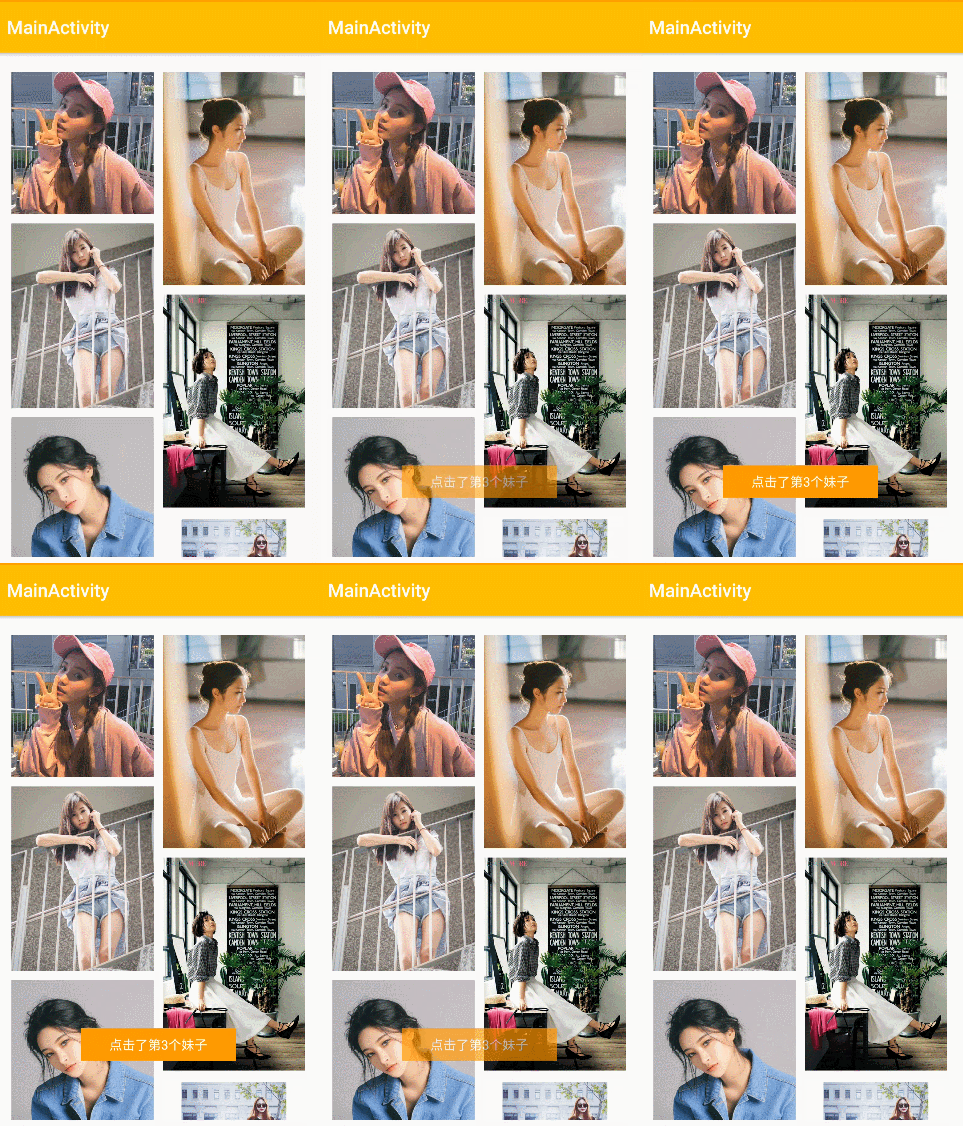
方形的Toast看上去有些呆板,我自定義了一個名為toast_radius.xml的背景,代碼如下:
然後上面設置背景的代碼改成:
toastUtil.Short(MainActivity.this,"自定義message字體顏色和背景").setToastBackground(Color.WHITE,R.drawable.toast_radius).show();
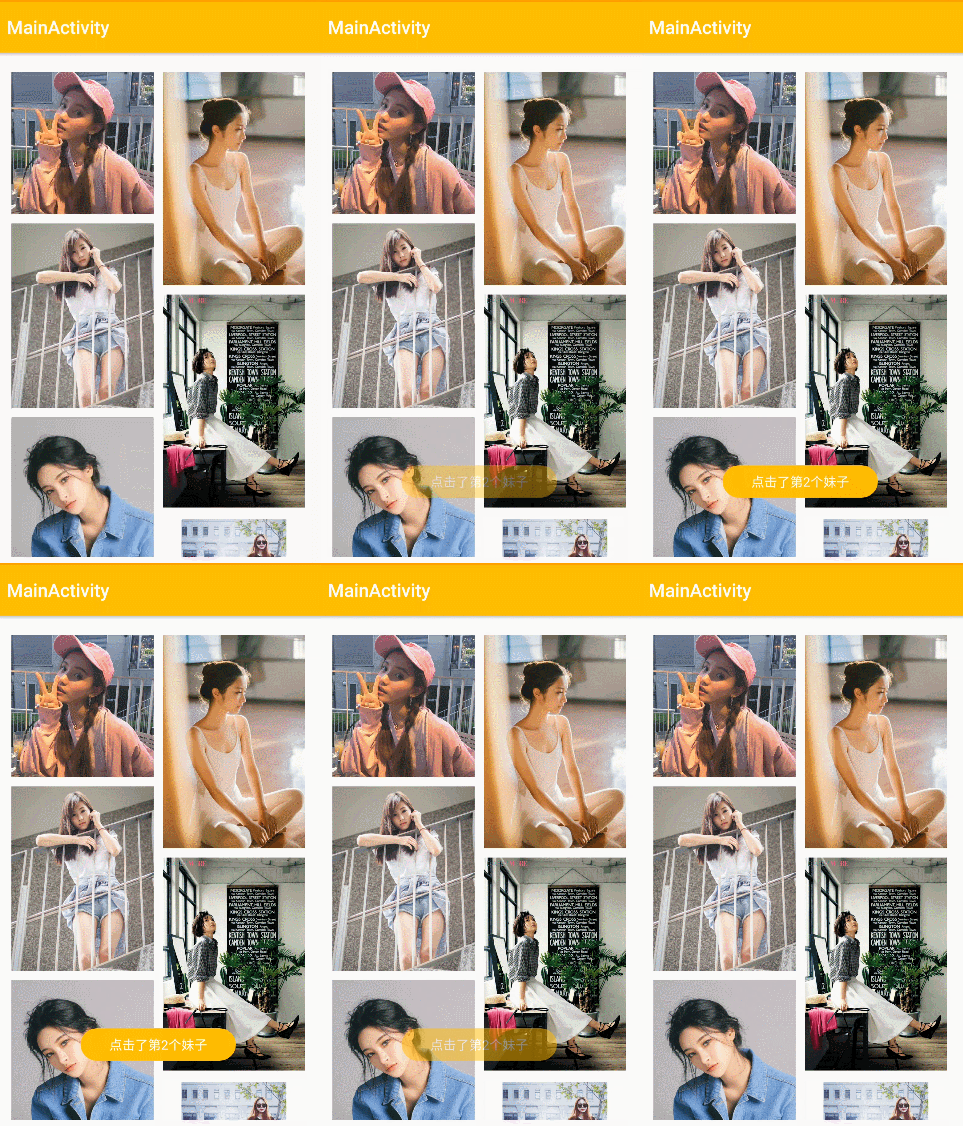
雖然官方認為Toast和Snackbar都應該是短文本的形式,不能包含圖標,但是個人感覺加上圖標還是挺好玩的...
向Toast中添加圖標可以這樣:
 ImageView toastImage = new ImageView(getApplicationContext());
 toastImage.setImageResource(R.mipmap.ic_launcher);
 toastUtil.Short(MainActivity.this,"向Toast添加了一個ImageView").setToastBackground(Color.WHITE,R.drawable.toast_radius).addView(toastImage,0).show();
如果你想要Toast顯示自定義的布局,可以這樣:
 View view = LayoutInflater.from(MainActivity.this).inflate(R.layout.image,null);
 new ToastUtil(MainActivity.this,view,Toast.LENGTH_SHORT).show();
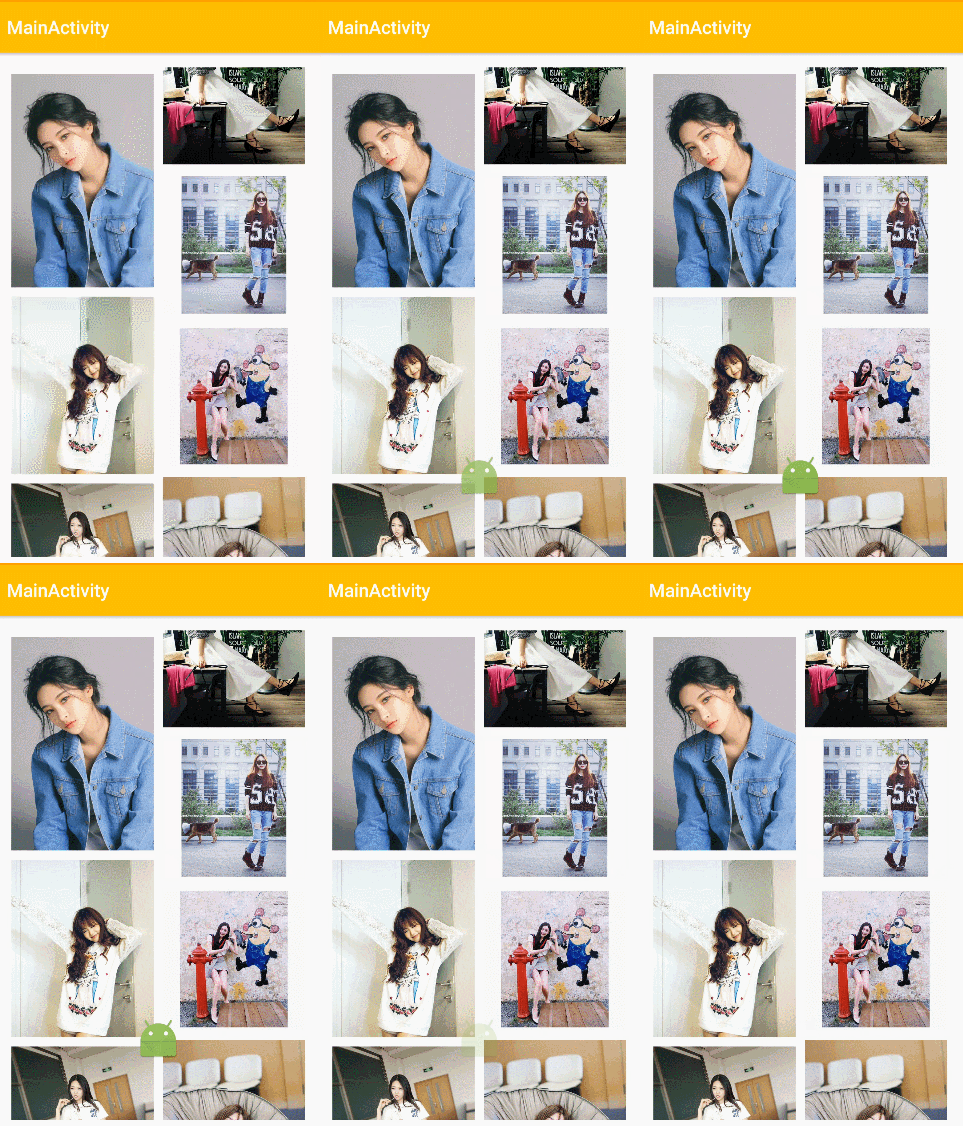
大家都知道,連續觸發Toast的show()方法的時候,Toast就會排著隊連續展示,感覺上不太友好。所以我先判斷了toast是否沒被創建或者是否被添加了額外的view,如果是的話就重新生成一個toast對象;如果否的話就只修改message文字和顯示時間。

我這個工具類不是完全體,大家再根據自己項目的具體需求進行修改。 []~( ̄▽ ̄)~*
 Android開發之搜索框自動提示細節MatrixCursor學習
1,在ActionBar裡面加入搜索框 在ActionBar裡面加入搜索框是現在APP應用的常用做法。要想把搜索做好,可不是那麼容易。涉及到自動提示和真正的搜索。下圖是我
 在Android中通過Intent使用Bundle傳遞對象的使用方法
Android開發中有時需要在應用中或進程間傳遞對象,下面詳細介紹Intent使用Bundle傳遞對象的方法。被傳遞的對象需要先實現序列化,而序列化對象有兩種方式:jav
 華為榮耀X2智能解鎖怎麼用 榮耀X2智能解鎖功能使用教程
華為榮耀X2手機系統版本更新到B013版以後,鎖屏和密碼中增加了一項智能解鎖功能,聽起來都很高大上的功能,比指紋解鎖還NB,那這個智能解鎖功能怎麼用呢?下面
 Android編程中selector背景選擇器用法實例分析
本文實例講述了Android編程中selector背景選擇器用法。分享給大家供大家參考,具體如下:在Android開發過程中,經常對某一View的背景在不同的狀態下,設置