編輯:關於Android編程
實現效果:
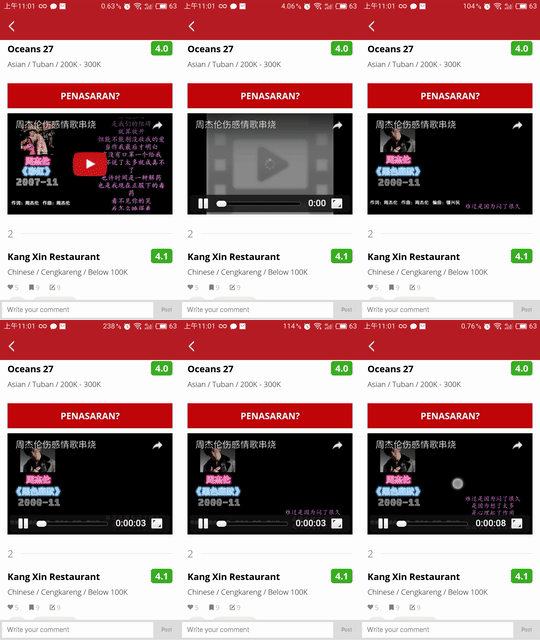
因為業務需要,以下代碼均以Youtube網站在線視頻為例
實現功能:
1、初始化的時候顯示標題和視頻封面
2、初始化的時候顯示一個play按鈕
3、不需要依賴任何SDK,或者導入任何第三方庫
4、播放過程中可以暫停,可以拖動進度條快進
5、可以全屏播放
6、切換頁面的時候會自動暫停
7、頁面退出的時候自動銷毀WebView
8、不需要申請任何開發者賬號或者獲取授權
原理:
首先需要一個繼承WebView的自定義控件,這裡起名叫做YoutubePlayerView,在頁面初始化的時候用這個WebView去加載一個事先寫好的HTML,當然在加載之前,需要把Youtube的視頻id和一些播放參數設置進去。然後一個小的播放窗口就完成了,此時已經完成用戶點擊play按鈕就播放的功能。
但是光能播放還不行,我們還需要捕捉用戶的點擊事件,比如播放,暫停等等操作,而這些操作本身寫在Youtube的JS代碼中(Youtube已經把JS調用相關代碼的位置預留好,就等著開發者來復寫相關的代碼了),需要在JS代碼中調用java代碼,這樣就需要有一個JS調用java的接口,這裡起名叫QualsonBridge,通過使用WebVIew的addJavascriptInterface()方法將Java代碼的接口設置進去,並且需要一個接口實現類,實現的方法名稱方法要和JS接口規定的方法一模一樣,以便反射調用,一會會把詳細的代碼貼出來。
完成以上兩點,就已經完成了播放,暫停等操作,但是還需要在Activity退出或者被覆蓋的時候暫停WebView的播放,所以還需要給這個WebView寫一個onDestroy的方法,並在fragment的onDestroy中調用,裡面執行的主要就是清楚緩存的操作,還需要WebView寫一個onPause的方法,在fragment的onPause中調用,裡面主要執行JS代碼:javascript:onVideoPause()
關於全屏播放:是通過一個自定義的WebChromeClient來實現將WebView擴大到全屏並修改旋轉角度進行播放
代碼實現:
首先需要讓WebView去加載一塊HTML,這段HTML是從Youtube的官方SDK中抽取出來的,本質上是一個HTML編寫的小播放窗口,代碼如下
<script type = "text/javascript" src = "http://ajax.googleapis.com/ajax/libs/jquery/2.1.3/jquery.min.js"></script>
<script type = "text/javascript" src = "https://ajax.googleapis.com/ajax/libs/jqueryui/1.11.3/jquery-ui.min.js"></script>
<script src="https://www.youtube.com/iframe_api"></script>
<script type="text/javascript">
var player;
function onYouTubeIframeAPIReady() {
player = new YT.Player('QPlayer', {
height: '100%',
width: '100%',
videoId: '[VIDEO_ID]',
events: {
'onReady': onPlayerReady,
'onStateChange': onPlayerStateChange,
'onPlaybackQualityChange': onPlayerPlaybackQualityChange,
'onPlaybackRateChange': onPlayerPlaybackRateChange,
'onError': onPlayerError,
'onApiChange': onPlayerApiChange
},
playerVars: {
'autoplay': [AUTO_PLAY],
'autohide':[AUTO_HIDE],
'rel': [REL],
'showinfo': [SHOW_INFO],
'enablejsapi': [ENABLE_JS_API],
'disablekb': [DISABLE_KB],
'cc_lang_pref': '[CC_LANG_PREF]',
'controls': [CONTROLS],
'fs' : [FS],
'origin' : 'https://www.youtube.com'
}
});
}
function onPlayerReady(event) {
console.log('player is ready');
onReady('player is ready');
sendDuration();
player.setOption("captions", "track", {"languageCode": "es"});
player.unloadModule("captions");
}
var timerId = 0;
function onPlayerStateChange(event) {
clearTimeout(timerId);
switch (event.data) {
case YT.PlayerState.UNSTARTED:
onStateChange("UNSTARTED");
break;
case YT.PlayerState.ENDED:
onStateChange("ENDED");
break;
case YT.PlayerState.PLAYING:
player.unloadModule("captions");
onStateChange("PLAYING");
timerId = setInterval(function() {
setCurrentSeconds();
}, 100);
break;
case YT.PlayerState.PAUSED:
onStateChange("PAUSED");
break;
case YT.PlayerState.BUFFERING:
onStateChange("BUFFERING");
break;
case YT.PlayerState.CUED:
onStateChange("CUED");
break;
}
}
//底下的這些function就是調用java代碼的接口函數
function onPlayerPlaybackQualityChange(playbackQuality) {
console.log('playback quality changed to ' + playbackQuality.data);
onPlaybackQualityChange('playback quality changed to ' + playbackQuality.data);
}
function onPlayerPlaybackRateChange(playbackRate) {
console.log('playback rate changed to ' + playbackRate.data);
onPlaybackRateChange('playback rate changed to ' + playbackRate.data);
}
function onPlayerError(e) {
console.log('An error occurred: ' + e.data);
onError('An error occurred: ' + e.data);
}
function onPlayerApiChange() {
console.log('The player API changed');
onApiChange('The player API changed');
}
function onReady(e){
window.QualsonInterface.onReady(e);
}
//這個函數是最重要的,用於通知Android代碼播放狀態改變
function onStateChange(e){
window.QualsonInterface.onStateChange(e);
}
function onPlaybackQualityChange(e){
window.QualsonInterface.onPlaybackQualityChange(e);
}
function onPlaybackRateChange(e){
window.QualsonInterface.onPlaybackRateChange(e);
}
function onError(e){
window.QualsonInterface.onError(e);
}
function onApiChange(e){
window.QualsonInterface.onApiChange(e);
}
function setCurrentSeconds(){
window.QualsonInterface.currentSeconds(player.getCurrentTime());
}
function sendDuration(){
window.QualsonInterface.duration(player.getDuration());
}
function setLog(msg){
window.QualsonInterface.logs(msg);
}
function onSeekTo(startSeconds){
player.seekTo(startSeconds, true)
}
function onVideoPause(){
player.pauseVideo();
}
function onVideoStop(){
player.stopVideo();
}
function onVideoPlay(){
player.playVideo();
}
function onHideControls(){
setLog("onHideControls()");
}
function loadVideo(videoId, startSeconds){
setLog(videoId + "_" + startSeconds);
player.loadVideoById(videoId, startSeconds);
}
function cueVideo(videoId){
setLog(videoId);
player.cueVideoById(videoId, 0, "default");
player.setVolume(100)
}
</script>
/**
     * 自己寫一段HTML,並設置好Youtube的視頻id,放到WebView中進行顯示
     * @param videoId
     * @return
     */
    private String getVideoHTML(String videoId) {
        try {
            InputStream in = getResources().openRawResource(R.raw.players);
            if (in != null) {
                InputStreamReader stream = new InputStreamReader(in, "utf-8");
                BufferedReader buffer = new BufferedReader(stream);
                String read;
                StringBuilder sb = new StringBuilder("");

                while ((read = buffer.readLine()) != null) {
                    sb.append(read + "\n");
                }

                in.close();

                String html = sb.toString().replace("[VIDEO_ID]", videoId).replace("[BG_COLOR]", backgroundColor);
                html = html.replace("[AUTO_PLAY]", String.valueOf(params.getAutoplay())).replace("[AUTO_HIDE]", String.valueOf(params.getAutohide())).replace("[REL]", String.valueOf(params.getRel())).replace("[SHOW_INFO]", String.valueOf(params.getShowinfo())).replace("[ENABLE_JS_API]", String.valueOf(params.getEnablejsapi())).replace("[DISABLE_KB]", String.valueOf(params.getDisablekb())).replace("[CC_LANG_PREF]", String.valueOf(params.getCc_lang_pref())).replace("[CONTROLS]", String.valueOf(params.getControls())).replace("[FS]", String.valueOf(params.getFs()));
                return html;
            }
        } catch (Exception e) {
            e.printStackTrace();
        }
        return "";
    }
這裡面傳來的videoId一般是從Youtube視頻分享url中用正則解析出來的,比如:https://youtu.be/DdRwiH4mR0Q
DdRwiH4mR0Q就是videoId
還需要一個給JS代碼調用java代碼的接口,要復寫上面html中events中和function中的所有方法,如下
/**
     * WEB TO APP Javascript的安卓接口,用於在安卓上部署JS代碼,這裡是將JS回調到Android中,讓JS觸發Java代碼
     * 需要在JS代碼合適地方調用這裡面的方法,在js中有一個函數如下:
     * function onPlayerStateChange(event)
     * 和這樣一個函數
     * function onStateChange(e){
            window.QualsonInterface.onStateChange(e);//用於回調java代碼
        }
     並且這個需要在java代碼中使用 this.addJavascriptInterface(bridge, "QualsonInterface");來注冊
     */
    private class QualsonBridge {

        @JavascriptInterface
        public void onReady(String arg) {
            JLogUtils.d(TAG, "onReady(" + arg + ")");
            if (youTubeListener != null) {
                youTubeListener.onReady();
            }
        }

        @JavascriptInterface
        public void onStateChange(String arg) {
            JLogUtils.d(TAG, "onStateChange(" + arg + ")");
            if ("UNSTARTED".equalsIgnoreCase(arg)) {
                notifyStateChange(STATE.UNSTARTED);
            } else if ("ENDED".equalsIgnoreCase(arg)) {
                notifyStateChange(STATE.ENDED);
            } else if ("PLAYING".equalsIgnoreCase(arg)) {
                notifyStateChange(STATE.PLAYING);
            } else if ("PAUSED".equalsIgnoreCase(arg)) {
                notifyStateChange(STATE.PAUSED);
            } else if ("BUFFERING".equalsIgnoreCase(arg)) {
                notifyStateChange(STATE.BUFFERING);
            } else if ("CUED".equalsIgnoreCase(arg)) {
                notifyStateChange(STATE.CUED);
            }
        }

        @JavascriptInterface
        public void onPlaybackQualityChange(String arg) {
            JLogUtils.d(TAG, "onPlaybackQualityChange(" + arg + ")");
            if (youTubeListener != null) {
                youTubeListener.onPlaybackQualityChange(arg);
            }
        }

        @JavascriptInterface
        public void onPlaybackRateChange(String arg) {
            JLogUtils.d(TAG, "onPlaybackRateChange(" + arg + ")");
            if (youTubeListener != null) {
                youTubeListener.onPlaybackRateChange(arg);
            }
        }

        @JavascriptInterface
        public void onError(String arg) {
            JLogUtils.e(TAG, "onError(" + arg + ")");
            if (youTubeListener != null) {
                youTubeListener.onError(arg);
            }
        }

        @JavascriptInterface
        public void onApiChange(String arg) {
            JLogUtils.d(TAG, "onApiChange(" + arg + ")");
            if (youTubeListener != null) {
                youTubeListener.onApiChange(arg);
            }
        }

        @JavascriptInterface
        public void currentSeconds(String seconds) {
            if (youTubeListener != null) {
                youTubeListener.onCurrentSecond(Double.parseDouble(seconds));
            }
        }

        @JavascriptInterface
        public void duration(String seconds) {
            if (youTubeListener != null) {
                youTubeListener.onDuration(Double.parseDouble(seconds));
            }
        }

        @JavascriptInterface
        public void logs(String arg) {
            JLogUtils.d(TAG, "logs(" + arg + ")");
            if (youTubeListener != null) {
                youTubeListener.logs(arg);
            }
        }
    }
向js注冊這個JAVA接口使用WebView的addJavascriptInterface(bridge, "QualsonInterface");方法
這裡面的youTubeListener是自己寫的一個接口類,用於方便回調UI方法的
下面貼出這個自定義WebView的完整代碼:
package com.imaginato.qravedconsumer.widget.player;

import android.annotation.SuppressLint;
import android.app.Activity;
import android.content.Context;
import android.content.Intent;
import android.net.Uri;
import android.os.Build;
import android.util.AttributeSet;
import android.util.DisplayMetrics;
import android.util.Log;
import android.view.View;
import android.webkit.JavascriptInterface;
import android.webkit.WebChromeClient;
import android.webkit.WebSettings;
import android.webkit.WebView;
import android.webkit.WebViewClient;

import com.qraved.app.R;

import java.io.BufferedReader;
import java.io.InputStream;
import java.io.InputStreamReader;
import java.lang.ref.WeakReference;
import java.lang.reflect.Field;

public class YoutubePlayerView extends WebView {

    private static final String TAG = YoutubePlayerView.class.getSimpleName();

    private QualsonBridge bridge = new QualsonBridge();

    private YTParams params = new YTParams();

    private YouTubeListener youTubeListener;
    private String backgroundColor = "#000000";
    private STATE mPlayState = STATE.UNSTARTED;

    public YoutubePlayerView(Context context) {
        super(context);
        setWebViewClient(new MyWebViewClient((Activity) context));
    }

    public YoutubePlayerView(Context context, AttributeSet attrs) {
        super(context, attrs);
        setWebViewClient(new MyWebViewClient((Activity) context));
    }

    @SuppressLint("JavascriptInterface")
    public void initialize(String videoId, YouTubeListener youTubeListener, WebChromeClient webChromeClient) {
        WebSettings set = this.getSettings();
        set.setJavaScriptEnabled(true);
        set.setUseWideViewPort(true);
        set.setLoadWithOverviewMode(true);
        set.setLayoutAlgorithm(WebSettings.LayoutAlgorithm.NORMAL);
        set.setCacheMode(WebSettings.LOAD_NO_CACHE);
        set.setPluginState(WebSettings.PluginState.ON);
        set.setPluginState(WebSettings.PluginState.ON_DEMAND);
        set.setAllowContentAccess(true);
        set.setAllowFileAccess(true);

        if (webChromeClient != null) {
            this.setWebChromeClient(webChromeClient);
        }

        this.mPlayState = STATE.UNSTARTED;
        this.youTubeListener = youTubeListener;
        this.setLayerType(View.LAYER_TYPE_NONE, null);
        this.measure(MeasureSpec.UNSPECIFIED, MeasureSpec.UNSPECIFIED);
        this.addJavascriptInterface(bridge, "QualsonInterface");//注冊js代碼調用java代碼的接口
        this.loadDataWithBaseURL("https://www.youtube.com", getVideoHTML(videoId), "text/html", "utf-8", null);
        this.setLongClickable(true);
        this.setOnLongClickListener(new OnLongClickListener() {
            @Override
            public boolean onLongClick(View v) {
                return true;
            }
        });

    }

    public void initialize(String videoId, YTParams params, YouTubeListener youTubeListener, WebChromeClient webChromeClient) {
        if (params != null) {
            this.params = params;
        }
        initialize(videoId, youTubeListener, webChromeClient);
    }

    public void setWhiteBackgroundColor() {
        backgroundColor = "#ffffff";
    }

    public void setAutoPlayerHeight(Context context) {
        DisplayMetrics displayMetrics = new DisplayMetrics();
        ((Activity) context).getWindowManager().getDefaultDisplay().getMetrics(displayMetrics);
        this.getLayoutParams().height = (int) (displayMetrics.widthPixels * 0.5625);
    }

    /**
     * 讓WebView去執行JS代碼javascript:onVideoPause(),來暫停視頻
     */
    public void pause() {
        Log.d(TAG, "pause");
        this.loadUrl("javascript:onVideoPause()");
    }
    /**
     * 讓WebView去執行JS代碼,來停止視頻
     */
    public void stop(){
        Log.d(TAG,"stop");
        this.loadUrl("javascript:onVideoStop()");
    }

    public STATE getPlayerState(){
        Log.d(TAG,"getPlayerState");
        return mPlayState;
    }

    public void play() {
        Log.d(TAG, "play");
        this.loadUrl("javascript:onVideoPlay()");
    }

    private void notifyStateChange(STATE state){
        if(youTubeListener!=null){
            youTubeListener.onStateChange(state);
        }
        this.mPlayState = state;
    }

    /**
     * WEB TO APP Javascript的安卓接口,用於在安卓上部署JS代碼,這裡是將JS回調到Android中,讓JS觸發Java代碼
     * 需要在JS代碼合適地方調用這裡面的方法,在js中有一個函數如下:
     * function onPlayerStateChange(event)
     * 和這樣一個函數
     * function onStateChange(e){
            window.QualsonInterface.onStateChange(e);//用於回調java代碼
        }
     並且這個需要在java代碼中使用 this.addJavascriptInterface(bridge, "QualsonInterface");來注冊
     */
    private class QualsonBridge {

        @JavascriptInterface
        public void onReady(String arg) {
            Log.d(TAG, "onReady(" + arg + ")");
            if (youTubeListener != null) {
                youTubeListener.onReady();
            }
        }

        @JavascriptInterface
        public void onStateChange(String arg) {
            Log.d(TAG, "onStateChange(" + arg + ")");
            if ("UNSTARTED".equalsIgnoreCase(arg)) {
                notifyStateChange(STATE.UNSTARTED);
            } else if ("ENDED".equalsIgnoreCase(arg)) {
                notifyStateChange(STATE.ENDED);
            } else if ("PLAYING".equalsIgnoreCase(arg)) {
                notifyStateChange(STATE.PLAYING);
            } else if ("PAUSED".equalsIgnoreCase(arg)) {
                notifyStateChange(STATE.PAUSED);
            } else if ("BUFFERING".equalsIgnoreCase(arg)) {
                notifyStateChange(STATE.BUFFERING);
            } else if ("CUED".equalsIgnoreCase(arg)) {
                notifyStateChange(STATE.CUED);
            }
        }

        @JavascriptInterface
        public void onPlaybackQualityChange(String arg) {
            Log.d(TAG, "onPlaybackQualityChange(" + arg + ")");
            if (youTubeListener != null) {
                youTubeListener.onPlaybackQualityChange(arg);
            }
        }

        @JavascriptInterface
        public void onPlaybackRateChange(String arg) {
            Log.d(TAG, "onPlaybackRateChange(" + arg + ")");
            if (youTubeListener != null) {
                youTubeListener.onPlaybackRateChange(arg);
            }
        }

        @JavascriptInterface
        public void onError(String arg) {
            Log.e(TAG, "onError(" + arg + ")");
            if (youTubeListener != null) {
                youTubeListener.onError(arg);
            }
        }

        @JavascriptInterface
        public void onApiChange(String arg) {
            Log.d(TAG, "onApiChange(" + arg + ")");
            if (youTubeListener != null) {
                youTubeListener.onApiChange(arg);
            }
        }

        @JavascriptInterface
        public void currentSeconds(String seconds) {
            if (youTubeListener != null) {
                youTubeListener.onCurrentSecond(Double.parseDouble(seconds));
            }
        }

        @JavascriptInterface
        public void duration(String seconds) {
            if (youTubeListener != null) {
                youTubeListener.onDuration(Double.parseDouble(seconds));
            }
        }

        @JavascriptInterface
        public void logs(String arg) {
            Log.d(TAG, "logs(" + arg + ")");
            if (youTubeListener != null) {
                youTubeListener.logs(arg);
            }
        }
    }


    /**
     * NonLeakingWebView
     */
    private static Field sConfigCallback;

    static {
        try {
            sConfigCallback = Class.forName("android.webkit.BrowserFrame").getDeclaredField("sConfigCallback");
            sConfigCallback.setAccessible(true);
        } catch (Exception e) {
            // ignored
        }
    }

    public void onDestroy() {
        super.onDetachedFromWindow();
        // View is now detached, and about to be destroyed
        youTubeListener = null;
        this.clearCache(true);
        this.clearHistory();
        try {
            if (sConfigCallback != null)
                sConfigCallback.set(null, null);
        } catch (Exception e) {
            throw new RuntimeException(e);
        }
    }

    private class MyWebViewClient extends WebViewClient {
        protected WeakReference activityRef;

        public MyWebViewClient(Activity activity) {
            this.activityRef = new WeakReference(activity);
        }

        @Override
        public boolean shouldOverrideUrlLoading(WebView view, String url) {
            try {
                final Activity activity = activityRef.get();
                if (activity != null)
                    activity.startActivity(new Intent(Intent.ACTION_VIEW, Uri.parse(url)));
            } catch (RuntimeException ignored) {
                // ignore any url parsing exceptions
            }
            return true;
        }

        @Override
        public void onPageFinished(WebView view, String url) {
            super.onPageFinished(view, url);
            Log.d(TAG, "onPageFinished()");
        }
    }

    public interface YouTubeListener {
        void onReady();//可以顯示播放按鈕進行播放

        void onStateChange(STATE state);//暫停等等狀態

        void onPlaybackQualityChange(String arg);//清晰度改變

        void onPlaybackRateChange(String arg);

        void onError(String arg);

        void onApiChange(String arg);

        void onCurrentSecond(double second);

        void onDuration(double duration);

        void logs(String log);
    }

    public enum STATE {
        UNSTARTED,
        ENDED,
        PLAYING,
        PAUSED,
        BUFFERING,
        CUED,
        NONE
    }

    /**
     * 自己寫一段HTML,並設置好Youtube的視頻id,放到WebView中進行顯示
     * @param videoId
     * @return
     */
    private String getVideoHTML(String videoId) {
        try {
            InputStream in = getResources().openRawResource(R.raw.players);
            if (in != null) {
                InputStreamReader stream = new InputStreamReader(in, "utf-8");
                BufferedReader buffer = new BufferedReader(stream);
                String read;
                StringBuilder sb = new StringBuilder("");

                while ((read = buffer.readLine()) != null) {
                    sb.append(read + "\n");
                }

                in.close();

                String html = sb.toString().replace("[VIDEO_ID]", videoId).replace("[BG_COLOR]", backgroundColor);
                html = html.replace("[AUTO_PLAY]", String.valueOf(params.getAutoplay())).replace("[AUTO_HIDE]", String.valueOf(params.getAutohide())).replace("[REL]", String.valueOf(params.getRel())).replace("[SHOW_INFO]", String.valueOf(params.getShowinfo())).replace("[ENABLE_JS_API]", String.valueOf(params.getEnablejsapi())).replace("[DISABLE_KB]", String.valueOf(params.getDisablekb())).replace("[CC_LANG_PREF]", String.valueOf(params.getCc_lang_pref())).replace("[CONTROLS]", String.valueOf(params.getControls())).replace("[FS]", String.valueOf(params.getFs()));
                return html;
            }
        } catch (Exception e) {
            e.printStackTrace();
        }
        return "";
    }
}
View youtubeView = LayoutInflater.from(journalActivity).inflate(R.layout.layout_youtube_player, null);
        YoutubePlayerView youtubePlayerView = (YoutubePlayerView) youtubeView.findViewById(R.id.youtubePlayerView);
        youtubePlayerView.setAutoPlayerHeight(journalActivity);
        youtubePlayerView.initialize(videoID, new YoutubePlayerCallBack(youtubePlayerView), mWebChromeClient);
        ll_journal.addView(youtubeView,ll_journal.getChildCount()-1);
<frameLayout xmlns:android="http://schemas.android.com/apk/res/android"
android:layout_width="match_parent"
android:layout_height="match_parent"
android:orientation="vertical">
上面提到的WebChromeClient定義如下,用於控制全屏播放的
private WebChromeClient mWebChromeClient = new WebChromeClient(){

        @Override
        public View getVideoLoadingProgressView() {
                LayoutInflater inflater = LayoutInflater.from(activity);
                mVideoProgressView = inflater.inflate(R.layout.video_layout_loading, null);

            return mVideoProgressView;
        }

        @Override
        public void onShowCustomView(View view,
                                     WebChromeClient.CustomViewCallback callback) {
            // if a view already exists then immediately terminate the new one
            if(journalActivity==null){
                return;
            }
            if (mCustomView != null) {
                onHideCustomView();
                return;
            }

            // 1. Stash the current state
            mCustomView = view;
            mOriginalSystemUiVisibility = journalActivity.getWindow().getDecorView().getSystemUiVisibility();
            mOriginalOrientation = journalActivity.getRequestedOrientation();

            // 2. Stash the custom view callback
            mCustomViewCallback = callback;

            // 3. Add the custom view to the view hierarchy
            FrameLayout decor = (FrameLayout) journalActivity.getWindow().getDecorView();
            decor.addView(mCustomView, new FrameLayout.LayoutParams(
                    ViewGroup.LayoutParams.MATCH_PARENT,
                    ViewGroup.LayoutParams.MATCH_PARENT));
            if(mVideoFullScreenBack!=null){
                mVideoFullScreenBack.setVisibility(View.VISIBLE);
            }

            // 4. Change the state of the window
            activity.getWindow().getDecorView().setSystemUiVisibility(
                    View.SYSTEM_UI_FLAG_LAYOUT_STABLE |
                            View.SYSTEM_UI_FLAG_LAYOUT_HIDE_NAVIGATION |
                            View.SYSTEM_UI_FLAG_LAYOUT_FULLSCREEN |
                            View.SYSTEM_UI_FLAG_HIDE_NAVIGATION |
                            View.SYSTEM_UI_FLAG_FULLSCREEN |
                            View.SYSTEM_UI_FLAG_IMMERSIVE);
            activity.setRequestedOrientation(ActivityInfo.SCREEN_ORIENTATION_LANDSCAPE);
        }

        @Override
        public void onHideCustomView() {
            if (journalActivity == null) {
                return;
            }
            // 1. Remove the custom view
            FrameLayout decor = (FrameLayout) journalActivity.getWindow().getDecorView();
            decor.removeView(mCustomView);
            mCustomView = null;
            if(mVideoFullScreenBack!=null){
                mVideoFullScreenBack.setVisibility(View.GONE);
            }

            // 2. Restore the state to it's original form
            journalActivity.getWindow().getDecorView()
                    .setSystemUiVisibility(mOriginalSystemUiVisibility);
            journalActivity.setRequestedOrientation(mOriginalOrientation);

            // 3. Call the custom view callback
            if(mCustomViewCallback!=null){
                mCustomViewCallback.onCustomViewHidden();
                mCustomViewCallback = null;
            }

        }
    };
上面提到的R.layout.view_layout_loading布局文件如下,僅僅是一個progressBar當占位符用的
<frameLayout xmlns:android="http://schemas.android.com/apk/res/android"
android:layout_width="match_parent"
android:layout_height="match_parent"
android:gravity="center"
android:orientation="vertical">
 private String parseIDfromVideoUrl(String videoUrl){

        int startIndex = videoUrl.indexOf(VIDEO_ID_START);
        if(startIndex != -1){
            startIndex = startIndex + VIDEO_ID_START.length();
            int endIndex = videoUrl.indexOf("?");
            if(endIndex == -1){
                endIndex = videoUrl.length();
            }
            if(startIndex < endIndex){
                return videoUrl.substring(startIndex,endIndex);
            }
        }
        return "";
}當切換到其他fragment或者有新的Activity壓到上面的時候暫停WebView的播放,fragment總的onPause方法這麼寫:
@Override
    public void onPause() {
        if(playerViewList!=null){
            for(YoutubePlayerView v : playerViewList){
                if(v.getPlayerState() == YoutubePlayerView.STATE.PLAYING ){
                    v.pause();
                }else if(v.getPlayerState() == YoutubePlayerView.STATE.BUFFERING){
                    v.stop();
                }
            }
        }
        super.onPause();
    }
還需要讓fragment在銷毀的時候釋放WebView的資源如下:
@Override
    public void onDestroy() {
        super.onDestroy();

        if(playerViewList!=null){
            for(YoutubePlayerView v : playerViewList){
                if(v!=null){
                    v.onDestroy();
                }
            }
        }
} @Override
public void onBackPressed() {
boolean isClose = currentJournalFragment.closeFullScreen();
if(isClose){
return;
}
}這個fragment的closeFullScreen方法如下
public boolean closeFullScreen(){
        if(mCustomView!=null && mCustomViewCallback!=null){
            mWebChromeClient.onHideCustomView();
            return true;
        }
        return false;
    }
 如果寫一個android支持的html文件
Software License .box { overflow:hidden
 Android的HTTP類庫Volley入門學習教程
1. 什麼是Volley我們平時在開發Android應用的時候不可避免地都需要用到網絡技術,而多數情況下應用程序都會使用HTTP協議來發送和接收網絡數據。Android系
 android ListView的右邊滾動滑塊啟用方法 分享
多開發者不知道ListView列表控件的快速滾動滑塊是如何啟用的,這裡Android開發網告訴大家,輔助滾動滑塊只需要一行代碼就可以搞定,如果你使用XML布局只需要在Li
 android實現圖片圓角代碼
圓角效果: import android.app.Activity; import android.graphics.Bitmap; import andr