

編輯:Android 開發教學
Android UI 預設的標題欄由 android:label 決定內容,固定顯示在螢幕左上角。這個位置幾乎被浪費掉了——為什麼不能放點更有用的東西?Android 允許你自訂標題欄,用自己的 Layout 完全取代它,做出諸如 Windows Mobile 風格那樣的抬頭資訊列。
App → Activity → Custom Title 把標題欄重新定義成左右兩個文字方塊,Layout 定義在 R.layout.custom_title_1:
<RelativeLayout xmlns:android="https://schemas.android.com/apk/res/android"
    android:id="@+id/screen"
    android:layout_width="match_parent"
    android:layout_height="match_parent"
    android:orientation="vertical">

    <TextView android:id="@+id/left_text"
        android:layout_width="wrap_content"
        android:layout_height="wrap_content"
        android:layout_alignParentLeft="true"
        android:text="@string/custom_title_left" />

    <TextView android:id="@+id/right_text"
        android:layout_width="wrap_content"
        android:layout_height="wrap_content"
        android:layout_alignParentRight="true"
        android:text="@string/custom_title_right" />

</RelativeLayout>
就是一個靠左、一個靠右的文字方塊,中間的空白剛好可以放標題文字或狀態圖示。
除了 setContentView 設定的 Content View,每個 Activity 還有一個 Window 物件。Window 負責管理視窗層級的外觀,包括標題欄——它可以讓你自訂標題欄,也可以讓你完全不顯示標題欄。
Window 定義了一系列 Feature 供開發者調整,自訂標題欄對應的 Feature ID 就是 Window.FEATURE_CUSTOM_TITLE:
requestWindowFeature(Window.FEATURE_CUSTOM_TITLE);
setContentView(R.layout.custom_title);
getWindow().setFeatureInt(Window.FEATURE_CUSTOM_TITLE, R.layout.custom_title_1);
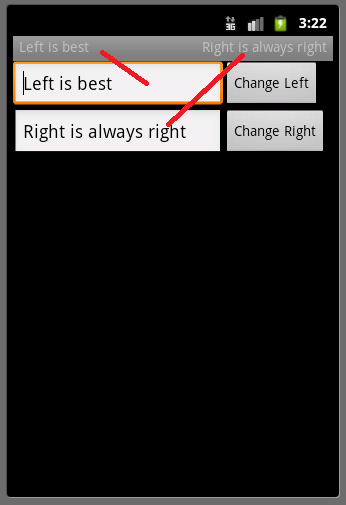
這段程式碼有個很容易出錯的地方:requestWindowFeature 必須在 setContentView 之前呼叫。一旦內容檢視已經設定,視窗的裝飾就已經定型,此時再請求更換 Feature 會直接拋出例外。
同一個規則也適用於全螢幕設定——requestWindowFeature(Window.FEATURE_NO_TITLE) 與 setFlags(FLAG_FULLSCREEN) 都必須寫在 setContentView 之前。把這三行就是想清楚順序再寫,能省下不少除錯時間。
最後,如果你只是想「隱藏」標題欄而非「自訂」,那麼 requestWindowFeature(Window.FEATURE_NO_TITLE) 一行就夠了;只有当你要放自己的內容上去時,才需要走 FEATURE_CUSTOM_TITLE 這條路。
 Android 開發入門:使用 Intent 呼叫內建應用
Android 可透過 Intent 呼叫系統內建應用,例如瀏覽器、電話與地圖。這樣不必自行實作所有功能,也能善用系統能力。若要開啟網頁,可使用 ACTION_VIEW
 讓 iPhone、iPad 與 Android 都能正常使用 Lync 2013 的實測經驗
一、生產環境與先決條件 以下整理在真實環境中讓各類行動裝置正常運行 Lync 2013 的實務經驗。 1. 經驗分享 首先,請確認以下三點: A.你的 PC 在內部網路
 Android 手機間無線互傳的技術選型與實作
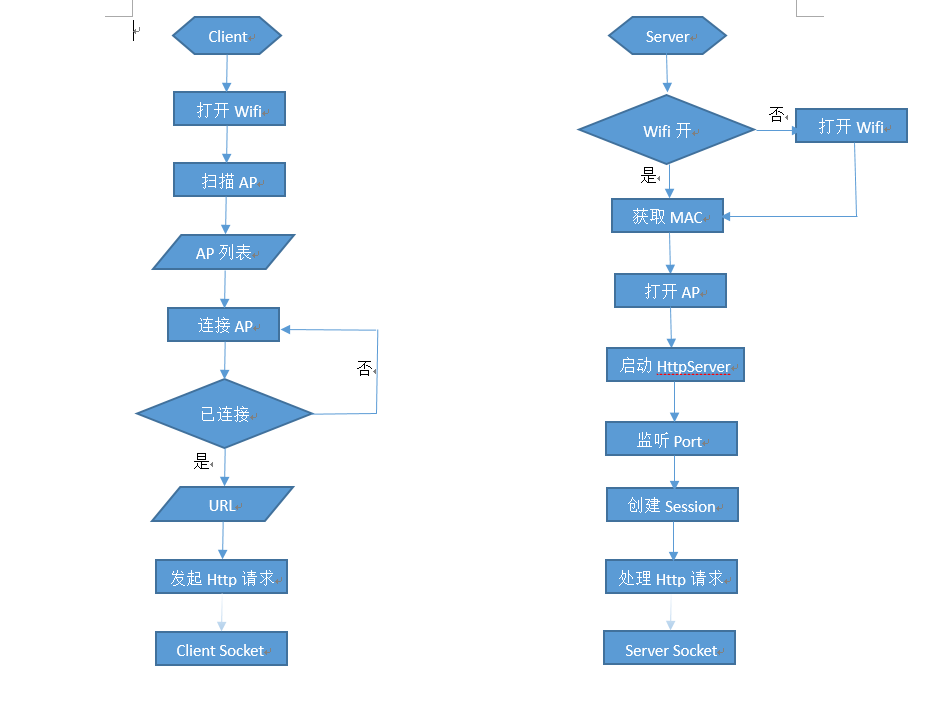
先前研究了一下 Android 該怎麼做到無線互傳,寫了個小 demo,最近整理出來與大家分享。 技術選型 1. 藍牙:歷史悠久、簡單易用,但速度實在太慢,是致命傷。 2
 Android 網絡開發兩條路:Socket 與 HTTP 通信詳解
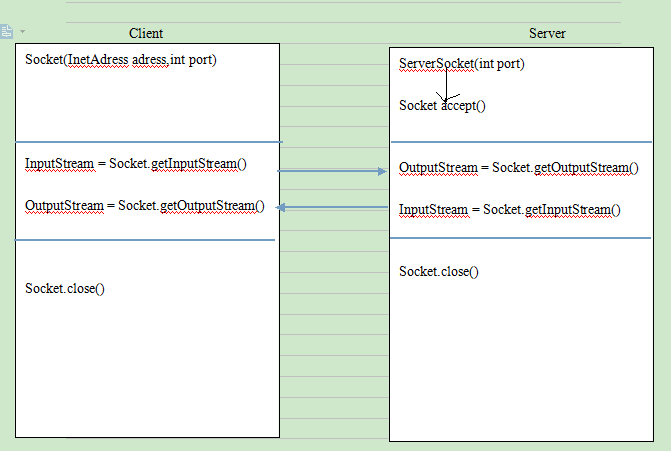
Android 上的網絡通信大體分兩條路:一條是 Socket,本質是對 TCP/UDP 協議的封裝;另一條是 HTTP 協議,Android 提供了 HttpURLCo