

編輯:Android 開發實例
使用者按下按鈕之後,若畫面毫無反應,通常不到兩秒就會開始懷疑是不是當機了。給他一個轉圈的載入動畫,是最便宜也最有效的解法。Android 把這個需求交給 ProgressBar 元件處理,本文說明它的用法與常見眉角。
ProgressBar 有兩種常見外觀:
本文討論的是 Spinner。
<ProgressBar
    android:id="@+id/progressBar1"
    style="?android:attr/progressBarStyleLarge"
    android:layout_width="wrap_content"
    android:layout_height="wrap_content"
    android:layout_centerHorizontal="true" />
private ProgressBar spinner;
spinner = (ProgressBar) findViewById(R.id.progressBar1);
spinner.setVisibility(View.GONE);
spinner.setVisibility(View.VISIBLE);
這個元件一旦被加入版面就會開始旋轉,所以通常會先在 onCreate() 把它設為 GONE,等真正開始做事時才顯示。
| 方法 | 說明 |
|---|---|
isIndeterminate() | 檢查是否處於不確定模式。 |
setIndeterminate(boolean indeterminate) | 切換不確定模式。 |
postInvalidate() | 於下一輪事件迴圈觸發重繪。 |
invalidateDrawable(Drawable dr) | 使指定 Drawable 失效並重繪。 |
incrementSecondaryProgressBy(int diff) | 增加次要進度的量值。 |
getProgressDrawable() | 取得目前繪製進度所用的 Drawable。 |
做一個畫面:一個按鈕、一個 Spinner。啟動時看不見 Spinner,按下按鈕後它才出現並旋轉。可在實機或模擬器上測試。
| 步驟 | 做法 |
|---|---|
| 1 | 用 Android Studio 建立專案 Spinner,SDK 選用較新版本。 |
| 2 | 修改 src/MainActivity.java,加入控制 Spinner 的程式碼。 |
| 3 | 修改 res/layout/activity_main.xml,加入 Button 與 ProgressBar。 |
| 4 | 修改 res/values/string.xml,加入按鈕文字。 |
| 5 | 執行 App 並在裝置上驗證。 |
package com.example.spinner;

import android.app.Activity;
import android.os.Bundle;
import android.view.Menu;
import android.view.View;
import android.widget.ProgressBar;

public class MainActivity extends Activity {

    private ProgressBar spinner;

    @Override
    protected void onCreate(Bundle savedInstanceState) {
        super.onCreate(savedInstanceState);
        setContentView(R.layout.activity_main);

        spinner = (ProgressBar) findViewById(R.id.progressBar1);
        spinner.setVisibility(View.GONE);
    }

    public void load(View view) {
        spinner.setVisibility(View.VISIBLE);
    }

    @Override
    public boolean onCreateOptionsMenu(Menu menu) {
        getMenuInflater().inflate(R.menu.main, menu);
        return true;
    }
}
<RelativeLayout xmlns:android="https://schemas.android.com/apk/res/android"
    xmlns:tools="https://schemas.android.com/tools"
    android:layout_width="match_parent"
    android:layout_height="match_parent"
    android:paddingBottom="@dimen/activity_vertical_margin"
    android:paddingLeft="@dimen/activity_horizontal_margin"
    android:paddingRight="@dimen/activity_horizontal_margin"
    android:paddingTop="@dimen/activity_vertical_margin"
    tools:context=".MainActivity" >

    <Button android:id="@+id/button1"
        android:layout_width="wrap_content"
        android:layout_height="wrap_content"
        android:layout_alignParentTop="true"
        android:layout_centerHorizontal="true"
        android:layout_marginTop="103dp"
        android:onClick="load"
        android:text="@string/hello_world" />

    <ProgressBar android:id="@+id/progressBar1"
        style="?android:attr/progressBarStyleLarge"
        android:layout_width="wrap_content"
        android:layout_height="wrap_content"
        android:layout_below="@+id/button1"
        android:layout_centerHorizontal="true" />

</RelativeLayout>
<?xml version="1.0" encoding="utf-8"?>
<resources>
    <string name="app_name">Spinner</string>
    <string name="action_settings">Settings</string>
    <string name="hello_world">load spinner</string>
</resources>
<?xml version="1.0" encoding="utf-8"?>
<manifest xmlns:android="https://schemas.android.com/apk/res/android"
    package="com.yiibai.spinner"
    android:versionCode="1"
    android:versionName="1.0" >

    <uses-sdk android:minSdkVersion="8" android:targetSdkVersion="17" />

    <application android:allowBackup="true"
        android:icon="@drawable/ic_launcher"
        android:label="@string/app_name"
        android:theme="@style/AppTheme" >
        <activity android:name="com.yiibai.spinner.MainActivity"
            android:label="@string/app_name" >
            <intent-filter>
                <action android:name="android.intent.action.MAIN" />
                <category android:name="android.intent.category.LAUNCHER" />
            </intent-filter>
        </activity>
    </application>
</manifest>
假設 AVD 已設定完成,把 App 裝上去啟動,會看到只有按鈕的畫面:

按下按鈕,載入動畫便會顯示並持續旋轉:
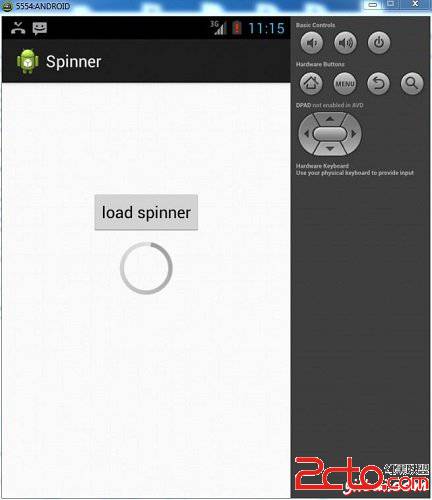
如果等待時間通常低於兩三百毫秒,其實不必顯示 Spinner——閃一下就消失的動畫反而顯得突兀。反之,若任務可能超過數秒,除了轉圈動畫,搭配一行「正在下載資料…」的文字說明會讓使用者更安心。最重要的是:無論顯示多久,任務一結束就要立刻把它收起來,並在錯誤發生時也記得隱藏,否則畫面就會永遠轉下去。
 Android Spinner 進度條:按鈕觸發與顯示控制
Spinner 的顯示時機當使用者等待網路請求、檔案讀取或資料處理時,不確定型進度條可以作為視覺回饋。Android 中通常使用 ProgressBar 搭配 large
 Android JSON 解析實戰:用 JSONObject 取出你要的欄位
JSON(JavaScript Object Notation,JavaScript 物件符號法)是一種以純文字描述的資料交換格式。因為語法輕巧、人眼可讀,而且天生就能對
 Android 記事本示例剖析(四):NoteEditor 類與 Content Provider 機制
在前一篇中,我們研究了 Activity 的生命週期、狀態轉換機制以及自定義控件。本文延續記事本示例的分析,重點拆解 NoteEditor 類與 Content Prov
 搞懂點九圖片的「內容顯示區域」是什麼意思
點九圖(.9.png)的拉伸區域由左上方那一格標記,這個觀念大多數人都懂;但右側那一格所定義的「內容顯示區域」究竟是什麼,就常常讓人卡住。 為什麼需要點九圖 智慧型手機普