

編輯:Android 開發實例
先前看到用 UIImageView 播放連續圖片的做法,就想到 Android 上同樣能做到——本質上就是幾張圖片反覆切換。這種播放事先備好的圖像序列、模擬電影膠卷效果的方式,學名叫 frame by frame animation。
在 res 目錄下建一個 anim 資料夾,新增 picture_animation.xml。(這個檔案不一定要放在 anim 底下,放 drawable 也可以;我這裡刻意分開,是為了區分「圖片效果用的 xml」與「補間動畫用的 xml」。)
<?xml version="1.0" encoding="utf-8"?>
<!-- 動畫幀集合物件 -->
<animation-list xmlns:android="https://schemas.android.com/apk/res/android"
    android:oneshot="false">

    <!-- android:duration 表示每一幀顯示的毫秒數。
         放在 drawable 下的動畫圖片不能太大,否則記憶體會爆掉 -->
    <item android:drawable="@drawable/camp_fire1"  android:duration="80" />
    <item android:drawable="@drawable/camp_fire2"  android:duration="80" />
    <item android:drawable="@drawable/camp_fire3"  android:duration="80" />
    <item android:drawable="@drawable/camp_fire4"  android:duration="80" />
    <item android:drawable="@drawable/camp_fire5"  android:duration="80" />
    <item android:drawable="@drawable/camp_fire6"  android:duration="80" />
    <item android:drawable="@drawable/camp_fire7"  android:duration="80" />
    <item android:drawable="@drawable/camp_fire8"  android:duration="80" />
    <item android:drawable="@drawable/camp_fire9"  android:duration="80" />
    <item android:drawable="@drawable/camp_fire10" android:duration="80" />
    <item android:drawable="@drawable/camp_fire11" android:duration="80" />
    <item android:drawable="@drawable/camp_fire12" android:duration="80" />
    <item android:drawable="@drawable/camp_fire13" android:duration="80" />
    <item android:drawable="@drawable/camp_fire14" android:duration="80" />
    <item android:drawable="@drawable/camp_fire15" android:duration="80" />
    <item android:drawable="@drawable/camp_fire16" android:duration="80" />
    <item android:drawable="@drawable/camp_fire17" android:duration="80" />
</animation-list>兩個屬性要說明:android:oneshot="false" 代表播放到最後一幀後會回到第一幀持續循環,設為 true 則只播一次;android:duration 的單位是毫秒,80ms 相當於每秒約 12.5 幀。
<Button android:layout_width="fill_parent"
    android:layout_height="wrap_content"
    android:text="start"
    android:id="@+id/start" />

<ImageView android:layout_width="wrap_content"
    android:layout_height="wrap_content"
    android:id="@+id/imageId"
    android:src="@anim/picture_animation" />
關鍵是 android:src 指向剛剛那個 animation-list 資源。
private AnimationDrawable draw = null;

// 取得 ImageView,並把它背後的 Drawable 轉型為 AnimationDrawable
this.imageView = (ImageView) findViewById(R.id.imageId);
this.draw = (AnimationDrawable) imageView.getDrawable();

this.start.setOnClickListener(new OnClickListener() {
    @Override
    public void onClick(View v) {
        startAnimation();
    }
});

private void startAnimation() {
    if (draw.isRunning()) {
        draw.stop();
        start.setText("start");
    } else {
        draw.stop();      // 先 stop 一次,確保從第一幀重新開始
        draw.start();
        start.setText("pause");
    }
}AnimationDrawable 必須在畫面已經附加到視窗之後才能 start。如果在 onCreate() 裡直接呼叫 start(),動畫不會動。這也是範例把播放控制放在按鈕點擊(或 onWindowFocusChanged)裡的原因。
幀圖是全部載入記憶體的。17 張全螢幕大圖足以讓應用 OOM。務必把幀圖裁到實際顯示尺寸,並控制總張數;張數多、每張又大的情況,應該改用 SurfaceView 自行管理繪製,或考慮 spritesheet 的方式。
原始碼:https://henzil.googlecode.com/svn/trunk/donghua/
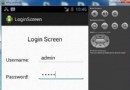 Android 登入畫面實作:帳號驗證與錯誤次數鎖定
登入畫面是許多應用的必備環節,它負責向使用者索取帳號與密碼,以驗證身分並進入特定功能,例如登入 Facebook、微博等服務。本章將說明如何打造一個登入介面,並進一步處理
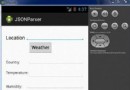 用 JSONArray 與 JSONObject 拆解 Android 的 JSON 資料
行動裝置上的資料多半來自遠端 API,而 JSON 正是這些回應最常見的樣貌。相比 XML,它少了標籤的冗餘,寫起來省事、讀起來清楚,解析速度也更快。本章要帶你看懂一份
 Android 載入動畫:Spinner 的屬性、方法與按鈕範例
Spinner 是 Android 中常見的載入提示元件。它通常搭配 ProgressBar 使用,適合表示「目前有工作進行中,但完成時間未知」的狀態。 建立 Spin
 Android MediaPlayer:打造自己的音樂播放器
Android 想播放音訊或影片,途徑不少,而最常被拿出來用的是 MediaPlayer 這個類別。它是系統內建媒體播放服務的入口,音訊、影片、串流都吃得住,而且 API