

編輯:Android 開發實例
Android 想播放音訊或影片,途徑不少,而最常被拿出來用的是 MediaPlayer 這個類別。它是系統內建媒體播放服務的入口,音訊、影片、串流都吃得住,而且 API 直覺、上手快,適合拿來做播放器的第一版。
最簡便的做法是呼叫靜態方法 create(),它會直接幫你把資源載入並回傳一個 MediaPlayer 實例:
MediaPlayer mediaPlayer = MediaPlayer.create(this, R.raw.song);
第二個參數是媒體資源。若音樂檔要打包進 App,必須在專案裡新增一個名為 raw 的資料夾,把 mp3 放進去,之後就能用 R.raw.檔名 參照。若檔案在裝置的 SD 卡或來自網路,則改用 setDataSource() 指定來源。
物件到手後,控制播放主要靠這兩個方法:
mediaPlayer.start(); mediaPlayer.pause();
行為上有一點要記清楚:start() 會從頭開始播;但如果你先 pause() 再 start(),它會從上次停住的地方續播,而不是回到開頭。想真正歸零,得先呼叫 reset():
mediaPlayer.reset();
除了 start 與 pause,這個類別還準備了不少好用的方法:
| 編號 | 方法 | 說明 |
|---|---|---|
| 1 | isPlaying() | 回傳布林值,代表目前是否正在播放。 |
| 2 | seekTo(int position) | 把播放位置跳到指定的毫秒數,快轉與倒轉都靠它。 |
| 3 | getCurrentPosition() | 取得目前的播放位置,單位為毫秒。 |
| 4 | getDuration() | 取得整首曲子的總長度,單位為毫秒。 |
| 5 | reset() | 把播放器重設回初始狀態。 |
| 6 | release() | 釋放 MediaPlayer 佔用的所有資源,離開畫面前務必呼叫。 |
| 7 | setVolume(float leftVolume, float rightVolume) | 分別設定左右聲道的音量,範圍 0 到 1。 |
| 8 | setDataSource(FileDescriptor fd) | 指定音訊或影片的資料來源。 |
| 9 | selectTrack(int index) | 依索引選取特定軌道,多軌媒體才用得到。 |
| 10 | getTrackInfo() | 回傳軌道資訊陣列。 |
接下來做一個功能齊全的迷你播放器:有播放、暫停、前跳 5 秒、後退 5 秒,還有一條可同步的進度條與時間顯示。因為要聽聲音,建議在實機上測試。
| 步驟 | 做法 |
|---|---|
| 1 | 用 Android Studio 建立專案,命名為 MediaPlayer,套件名稱 com.yiibai.mediaplayer,Target SDK 與 Compile With 對到最新版 SDK。 |
| 2 | 修改 src/MainActivity.java,加入 MediaPlayer 的邏輯。 |
| 3 | 修改 res/layout/activity_main.xml,加入按鈕、進度條與時間文字。 |
| 4 | 修改 res/values/string.xml,加入所需字串。 |
| 5 | 在專案的 res 下新增 raw 資料夾,放入名為 song.mp3 的音樂檔。 |
| 6 | 執行 App,裝到裝置上驗證。 |
主活動 src/com.yiibai.mediaplayer/MainActivity.java:
package com.example.mediaplayer; import java.util.concurrent.TimeUnit; import android.media.MediaPlayer; import android.os.Bundle; import android.os.Handler; import android.app.Activity; import android.view.Menu; import android.view.View; import android.widget.Button; import android.widget.EditText; import android.widget.ImageButton; import android.widget.SeekBar; import android.widget.TextView; import android.widget.Toast; public class MainActivity extends Activity { public TextView songName,startTimeField,endTimeField; private MediaPlayer mediaPlayer; private double startTime = 0; private double finalTime = 0; private Handler myHandler = new Handler();; private int forwardTime = 5000; private int backwardTime = 5000; private SeekBar seekbar; private ImageButton playButton,pauseButton; public static int oneTimeOnly = 0; @Override protected void onCreate(Bundle savedInstanceState) { super.onCreate(savedInstanceState); setContentView(R.layout.activity_main); songName = (TextView)findViewById(R.id.textView4); startTimeField =(TextView)findViewById(R.id.textView1); endTimeField =(TextView)findViewById(R.id.textView2); seekbar = (SeekBar)findViewById(R.id.seekBar1); playButton = (ImageButton)findViewById(R.id.imageButton1); pauseButton = (ImageButton)findViewById(R.id.imageButton2); songName.setText("song.mp3"); mediaPlayer = MediaPlayer.create(this, R.raw.song); seekbar.setClickable(false); pauseButton.setEnabled(false); } public void play(View view){ Toast.makeText(getApplicationContext(), "Playing sound", Toast.LENGTH_SHORT).show(); mediaPlayer.start(); finalTime = mediaPlayer.getDuration(); startTime = mediaPlayer.getCurrentPosition(); if(oneTimeOnly == 0){ seekbar.setMax((int) finalTime); oneTimeOnly = 1; } endTimeField.setText(String.format("%d min, %d sec", TimeUnit.MILLISECONDS.toMinutes((long) finalTime), TimeUnit.MILLISECONDS.toSeconds((long) finalTime) - TimeUnit.MINUTES.toSeconds(TimeUnit.MILLISECONDS. toMinutes((long) finalTime))) ); startTimeField.setText(String.format("%d min, %d sec", TimeUnit.MILLISECONDS.toMinutes((long) startTime), TimeUnit.MILLISECONDS.toSeconds((long) startTime) - TimeUnit.MINUTES.toSeconds(TimeUnit.MILLISECONDS. toMinutes((long) startTime))) ); seekbar.setProgress((int)startTime); myHandler.postDelayed(UpdateSongTime,100); pauseButton.setEnabled(true); playButton.setEnabled(false); } private Runnable UpdateSongTime = new Runnable() { public void run() { startTime = mediaPlayer.getCurrentPosition(); startTimeField.setText(String.format("%d min, %d sec", TimeUnit.MILLISECONDS.toMinutes((long) startTime), TimeUnit.MILLISECONDS.toSeconds((long) startTime) - TimeUnit.MINUTES.toSeconds(TimeUnit.MILLISECONDS. toMinutes((long) startTime))) ); seekbar.setProgress((int)startTime); myHandler.postDelayed(this, 100); } }; public void pause(View view){ Toast.makeText(getApplicationContext(), "Pausing sound", Toast.LENGTH_SHORT).show(); mediaPlayer.pause(); pauseButton.setEnabled(false); playButton.setEnabled(true); } public void forward(View view){ int temp = (int)startTime; if((temp+forwardTime)<=finalTime){ startTime = startTime + forwardTime; mediaPlayer.seekTo((int) startTime); } else{ Toast.makeText(getApplicationContext(), "Cannot jump forward 5 seconds", Toast.LENGTH_SHORT).show(); } } public void rewind(View view){ int temp = (int)startTime; if((temp-backwardTime)>0){ startTime = startTime - backwardTime; mediaPlayer.seekTo((int) startTime); } else{ Toast.makeText(getApplicationContext(), "Cannot jump backward 5 seconds", Toast.LENGTH_SHORT).show(); } } @Override public boolean onCreateOptionsMenu(Menu menu) { // Inflate the menu; this adds items to the action bar if it is present. getMenuInflater().inflate(R.menu.main, menu); return true; } }
版面配置 res/layout/activity_main.xml:
<RelativeLayout xmlns:android="https://schemas.android.com/apk/res/android" xmlns:tools="https://schemas.android.com/tools" android:layout_width="match_parent" android:layout_height="match_parent" android:paddingBottom="@dimen/activity_vertical_margin" android:paddingLeft="@dimen/activity_horizontal_margin" android:paddingRight="@dimen/activity_horizontal_margin" android:paddingTop="@dimen/activity_vertical_margin" tools:context=".MainActivity" > <ImageButton android:id="@+id/imageButton3" android:layout_width="wrap_content" android:layout_height="wrap_content" android:layout_alignParentBottom="true" android:layout_alignParentLeft="true" android:layout_marginBottom="14dp" android:onClick="forward" android:src="@android:drawable/ic_media_ff" /> <ImageButton android:id="@+id/imageButton4" android:layout_width="wrap_content" android:layout_height="wrap_content" android:layout_alignParentRight="true" android:layout_alignTop="@+id/imageButton2" android:layout_marginLeft="22dp" android:layout_toRightOf="@+id/imageButton2" android:onClick="rewind" android:src="@android:drawable/ic_media_rew" /> <ImageButton android:id="@+id/imageButton2" android:layout_width="wrap_content" android:layout_height="wrap_content" android:layout_alignTop="@+id/imageButton1" android:layout_marginLeft="14dp" android:layout_toRightOf="@+id/imageButton1" android:onClick="pause" android:src="@android:drawable/ic_media_pause" /> <ImageButton android:id="@+id/imageButton1" android:layout_width="wrap_content" android:layout_height="wrap_content" android:layout_alignTop="@+id/imageButton3" android:layout_marginLeft="24dp" android:layout_toRightOf="@+id/imageButton3" android:onClick="play" android:src="@android:drawable/ic_media_play" /> <SeekBar android:id="@+id/seekBar1" android:layout_width="match_parent" android:layout_height="wrap_content" android:layout_above="@+id/imageButton3" android:layout_toLeftOf="@+id/textView2" android:layout_toRightOf="@+id/textView1" /> <TextView android:id="@+id/textView1" android:layout_width="wrap_content" android:layout_height="wrap_content" android:layout_alignRight="@+id/imageButton3" android:layout_alignTop="@+id/seekBar1" android:text="@string/inital_Time" android:textAppearance="?android:attr/textAppearanceSmall" /> <TextView android:id="@+id/textView2" android:layout_width="wrap_content" android:layout_height="wrap_content" android:layout_alignLeft="@+id/imageButton4" android:layout_alignTop="@+id/seekBar1" android:text="@string/inital_Time" android:textAppearance="?android:attr/textAppearanceSmall" /> <TextView android:id="@+id/textView3" android:layout_width="wrap_content" android:layout_height="wrap_content" android:layout_alignLeft="@+id/imageButton3" android:text="@string/hello_world" android:textAppearance="?android:attr/textAppearanceMedium" /> <ImageView android:id="@+id/imageView1" android:layout_width="match_parent" android:layout_height="match_parent" android:layout_alignParentBottom="true" android:layout_alignParentLeft="true" android:layout_below="@+id/textView3" android:src="@drawable/ic_launcher" /> <TextView android:id="@+id/textVew4" android:layout_width="wrap_content" android:layout_height="wrap_content" android:layout_alignBaseline="@+id/textView3" android:layout_alignBottom="@+id/textView3" android:layout_toRightOf="@+id/imageButton1" android:text="TextView" /> </RelativeLayout>
字串資源 res/values/string.xml:
<?xml version="1.0" encoding="utf-8"?> <resources> <string name="app_name">MediaPlayer</string> <string name="action_settings">Settings</string> <string name="hello_world">Now Playing:</string> <string name="inital_Time">0 min, 0 sec</string> </resources>
AndroidManifest.xml:
<?xml version="1.0" encoding="utf-8"?> <manifest xmlns:android="https://schemas.android.com/apk/res/android" package="com.yiibai.mediaplayer" android:versionCode="1" android:versionName="1.0" > <uses-sdk android:minSdkVersion="8" android:targetSdkVersion="17" /> <application android:allowBackup="true" android:icon="@drawable/ic_launcher" android:label="@string/app_name" android:theme="@style/AppTheme" > <activity android:name="com.yiibai.mediaplayer.MainActivity" android:label="@string/app_name" > <intent-filter> <action android:name="android.intent.action.MAIN" /> <category android:name="android.intent.category.LAUNCHER" /> </intent-filter> </activity> </application> </manifest>
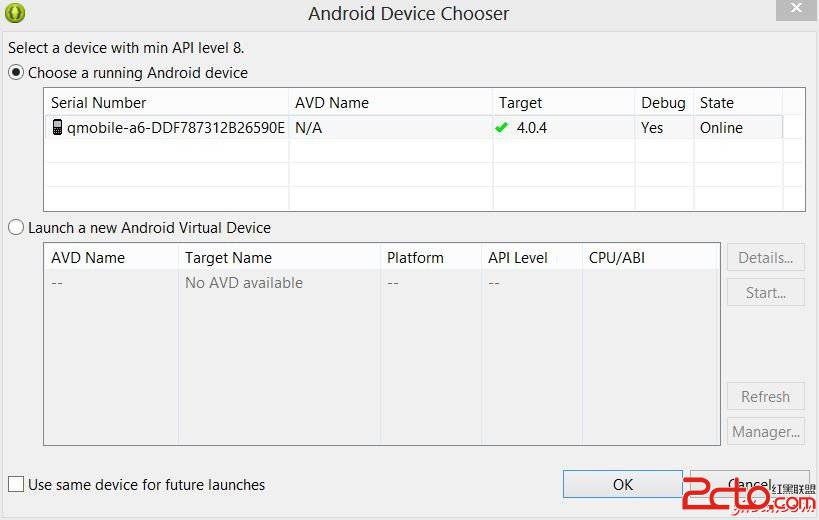
假設已將實機連上電腦,開啟任一活動檔後點擊工具列上的執行按鈕:

IDE 會先跳出視窗,讓你選擇要把 App 跑在哪裡:
選好裝置後,畫面上會出現預設的播放器介面:
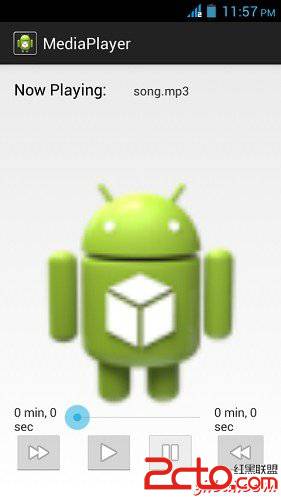
此時暫停鈕是灰的。按下播放鈕,播放鈕變灰、暫停鈕亮起:
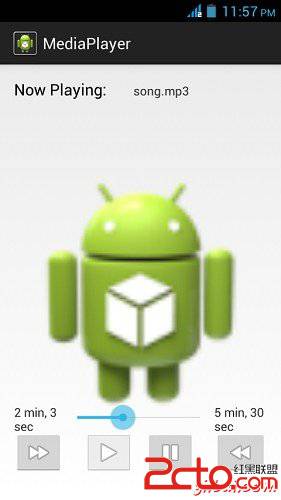
音樂持續播放中,按下暫停鈕會看到提示訊息:
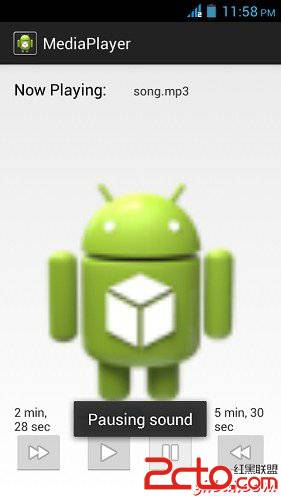
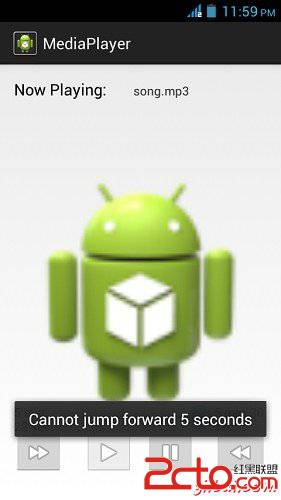
再按一次播放,曲子會從剛剛停住的位置接著播,而不是跳回開頭。若一直按快轉直到超出總長,程式會跳出無法再往前跳的提示:
當你切去做別的事,音樂仍會在背景繼續播。想真正讓它停下來,得把這個 App 從背景工作列結束掉。
這裡正好帶出一個重要觀念:MediaPlayer 的生命週期需要你自己照顧。務必在 onPause() 或 onStop() 中暫停播放、在 onDestroy() 中呼叫 release(),否則使用者離開後音樂還在響,很容易就被抱怨耗電又關不掉。若要做成正式的背景播放服務,正確方向是搭配 MediaSession 與前景服務(Foreground Service)。
 Android 載入 Spinner 進度指示器實作
當任務需要時間但無法得知完成時間時,可以使用不確定模式的進度條,也就是俗稱的 Spinner。Android 中通常以 ProgressBar 搭配 progressBa
 Android Spinner 載入提示元件:屬性、方法與使用時機
App 在背後做事的時候,使用者需要知道「它還活著」。Android 用 ProgressBar 負責這件事,而它有兩種典型外觀:可以標示百分比的長條進度條,以及不斷旋轉
 用ViewPager高仿launcher左右拖動效果
前一篇高仿 launcher 和墨跡天氣的左右拖動效果收穫了不少好評。那一版主要靠自定義 ViewGroup 來實現,寫起來頗為繁瑣。今天改用 ViewPager 這個類
 把簡訊備份到 Gmail:Android 短信打包寄送的實作拆解
這個小工具的功能是把指定期間內的簡訊打包,透過系統分享流程寄到自己的 Gmail 信箱,前提是手機上已設定好 Gmail 帳號。 專案原始碼:https://github