

編輯:Android 開發實例
上一篇談完 Activity 生命週期,接著該處理 Service。要理解 Service,先記住它跟 Activity 最根本的差異:Service 沒有使用者介面,不能與使用者互動,也不會自己跳出來。它是跑在背景裡的元件。
而「背景」這兩個字有個關鍵含義:使用者離開 App 時,Activity 可能已經走完 onDestroy,但 Service 的行程還活著。這正是它存在的理由。
幾個典型場景:
Service 的生命週期比 Activity 單純得多,只有三個主要方法:onCreate()、onStart()、onDestroy()。
第一次啟動 Service 時,會依序呼叫 onCreate() → onStart();停止時呼叫 onDestroy()。這裡有一個非常容易被考試、也很容易在實務上踩到的重點:如果 Service 已經啟動,再次呼叫 startService 不會重跑 onCreate,而是直接執行 onStart。也就是說 onCreate 是「僅初始化一次」的語意,適合放資源配置;onStart 才是「每次請求都會進來」的入口,適合放實際任務的派工。
(補充一個版本差異:在較新的 Android 上,onStart() 已被標記為 deprecated,取而代之的是帶更多資訊的 onStartCommand(Intent, int, int),並可透過回傳值 START_STICKY、START_NOT_STICKY 控制被系統回收後是否重建。概念不變,寫新專案時建議直接用 onStartCommand。)
Service 的資料終究要呈現在 Activity 上。由於 Service 預設跑在同一個行程(除非你在 manifest 指定 android:process),所以「跨進程溝通」不是必然需求;只有在需要跨 App 或跨行程時,才需要 AIDL 這類機制。
同一行程內要拿到 Service 的實例,用的是 bindService() 與 unbindService(),對應 Service 端的 onBind()(回傳 IBinder)與 onUnbind()。這條路徑讓 Activity 能直接呼叫 Service 的公開方法,取得即時資料。
新增專案 ServiceDemo。版面配置放四顆按鈕,分別對應 startService、stopService、bindService、unbindService,另外一個 TextView 用來顯示 Service 回傳的資料。
<LinearLayout xmlns:android="https://schemas.android.com/apk/res/android"
    android:orientation="vertical"
    android:layout_width="fill_parent"
    android:layout_height="fill_parent">

    <TextView android:id="@+id/text"
        android:layout_width="fill_parent"
        android:layout_height="wrap_content"
        android:text="@string/hello" />

    <Button android:id="@+id/startservice"
        android:layout_width="fill_parent"
        android:layout_height="wrap_content"
        android:text="startService" />

    <Button android:id="@+id/stopservice"
        android:layout_width="fill_parent"
        android:layout_height="wrap_content"
        android:text="stopService" />

    <Button android:id="@+id/bindservice"
        android:layout_width="fill_parent"
        android:layout_height="wrap_content"
        android:text="bindService" />

    <Button android:id="@+id/unbindservice"
        android:layout_width="fill_parent"
        android:layout_height="wrap_content"
        android:text="unbindService" />
</LinearLayout>
這個 Service 做的事情很簡單:每個 callback 都印一行 log,另外提供一個回傳目前時間的公開方法,並透過內部的 Binder 把自身實例交出去。
package com.tutor.servicedemo;

import android.app.Service;
import android.content.Intent;
import android.os.Binder;
import android.os.IBinder;
import android.text.format.Time;
import android.util.Log;

public class MyService extends Service {

    private static final String TAG = "MyService";

    // 定義一個 Binder,onBind() 時交給 Activity 使用
    private MyBinder mBinder = new MyBinder();

    @Override
    public IBinder onBind(Intent intent) {
        Log.e(TAG, "start IBinder~~~");
        return mBinder;
    }

    @Override
    public void onCreate() {
        Log.e(TAG, "start onCreate~~~");
        super.onCreate();
    }

    @Override
    public void onStart(Intent intent, int startId) {
        Log.e(TAG, "start onStart~~~");
        super.onStart(intent, startId);
    }

    @Override
    public void onDestroy() {
        Log.e(TAG, "start onDestroy~~~");
        super.onDestroy();
    }

    @Override
    public boolean onUnbind(Intent intent) {
        Log.e(TAG, "start onUnbind~~~");
        return super.onUnbind(intent);
    }

    // 提供給外部呼叫:取得目前系統時間
    public String getSystemTime() {
        Time t = new Time();
        t.setToNow();
        return t.toString();
    }

    // 內部 Binder:把 Service 自身實例回傳給 Activity
    public class MyBinder extends Binder {
        MyService getService() {
            return MyService.this;
        }
    }
}
package com.tutor.servicedemo;

import android.app.Activity;
import android.content.ComponentName;
import android.content.Context;
import android.content.Intent;
import android.content.ServiceConnection;
import android.os.Bundle;
import android.os.IBinder;
import android.view.View;
import android.view.View.OnClickListener;
import android.widget.Button;
import android.widget.TextView;

public class ServiceDemo extends Activity implements OnClickListener {

    private MyService mMyService;
    private TextView mTextView;
    private Button startServiceButton, stopServiceButton;
    private Button bindServiceButton, unbindServiceButton;
    private Context mContext;

    // bindService / unbindService 都需要這個 ServiceConnection
    private ServiceConnection mServiceConnection = new ServiceConnection() {

        // 綁定成功時,取得 Service 實例並顯示它提供的時間
        public void onServiceConnected(ComponentName name, IBinder service) {
            mMyService = ((MyService.MyBinder) service).getService();
            mTextView.setText("I am from Service :" + mMyService.getSystemTime());
        }

        public void onServiceDisconnected(ComponentName name) {
        }
    };

    public void onCreate(Bundle savedInstanceState) {
        super.onCreate(savedInstanceState);
        setContentView(R.layout.main);
        setupViews();
    }

    public void setupViews() {
        mContext = ServiceDemo.this;
        mTextView = (TextView) findViewById(R.id.text);

        startServiceButton = (Button) findViewById(R.id.startservice);
        stopServiceButton = (Button) findViewById(R.id.stopservice);
        bindServiceButton = (Button) findViewById(R.id.bindservice);
        unbindServiceButton = (Button) findViewById(R.id.unbindservice);

        startServiceButton.setOnClickListener(this);
        stopServiceButton.setOnClickListener(this);
        bindServiceButton.setOnClickListener(this);
        unbindServiceButton.setOnClickListener(this);
    }

    public void onClick(View v) {
        if (v == startServiceButton) {
            Intent i = new Intent();
            i.setClass(ServiceDemo.this, MyService.class);
            mContext.startService(i);
        } else if (v == stopServiceButton) {
            Intent i = new Intent();
            i.setClass(ServiceDemo.this, MyService.class);
            mContext.stopService(i);
        } else if (v == bindServiceButton) {
            Intent i = new Intent();
            i.setClass(ServiceDemo.this, MyService.class);
            // BIND_AUTO_CREATE:Service 尚未存在時會一併建立
            mContext.bindService(i, mServiceConnection, BIND_AUTO_CREATE);
        } else {
            mContext.unbindService(mServiceConnection);
        }
    }
}
Service 必須在 AndroidManifest.xml 宣告,否則啟動時會直接拋出 IllegalArgumentException: Service not registered:
<manifest xmlns:android="https://schemas.android.com/apk/res/android"
    package="com.tutor.servicedemo"
    android:versionCode="1"
    android:versionName="1.0">

    <application android:icon="@drawable/icon" android:label="@string/app_name">
        <activity android:name=".ServiceDemo" android:label="@string/app_name">
            <intent-filter>
                <action android:name="android.intent.action.MAIN" />
                <category android:name="android.intent.category.LAUNCHER" />
            </intent-filter>
        </activity>

        <service android:name=".MyService" android:exported="true"></service>
    </application>

    <uses-sdk android:minSdkVersion="7" />
</manifest>
實務上 android:exported 請只在真的需要讓外部 App 啟動你的 Service 時設為 true,否則維持預設的 false,避免不必要的暴露面。
依序操作,對照 Logcat 就能把生命週期看清楚:
onCreate → onStart。此時按 HOME 鍵進 Settings → Applications → Running services,能看到多了一個服務。onDestroy,服務結束。onBind(log 印出 IBinder),同時 TextView 顯示 Service 回傳的時間——這就是 Activity 直接呼叫 Service 方法的成果。onUnbind。這是理解 Service 最實際的分水嶺:
startService:Service 獨立存活,跟啟動它的 Activity 沒有生命週期綁定。Activity 銷毀了,Service 照跑(直到有人 stopService 或它自己 stopSelf)。適合音樂播放、下載這類「不該因為使用者離開而中斷」的工作。bindService:Service 與呼叫方之間建立連線,所有綁定都解除後,Service 會自動銷毀。適合「需要直接呼叫 Service 方法、且只在有 UI 時才需要存在」的情境。兩者可以並存,這也是 Demo 裡能同時用四顆按鈕操作的原因。但並存時要特別小心生命週期的交互:用 startService 啟動、又用 bindService 綁定的 Service,必須等 unbind 之後才會真正有機會被銷毀,很多人「明明 unbind 了 Service 卻還在跑」,就是因為當初也呼叫過 startService。
這個 Demo 反映的是早期 Android 的 Service 模型,理解生命週期用它剛剛好,但真正上 production 時有幾件事必須知道:
startService 會拋出 IllegalStateException。長時間的背景工作請改用 WorkManager。foregroundServiceType 與權限。onStartCommand 裡做網路或檔案 I/O 一樣會 ANR,需要自己開 Thread、Executor 或 Kotlin 協程。Time 這個類別已被標記為老舊 API,新專案請改用 java.time(API 26+)或 Calendar。把生命週期與「start vs bind」這兩件事弄懂,Service 就不再是一個神祕元件,而是一個行為可以被準確預測的背景工作載體。
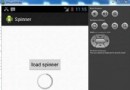 Android 使用 ProgressBar 顯示載入中狀態
為什麼需要載入提示?在行動應用中,使用者常常需要等待資料載入。若畫面沒有任何回饋,使用者可能會以為應用沒有反應。此時,不確定型 ProgressBar 是很常見的解法。基
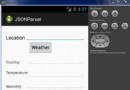 Android JSON 解析教學:以天氣 API 為例的實務流程
JSON 是目前 Android 應用常遇到的資料格式。當伺服器回傳 JSON 字串時,開發者需要把文字轉成物件,再取出所需欄位。本文以天氣資料為例,說明解析流程。 常見
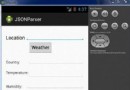 Android 端如何解析 JSON:以天氣查詢 App 為例
行動應用要顯示即時資訊,幾乎都得向伺服器要資料,而回傳格式十之八九是 JSON。它源自 JavaScript 的物件語法,但早已是語言中立的文字格式,任何平台都能讀。相比
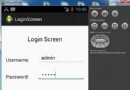 Android 登入頁面實作:帳密驗證與錯誤次數限制
登入頁面是許多應用的入口。它通常包含使用者名稱、密碼與登入按鈕,也需要處理錯誤次數,避免有心人士不斷嘗試。 建立輸入欄位 使用者名稱使用一般 EditText,密碼則要將