

編輯:關於 Android 程式設計
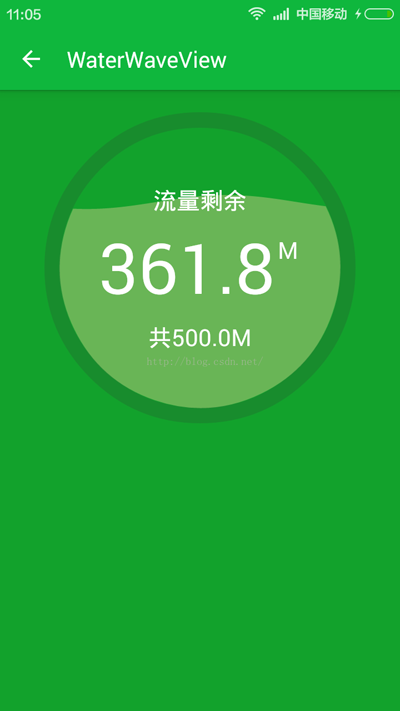
水波式的進度顯示比傳統的環形或線性進度條更有畫面感,常用於流量監控、電量顯示這類場景。本文示範如何只用 Canvas 與 Path 完成一個會自動橫向流動的水波元件。
設計要點:
實作上的巧思在 getWavePath():以 2 像素為步長沿橫軸取樣,用正弦函數算出每一點的 y 座標,只保留落在內圓範圍內的點,再用 arcTo() 把兩端補成圓弧封閉,這樣填色後就是一個「水位」。
/**
 * 水波進度效果
 */
public class WaterWaveView extends View {
    // 邊框寬度
    private int STROKE_WIDTH;
    // 元件的寬、高
    private int width, height;

    /** 進度條最大值與當前進度值 */
    private float max, progress;

    /** 繪製波浪的畫筆 */
    private Paint progressPaint;
    // 波紋振幅與半徑之比(建議 < 0.1)
    private static final float A = 0.05f;
    // 繪製文字的畫筆
    private Paint textPaint;
    // 繪製邊框的畫筆
    private Paint circlePaint;

    /** 圓弧圓心位置 */
    private int centerX, centerY;
    // 內圓所在的矩形
    private RectF circleRectF;

    public WaterWaveView(Context context) {
        super(context);
        init();
    }

    public WaterWaveView(Context context, AttributeSet attrs) {
        super(context, attrs);
        init();
    }

    public WaterWaveView(Context context, AttributeSet attrs, int defStyleAttr) {
        super(context, attrs, defStyleAttr);
        init();
    }

    // 初始化
    private void init() {
        progressPaint = new Paint();
        progressPaint.setColor(Color.parseColor("#77cccc88"));
        progressPaint.setAntiAlias(true);

        textPaint = new Paint();
        textPaint.setColor(Color.WHITE);
        textPaint.setAntiAlias(true);

        circlePaint = new Paint();
        circlePaint.setStyle(Paint.Style.STROKE);
        circlePaint.setAntiAlias(true);
        circlePaint.setColor(Color.parseColor("#33333333"));
        autoRefresh();
    }

    @Override
    protected void onMeasure(int widthMeasureSpec, int heightMeasureSpec) {
        super.onMeasure(widthMeasureSpec, heightMeasureSpec);
        if (width == 0 || height == 0) {
            width = getWidth();
            height = getHeight();
            // 計算圓弧半徑與圓心
            int circleRadius = Math.min(width, height) >> 1;
            STROKE_WIDTH = circleRadius / 10;
            circlePaint.setStrokeWidth(STROKE_WIDTH);
            centerX = width / 2;
            centerY = height / 2;
            VALID_RADIUS = circleRadius - STROKE_WIDTH;
            RADIANS_PER_X = (float) (Math.PI / VALID_RADIUS);
            circleRectF = new RectF(centerX - VALID_RADIUS, centerY - VALID_RADIUS,
                    centerX + VALID_RADIUS, centerY + VALID_RADIUS);
        }
    }

    private Rect textBounds = new Rect();
    // x 方向偏移量
    private int xOffset;

    @Override
    protected void onDraw(Canvas canvas) {
        super.onDraw(canvas);
        // 繪製圓形邊框
        canvas.drawCircle(centerX, centerY, VALID_RADIUS + (STROKE_WIDTH >> 1), circlePaint);
        // 繪製水波曲線
        canvas.drawPath(getWavePath(xOffset), progressPaint);
        // 繪製文字
        textPaint.setTextSize(VALID_RADIUS >> 1);
        String text1 = String.valueOf(progress);
        float w1 = textPaint.measureText(text1);
        textPaint.getTextBounds("8", 0, 1, textBounds);
        float h1 = textBounds.height();
        float extraW = textPaint.measureText("8") / 3;
        canvas.drawText(text1, centerX - w1 / 2 - extraW, centerY + h1 / 2, textPaint);

        textPaint.setTextSize(VALID_RADIUS / 6);
        textPaint.getTextBounds("M", 0, 1, textBounds);
        float h2 = textBounds.height();
        canvas.drawText("M", centerX + w1 / 2 - extraW + 5, centerY - (h1 / 2 - h2), textPaint);

        String text3 = "共" + String.valueOf(max) + "M";
        float w3 = textPaint.measureText(text3, 0, text3.length());
        textPaint.getTextBounds("M", 0, 1, textBounds);
        float h3 = textBounds.height();
        canvas.drawText(text3, centerX - w3 / 2, centerY + (VALID_RADIUS >> 1) + h3 / 2, textPaint);

        String text4 = "流量剩余";
        float w4 = textPaint.measureText(text4, 0, text4.length());
        textPaint.getTextBounds(text4, 0, text4.length(), textBounds);
        float h4 = textBounds.height();
        canvas.drawText(text4, centerX - w4 / 2, centerY - (VALID_RADIUS >> 1) + h4 / 2, textPaint);
    }

    // 繪製水波的路徑
    private Path wavePath;
    // 每一個像素對應的弧度數
    private float RADIANS_PER_X;
    // 去除邊框後的半徑(內圓半徑)
    private int VALID_RADIUS;

    /**
     * 取得水波曲線(含圓弧部分)的 Path
     *
     * @param xOffset x 方向像素偏移量
     */
    private Path getWavePath(int xOffset) {
        if (wavePath == null) {
            wavePath = new Path();
        } else {
            wavePath.reset();
        }
        float[] startPoint = new float[2];
        float[] endPoint = new float[2];
        for (int i = 0; i <= VALID_RADIUS * 2; i += 2) {
            float x = centerX - VALID_RADIUS + i;
            float y = (float) (centerY
                    + VALID_RADIUS * (1.0f + A) * 2 * (0.5f - progress / max)
                    + VALID_RADIUS * A * Math.sin((xOffset + i) * RADIANS_PER_X));
            // 只計算內圓內部的點,落在邊框上的忽略
            if (calDistance(x, y, centerX, centerY) > VALID_RADIUS) {
                if (x < centerX) {
                    continue; // 左邊框,繼續循環
                } else {
                    break;    // 右邊框,結束循環
                }
            }
            if (wavePath.isEmpty()) {
                startPoint[0] = x;
                startPoint[1] = y;
                wavePath.moveTo(x, y);
            } else {
                wavePath.lineTo(x, y);
            }
            endPoint[0] = x;
            endPoint[1] = y;
        }
        if (wavePath.isEmpty()) {
            if (progress / max >= 0.5f) {
                // 滿格
                wavePath.moveTo(centerX, centerY - VALID_RADIUS);
                wavePath.addCircle(centerX, centerY, VALID_RADIUS, Path.Direction.CW);
            } else {
                return wavePath; // 空格
            }
        } else {
            // 補上圓弧部分,形成封閉區域
            float startDegree = calDegreeByPosition(startPoint[0], startPoint[1]); // 0~180
            float endDegree = calDegreeByPosition(endPoint[0], endPoint[1]);       // 180~360
            wavePath.arcTo(circleRectF, endDegree - 360, startDegree - (endDegree - 360));
        }
        return wavePath;
    }

    private float calDistance(float x1, float y1, float x2, float y2) {
        return (float) Math.sqrt((x1 - x2) * (x1 - x2) + (y1 - y2) * (y1 - y2));
    }

    // 依當前位置計算進度條已轉過的角度
    private float calDegreeByPosition(float currentX, float currentY) {
        float a1 = (float) (Math.atan(1.0f * (centerX - currentX) / (currentY - centerY))
                / Math.PI * 180);
        if (currentY < centerY) {
            a1 += 180;
        } else if (currentY > centerY && currentX > centerX) {
            a1 += 360;
        }
        return a1 + 90;
    }

    public void setMax(int max) {
        this.max = max;
        invalidate();
    }

    // 直接設定進度值(同步)
    public void setProgressSync(float progress) {
        this.progress = progress;
        invalidate();
    }

    /**
     * 自動刷新頁面,製造水波流動效果。
     * 元件銷毀後該執行緒會自行結束。
     */
    private void autoRefresh() {
        new Thread(new Runnable() {
            @Override
            public void run() {
                while (!detached) {
                    xOffset += (VALID_RADIUS >> 4);
                    SystemClock.sleep(100);
                    postInvalidate();
                }
            }
        }).start();
    }

    // 標記 View 是否已銷毀
    private boolean detached = false;

    @Override
    protected void onDetachedFromWindow() {
        super.onDetachedFromWindow();
        detached = true;
    }
}
在 XML 佈局中放入該元件,於 Activity 或 Fragment 裡設定數值即可:
WaterWaveView bar = (WaterWaveView) getActivity().findViewById(R.id.water_wave_view);
bar.setMax(500);
bar.setProgressSync(361.8f);
幾個實務上的提醒:自跑執行緒一定要在 onDetachedFromWindow() 中收掉,否則容易造成記憶體洩漏;若只需要靜態顯示,把 autoRefresh() 拿掉並改由外部呼叫 invalidate() 即可,能省下不少電量。
 自訂 View 系列:打造會「變形」的動態按鈕(矩形 ⇄ 圓形 ⇄ 進度條)
今天要介紹的是一個會變形的按鈕。它可以矩形變圓形、圓形變矩形,也可以先變成進度條再變回圓形——整個過程是連續的屬性動畫,而不是換圖硬切。先看效果。 一、宣告自訂屬性
 Android ViewPager 深入解析:從基礎滑動到 Fragment 實作
一、ViewPager 的含義 ViewPager 的核心功能,就是讓視圖可以左右滑動切換,就像我們在 Launcher 桌面左右滑動頁面那樣。它主要用來實現多頁面的切換
 微信群怎麼轉讓給別人 群主身份移交步驟
微信群是我們聊天、談工作的常用場所,可當你需要退出時,該如何把群交給他人管理?下面小編就教你微信群主的轉讓方法。 微信群怎麼轉讓給別人? 在群聊介面點擊右上角的按鈕,進入
 Android Notification 的三種典型寫法與相容處理
收到新訊息時,即使我們沒有打開 App,手機最上方的狀態列也會出現一個小圖示提醒。這個效果靠的就是 Notification。本文整理了三種不同時期的 Notificat