

編輯:關於 Android 程式設計
首頁的橫向商品橫幅、活動膠囊、跑馬燈公告,都很常需要「不用手指碰也會自己一直跑、跑到底再回到開頭」的效果。用 RecyclerView 就能做,核心只有三件事:讓資料看起來無限多、讓列表自己動、手指碰到就暫停。
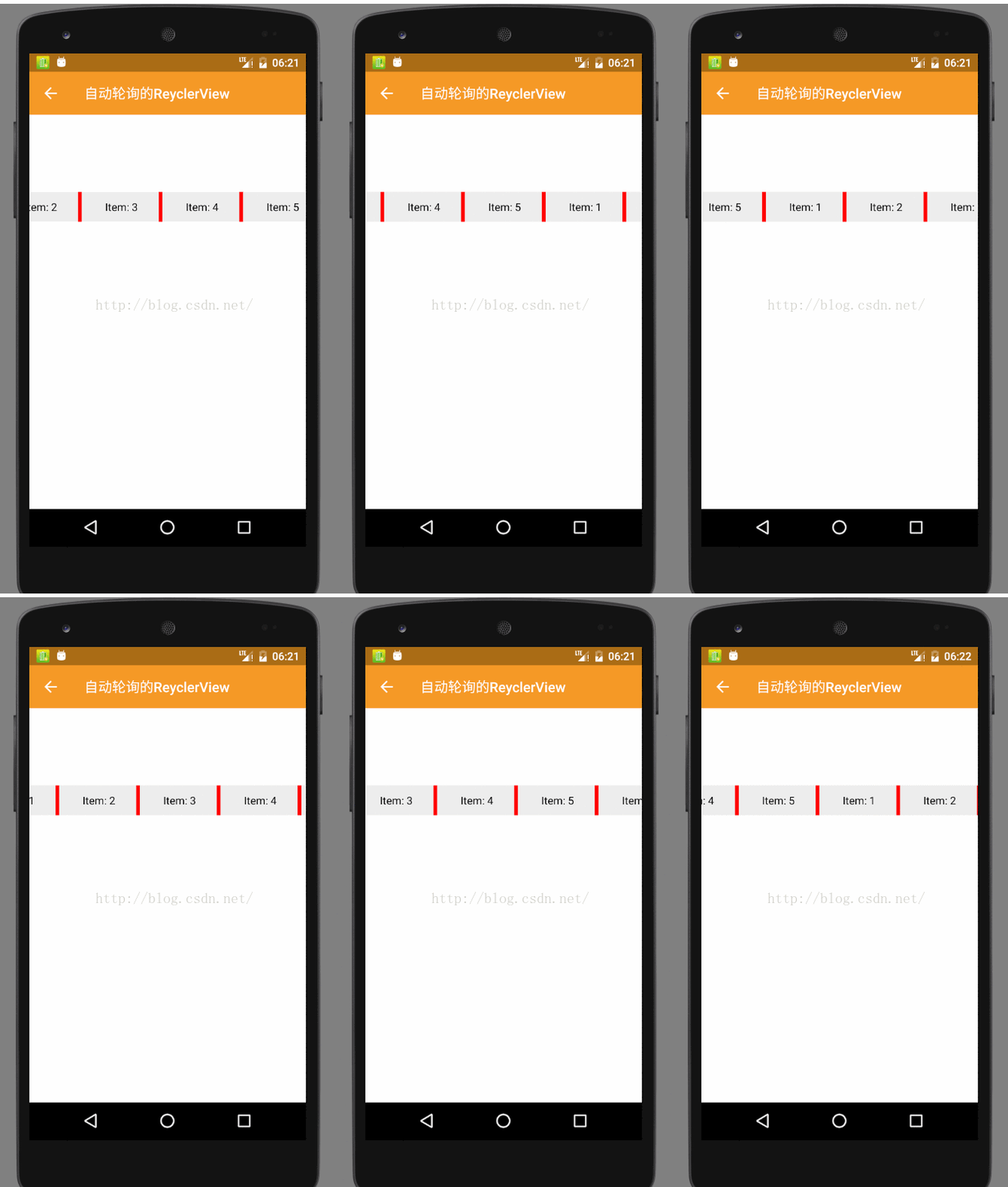
做法是繼承 RecyclerView,內部用 Runnable + postDelayed() 週期性地呼叫 scrollBy()。這裡有兩個細節很值得學:
WeakReference 持有 RecyclerView,避免內部類隱含的外部類引用造成記憶體洩漏。running(是否正在跑)與 canRun(是否允許跑)兩個旗標分開管理,方便外部隨時強制關閉自動播放。 public class AutoPollRecyclerView extends RecyclerView {
private static final long TIME_AUTO_POLL = 16; // 約等於 60fps 的間隔(毫秒)
AutoPollTask autoPollTask;
private boolean running; // 是否正在自動輪播
private boolean canRun; // 是否允許自動輪播,不需要時可設為 false
public AutoPollRecyclerView(Context context, @Nullable AttributeSet attrs) {
super(context, attrs);
autoPollTask = new AutoPollTask(this);
}
static class AutoPollTask implements Runnable {
private final WeakReference<AutoPollRecyclerView> mReference; // 弱引用,防止記憶體洩漏
public AutoPollTask(AutoPollRecyclerView reference) {
this.mReference = new WeakReference<AutoPollRecyclerView>(reference);
}
@Override
public void run() {
AutoPollRecyclerView recyclerView = mReference.get();
if (recyclerView != null && recyclerView.running && recyclerView.canRun) {
recyclerView.scrollBy(2, 2); // 每次移動 2px,畫面才會平順
recyclerView.postDelayed(recyclerView.autoPollTask, recyclerView.TIME_AUTO_POLL);
}
}
}
// 開始播放:若已在運行先停止,再重新啟動
public void start() {
if (running) stop();
canRun = true;
running = true;
postDelayed(autoPollTask, TIME_AUTO_POLL);
}
public void stop() {
running = false;
removeCallbacks(autoPollTask);
}
@Override
public boolean onTouchEvent(MotionEvent e) {
switch (e.getAction()) {
case MotionEvent.ACTION_DOWN:
if (running) stop(); // 手指按下 → 暫停
break;
case MotionEvent.ACTION_UP:
case MotionEvent.ACTION_CANCEL:
case MotionEvent.ACTION_OUTSIDE:
if (canRun) start(); // 手指離開 → 恢復
break;
}
return super.onTouchEvent(e);
}
}
兩個關鍵技巧:getItemCount() 回傳 Integer.MAX_VALUE 讓列表長度趨近無限;onBindViewHolder() 用 position % mData.size() 把大得驚人的 position 映射回真實資料索引。
 public class AutoPollAdapter extends RecyclerView.Adapter<BaseViewHolder> {

     private final Context mContext;
     private final List<String> mData;

     public AutoPollAdapter(Context context, List<String> list) {
         this.mContext = context;
         this.mData = list;
     }

     @Override
     public BaseViewHolder onCreateViewHolder(ViewGroup parent, int viewType) {
         View view = LayoutInflater.from(mContext).inflate(R.layout.item_auto_poll, parent, false);
         return new BaseViewHolder(view);
     }

     @Override
     public void onBindViewHolder(BaseViewHolder holder, int position) {
         // 取餘數,讓有限的資料被反覆循環使用
         String data = mData.get(position % mData.size());
         holder.setText(R.id.tv_content, data);
     }

     @Override
     public int getItemCount() {
         return Integer.MAX_VALUE;
     }
 }
 public class AutoPollRecyclerActivity extends BaseActivity {

     @Override
     protected void onCreate(Bundle savedInstanceState) {
         super.onCreate(savedInstanceState);
         setContentView(R.layout.activity_auto_poll);
         initToolBar();
         initView();
     }

     private void initView() {
         AutoPollRecyclerView mRecyclerView = (AutoPollRecyclerView) findViewById(R.id.rv_recycleView);

         List<String> list = new ArrayList<>();
         for (int i = 0; i < 5; ) {
             list.add(" Item: " + ++i);
         }

         AutoPollAdapter adapter = new AutoPollAdapter(this, list);
         mRecyclerView.setLayoutManager(new LinearLayoutManager(this, LinearLayoutManager.HORIZONTAL, false));
         mRecyclerView.addItemDecoration(new DividerItemDecoration(this, DividerItemDecoration.HORIZONTAL_LIST));
         mRecyclerView.setAdapter(adapter);

         // 建議先確認 item 總寬度超過螢幕寬度,否則看起來不會有滾動感
         mRecyclerView.start();
     }
 }
若你的 item 寬度不一定大於螢幕,可以在啟動前量測一次內容寬度再決定要不要 start()。另外,離開頁面時記得在 onPause() 或 onDestroy() 呼叫 stop(),否則 postDelayed 的迴圈會在背景持續消耗資源。
 ViewPager 添加標題欄:PagerTabStrip 與 PagerTitleStrip 用法對比
使用 ViewPager 時,我們常希望每個頁面上方帶一個標題。Google 在 v4 包中提供了兩個現成控件——PagerTabStrip 與 PagerTitleSt
 深入 Android Dialog:八種常見彈窗效果的實作解析
Dialog 是 Android 裡使用頻率極高、變化也最多的元件。從最簡單的確認框,到列表、單選、多選、進度條與自訂版面,幾乎都能用 AlertDialog.Build
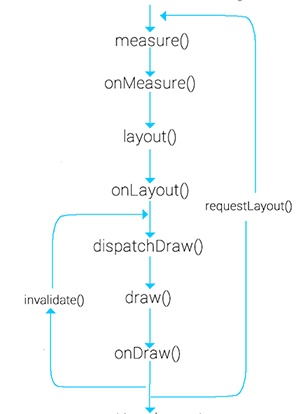 自定義 ViewGroup 最佳入門:繪製流程、onMeasure 與 onLayout 全解析
一、View 的繪製流程 ViewGroup 同樣繼承自 View,所以先看繪製過程依序呼叫了哪些函式。 逐個拆解: measure() 與 onMeasure()——
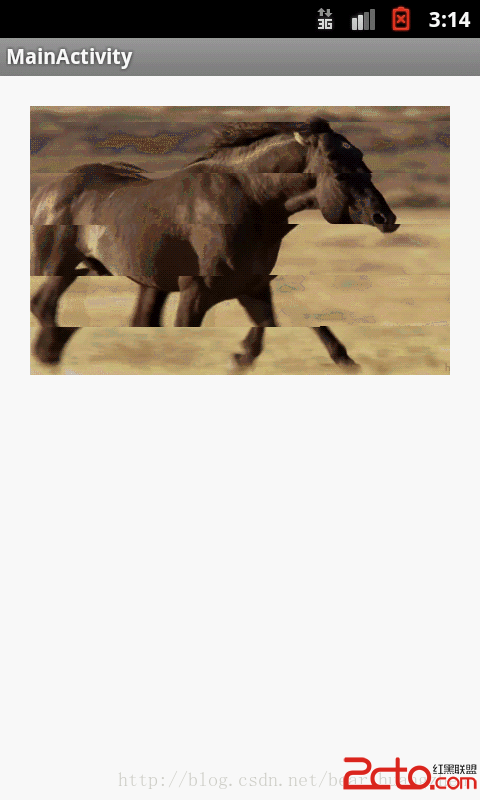 Android 中顯示 GIF 動圖:自定義 View + Movie 實現方案
GIF 動畫在 Android 上的顯示是個很常見的需求,但系統原生的 ImageView 並不會自動播放 GIF。今天我們就用 android.graphics.Mov