

編輯:關於 Android 程式設計
今天的效果在支付寶、淘寶、京東等電商 App 中隨處可見:支付寶的密碼輸入彈窗、商城下單時從底部浮出的商品屬性選擇框。本文就帶你用 Behavior 實作這兩種效果,你會發現幾乎只要一行程式碼。
可以套用的場景包括:
1. 仿支付寶的支付密碼輸入彈窗。
2. 仿淘寶/天貓的商品屬性選擇框。
3. 知乎首頁上下滑動隱藏 Toolbar 與 NavigationBar。
4. ……
效果預覽
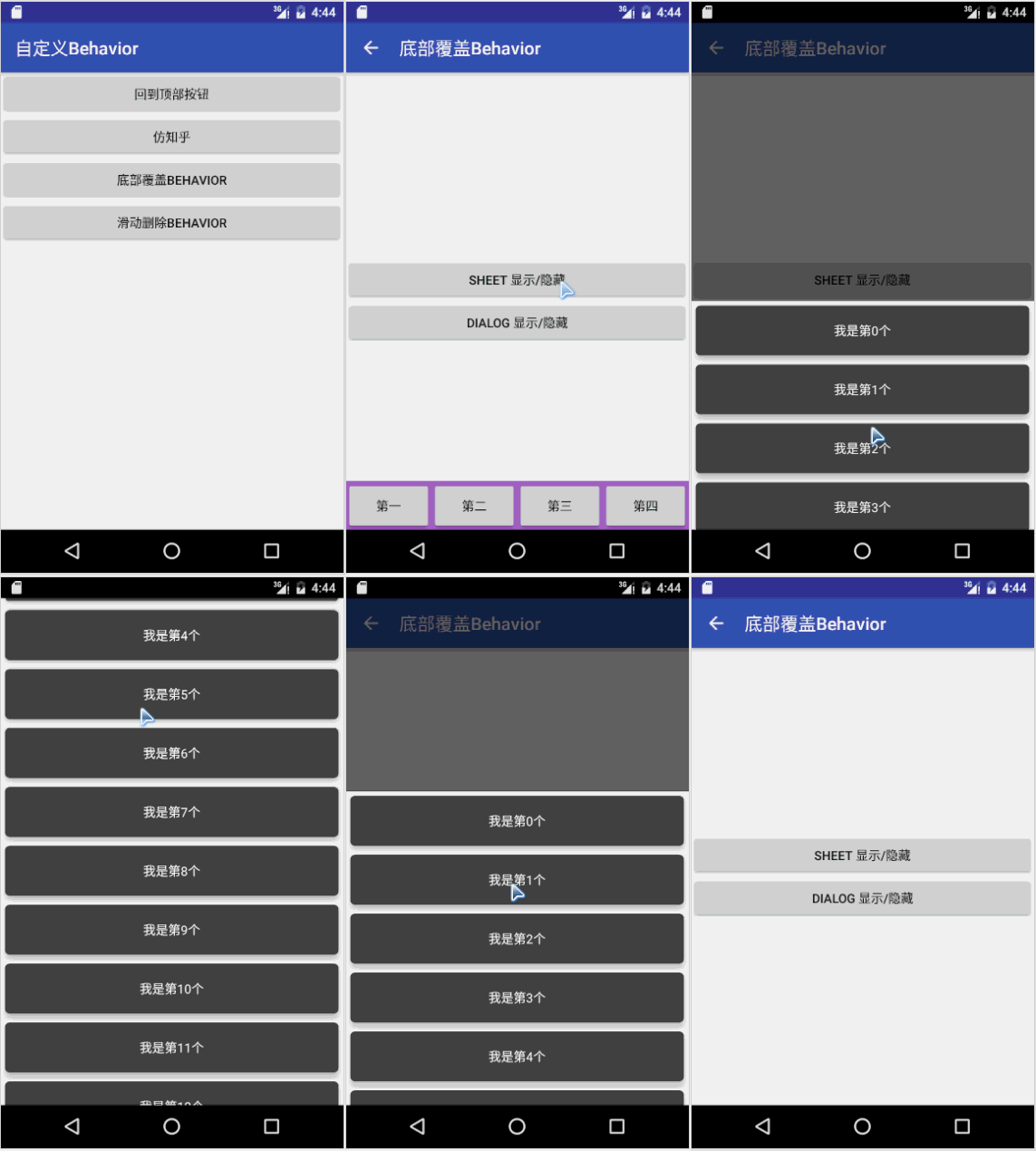
技術群裡常有朋友討論 Behavior,翻查官方資料時,我發現了一個實作類別 BottomSheetBehavior,這一翻就挖到了寶,下面把這些收穫分享給大家。
Behavior 是 CoordinatorLayout 子 View 的 LayoutParams(原因後文會解釋),所以 CoordinatorLayout 必不可少。先來看整體佈局:
<android.support.design.widget.CoordinatorLayout xmlns:android="https://schemas.android.com/apk/res/android" xmlns:app="https://schemas.android.com/apk/res-auto" android:layout_width="match_parent" android:layout_height="match_parent"> <android.support.design.widget.AppBarLayout android:layout_width="match_parent" android:layout_height="wrap_content" android:theme="@style/AppTheme.AppBarOverlay"> <android.support.v7.widget.Toolbar android:id="@+id/toolbar" android:layout_width="match_parent" android:layout_height="?attr/actionBarSize" app:popupTheme="@style/AppTheme.PopupOverlay" /> </android.support.design.widget.AppBarLayout> <LinearLayout android:layout_width="match_parent" android:layout_height="match_parent" android:layout_above="@+id/tab_layout" android:gravity="center" android:orientation="vertical" app:layout_behavior="@string/appbar_scrolling_view_behavior"> <Button android:id="@+id/btn_bottom_sheet_control" android:layout_width="match_parent" android:layout_height="wrap_content" android:text="sheet 顯示/隱藏" /> </LinearLayout> <LinearLayout android:id="@+id/tab_layout" android:layout_width="match_parent" android:layout_height="?actionBarSize" android:layout_alignParentBottom="true" android:background="@android:color/holo_purple" app:layout_behavior="@string/bottom_sheet_behavior"> <Button android:layout_width="0dp" android:layout_height="match_parent" android:layout_weight="1" android:text="第一" /> <Button android:layout_width="0dp" android:layout_height="match_parent" android:layout_weight="1" android:text="第二" /> <Button android:layout_width="0dp" android:layout_height="match_parent" android:layout_weight="1" android:text="第三" /> <Button android:layout_width="0dp" android:layout_height="match_parent" android:layout_weight="1" android:text="第四" /> </LinearLayout> </android.support.design.widget.CoordinatorLayout>
畫面上只看得到 Toolbar 和一顆「sheet 顯示/隱藏」按鈕。id 為 tab_layout 的橫向佈局設定了 app:layout_behavior="@string/bottom_sheet_behavior"。測試發現,若不給它設 BottomSheetBehavior,它會浮在頁面頂部、Toolbar 下方;設了之後則會被自動移到頁面底部之外,因此預設看不到。
佈局畫好後,怎麼控制它的開關呢?翻查官方 API 可以發現一個靜態方法 BottomSheetBehavior.from(View),它會回傳該 View 對應的 BottomSheetBehavior:
public static <V extends View> BottomSheetBehavior<V> from(V view) { ViewGroup.LayoutParams params = view.getLayoutParams(); if (!(params instanceof CoordinatorLayout.LayoutParams)) { throw new Exception("The view is not a child of CoordinatorLayout"); } CoordinatorLayout.Behavior behavior = params.getBehavior(); if (!(behavior instanceof BottomSheetBehavior)) { throw new IllegalArgumentException("..."); } return (BottomSheetBehavior<V>) behavior; } 這個方法會先檢查 View 是否為 CoordinatorLayout 的子 View,這也解釋了為何 Behavior 必須作為 CoordinatorLayout 子 View 的 LayoutParams。取得實例後的用法:
private BottomSheetBehavior mBottomSheetBehavior; @Override protected void onCreate(@Nullable Bundle savedInstanceState) { super.onCreate(savedInstanceState); setContentView(R.layout.bsbehavior_activity); Toolbar toolbar = (Toolbar) findViewById(R.id.toolbar); setSupportActionBar(toolbar); getSupportActionBar().setDisplayHomeAsUpEnabled(true); findViewById(R.id.btn_bottom_sheet_control).setOnClickListener(onClickListener); // 拿到這個tab_layout對應的BottomSheetBehavior mBottomSheetBehavior = BottomSheetBehavior.from(findViewById(R.id.tab_layout)); } 透過 mBottomSheetBehavior.getState() 可以取得目前狀態,回傳值有以下幾種:
public static final int STATE_DRAGGING = 1; // 拖動中 public static final int STATE_SETTLING = 2; // 沉降中 public static final int STATE_EXPANDED = 3; // 展開 public static final int STATE_COLLAPSED = 4; // 收合 public static final int STATE_HIDDEN = 5; // 隱藏
看到 STATE_EXPANDED 與 STATE_COLLAPSED 就明白用法了——判斷狀態,隱藏就顯示,顯示就隱藏:
@Override public void onClick(View v) { if (v.getId() == R.id.btn_bottom_sheet_control) { if (mBottomSheetBehavior.getState() == BottomSheetBehavior.STATE_EXPANDED) { mBottomSheetBehavior.setState(BottomSheetBehavior.STATE_COLLAPSED); } else if (mBottomSheetBehavior.getState() == BottomSheetBehavior.STATE_COLLAPSED) { mBottomSheetBehavior.setState(BottomSheetBehavior.STATE_EXPANDED); } } } BottomSheetDialog 同樣是在搜尋 BottomSheetBehavior 時發現的。既然它是個 Dialog,用法應該與普通 Dialog 無異。於是順勢 new 了一個:
private BottomSheetDialog mBottomSheetDialog; @Override protected void onCreate(@Nullable Bundle savedInstanceState) { super.onCreate(savedInstanceState); ... createBottomSheetDialog(); } private void createBottomSheetDialog() { mBottomSheetDialog = new BottomSheetDialog(this); View view = LayoutInflater.from(this).inflate(R.layout.dialog_bottom_sheet, null, false); mBottomSheetDialog.setContentView(view); RecyclerView recyclerView = (RecyclerView) view.findViewById(R.id.recyclerView); ... recyclerView.setAdapter(adapter); } View 內部是一個 RecyclerView:
<?xml version="1.0" encoding="utf-8"?> <android.support.v7.widget.RecyclerView xmlns:android="https://schemas.android.com/apk/res/android" android:id="@+id/recyclerView" android:layout_width="match_parent" android:layout_height="match_parent" />
控制顯示隱藏:
if (mBottomSheetDialog.isShowing()) { mBottomSheetDialog.dismiss(); } else { mBottomSheetDialog.show(); } Dialog 顯示時只會露出半部,效果相當不錯,正好實現了支付密碼彈窗與商品屬性選擇。滑動時若下方有內容它就會 EXPANDED;若是普通 View(非 RecyclerView、NestedScrollView)則不會繼續上滑,但同樣能下滑隱藏,也可呼叫 dismiss/close 關閉。
踩過一個坑:Dialog 打開再關閉後,無法用 show() 再次打開。查閱原始碼發現:
@Override public void setContentView(View view, ViewGroup.LayoutParams params) { super.setContentView(wrapInBottomSheet(0, view, params)); } private View wrapInBottomSheet(int layoutResId, View view, ViewGroup.LayoutParams params) { final CoordinatorLayout coordinator = View.inflate(getContext(),R.layout...., null); FrameLayout bottomSheet = (FrameLayout) coordinator.findViewById(R.id.design_bottom_sheet); BottomSheetBehavior.from(bottomSheet).setBottomSheetCallback(mBottomSheetCallback); ... return coordinator; } private BottomSheetCallback mBottomSheetCallback = new BottomSheetCallback() { @Override public void onStateChanged(@NonNull View bottomSheet, int newState) { if (newState == BottomSheetBehavior.STATE_HIDDEN) { dismiss(); } } @Override public void onSlide(@NonNull View bottomSheet, float slideOffset) { } }; 也就是說系統的 BottomSheetDialog 是基於 BottomSheetBehavior 封裝的:當使用者滑動把內部 View 隱藏後,狀態被設為 STATE_HIDDEN,接著它替你關閉了 Dialog,所以再次 show() 時就無法打開一個處於 HIDDEN 狀態的 Dialog。
既然 Google 沒提供自訂 Callback 的介面,那我們自己來。在偵測到使用者滑動關閉後,把狀態設回 STATE_COLLAPSED(半開狀態),即可解決:
private void setBehaviorCallback() { View view = mBottomSheetDialog.getDelegate().findViewById(android.support.design.R.id.design_bottom_sheet); final BottomSheetBehavior bottomSheetBehavior = BottomSheetBehavior.from(view); bottomSheetBehavior.setBottomSheetCallback(new BottomSheetBehavior.BottomSheetCallback() { @Override public void onStateChanged(@NonNull View bottomSheet, int newState) { if (newState == BottomSheetBehavior.STATE_HIDDEN) { mBottomSheetDialog.dismiss(); bottomSheetBehavior.setState(BottomSheetBehavior.STATE_COLLAPSED); } } @Override public void onSlide(@NonNull View bottomSheet, float slideOffset) { } }); } 如此一來,關閉後無法再次打開的問題就解決了。
源碼下載:https://xiazai.jb51.net/201609/yuanma/AndroidBehavior(jb51.net).rar
以上就是本文的全部內容,希望對大家的學習有所幫助。
 UI Automator 入門:Android 黑盒 UI 自動化測試環境與流程
Android 的自動化測試框架不少,UI Automator 是 Google 官方提供的黑盒 UI 測試工具,用 Java 撰寫用例。它最大的特色是不需要被測應用的原
 SwipeListView 實作:打造類 QQ 的滑動側邊操作列表
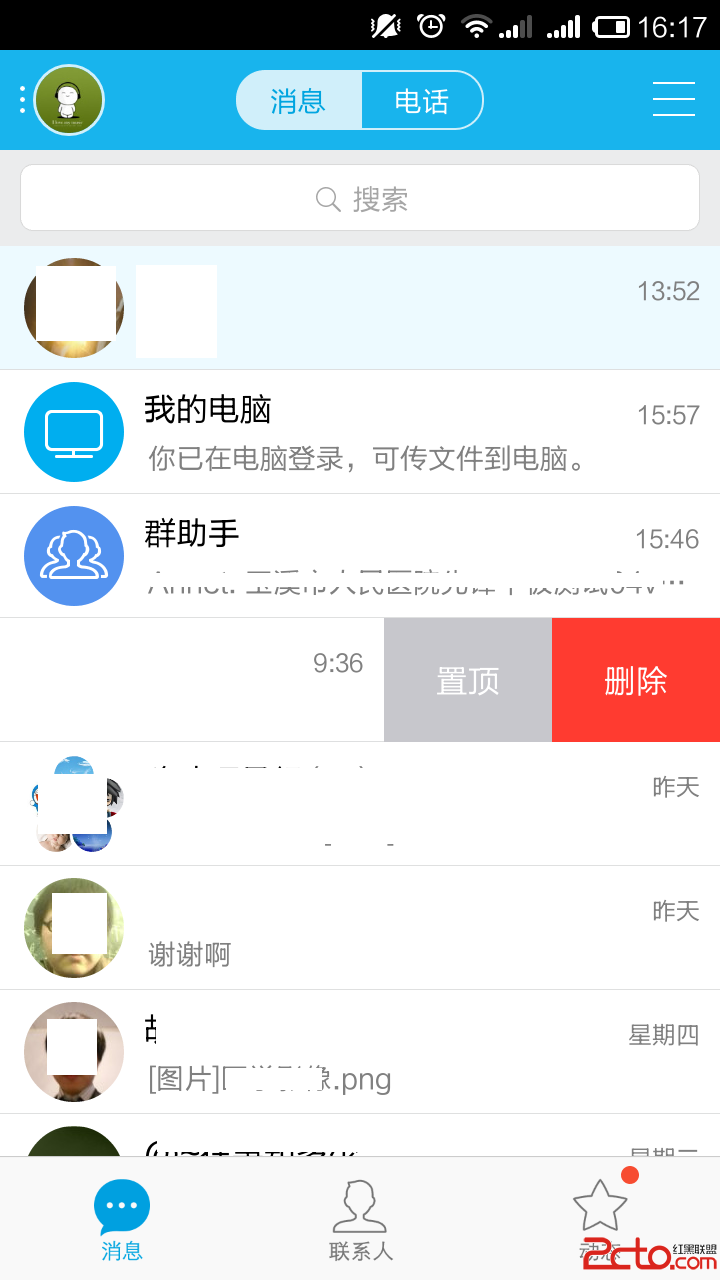
左右滑動列表項、露出背後的操作按鈕,這種互動從 QQ 之後幾乎成了清單的標準語彙。自己從 ListView 的 onTouch 刻一套並不划算,社群已有成熟方案:47de
 Android 動態加載框架 DL 架構解析
動態加載框架的目的 隨著 App 功能越來越多,安裝包也越來越大。動態加載框架可把部分功能做成外掛,使用時再下載並載入,不需要事先安裝。 核心問題 動態加載框架需要解決兩
 View 分區點擊實作方案(一):用座標範圍判斷
很久沒寫 Android 的東西了。這陣子手邊事情不少:除了公司的專案,前陣子剛做完廣播相關的功能,現在又和同事一起做 Launcher 的某個模組,裡面要用到 Ope