

編輯:關於 Android 程式設計
在 Android 中,複雜圖形的繪製絕大多數是透過 Path 來實現的,比如繪製一條曲線並讓物件沿著它運動,比如搜索按鈕,比如一個簡單的時鐘。
定義:Path 就是路徑,是圖形路徑的集合,裡面包含了路徑中的座標點等屬性。我們可以取得任意點的座標與正切值。
要取得 Path 上所有點的座標,還需要用到一個類別 PathMeasure。
PathMeasure 是一個用來測量 Path 的類別,主要方法如下。
構造方法:

公共方法:
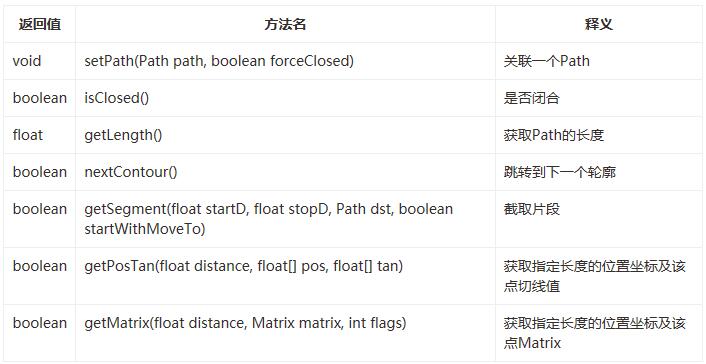
可以看到,它基本上就是 Path 的一個工具類,方法很簡單。那麼就開始我們要做的按鈕與時鐘開發吧。
首先上圖:
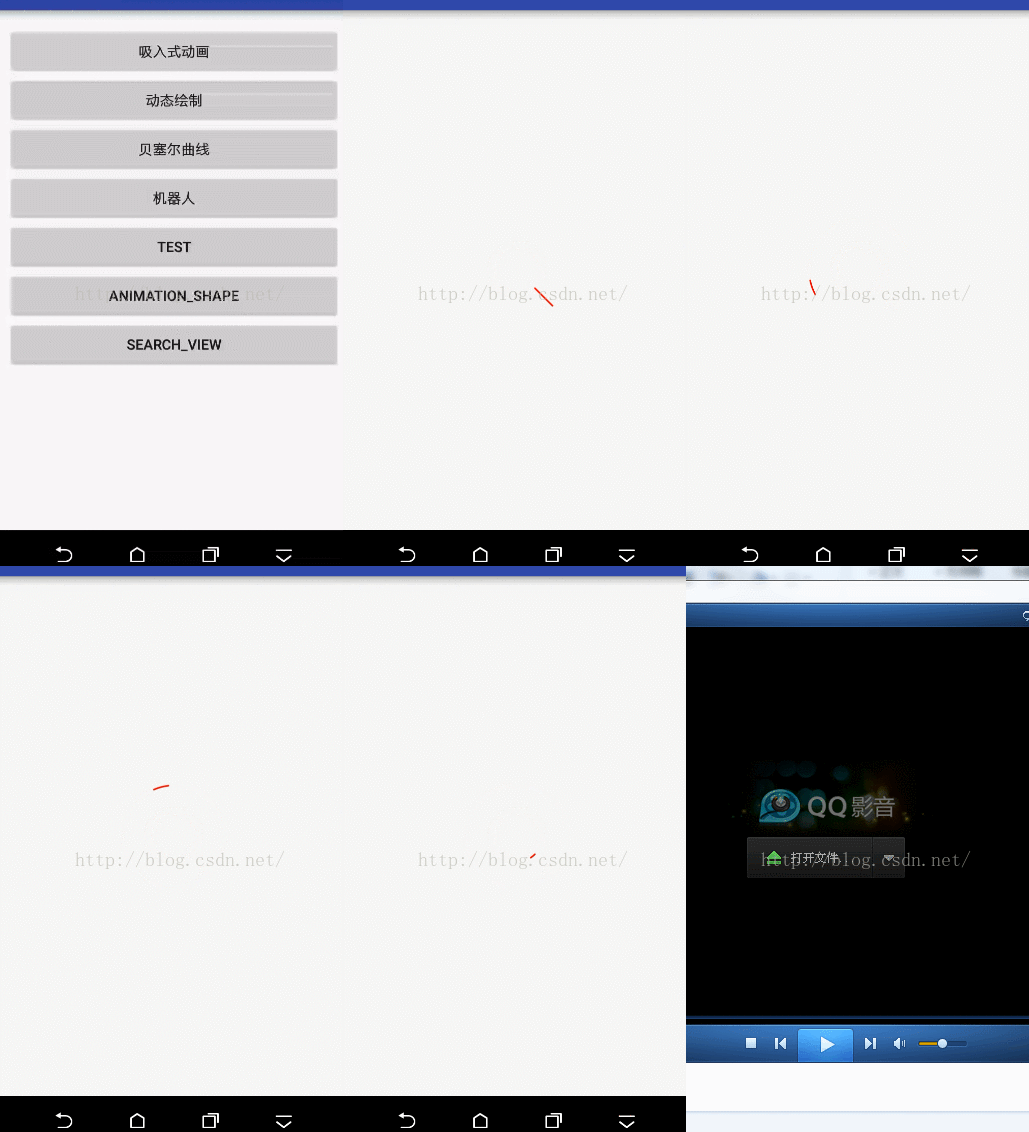
要實現這個功能,首先要把它拆解開來:建立搜索按鈕的 Path 路徑,再建立外圈旋轉的 Path。
public void initPath(){ mPath_search = new Path(); mPath_circle = new Path(); mMeasure = new PathMeasure(); // 注意,不要到360度,否則內部會自動優化,測量不能取到需要的數值 RectF oval1 = new RectF(-50, -50, 50, 50); // 放大鏡圓環 mPath_search.addArc(oval1, 45, 359.9f); RectF oval2 = new RectF(-100, -100, 100, 100); // 外部圓環 mPath_circle.addArc(oval2, 45, -359.9f); float[] pos = new float[2]; mMeasure.setPath(mPath_circle, false); // 放大鏡把手的位置 mMeasure.getPosTan(0, pos, null); mPath_search.lineTo(pos[0], pos[1]); // 放大鏡把手 Log.i("TAG", "pos=" + pos[0] + ":" + pos[1]); }
我們要的效果是:點擊搜索按鈕時開始從按鈕變為旋轉,搜索結束後再變回搜索按鈕。所以可以確定有四種狀態:
public enum Seach_State{ START,END,NONE,SEARCHING }
然後根據狀態來動態繪製 Path,而動態繪製就要用到 PathMeasure 測量當前 Path 的座標,再進行繪製。
private void drawPath(Canvas c) { c.translate(mWidth / 2, mHeight / 2); switch (mState){ case NONE: c.drawPath(mPath_search,mPaint); break; case START: mMeasure.setPath(mPath_search,true); Path path = new Path(); mMeasure.getSegment(mMeasure.getLength() * curretnAnimationValue,mMeasure.getLength(),path, true); c.drawPath(path,mPaint); break; case SEARCHING: mMeasure.setPath(mPath_circle,true); Path path_search = new Path(); mMeasure.getSegment(mMeasure.getLength()*curretnAnimationValue -30,mMeasure.getLength()*curretnAnimationValue,path_search,true); c.drawPath(path_search,mPaint); break; case END: mMeasure.setPath(mPath_search,true); Path path_view = new Path(); mMeasure.getSegment(0,mMeasure.getLength()*curretnAnimationValue,path_view,true); c.drawPath(path_view,mPaint); break; } }
然後需要透過屬性動畫返回當前該繪製的百分比,藉由這個值來計算要繪製的 Path。下面是完整程式碼:
package com.duoku.platform.demo.canvaslibrary.attract.view; import android.animation.Animator; import android.animation.ValueAnimator; import android.content.Context; import android.graphics.Canvas; import android.graphics.Color; import android.graphics.Paint; import android.graphics.Path; import android.graphics.PathMeasure; import android.graphics.RectF; import android.util.AttributeSet; import android.util.Log; import android.view.View; /** * Created by chenpengfei_d on 2016/9/7. */ public class SearchView extends View { private Paint mPaint; private Context mContext; private Path mPath_circle; private Path mPath_search; private PathMeasure mMeasure; private ValueAnimator mValueAnimator_search; private long defaultduration=3000; private float curretnAnimationValue; private Seach_State mState = Seach_State.SEARCHING; public SearchView(Context context) { super(context); init(context); } public SearchView(Context context, AttributeSet attrs) { super(context, attrs); init(context); } public SearchView(Context context, AttributeSet attrs, int defStyleAttr) { super(context, attrs, defStyleAttr); init(context); } public void init(Context context){ this.mContext = context; initPaint(); initPath(); initAnimation(); } public void initPaint(){ mPaint = new Paint(); mPaint.setDither(true); mPaint.setStrokeCap(Paint.Cap.ROUND);//設置筆頭效果 mPaint.setAntiAlias(true); mPaint.setColor(Color.RED); mPaint.setStrokeWidth(3); mPaint.setStyle(Paint.Style.STROKE); } public void initPath(){ mPath_search = new Path(); mPath_circle = new Path(); mMeasure = new PathMeasure(); // 注意,不要到360度,否則內部會自動優化,測量不能取到需要的數值 RectF oval1 = new RectF(-50, -50, 50, 50); // 放大鏡圓環 mPath_search.addArc(oval1, 45, 359.9f); RectF oval2 = new RectF(-100, -100, 100, 100); // 外部圓環 mPath_circle.addArc(oval2, 45, -359.9f); float[] pos = new float[2]; mMeasure.setPath(mPath_circle, false); // 放大鏡把手的位置 mMeasure.getPosTan(0, pos, null); mPath_search.lineTo(pos[0], pos[1]); // 放大鏡把手 Log.i("TAG", "pos=" + pos[0] + ":" + pos[1]); } public void initAnimation(){ mValueAnimator_search = ValueAnimator.ofFloat(0f,1.0f).setDuration(defaultduration); mValueAnimator_search.addUpdateListener(updateListener); mValueAnimator_search.addListener(animationListener); } private ValueAnimator.AnimatorUpdateListener updateListener = new ValueAnimator.AnimatorUpdateListener() { @Override public void onAnimationUpdate(ValueAnimator animation) { curretnAnimationValue = (float) animation.getAnimatedValue(); invalidate(); } }; private Animator.AnimatorListener animationListener = new Animator.AnimatorListener() { @Override public void onAnimationStart(Animator animation) { } @Override public void onAnimationEnd(Animator animation) { if(mState ==Seach_State.START){ setState(Seach_State.SEARCHING); } } @Override public void onAnimationCancel(Animator animation) { } @Override public void onAnimationRepeat(Animator animation) { } }; @Override protected void onDraw(Canvas canvas) { super.onDraw(canvas); drawPath(canvas); } private int mWidth,mHeight; @Override protected void onSizeChanged(int w, int h, int oldw, int oldh) { super.onSizeChanged(w, h, oldw, oldh); mWidth = w; mHeight = h; } private void drawPath(Canvas c) { c.translate(mWidth / 2, mHeight / 2); switch (mState){ case NONE: c.drawPath(mPath_search,mPaint); break; case START: mMeasure.setPath(mPath_search,true); Path path = new Path(); mMeasure.getSegment(mMeasure.getLength() * curretnAnimationValue,mMeasure.getLength(),path, true); c.drawPath(path,mPaint); break; case SEARCHING: mMeasure.setPath(mPath_circle,true); Path path_search = new Path(); mMeasure.getSegment(mMeasure.getLength()*curretnAnimationValue -30,mMeasure.getLength()*curretnAnimationValue,path_search,true); c.drawPath(path_search,mPaint); break; case END: mMeasure.setPath(mPath_search,true); Path path_view = new Path(); mMeasure.getSegment(0,mMeasure.getLength()*curretnAnimationValue,path_view,true); c.drawPath(path_view,mPaint); break; } } public void setState(Seach_State state){ this.mState = state; startSearch(); } public void startSearch(){ switch (mState){ case START: mValueAnimator_search.setRepeatCount(0); break; case SEARCHING: mValueAnimator_search.setRepeatCount(ValueAnimator.INFINITE); mValueAnimator_search.setRepeatMode(ValueAnimator.REVERSE); break; case END: mValueAnimator_search.setRepeatCount(0); break; } mValueAnimator_search.start(); } public enum Seach_State{ START,END,NONE,SEARCHING } }
(學習點:Path 可以組合,可以把不同的 Path 放到同一個 Path 裡,再進行統一繪製。)
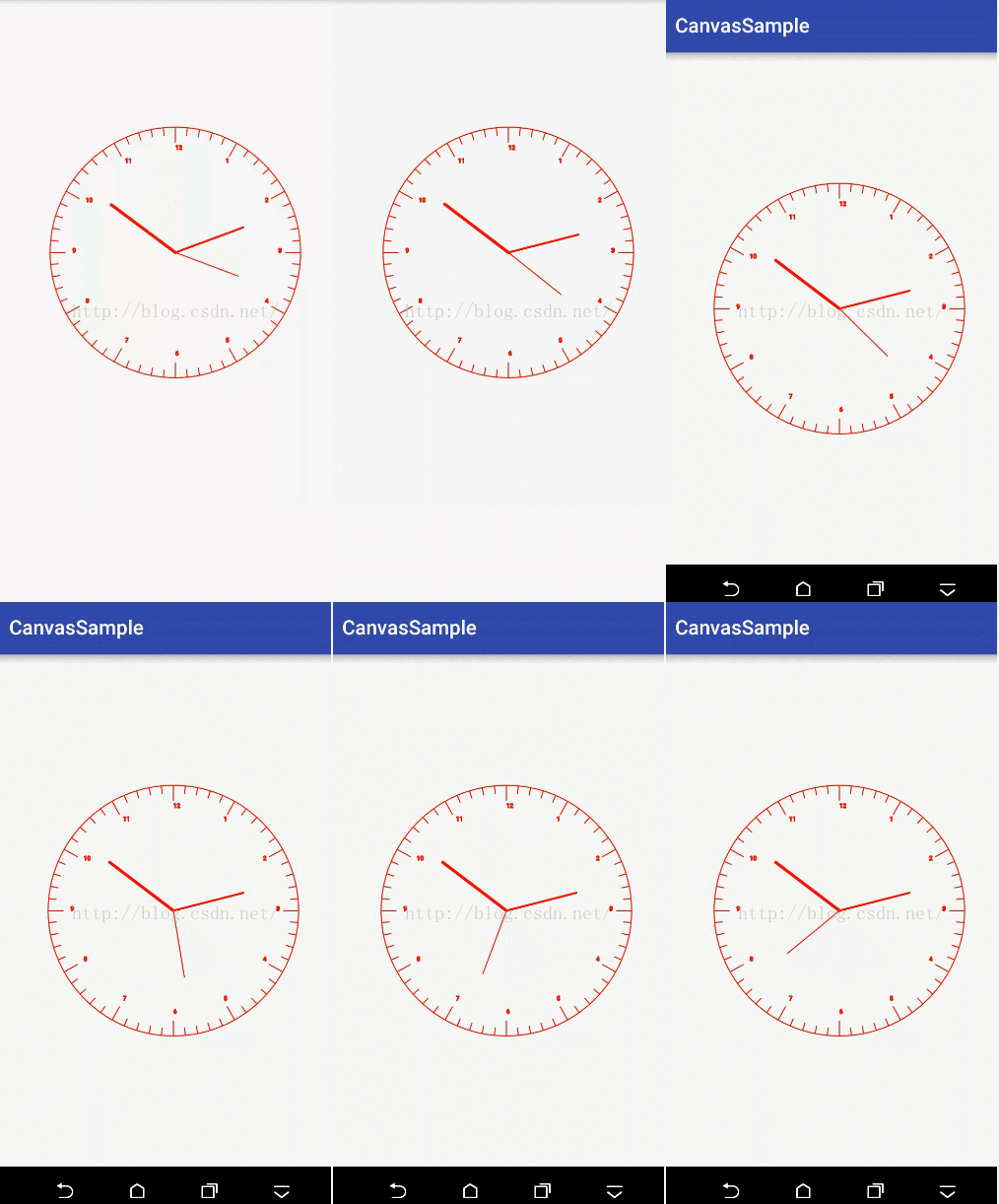
說一下時鐘的思路。網上很多時鐘都是用 Canvas 繪製基本圖形實現的,很少有透過 Path 實現的。用 Path 實現是為了日後能更靈活地控制時鐘的繪製效果,比如讓最外邊的圓圈逆時針旋轉,或者在上面添加些小星星,用 Path 會更加靈活。
時鐘的實現分幾部分:
1、建立外圈 Path 路徑;
2、建立刻度 Path 路徑,要區分整點,繪製時間點;
3、繪製指針(這裡用 Canvas 繪製線段,也可以用 Path,可自行測試)。
需要計算當前時針、分針、秒針的角度,然後進行繪製。整體程式碼:
package com.duoku.platform.demo.canvaslibrary.attract.view; import android.content.Context; import android.graphics.Canvas; import android.graphics.Color; import android.graphics.Paint; import android.graphics.Path; import android.graphics.PathMeasure; import android.os.Handler; import android.util.AttributeSet; import android.view.View; import java.util.Calendar; /** * Created by chenpengfei_d on 2016/9/8. */ public class TimeView extends View { private Paint mPaint,mPaint_time; private Paint mPaint_h,mPaint_m,mPaint_s; private Path mPath_Circle; private Path mPath_Circle_h; private Path mPath_Circle_m; private Path mPath_h,mPath_m,mPath_s; private Path mPath_duration; private PathMeasure mMeasure; private PathMeasure mMeasure_h; private PathMeasure mMeasure_m; private Handler mHandler = new Handler(); private Runnable clockRunnable; private boolean isRunning; public TimeView(Context context) { super(context); init(); } public TimeView(Context context, AttributeSet attrs) { super(context, attrs); init(); } public TimeView(Context context, AttributeSet attrs, int defStyleAttr) { super(context, attrs, defStyleAttr); init(); } int t = 3; public void init(){ //初始化畫筆 mPaint = new Paint(); mPaint.setDither(true); mPaint.setAntiAlias(true); mPaint.setStyle(Paint.Style.STROKE); mPaint.setStrokeWidth(2); mPaint.setStrokeCap(Paint.Cap.ROUND); mPaint.setStrokeJoin(Paint.Join.ROUND); mPaint.setColor(Color.RED); mPaint_time = new Paint(); mPaint_time.setDither(true); mPaint_time.setAntiAlias(true); mPaint_time.setStyle(Paint.Style.STROKE); mPaint_time.setStrokeWidth(2); mPaint_time.setTextSize(15); mPaint_time.setStrokeCap(Paint.Cap.ROUND); mPaint_time.setStrokeJoin(Paint.Join.ROUND); mPaint_time.setColor(Color.RED); mPaint_h = new Paint(); mPaint_h.setDither(true); mPaint_h.setAntiAlias(true); mPaint_h.setStyle(Paint.Style.STROKE); mPaint_h.setStrokeWidth(6); mPaint_h.setTextSize(15); mPaint_h.setStrokeCap(Paint.Cap.ROUND); mPaint_h.setStrokeJoin(Paint.Join.ROUND); mPaint_h.setColor(Color.RED); mPaint_m = new Paint(); mPaint_m.setDither(true); mPaint_m.setAntiAlias(true); mPaint_m.setStyle(Paint.Style.STROKE); mPaint_m.setStrokeWidth(4); mPaint_m.setTextSize(15); mPaint_m.setStrokeCap(Paint.Cap.ROUND); mPaint_m.setStrokeJoin(Paint.Join.ROUND); mPaint_m.setColor(Color.RED); mPaint_s = new Paint(); mPaint_s.setDither(true); mPaint_s.setAntiAlias(true); mPaint_s.setStyle(Paint.Style.STROKE); mPaint_s.setStrokeWidth(2); mPaint_s.setTextSize(15); mPaint_s.setStrokeCap(Paint.Cap.ROUND); mPaint_s.setStrokeJoin(Paint.Join.ROUND); mPaint_s.setColor(Color.RED); //初始化刻度 mPath_Circle = new Path(); mPath_Circle.addCircle(0,0,250, Path.Direction.CCW); mPath_Circle_h = new Path(); mPath_Circle_h.addCircle(0,0,220, Path.Direction.CCW); mPath_Circle_m = new Path(); mPath_Circle_m.addCircle(0,0,235, Path.Direction.CCW); //初始化PathMeasure測量path坐標, mMeasure = new PathMeasure(); mMeasure.setPath(mPath_Circle,true); mMeasure_h = new PathMeasure(); mMeasure_h.setPath(mPath_Circle_h,true); mMeasure_m = new PathMeasure(); mMeasure_m.setPath(mPath_Circle_m,true); //獲取刻度path mPath_duration = new Path(); for (int i = 60; i>0 ;i --){ Path path = new Path(); float pos [] = new float[2]; float tan [] = new float[2]; float pos2 [] = new float[2]; float tan2 [] = new float[2]; float pos3 [] = new float[2]; float tan3 [] = new float[2]; mMeasure.getPosTan(mMeasure.getLength()*i/60,pos,tan); mMeasure_h.getPosTan(mMeasure_h.getLength()*i/60,pos2,tan2); mMeasure_m.getPosTan(mMeasure_m.getLength()*i/60,pos3,tan3); float x = pos[0]; float y = pos[1]; float x2 = pos2[0]; float y2 = pos2[1]; float x3 = pos3[0]; float y3 = pos3[1]; path.moveTo(x , y); if(i% 5 ==0){ path.lineTo(x2,y2); if(t>12){ t = t-12; } String time = t++ +""; Path path_time = new Path(); mMeasure_h.getPosTan(mMeasure_h.getLength()*(i-1)/60,pos2,tan2); mPaint.getTextPath(time,0,time.length(),(x2- (x2/15)),y2-(y2/15),path_time); path.close(); path.addPath(path_time); }else{ path.lineTo(x3,y3); } mPath_duration.addPath(path); clockRunnable = new Runnable() {//裡面做的事情就是每隔一秒,刷新一次界面 @Override public void run() { //線程中刷新界面 postInvalidate(); mHandler.postDelayed(this, 1000); } }; } mPath_h = new Path(); mPath_h.rLineTo(50,30); mPath_m = new Path(); mPath_m.rLineTo(80,80); mPath_s = new Path(); mPath_s.rLineTo(130,50); } private int mWidth,mHeight; @Override protected void onSizeChanged(int w, int h, int oldw, int oldh) { super.onSizeChanged(w, h, oldw, oldh); mWidth = w; mHeight = h; } @Override protected void onDraw(Canvas canvas) { super.onDraw(canvas); if(!isRunning){ isRunning = true; mHandler.postDelayed(clockRunnable,1000); }else{ canvas.translate(mWidth/2,mHeight/2); canvas.drawPath(mPath_Circle,mPaint); canvas.save(); canvas.drawPath(mPath_duration,mPaint_time); canvas.drawPoint(0,0,mPaint_time); drawClockPoint(canvas); } } private Calendar cal; private int hour; private int min; private int second; private float hourAngle,minAngle,secAngle; /** * 繪制三個指針 * @param canvas */ private void drawClockPoint(Canvas canvas) { cal = Calendar.getInstance(); hour = cal.get(Calendar.HOUR);//Calendar.HOUR獲取的是12小時制,Calendar.HOUR_OF_DAY獲取的是24小時制 min = cal.get(Calendar.MINUTE); second = cal.get(Calendar.SECOND); //計算時分秒指針各自需要偏移的角度 hourAngle = (float)hour / 12 * 360 + (float)min / 60 * (360 / 12);//360/12是指每個數字之間的角度 minAngle = (float)min / 60 * 360; secAngle = (float)second / 60 * 360; //下面將時、分、秒指針按照各自的偏移角度進行旋轉,每次旋轉前要先保存canvas的原始狀態 canvas.save(); canvas.rotate(hourAngle,0, 0); canvas.drawLine(0, 0, mWidth/6, getHeight() / 6 - 65, mPaint_h);//時針長度設置為65 canvas.restore(); canvas.save(); canvas.rotate(minAngle,0, 0); canvas.drawLine(0, 0, mWidth/6, getHeight() / 6 - 90 , mPaint_m);//分針長度設置為90 canvas.restore(); canvas.save(); canvas.rotate(secAngle,0, 0); canvas.drawLine(0, 0, mWidth/6, getHeight() / 6 - 110 , mPaint_s);//秒針長度設置為110 canvas.restore(); } }
這其實還不算特別複雜的動畫,也許你有更好的想法,可以自己透過 Path 加屬性動畫實現更好看的效果,比如星空效果、動態繪製文字加路徑實現類似 PPT 播放的特效,或者電子書的自動翻頁。
最後再介紹一個知識——SVG。SVG 的學名叫可縮放向量圖形,是基於可擴展標記語言(標準通用標記語言的子集),用於描述二維向量圖形的一種圖形格式。這種格式的圖形可以加載到 Android 的 Path 裡。既然能加載到 Path,那麼是不是就能實現更複雜的效果呢?這個留待日後再寫。
以上就是本文的全部內容,希望對你的學習有所幫助。
 零基礎打造簡易 Android 日曆:Calendar 結合 GridView
最近閒著沒事做了一個小專案,需要用到日曆。需求並不複雜,只要能簡單地翻看日期即可,所以我選擇了 Java 提供的 Calendar 類,搭配 Android 的 Grid
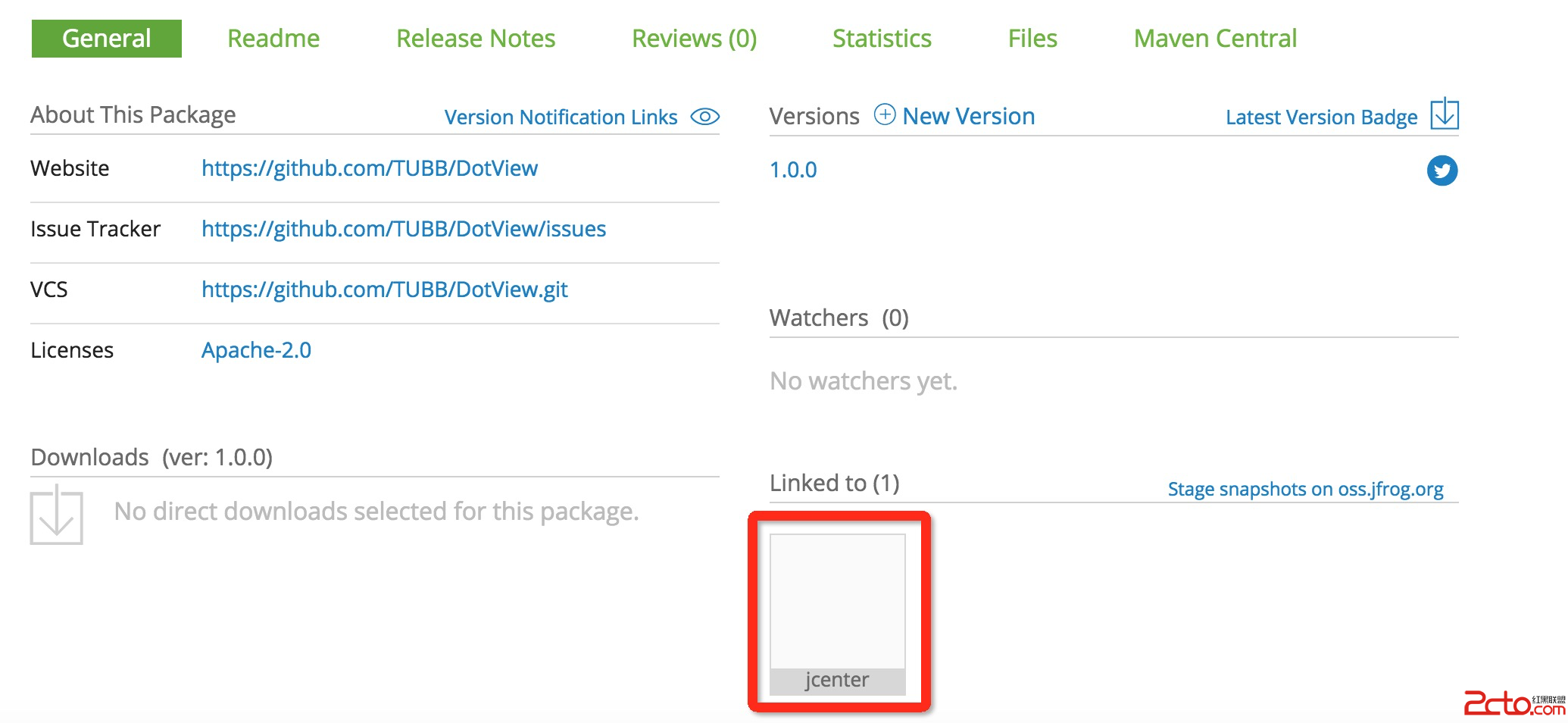 如何將你的 Android Library 上傳到 jcenter 中央倉庫
將 Android Library 上傳到 jcenter 我們辛苦開發的 Android library,如何上傳到中央倉庫,讓其他開發者一行代碼就能依賴,而不必下載源
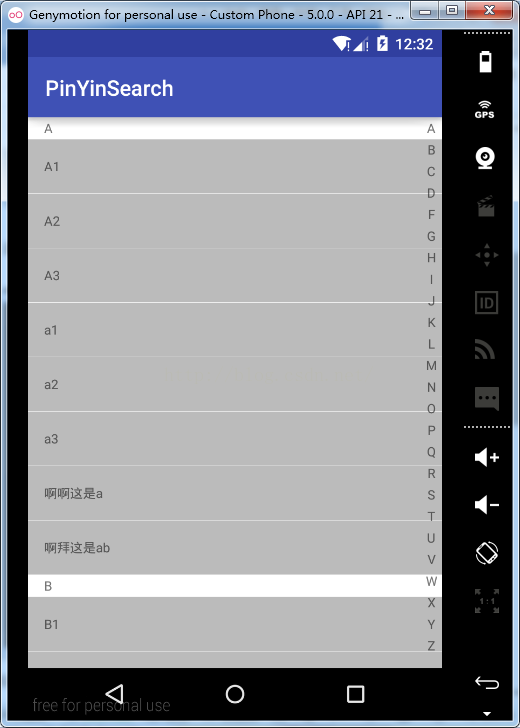 Android 快速實作:ListView 字母 A-Z 排序與側邊索引
效果展示 字母排序與側邊索引是聯絡人、音樂與字典類 App 常見功能。透過側邊字母欄,使用者可以快速跳轉到指定分組,提升大量資料的瀏覽效率。 拼音檢索 若資料包含中文
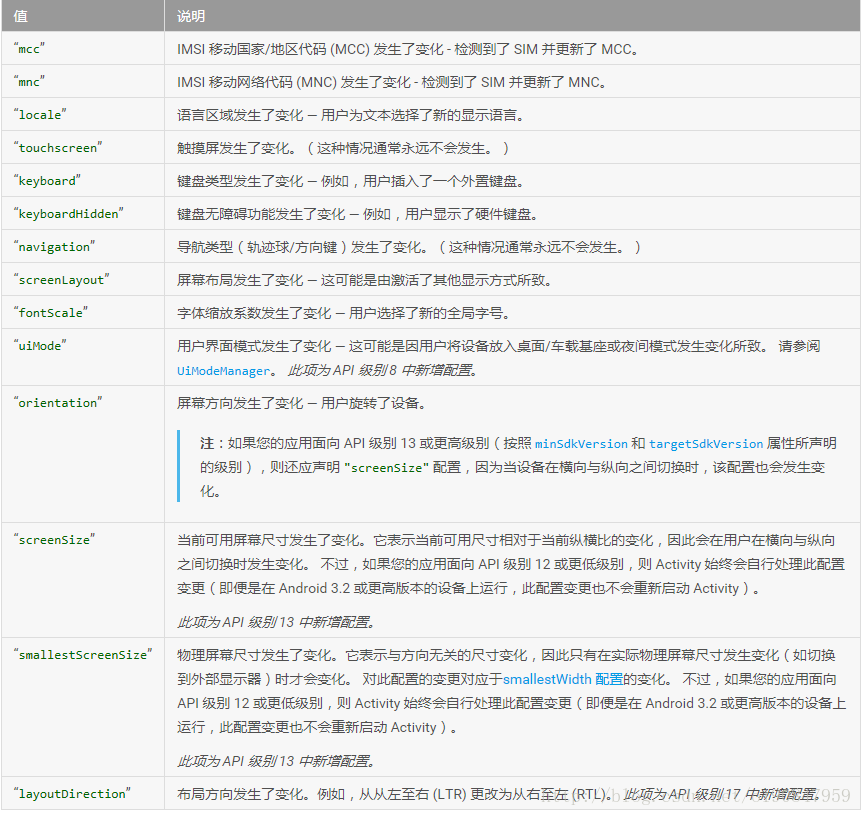 AndroidManifest.xml 深度解析:activity 標籤的所有屬性
語法與位置 <manifest> <application> <activity android:name=str