

編輯:關於 Android 程式設計
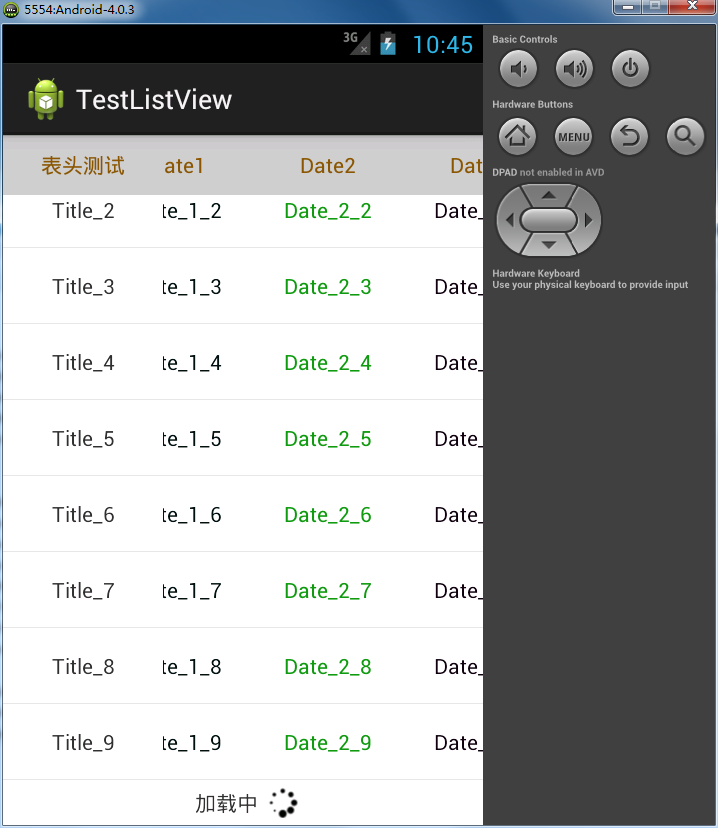
ListView 是 Android 最常被使用的清單控制項,可以搭配不同的檢視模式呈現大圖示、小圖示、清單或報表。實際專案裡,「下拉刷新+上拉加載」幾乎是標配;而如果資料是報表型態,還會需要「多欄+橫向滾動+表頭與首列固定」。
本文把這兩組功能整合成一個可運行的範例。原始碼由網路上兩個獨立範例改寫合併而成,仍有很多可以再優化的空間,歡迎一起切磋。
Java 程式碼:
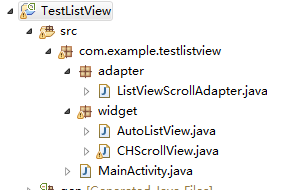
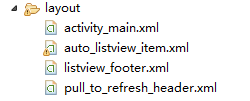
版面配置檔:
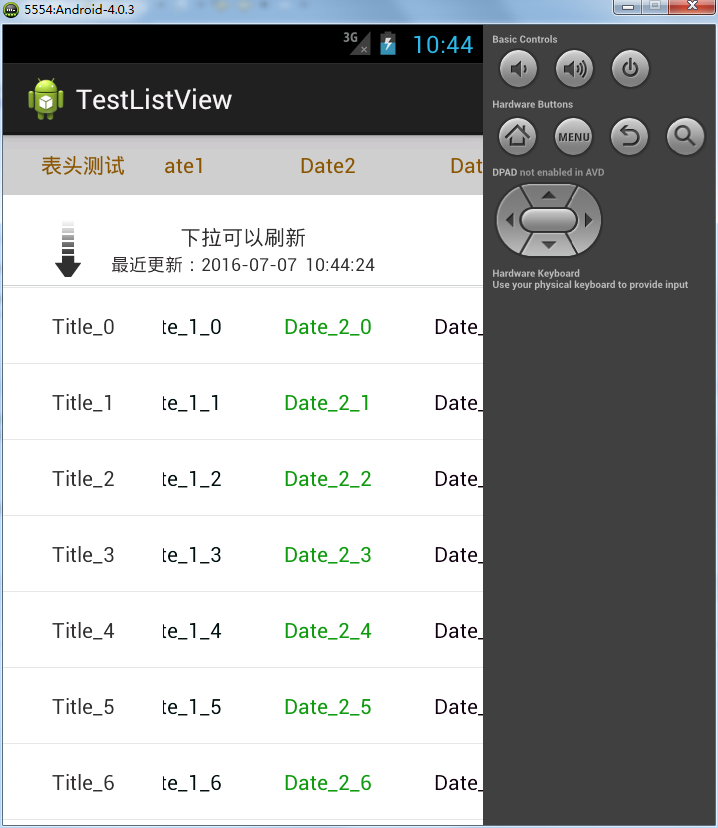
由於無法附上動態圖,以下用連續截圖呈現。首先是下拉刷新:
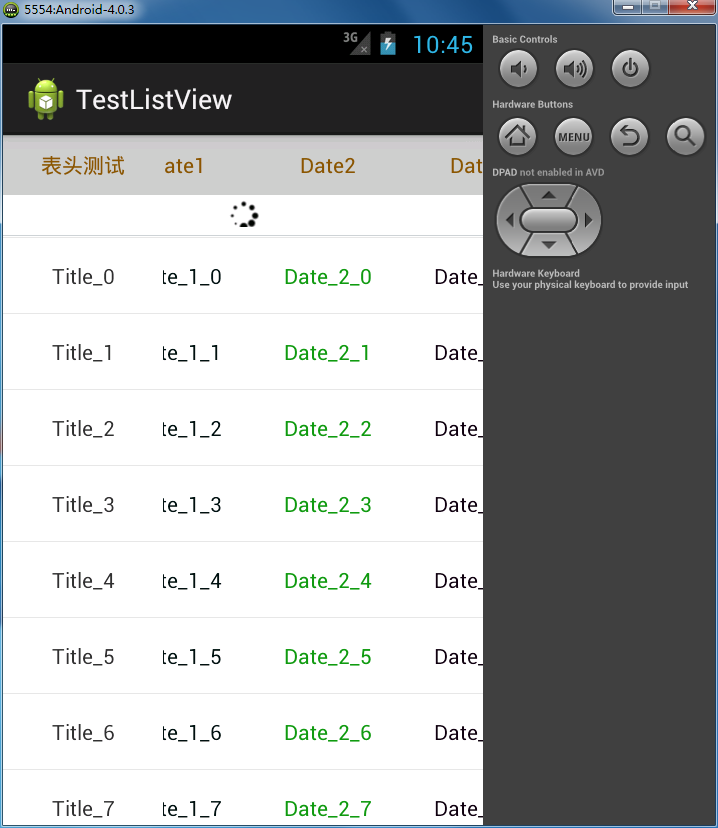
刷新中:
上拉加載:
 package com.example.testlistview.widget;

import java.text.SimpleDateFormat;
import java.util.Date;
import java.util.Locale;
import com.example.testlistview.R;
import android.content.Context;
import android.util.AttributeSet;
import android.view.LayoutInflater;
import android.view.MotionEvent;
import android.view.View;
import android.view.ViewGroup;
import android.view.animation.LinearInterpolator;
import android.view.animation.RotateAnimation;
import android.widget.AbsListView;
import android.widget.ImageView;
import android.widget.ProgressBar;
import android.widget.TextView;
import android.widget.AbsListView.OnScrollListener;
import android.widget.ListView;

/**
 * 自訂 ListView:下拉刷新、上拉載入更多
 */
public class AutoListView extends ListView implements OnScrollListener {

  public static final int REFRESH = 0;
  public static final int LOAD = 1;

  // PULL 與 RELEASE 的距離門檻
  private static final int SPACE = 20;

  // header 的四種狀態
  private static final int NONE = 0;
  private static final int PULL = 1;
  private static final int RELEASE = 2;
  private static final int REFRESHING = 3;
  private int state;

  private LayoutInflater inflater;
  private View header;
  private View footer;
  private TextView tip;
  private TextView lastUpdate;
  private ImageView arrow;
  private ProgressBar refreshing;
  private TextView noData;
  private TextView loadFull;
  private TextView more;
  private ProgressBar loading;

  private RotateAnimation animation;
  private RotateAnimation reverseAnimation;

  private int startY;
  private int firstVisibleItem;
  private int scrollState;
  private int headerContentInitialHeight;
  private int headerContentHeight;

  // 只有滑到頂部時才做下拉刷新
  private boolean isRecorded;
  private boolean isLoading;          // 是否正在加載
  private boolean loadEnable = true;  // 是否啟用加載更多
  private boolean isLoadFull;
  private int pageSize = 10;

  private OnRefreshListener onRefreshListener;
  private OnLoadListener onLoadListener;

  public AutoListView(Context context) {
    super(context);
    initView(context);
  }

  public AutoListView(Context context, AttributeSet attrs) {
    super(context, attrs);
    initView(context);
  }

  public AutoListView(Context context, AttributeSet attrs, int defStyle) {
    super(context, attrs, defStyle);
    initView(context);
  }

  public void setOnRefreshListener(OnRefreshListener onRefreshListener) {
    this.onRefreshListener = onRefreshListener;
  }

  public void setOnLoadListener(OnLoadListener onLoadListener) {
    this.loadEnable = true;
    this.onLoadListener = onLoadListener;
  }

  public boolean isLoadEnable() {
    return loadEnable;
  }

  /** 注意:這裡的開關不支援動態調整 */
  public void setLoadEnable(boolean loadEnable) {
    this.loadEnable = loadEnable;
    this.removeFooterView(footer);
  }

  public int getPageSize() {
    return pageSize;
  }

  public void setPageSize(int pageSize) {
    this.pageSize = pageSize;
  }

  private void initView(Context context) {
    // 箭頭動畫
    animation = new RotateAnimation(0, -180, RotateAnimation.RELATIVE_TO_SELF, 0.5f,
                                    RotateAnimation.RELATIVE_TO_SELF, 0.5f);
    animation.setInterpolator(new LinearInterpolator());
    animation.setDuration(1000);
    animation.setFillAfter(true);

    reverseAnimation = new RotateAnimation(-180, 0, RotateAnimation.RELATIVE_TO_SELF, 0.5f,
                                           RotateAnimation.RELATIVE_TO_SELF, 0.5f);
    reverseAnimation.setInterpolator(new LinearInterpolator());
    reverseAnimation.setDuration(1000);
    reverseAnimation.setFillAfter(true);

    inflater = LayoutInflater.from(context);

    footer = inflater.inflate(R.layout.listview_footer, null);
    loadFull = (TextView) footer.findViewById(R.id.loadFull);
    noData = (TextView) footer.findViewById(R.id.noData);
    more = (TextView) footer.findViewById(R.id.more);
    loading = (ProgressBar) footer.findViewById(R.id.loading);

    header = inflater.inflate(R.layout.pull_to_refresh_header, null);
    arrow = (ImageView) header.findViewById(R.id.arrow);
    tip = (TextView) header.findViewById(R.id.tip);
    lastUpdate = (TextView) header.findViewById(R.id.lastUpdate);
    refreshing = (ProgressBar) header.findViewById(R.id.refreshing);

    headerContentInitialHeight = header.getPaddingTop();
    measureView(header);
    headerContentHeight = header.getMeasuredHeight();
    topPadding(-headerContentHeight);

    this.addHeaderView(header);
    this.addFooterView(footer);
    this.setOnScrollListener(this);
  }

  public void onRefresh() {
    if (onRefreshListener != null) {
      onRefreshListener.onRefresh();
    }
  }

  public void onLoad() {
    if (onLoadListener != null) {
      onLoadListener.onLoad();
    }
  }

  public void onRefreshComplete(String updateTime) {
    lastUpdate.setText(this.getContext().getString(R.string.lastUpdateTime, getCurrentTime()));
    state = NONE;
    refreshHeaderViewByState();
  }

  /** 下拉刷新結束後的回呼 */
  public void onRefreshComplete() {
    onRefreshComplete(getCurrentTime());
  }

  /** 加載更多結束後的回呼 */
  public void onLoadComplete() {
    isLoading = false;
  }

  @Override
  public void onScroll(AbsListView view, int firstVisibleItem, int visibleItemCount, int totalItemCount) {
    this.firstVisibleItem = firstVisibleItem;
  }

  @Override
  public void onScrollStateChanged(AbsListView view, int scrollState) {
    this.scrollState = scrollState;
    ifNeedLoad(view, scrollState);
  }

  /** 依滑動狀態判斷是否需要加載更多 */
  private void ifNeedLoad(AbsListView view, int scrollState) {
    if (!loadEnable) {
      return;
    }
    try {
      if (scrollState == OnScrollListener.SCROLL_STATE_IDLE
          && !isLoading
          && view.getLastVisiblePosition() == view.getPositionForView(footer)
          && !isLoadFull) {
        onLoad();
        isLoading = true;
      }
    } catch (Exception e) {
      // 忽略
    }
  }

  @Override
  public boolean onTouchEvent(MotionEvent ev) {
    switch (ev.getAction()) {
      case MotionEvent.ACTION_CANCEL:
      case MotionEvent.ACTION_UP:
        if (state == PULL) {
          state = NONE;
          refreshHeaderViewByState();
        } else if (state == RELEASE) {
          state = REFRESHING;
          refreshHeaderViewByState();
          onRefresh();
        }
        isRecorded = false;
        break;
      case MotionEvent.ACTION_MOVE:
        whenMove(ev);
        break;
    }
    return super.onTouchEvent(ev);
  }

  /**
   * 這裡改用 onInterceptTouchEvent 攔截 ACTION_DOWN。
   * 因為列表項內含可橫向滾動的子元件,若在 onTouchEvent 取座標會與子元件的事件相衝突。
   */
  @Override
  public boolean onInterceptTouchEvent(MotionEvent ev) {
    if (ev.getAction() == MotionEvent.ACTION_DOWN) {
      if (firstVisibleItem == 0) {
        isRecorded = true;
        startY = (int) ev.getY();
      }
    }
    return super.onInterceptTouchEvent(ev);
  }

  /** 解讀手勢並更新 header 狀態 */
  private void whenMove(MotionEvent ev) {
    if (!isRecorded) {
      return;
    }
    int tmpY = (int) ev.getY();
    int space = tmpY - startY;
    int topPadding = space - headerContentHeight;

    switch (state) {
      case NONE:
        if (space > 0) {
          state = PULL;
          refreshHeaderViewByState();
        }
        break;
      case PULL:
        topPadding(topPadding);
        if (scrollState == SCROLL_STATE_TOUCH_SCROLL
            && space > headerContentHeight + SPACE) {
          state = RELEASE;
          refreshHeaderViewByState();
        }
        break;
      case RELEASE:
        topPadding(topPadding);
        if (space > 0 && space < headerContentHeight + SPACE) {
          state = PULL;
          refreshHeaderViewByState();
        } else if (space <= 0) {
          state = NONE;
          refreshHeaderViewByState();
        }
        break;
    }
  }

  /** 調整 header 高度,本質上是改變距頂部的 padding */
  private void topPadding(int topPadding) {
    header.setPadding(header.getPaddingLeft(), topPadding,
                      header.getPaddingRight(), header.getPaddingBottom());
    header.invalidate();
  }

  /**
   * 依回傳筆數決定 footer 呈現。
   * 每頁 10 筆:剛好 10 筆代表可能還有;不足 10 筆代表已全部加載。
   */
  public void setResultSize(int resultSize) {
    if (resultSize == 0) {
      isLoadFull = true;
      loadFull.setVisibility(View.GONE);
      loading.setVisibility(View.GONE);
      more.setVisibility(View.GONE);
      noData.setVisibility(View.VISIBLE);
    } else if (resultSize > 0 && resultSize < pageSize) {
      isLoadFull = true;
      loadFull.setVisibility(View.VISIBLE);
      loading.setVisibility(View.GONE);
      more.setVisibility(View.GONE);
      noData.setVisibility(View.GONE);
    } else if (resultSize == pageSize) {
      isLoadFull = false;
      loadFull.setVisibility(View.GONE);
      loading.setVisibility(View.VISIBLE);
      more.setVisibility(View.VISIBLE);
      noData.setVisibility(View.GONE);
    }
  }

  /** 依當前狀態調整 header */
  private void refreshHeaderViewByState() {
    switch (state) {
      case NONE:
        topPadding(-headerContentHeight);
        tip.setText(R.string.pull_to_refresh);
        refreshing.setVisibility(View.GONE);
        arrow.clearAnimation();
        arrow.setImageResource(R.drawable.pull_to_refresh_arrow);
        break;
      case PULL:
        arrow.setVisibility(View.VISIBLE);
        tip.setVisibility(View.VISIBLE);
        lastUpdate.setVisibility(View.VISIBLE);
        refreshing.setVisibility(View.GONE);
        tip.setText(R.string.pull_to_refresh);
        arrow.clearAnimation();
        arrow.setAnimation(reverseAnimation);
        break;
      case RELEASE:
        arrow.setVisibility(View.VISIBLE);
        tip.setVisibility(View.VISIBLE);
        lastUpdate.setVisibility(View.VISIBLE);
        refreshing.setVisibility(View.GONE);
        tip.setText(R.string.release_to_refresh);
        arrow.clearAnimation();
        arrow.setAnimation(animation);
        break;
      case REFRESHING:
        topPadding(headerContentInitialHeight);
        refreshing.setVisibility(View.VISIBLE);
        arrow.clearAnimation();
        arrow.setVisibility(View.GONE);
        tip.setVisibility(View.GONE);
        lastUpdate.setVisibility(View.GONE);
        break;
    }
  }

  /** 計算 header 高度 */
  private void measureView(View child) {
    ViewGroup.LayoutParams p = child.getLayoutParams();
    if (p == null) {
      p = new ViewGroup.LayoutParams(ViewGroup.LayoutParams.MATCH_PARENT,
                                     ViewGroup.LayoutParams.WRAP_CONTENT);
    }
    int childWidthSpec = ViewGroup.getChildMeasureSpec(0, 0, p.width);
    int lpHeight = p.height;
    int childHeightSpec;
    if (lpHeight > 0) {
      childHeightSpec = MeasureSpec.makeMeasureSpec(lpHeight, MeasureSpec.EXACTLY);
    } else {
      childHeightSpec = MeasureSpec.makeMeasureSpec(0, MeasureSpec.UNSPECIFIED);
    }
    child.measure(childWidthSpec, childHeightSpec);
  }

  public interface OnRefreshListener {
    public void onRefresh();
  }

  public interface OnLoadListener {
    public void onLoad();
  }

  public String getCurrentTime(String format) {
    Date date = new Date();
    SimpleDateFormat sdf = new SimpleDateFormat(format, Locale.getDefault());
    return sdf.format(date);
  }

  public String getCurrentTime() {
    return getCurrentTime("yyyy-MM-dd HH:mm:ss");
  }
}
與前一篇的做法相比,這裡把同步狀態抽到靜態的 Helper 類別中,讓 Adapter 也能方便地註冊新的 scrollView。
 package com.example.testlistview.widget;

import java.util.ArrayList;
import java.util.List;
import com.example.testlistview.widget.CHScrollView.CHScrollViewHelper;
import android.content.Context;
import android.util.AttributeSet;
import android.view.MotionEvent;
import android.widget.HorizontalScrollView;

public class CHScrollView extends HorizontalScrollView {

  public CHScrollView(Context context, AttributeSet attrs, int defStyle) {
    super(context, attrs, defStyle);
  }

  public CHScrollView(Context context, AttributeSet attrs) {
    super(context, attrs);
  }

  public CHScrollView(Context context) {
    super(context);
  }

  @Override
  public boolean onTouchEvent(MotionEvent ev) {
    // 記錄目前被觸摸的是誰
    CHScrollViewHelper.mTouchView = this;
    return super.onTouchEvent(ev);
  }

  @Override
  protected void onScrollChanged(int l, int t, int oldl, int oldt) {
    if (CHScrollViewHelper.mTouchView == this) {
      // 被觸摸的那一個負責帶動其他元件
      onScrollChanged(l, t, oldl, oldt, 0);
    } else {
      super.onScrollChanged(l, t, oldl, oldt);
    }
  }

  public void onScrollChanged(int l, int t, int oldl, int oldt, int none) {
    for (CHScrollView scrollView : CHScrollViewHelper.mHScrollViews) {
      // 避免重複滑動
      if (CHScrollViewHelper.mTouchView != scrollView) {
        scrollView.smoothScrollTo(l, t);
      }
    }
  }

  /** 集中管理所有需要同步的 scrollView */
  public static class CHScrollViewHelper {
    public static HorizontalScrollView mTouchView;
    public static List<CHScrollView> mHScrollViews = new ArrayList<CHScrollView>();

    public static void addHViews(final CHScrollView hScrollView, AutoListView autoListView) {
      if (!CHScrollViewHelper.mHScrollViews.isEmpty()) {
        int size = CHScrollViewHelper.mHScrollViews.size();
        CHScrollView scrollView = CHScrollViewHelper.mHScrollViews.get(size - 1);
        final int scrollX = scrollView.getScrollX();

        // 首次填滿螢幕後再往下滑,會有一列在初始時尚未加入
        if (scrollX != 0) {
          autoListView.post(new Runnable() {
            @Override
            public void run() {
              // 等 ListView 刷新完成,再把該列推到最終位置
              hScrollView.scrollTo(scrollX, 0);
            }
          });
        }
      }
      CHScrollViewHelper.mHScrollViews.add(hScrollView);
    }
  }
}
 package com.example.testlistview.adapter;

import java.util.List;
import java.util.Map;
import com.example.testlistview.R;
import com.example.testlistview.widget.AutoListView;
import com.example.testlistview.widget.CHScrollView;
import com.example.testlistview.widget.CHScrollView.CHScrollViewHelper;
import android.content.Context;
import android.view.LayoutInflater;
import android.view.View;
import android.view.ViewGroup;
import android.widget.SimpleAdapter;
import android.widget.TextView;

public class ListViewScrollAdapter extends SimpleAdapter {
  private List<? extends Map<String, ?>> datas;
  private int res;
  private String[] from;
  private int[] to;
  private Context context;
  private int resScroll;
  private AutoListView lstv;

  public ListViewScrollAdapter(Context context, List<? extends Map<String, ?>> data, int resource,
                               String[] from, int[] to, int resourceItem, AutoListView autoListView) {
    super(context, data, resource, from, to);
    this.context = context;
    this.datas = data;
    this.res = resource;
    this.from = from;
    this.to = to;
    this.resScroll = resourceItem;
    this.lstv = autoListView;
  }

  @Override
  public int getCount() {
    return this.datas.size();
  }

  @Override
  public View getView(int position, View convertView, ViewGroup parent) {
    View v = convertView;
    if (v == null) {
      v = LayoutInflater.from(context).inflate(res, null);

      // 第一次初始化的時候註冊進同步機制
      CHScrollViewHelper.addHViews((CHScrollView) v.findViewById(resScroll), lstv);

      // 用 tag 快取各 TextView
      View[] views = new View[to.length];
      for (int i = 0; i < to.length; i++) {
        View tv = v.findViewById(to[i]);
        views[i] = tv;
      }
      v.setTag(views);
    }

    // 每次都要重設背景,讓按压回饋一致
    v.setBackgroundResource(R.drawable.selector_bg_white_gray);

    View[] holders = (View[]) v.getTag();
    int len = holders.length;
    for (int i = 0; i < len; i++) {
      ((TextView) holders[i]).setText(this.datas.get(position).get(from[i]).toString());
    }
    return v;
  }

  public Context getContext() {
    return context;
  }
}
 package com.example.testlistview;

import java.util.ArrayList;
import java.util.HashMap;
import java.util.List;
import java.util.Map;
import com.example.testlistview.adapter.ListViewScrollAdapter;
import com.example.testlistview.widget.AutoListView;
import com.example.testlistview.widget.AutoListView.OnLoadListener;
import com.example.testlistview.widget.AutoListView.OnRefreshListener;
import com.example.testlistview.widget.CHScrollView;
import com.example.testlistview.widget.CHScrollView.CHScrollViewHelper;
import com.example.testlistview.R;
import android.annotation.SuppressLint;
import android.app.Activity;
import android.os.Bundle;
import android.os.Handler;
import android.os.Message;
import android.view.View;
import android.widget.AdapterView;
import android.widget.AdapterView.OnItemClickListener;
import android.widget.TextView;
import android.widget.Toast;

public class MainActivity extends Activity
    implements OnRefreshListener, OnLoadListener, OnItemClickListener {

  private AutoListView lstv;
  private CHScrollView headerScroll;
  List<Map<String, String>> list = new ArrayList<Map<String, String>>();
  private ListViewScrollAdapter adapter;

  @SuppressLint("HandlerLeak")
  private Handler handler = new Handler() {
    @SuppressWarnings("unchecked")
    public void handleMessage(Message msg) {
      List<Map<String, String>> result = (List<Map<String, String>>) msg.obj;
      switch (msg.what) {
        case AutoListView.REFRESH:
          lstv.onRefreshComplete();
          list.clear();
          list.addAll(result);
          break;
        case AutoListView.LOAD:
          lstv.onLoadComplete();
          list.addAll(result);
          break;
      }
      lstv.setResultSize(result.size());
      adapter.notifyDataSetChanged();
    }
  };

  @Override
  protected void onCreate(Bundle savedInstanceState) {
    super.onCreate(savedInstanceState);
    setContentView(R.layout.activity_main);
    initView();
    initData();
  }

  private void initView() {
    headerScroll = (CHScrollView) findViewById(R.id.item_scroll_title);
    CHScrollViewHelper.mHScrollViews.clear();
    // 表頭也要加入同步
    CHScrollViewHelper.mHScrollViews.add(headerScroll);

    lstv = (AutoListView) findViewById(R.id.scroll_list);
    adapter = new ListViewScrollAdapter(this, list, R.layout.auto_listview_item,
        new String[] { "title", "data_1", "data_2", "data_3", "data_4", "data_5", "data_6" },
        new int[] { R.id.item_title, R.id.item_data1, R.id.item_data2, R.id.item_data3,
                    R.id.item_data4, R.id.item_data5, R.id.item_data6 },
        R.id.item_scroll, lstv);

    lstv.setAdapter(adapter);
    lstv.setOnRefreshListener(this);
    lstv.setOnLoadListener(this);
    lstv.setOnItemClickListener(this);
  }

  private void initData() {
    loadData(AutoListView.REFRESH);
  }

  /** 模擬從伺服器取資料 */
  private void loadData(final int what) {
    new Thread(new Runnable() {
      @Override
      public void run() {
        try {
          Thread.sleep(700);
        } catch (InterruptedException e) {
          e.printStackTrace();
        }
        Message msg = handler.obtainMessage();
        msg.what = what;
        msg.obj = getData();
        handler.sendMessage(msg);
      }
    }).start();
  }

  @Override
  public void onRefresh() {
    loadData(AutoListView.REFRESH);
  }

  @Override
  public void onLoad() {
    loadData(AutoListView.LOAD);
  }

  @Override
  public void onItemClick(AdapterView<?> arg0, View arg1, int arg2, long arg3) {
    try {
      TextView textView = (TextView) arg1.findViewById(R.id.item_data2);
      Toast.makeText(this, "你點擊了:" + textView.getText(), Toast.LENGTH_SHORT).show();
    } catch (Exception ex) {
      // 忽略
    }
  }

  /** 測試資料 */
  public List<Map<String, String>> getData() {
    List<Map<String, String>> result = new ArrayList<Map<String, String>>();
    Map<String, String> data = null;
    for (int i = 0; i < 10; i++) {
      data = new HashMap<String, String>();
      data.put("title", "Title_" + i);
      data.put("data_1", "Date_1_" + i);
      data.put("data_2", "Date_2_" + i);
      data.put("data_3", "Date_3_" + i);
      data.put("data_4", "Date_4_" + i);
      data.put("data_5", "Date_5_" + i);
      data.put("data_6", "Date_6_" + i);
      result.add(data);
    }
    return result;
  }
}
 <?xml version="1.0" encoding="utf-8"?>
<LinearLayout xmlns:android="https://schemas.android.com/apk/res/android"
  android:layout_width="fill_parent"
  android:layout_height="fill_parent"
  android:orientation="vertical">

  <LinearLayout
    android:layout_width="fill_parent"
    android:layout_height="wrap_content"
    android:background="#ccc"
    android:minHeight="40dip"
    android:orientation="horizontal">

    <!-- 固定的首列表頭 -->
    <TextView
      android:layout_width="fill_parent"
      android:layout_height="fill_parent"
      android:layout_weight="2"
      android:gravity="center"
      android:text="表頭測試"
      android:textColor="#850" />

    <!-- 可橫向滾動的其餘欄位標題 -->
    <com.example.testlistview.widget.CHScrollView
      android:id="@+id/item_scroll_title"
      android:layout_width="fill_parent"
      android:layout_height="fill_parent"
      android:layout_weight="1"
      android:scrollbars="none">

      <LinearLayout
        android:layout_width="fill_parent"
        android:layout_height="fill_parent"
        android:orientation="horizontal">

        <TextView android:layout_width="100dip" android:layout_height="fill_parent"
          android:gravity="center" android:text="Date1" android:textColor="#850" />
        <TextView android:layout_width="100dip" android:layout_height="fill_parent"
          android:gravity="center" android:text="Date2" android:textColor="#850" />
        <TextView android:layout_width="100dip" android:layout_height="fill_parent"
          android:gravity="center" android:text="Date3" android:textColor="#850" />
        <TextView android:layout_width="100dip" android:layout_height="fill_parent"
          android:gravity="center" android:text="Date4" android:textColor="#850" />
        <TextView android:layout_width="100dip" android:layout_height="fill_parent"
          android:gravity="center" android:text="Date5" android:textColor="#850" />
        <TextView android:layout_width="100dip" android:layout_height="fill_parent"
          android:gravity="center" android:text="Date6" android:textColor="#850" />
      </LinearLayout>
    </com.example.testlistview.widget.CHScrollView>
  </LinearLayout>

  <com.example.testlistview.widget.AutoListView
    android:id="@+id/scroll_list"
    android:layout_width="match_parent"
    android:layout_height="fill_parent"
    android:cacheColorHint="@android:color/transparent" />
</LinearLayout>
 <?xml version="1.0" encoding="utf-8"?>
<LinearLayout xmlns:android="https://schemas.android.com/apk/res/android"
  android:layout_width="fill_parent"
  android:layout_height="fill_parent"
  android:descendantFocusability="blocksDescendants"
  android:minHeight="50dip"
  android:orientation="horizontal">

  <TextView
    android:id="@+id/item_title"
    android:layout_width="fill_parent"
    android:layout_height="match_parent"
    android:layout_weight="2"
    android:gravity="center"
    android:text="表頭測試" />

  <com.example.testlistview.widget.CHScrollView
    android:id="@+id/item_scroll"
    android:layout_width="fill_parent"
    android:layout_height="match_parent"
    android:layout_weight="1"
    android:focusable="false"
    android:scrollbars="none">

    <LinearLayout
      android:layout_width="fill_parent"
      android:layout_height="fill_parent"
      android:orientation="horizontal">

      <TextView android:id="@+id/item_data1" android:layout_width="100dip"
        android:layout_height="fill_parent" android:gravity="center" android:textColor="#011" />
      <TextView android:id="@+id/item_data2" android:layout_width="100dip"
        android:layout_height="fill_parent" android:gravity="center" android:textColor="#191" />
      <TextView android:id="@+id/item_data3" android:layout_width="100dip"
        android:layout_height="fill_parent" android:gravity="center" android:textColor="#101" />
      <TextView android:id="@+id/item_data4" android:layout_width="100dip"
        android:layout_height="fill_parent" android:gravity="center" android:textColor="#111" />
      <TextView android:id="@+id/item_data5" android:layout_width="100dip"
        android:layout_height="fill_parent" android:gravity="center" android:textColor="#071" />
      <TextView android:id="@+id/item_data6" android:layout_width="100dip"
        android:layout_height="fill_parent" android:gravity="center" android:textColor="#910" />
    </LinearLayout>
  </com.example.testlistview.widget.CHScrollView>
</LinearLayout>
 <?xml version="1.0" encoding="utf-8"?>
<LinearLayout xmlns:android="https://schemas.android.com/apk/res/android"
  android:layout_width="match_parent"
  android:layout_height="wrap_content"
  android:gravity="center"
  android:orientation="horizontal">

  <TextView android:id="@+id/loadFull" android:layout_width="wrap_content"
    android:layout_height="wrap_content" android:gravity="center" android:padding="5dp"
    android:text="@string/load_full" android:visibility="gone" />

  <TextView android:id="@+id/noData" android:layout_width="wrap_content"
    android:layout_height="wrap_content" android:gravity="center" android:padding="5dp"
    android:text="@string/no_data" android:visibility="gone" />

  <TextView android:id="@+id/more" android:layout_width="wrap_content"
    android:layout_height="wrap_content" android:gravity="center" android:padding="5dp"
    android:text="@string/more" />

  <ProgressBar android:id="@+id/loading"
    android:layout_width="wrap_content" android:layout_height="wrap_content" />
</LinearLayout>
 <?xml version="1.0" encoding="utf-8"?>
<LinearLayout xmlns:android="https://schemas.android.com/apk/res/android"
  android:layout_width="match_parent"
  android:layout_height="match_parent"
  android:gravity="center"
  android:orientation="vertical">

  <RelativeLayout
    android:layout_width="match_parent"
    android:layout_height="wrap_content"
    android:paddingBottom="5dp">

    <LinearLayout
      android:id="@+id/layout"
      android:layout_width="wrap_content"
      android:layout_height="wrap_content"
      android:layout_centerHorizontal="true"
      android:layout_centerVertical="true"
      android:orientation="vertical">

      <ProgressBar android:id="@+id/refreshing"
        android:layout_width="wrap_content" android:layout_height="wrap_content" />

      <TextView android:id="@+id/tip"
        android:layout_width="wrap_content" android:layout_height="wrap_content"
        android:layout_gravity="center" />

      <TextView android:id="@+id/lastUpdate"
        android:layout_width="wrap_content" android:layout_height="wrap_content"
        android:layout_gravity="center" android:textSize="12sp" />
    </LinearLayout>

    <ImageView android:id="@+id/arrow"
      android:layout_width="wrap_content" android:layout_height="wrap_content"
      android:layout_centerVertical="true" android:layout_marginRight="20dp"
      android:layout_toLeftOf="@id/layout"
      android:contentDescription="@string/d"
      android:src="@drawable/pull_to_refresh_arrow" />
  </RelativeLayout>

  <ImageView android:layout_width="match_parent" android:layout_height="wrap_content"
    android:background="@drawable/h_line" android:contentDescription="@string/d" />
</LinearLayout>
編譯與目標版本為 Android 4.0.3(minSdkVersion 8、targetSdkVersion 15)。
onTouchEvent 取起始座標,會與子元件搶事件。這裡改用 onInterceptTouchEvent 攔截 ACTION_DOWN,是整合後的必要調整。CHScrollViewHelper.mHScrollViews 是靜態集合,Activity 重建時若不 clear(),會殘留舊的 scrollView 參照造成記憶體洩漏與位移錯亂。整份架構的關鍵在於三層分工:AutoListView 管垂直方向的刷新與分頁,CHScrollView 管水平方向的同步,Adapter 負責把兩者綁在同一列上。理解這層關係後,要改成 RecyclerView 或增加更多欄位,都只是替換零件而已。
 Android ListView 上拉刷新(加載更多)實戰
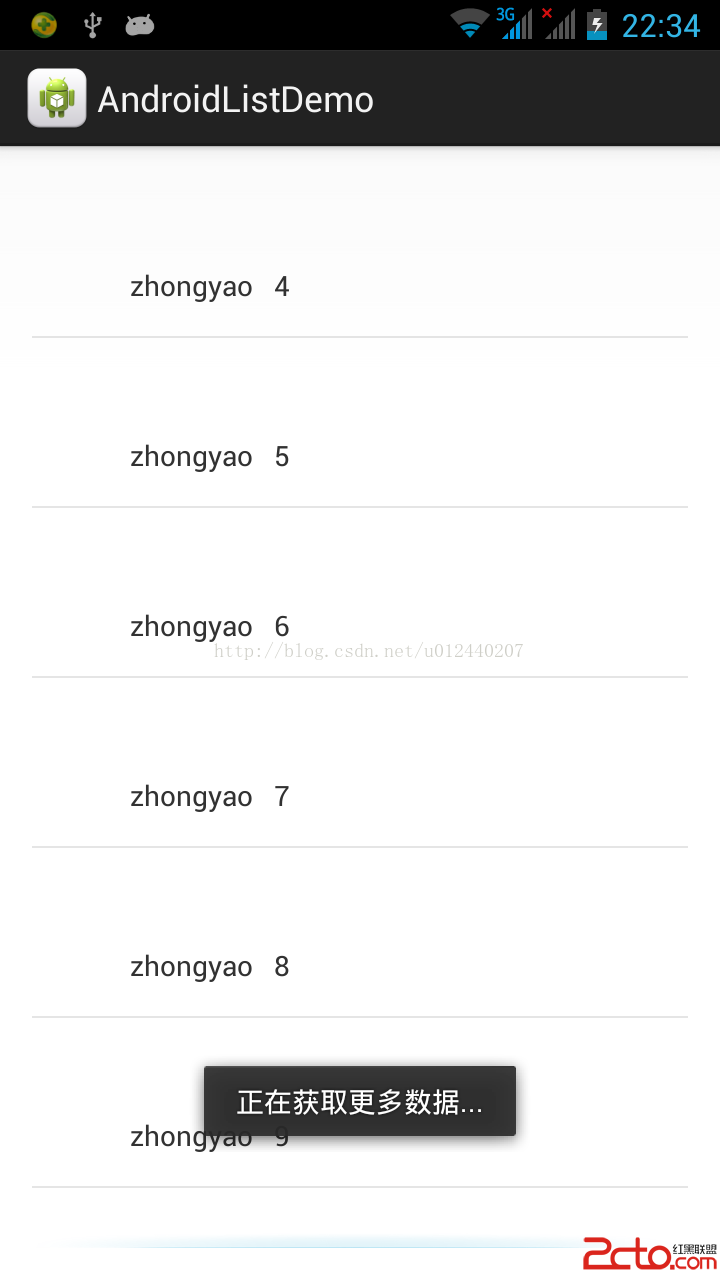
以前也實現過 ListView 的上拉刷新,不過當時用的是開源代碼。由於本人比較「懶」,源碼沒怎麼深入研究,所以現在自己動手寫起來還不夠流暢。好在我意識到了這些短板,於是
 探索 Android Studio:項目結構、介面、建置與除錯工具
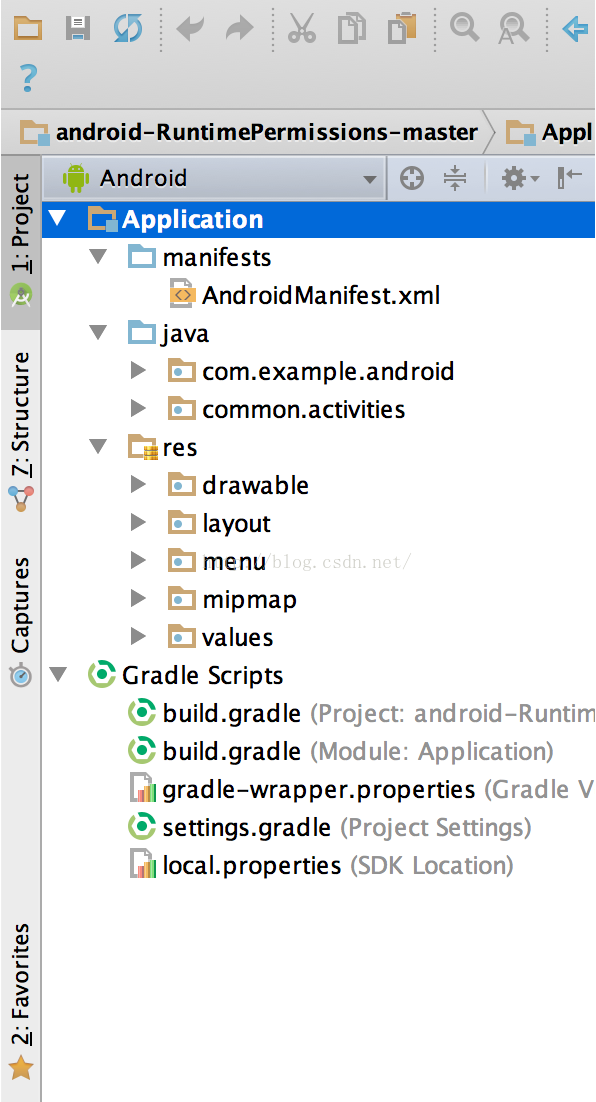
Android Studio 是 Google 推出的官方 Android 應用開發 IDE,基於 IntelliJ IDEA 打造。除了強大的程式碼編輯能力,它也整合了
 Android 數據庫事務:SQLite 的原子性操作與命令行調試技巧
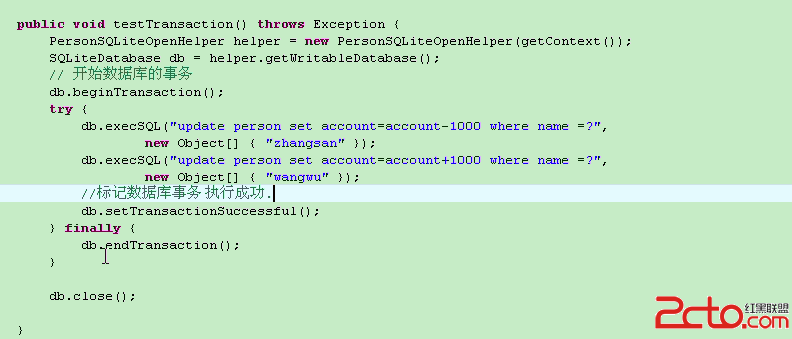
做本地數據存儲時,只要涉及「多條語句必須一起成功或一起失敗」的場景,事務就是繞不開的概念。轉賬扣款、批量導入、狀態流轉,任何一步中途失敗都可能留下髒數據。 事務的核心概
 Android 開發踩坑:Fragment 使用動畫引發 Unknown animation name: objectAnimator 異常
為 Fragment 製作切換動畫時,啟動後遇到了一個異常: Caused by: java.lang.RuntimeException: Unknown animat