

編輯:關於 Android 程式設計
ActionBar 除了放操作項,本身也具備 Tab 與下拉兩種導航能力。本文先整理常用 API,再示範如何配合 Fragment 做出 Tab 切換效果。
1. 獲取實例
在 Activity 中一行即可:actionBar = this.getActionBar();
2. 顯示與隱藏
呼叫 show() 與 hide()。
3. 設置 MenuItem
透過 setShowAsAction(int actionEnum) 決定某個菜單項在 ActionBar 上的呈現方式,支援的取值有:
SHOW_AS_ACTION_ALWAYS:總是顯示在 ActionBar 上。
SHOW_AS_ACTION_COLLAPSE_ACTION_VIEW:將 ActionView 折疊成普通菜單項。
SHOW_AS_ACTION_IF_ROOM:空間足夠時才顯示在 ActionBar 上。
SHOW_AS_ACTION_NEVER:不顯示在 ActionBar 上。
SHOW_AS_ACTION_WITH_TEXT:顯示在 ActionBar 上並同時顯示文字。
也可以在 XML 中用 android:showAsAction 屬性設定。
4. 啟用程式圖標導航
setDisplayHomeAsUpEnabled(boolean):把應用圖標變成可點擊,並加上向左箭頭。
setDisplayOptions(int options):控制整體顯示選項,可選值包括 DISPLAY_HOME_AS_UP、DISPLAY_SHOW_CUSTOM、DISPLAY_SHOW_HOME、DISPLAY_SHOW_TITLE、DISPLAY_USE_LOGO、NAVIGATION_MODE_LIST、NAVIGATION_MODE_STANDARD、NAVIGATION_MODE_TABS。
setDisplayShowHomeEnabled(boolean):是否顯示應用圖標。
setHomeButtonEnabled(boolean):是否把圖標變成可點擊按鈕。
5. 在 ActionBar 中加入自定義 View
定義 Action Item 時,用 android:actionViewClass 指定 Action View 的實現類,或用 android:actionLayout 指定對應的佈局資源。
要啟用 Tab 導航,需要兩步:
1)設定 actionBar.setNavigationMode(ActionBar.NAVIGATION_MODE_TABS)。
2)呼叫 addTab() 添加各個標籤,並為每個標籤設定 TabListener。
MyFragment.java
每個 Tab 對應一個 Fragment,這裡只放一個 TextView 顯示序號,實際專案中替換成自己的佈局即可。
 package com.app.main;

 import android.annotation.SuppressLint;
 import android.app.Fragment;
 import android.content.Context;
 import android.os.Bundle;
 import android.view.LayoutInflater;
 import android.view.View;
 import android.view.ViewGroup;
 import android.view.ViewGroup.LayoutParams;
 import android.widget.TextView;

 @SuppressLint("NewApi")
 public class MyFragment extends Fragment {

     @Override
     public View onCreateView(LayoutInflater inflater, ViewGroup container,
             Bundle savedInstanceState) {
         Context context = this.getActivity();
         TextView tv = new TextView(context);
         Bundle arc = this.getArguments();
         int tabs = arc.getInt("key");
         tv.setLayoutParams(new LayoutParams(LayoutParams.FILL_PARENT,
                 LayoutParams.WRAP_CONTENT));
         tv.setText("hello actionbar " + tabs);
         return tv;
     }
 }
main.xml:容器用來承載 Fragment。
 <RelativeLayout xmlns:android="https://schemas.android.com/apk/res/android"
     xmlns:tools="https://schemas.android.com/tools"
     android:layout_width="match_parent"
     android:layout_height="match_parent"
     tools:context=".Main" >

     <LinearLayout
         android:id="@+id/container"
         android:layout_width="match_parent"
         android:layout_height="match_parent"
         android:orientation="vertical" />
 </RelativeLayout>
Main.java
 package com.app.main;

 import android.app.ActionBar;
 import android.app.ActionBar.Tab;
 import android.app.Activity;
 import android.app.FragmentTransaction;
 import android.os.Bundle;

 public class Main extends Activity implements ActionBar.TabListener {

     ActionBar actionBar = null;

     @Override
     protected void onCreate(Bundle savedInstanceState) {
         super.onCreate(savedInstanceState);
         setContentView(R.layout.main);

         actionBar = this.getActionBar();
         actionBar.setNavigationMode(ActionBar.NAVIGATION_MODE_TABS);

         actionBar.addTab(actionBar.newTab().setText("tab1").setTabListener(this));
         actionBar.addTab(actionBar.newTab().setText("tab2").setTabListener(this));
         actionBar.addTab(actionBar.newTab().setText("tab3").setTabListener(this));
     }

     @Override
     public void onTabReselected(Tab tab, FragmentTransaction ft) { }

     @Override
     public void onTabSelected(Tab tab, FragmentTransaction ft) {
         MyFragment frag = new MyFragment();
         int index = tab.getPosition() + 1;
         Bundle bundle = new Bundle();
         bundle.putInt("key", index);
         frag.setArguments(bundle);

         FragmentTransaction action = Main.this.getFragmentManager().beginTransaction();
         action.replace(R.id.container, frag);
         action.commit();
     }

     @Override
     public void onTabUnselected(Tab tab, FragmentTransaction ft) { }
 }
效果:
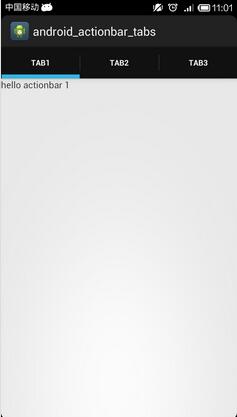
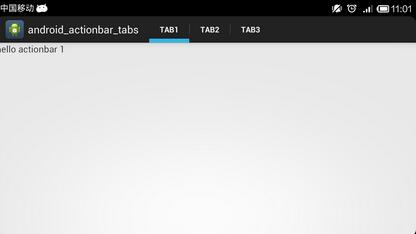
三個回調的分工值得留意:onTabSelected 在首次選中與切換回來時都會觸發,因此每次重新選中都會重建 Fragment;onTabReselected 則是「重複點擊當前已選中標籤」時觸發,常用來做回到列表頂部之類的處理。若想避免每次切換都重建 Fragment,可以在 Activity 中自己快取 Fragment 實例,改用 attach / detach 搭配 hide / show。
 Android Service 背景音樂播放:MediaPlayer 與生命週期實作
為什麼用 Service 播放背景音樂Service 適合執行沒有使用者介面、但需要持續存在的任務。當 App 切換頁面或退到背景時,使用 Service 播放音樂能避免
 魅族 mSupport 遠程協助怎麼用?讓技術顧問直接幫你處理
對煤油(魅友)來說,mSupport 遠程支援是個容易被忽略的服務。只要手機能連上 Wi-Fi,就能讓魅族的技術支援顧問遠端接手,處理各類軟體與設定問題,不必自己在網路上
 AndroidStudio 如何使用 aar 詳解
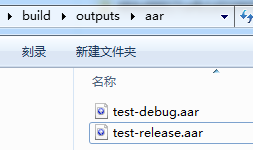
在 Android 開發中,aar 是一種常見的依賴打包格式。本文詳細介紹 aar 的概念、獲取方式以及如何在項目中使用。 一、簡介 aar 是一種類似於 jar 的文件
 Android 廣播機制 BroadcastReceiver 完全指南
Android 系統內部定義了各式各樣的廣播:電池電量變化、來電與簡訊接收、開機完成,都會產生對應的廣播訊息。當然,開發者也可以自行定義專屬的廣播。 既然談到廣播,就必然