

編輯:關於 Android 程式設計
Activity 是 Android 系統四大應用組件之一。透過傳統方式顯示的 Activity 都會充滿整個螢幕,也就是全螢幕的 Activity。事實上,Activity 不僅能全螢幕顯示,還能像對話框一樣直接浮現在螢幕上,甚至只要單擊螢幕任何位置(無論 Activity 內部或外部)就能將它關閉。
Activity 的傳統風格
Activity 幾乎是每個 Android 初學者的入門起點,因此這個組件對開發者來說再熟悉不過。先來看看它的基本配置:
<activity android:name=".Main" android:label="@string/app_name"> <intent-filter> <action android:name="android.intent.action.MAIN" /> <category android:name="android.intent.category.LAUNCHER" /> </intent-filter> </activity>
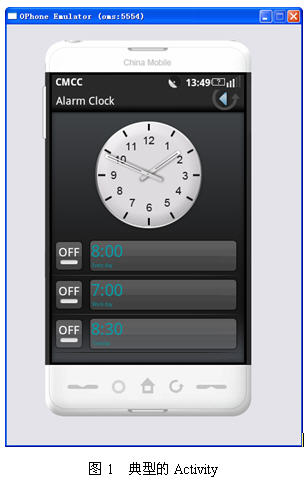
這是一個典型的 Activity 配置,主要指定了 action 與 category。照此配置顯示的 Activity 會充滿整個螢幕。Android 內建的許多程式大多也包含 Activity,例如下圖的時鐘程式就是一個典型的例子。
懸浮 Activity
所謂懸浮 Activity,就是浮在桌面上、看起來像一個對話框,如下圖所示。
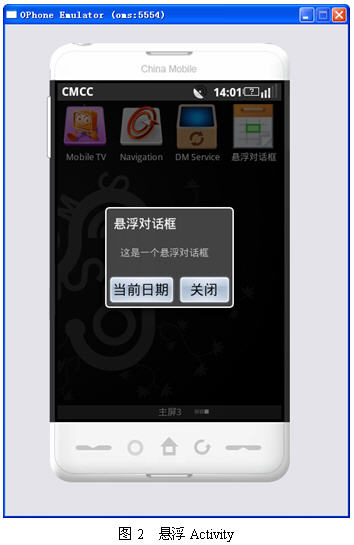
其實實現這個效果並不複雜,只要在 AndroidManifest.xml 的 <activity> 標簽中加入一個 android:theme 屬性,指定為對話框主題即可:
<?xml version="1.0" encoding="utf-8"?> <manifest xmlns:android="https://schemas.android.com/apk/res/android" package="net.blogjava.mobile" android:versionCode="1" android:versionName="1.0"> <application android:icon="@drawable/date" android:label="@string/app_name"> <activity android:name=".Main" android:label="@string/app_name" android:theme="@android:style/Theme.Dialog"> <intent-filter> <action android:name="android.intent.action.MAIN" /> <category android:name="android.intent.category.LAUNCHER" /> </intent-filter> </activity> </application> <uses-sdk android:minSdkVersion="3" /> </manifest> <?xml version="1.0" encoding="utf-8"?> <LinearLayout xmlns:android="https://schemas.android.com/apk/res/android" android:orientation="vertical" android:layout_width="fill_parent" android:layout_height="fill_parent"> <TextView android:layout_width="fill_parent" android:layout_height="wrap_content" android:text="這是一個懸浮對話框" android:layout_marginLeft="20dp" android:layout_marginRight="20dp" /> <LinearLayout xmlns:android="https://schemas.android.com/apk/res/android" android:orientation="horizontal" android:layout_width="fill_parent" android:layout_height="fill_parent" android:gravity="center" android:layout_marginTop="20dp"> <Button android:id="@+id/btnCurrentDate" android:layout_width="100dp" android:layout_height="wrap_content" android:text="當前日期" /> <Button android:id="@+id/btnFinish" android:layout_width="80dp" android:layout_height="wrap_content" android:text="關閉" /> </LinearLayout> </LinearLayout>
這兩個按鈕的單擊事件程式碼如下:
public void onClick(View view) { switch (view.getId()) { case R.id.btnCurrentDate: // 顯示當前日期對話框 SimpleDateFormat simpleDateFormat = new SimpleDateFormat( "yyyy-MM-dd"); dateDialog.setIcon(R.drawable.date); dateDialog.setTitle("當前日期:" + simpleDateFormat.format(new Date())); dateDialog.setButton("確定", new OnClickListener() { @Override public void onClick(DialogInterface dialog, int which) { } }); dateDialog.setOnDismissListener(new OnDismissListener() { @Override public void onDismiss(DialogInterface dialog) { new DateDialog.Builder(Main.this).setMessage( "您已經關閉的當前對話框.").create().show(); } }); dateDialog.show(); break; case R.id.btnFinish: // 關閉懸浮Activity finish(); break; } }
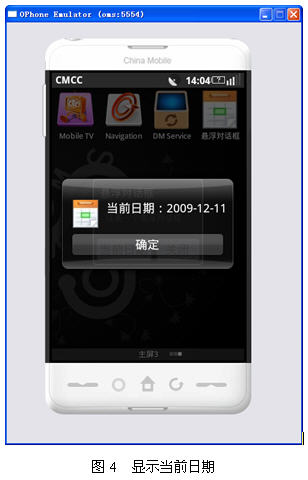
單擊「顯示日期」按鈕後,效果如下圖所示。
觸摸任何位置都能關閉的對話框
通常我們得點擊「關閉」這類按鈕才能關掉 Activity 或對話框,但有時我們希望能單擊(觸摸)螢幕任何位置就將它關閉。關閉 Activity 很好處理,只要處理它的觸摸事件即可:
@Override public boolean onTouchEvent(MotionEvent event) { finish(); return true; }
若是對話框,同樣可以使用 onTouchEvent 事件方法。不過一般使用的 AlertDialog 都是封裝好的,因此要使用 onTouchEvent,就得繼承 AlertDialog 類別。上一節 onClick 方法中彈出的當前日期對話框用了一個 DateDialog 類別,它就是 AlertDialog 的子類:
package net.blogjava.mobile; import android.app.AlertDialog; import android.content.Context; import android.view.MotionEvent; public class DateDialog extends AlertDialog { public DateDialog(Context context) { super(context); } @Override public boolean onTouchEvent(MotionEvent event) { // 關閉顯示日期對話框 dismiss(); return super.onTouchEvent(event); } }
這段程式碼同樣使用了 onTouchEvent,並在其中呼叫 dismiss 方法來關閉對話框。讀者可以實際執行本文範例,看看是否能透過單擊螢幕任何位置來關閉對話框與懸浮 Activity。
總結
本文介紹了懸浮 Activity 與「觸摸任何位置都能關閉」的對話框的實現。懸浮 Activity 只要在 <activity> 元素中加入 android:theme="@android:style/Theme.Dialog" 即可;而想觸摸任何位置關閉對話框或 Activity,則需使用觸摸事件(onTouchEvent 方法),若是對話框,需透過繼承 AlertDialog 類別的方式來使用 onTouchEvent。
使用上述配置時,顯示的 Activity 就會如圖 2 所示。本例為 Activity 添加了兩個按鈕,分別用來顯示當前日期與關閉對話框。
 Android 消息機制詳解:為什麼子執行緒不能直接更新 UI?
先看一段看起來很正常的程式碼: public class MainActivity extends Activity implements View.OnClickLi
 Android 性能優化:用 LeakCanary 揪出並解決內存洩漏
前言: 最近公司 C 輪融資成功,行動團隊準備擴編,需要招募 Android 開發工程師。面試過程中聊到性能優化裡如何避免內存洩漏時,很少有應聘者能全面回答上來。於是決定
 Android DrawerLayout 抽屜菜單實作:從版面結構到側滑互動
DrawerLayout 同樣來自 V4 支援庫,直接繼承 ViewGroup,本質上是一個容器。它把「漢堡選單」這個互動模式變成一行 XML 就能搞定的事,是近幾年最常
 CoordinatorLayout 實作:ActionBar 自動隱藏與懸停標題、滑動刪除
這一篇延續前面的 CoordinatorDemo 系列,示範三件事:ActionBar 隨清單滾動自動收放、TextView 懸停在頂部、以及滑動刪除元件並提供撤銷。 提