

編輯:關於 Android 程式設計
SharedPreferences 是 Android 用來存放簡單資料的工具類,可以把它想成一個小型 cookie:以鍵值對形式,把 boolean、int、float、long、String 這些基本型別寫進應用私有目錄(data/data/套件名稱/shared_prefs/)底下自己命名的 XML 檔中。
它提供的是輕量級的資料儲存方式,讀寫都走 edit() 與 commit()。因為底層就是 XML 檔,不適合存放大量資料或需要查詢條件的結構化內容。
public abstract boolean contains(String key):檢查指定 key 是否已存在。
edit():取得 Editor 編輯器,所有修改都要透過它進行,且必須呼叫 commit() 才會落地。
getAll():取回全部鍵值對。
getBoolean / getFloat / getInt / getLong / getString:各自接受 key 與預設值兩個參數,取出對應型別的資料。
registerOnSharedPreferenceChangeListener 與 unregisterOnSharedPreferenceChangeListener:註冊與移除資料變動時的回呼。
Editor 用於修改 SharedPreferences 的內容。所有操作都是先存在編輯器的批次中,並不會立即寫回原檔案,直到呼叫 commit() 才真正持久化。主要方法有 clear() 清空、remove(String key) 刪除單筆、commit() 提交。
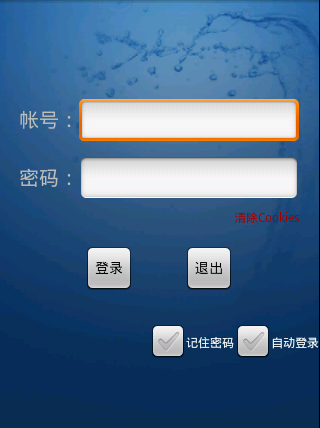
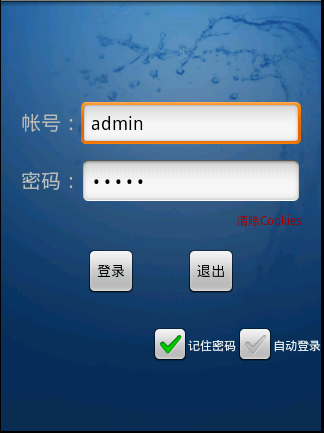
需求很單純:使用者勾選記住密碼後,下次開啟 App 自動帶入帳號密碼;也能勾選自動登入,或一鍵清除已存資料。
登入畫面:
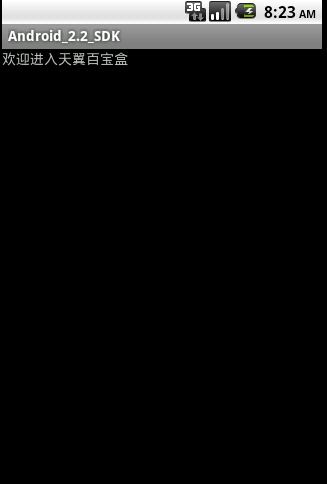
登入成功:
勾選記住密碼並登入一次後,再次開啟時帳密已自動填好:
版面檔 login.xml:
<?xml version="1.0" encoding="utf-8"?>
<LinearLayout xmlns:android="https://schemas.android.com/apk/res/android"
    android:layout_width="fill_parent"
    android:layout_height="fill_parent"
    android:gravity="right"
    android:layout_gravity="right"
    android:background="@drawable/default_bg"
    android:orientation="vertical">

    <TableLayout
        android:layout_width="fill_parent"
        android:layout_height="wrap_content"
        android:stretchColumns="1">
        <TableRow android:gravity="center" android:layout_gravity="center">
            <ImageView
                android:layout_width="fill_parent"
                android:layout_height="wrap_content"
                android:id="@+id/ivlogo" >
            </ImageView>
        </TableRow>
    </TableLayout>

    <TableLayout
        android:layout_width="fill_parent"
        android:layout_height="wrap_content"
        android:stretchColumns="1">
        <TableRow android:layout_marginTop="100dip">
            <TextView
                android:layout_width="wrap_content"
                android:layout_marginLeft="20dip"
                android:gravity="center_vertical"
                android:layout_height="wrap_content"
                android:id="@+id/tvaccount"
                android:text="帳號:"
                android:textSize="20sp">
            </TextView>
            <EditText
                android:layout_width="70px"
                android:layout_height="wrap_content"
                android:id="@+id/etaccount"
                android:layout_marginRight="20dip"
                android:maxLength="20"></EditText>
        </TableRow>
        <TableRow android:layout_marginTop="10dip">
            <TextView
                android:layout_width="wrap_content"
                android:layout_height="wrap_content"
                android:id="@+id/tvpw"
                android:layout_marginLeft="20dip"
                android:gravity="center_vertical"
                android:text="密碼:"
                android:textSize="20sp">
            </TextView>
            <EditText
                android:layout_width="70px"
                android:layout_height="wrap_content"
                android:layout_marginRight="20dip"
                android:id="@+id/etpw"
                android:inputType="textPassword"></EditText>
        </TableRow>
    </TableLayout>

    <LinearLayout
        android:layout_width="wrap_content"
        android:layout_height="wrap_content"
        android:orientation="horizontal"
        android:layout_marginTop="5dip"
        android:layout_marginRight="20dip">
        <TextView
            android:layout_width="wrap_content"
            android:layout_height="wrap_content"
            android:id="@+id/tvclear"
            android:text="清除Cookies"
            android:textColor="#aa0000"
            android:textSize="12px"></TextView>
    </LinearLayout>

    <TableLayout
        android:layout_width="fill_parent"
        android:layout_height="wrap_content"
        android:layout_marginTop="20dip">
        <TableRow android:gravity="center" android:layout_width="fill_parent">
            <Button
                android:layout_width="100px"
                android:layout_height="wrap_content"
                android:id="@+id/btnlogin"
                android:layout_gravity="center"
                android:text="登錄"></Button>
            <Button
                android:layout_width="100px"
                android:layout_height="wrap_content"
                android:id="@+id/btnexit"
                android:layout_gravity="center"
                android:text="退出"></Button>
        </TableRow>
    </TableLayout>

    <LinearLayout
        android:layout_width="wrap_content"
        android:layout_height="wrap_content"
        android:orientation="horizontal"
        android:layout_marginTop="25dip">
        <CheckBox
            android:layout_width="wrap_content"
            android:layout_height="wrap_content"
            android:id="@+id/cbrp"
            android:text="記住密碼"
            android:textSize="12px"></CheckBox>
        <CheckBox
            android:layout_width="wrap_content"
            android:layout_height="wrap_content"
            android:id="@+id/cbal"
            android:text="自動登錄"
            android:textSize="12px"></CheckBox>
    </LinearLayout>
</LinearLayout>
Activity 程式碼:
package com.wjq;

import android.app.Activity;
import android.content.Context;
import android.content.SharedPreferences;
import android.os.Bundle;
import android.util.Log;
import android.view.View;
import android.view.View.OnClickListener;
import android.widget.Button;
import android.widget.CheckBox;
import android.widget.CompoundButton;
import android.widget.EditText;
import android.widget.TextView;
import android.widget.Toast;
import com.wjq.beans.User;
import com.wjq.func.UserMgr;

public class Login extends Activity {
    private EditText etAccount;
    private EditText etPW;
    private Button btnLogin;
    private Button btnExit;
    private CheckBox cbrp;
    private CheckBox cbal;
    private UserMgr userMgr;
    private User user;
    private SharedPreferences sp;
    private TextView tvClear;

    @Override
    protected void onCreate(Bundle savedInstanceState) {
        super.onCreate(savedInstanceState);
        setContentView(R.layout.login);
        etAccount = (EditText) findViewById(R.id.etaccount);
        etPW = (EditText) findViewById(R.id.etpw);
        cbrp = (CheckBox) findViewById(R.id.cbrp);
        cbal = (CheckBox) findViewById(R.id.cbal);
        btnLogin = (Button) findViewById(R.id.btnlogin);
        btnExit = (Button) findViewById(R.id.btnexit);
        tvClear = (TextView) findViewById(R.id.tvclear);

        InitConfig();

        cbrp.setOnCheckedChangeListener(new CompoundButton.OnCheckedChangeListener() {
            @Override
            public void onCheckedChanged(CompoundButton buttonView, boolean isChecked) {
                sp = getSharedPreferences("UserInfo", 0);
                sp.edit().putBoolean("cbrp", isChecked).commit();
            }
        });

        cbal.setOnCheckedChangeListener(new CompoundButton.OnCheckedChangeListener() {
            @Override
            public void onCheckedChanged(CompoundButton buttonView, boolean isChecked) {
                sp = getSharedPreferences("UserInfo", 0);
                sp.edit().putBoolean("cbal", isChecked).commit();
            }
        });

        btnLogin.setOnClickListener(new OnClickListener() {
            @Override
            public void onClick(View v) {
                user = new User(etAccount.getText().toString(), etPW.getText().toString());
                userMgr = new UserMgr();
                Boolean flag = userMgr.CheckUser(user, Login.this);
                if (!flag) {
                    Toast.makeText(Login.this, "用戶驗證錯誤!", 1000).show();
                } else if (cbrp.isChecked()) {
                    // 勾選記住密碼才寫入帳密
                    sp = getSharedPreferences("UserInfo", Context.MODE_PRIVATE);
                    SharedPreferences.Editor editor = sp.edit();
                    editor.putString("account", etAccount.getText().toString());
                    editor.putString("password", etPW.getText().toString());
                    editor.commit();
                }
            }
        });

        btnExit.setOnClickListener(new OnClickListener() {
            @Override
            public void onClick(View v) {
                System.exit(0);
            }
        });

        tvClear.setOnClickListener(new OnClickListener() {
            @Override
            public void onClick(View v) {
                sp = getSharedPreferences("UserInfo", 0);
                sp.edit().clear().commit();
                InitConfig();
            }
        });
    }

    /** 初始化:把存下來的帳密與勾選狀態回填到畫面 */
    private void InitConfig() {
        sp = getSharedPreferences("UserInfo", 0);
        etAccount.setText(sp.getString("account", null));
        etPW.setText(sp.getString("password", null));
        cbal.setChecked(sp.getBoolean("cbal", false));
        cbrp.setChecked(sp.getBoolean("cbrp", false));
    }
}
// 寫入
sp = getSharedPreferences("UserInfo", 0);
sp.edit().putBoolean("cbal", isChecked).commit();

// 讀出
sp = getSharedPreferences("UserInfo", 0);
etAccount.setText(sp.getString("account", null));
etPW.setText(sp.getString("password", null));
cbal.setChecked(sp.getBoolean("cbal", false));
cbrp.setChecked(sp.getBoolean("cbrp", false));
UserInfo 就是 XML 檔名,若檔案不存在會自動建立。流程固定為:透過 edit() 取得 editor,改完呼叫 commit() 提交。
最後必須強調一個安全觀念:SharedPreferences 是明文 XML,任何取得 root 權限或透過 adb backup 的人都可能讀出內容,因此絕不應該直接存放密碼。正確做法是只記住帳號與一組 token,密碼改存到 Keystore 加密後再寫入,或乾脆交給系統的 BiometricPrompt 與 Credential Manager 處理。範例中將 MODE_WORLD_WRITEABLE 改為 MODE_PRIVATE,也是基於同樣的理由。
 Android Fragment 入門學習教程:從概念到實戰
Fragment 是 Android 自 Honeycomb 3.0 起才新增的概念。Fragment 雖名為「碎片」,卻和 Activity 十分相似,下
 Android 圖片變換入門:用 Matrix 完成旋轉、縮放、平移與傾斜
在 Android 中處理圖片變換時,Matrix 是非常實用的工具。它本質上是一個矩陣,可對圖像進行旋轉、縮放、平移與傾斜等線性變換。 Matrix 的基本操作 Mat
 Android 開發筆記:用列舉型別取代整數集合
問題從哪裡來 翻 Android API 會發現大量「以整數集合當參數」的設計。以 LinearLayout 為例,它的方向屬性是這樣設定的: LinearLayout.
 動手做一個自己的新聞閱讀平台:PHP 服務端加上 Android 客戶端
本文示範如何從零打造一個屬於自己的新聞展示平台,分成資料庫建置、服務端輸出 JSON、Android 客戶端抓取與呈現三個部分。 一、建立新聞資料庫 這裡使用 MySQ