

編輯:關於 Android 程式設計
做遊戲或風格鮮明的應用時,系統預設的提示框往往格格不入。本文示範如何把自訂版面塞進 AlertDialog,做出一個帶插圖與兩顆圖形按鈕的退出確認視窗。
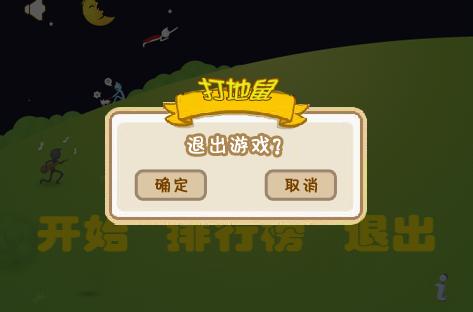
查到資料後會發現,這種效果的核心其實就是「換掉 Dialog 的內容檢視」:透過 window.setContentView() 指定自己的版面檔,再按原本的 id 找出按鈕掛上事件即可。
public boolean onKeyDown(int keyCode, KeyEvent event) {
    // 攔截返回鍵與 Home 鍵,改為跳出確認視窗
    if (keyCode == KeyEvent.KEYCODE_BACK || keyCode == KeyEvent.KEYCODE_HOME) {
        showExitGameAlert();
    }
    return super.onKeyDown(keyCode, event);
}

private void showExitGameAlert() {
    final AlertDialog dlg = new AlertDialog.Builder(this).create();
    dlg.show();

    Window window = dlg.getWindow();
    // 重點:把自訂版面設為對話框內容
    window.setContentView(R.layout.shrew_exit_dialog);

    // 確認鈕:執行離開程式的動作
    ImageButton ok = (ImageButton) window.findViewById(R.id.btn_ok);
    ok.setOnClickListener(new View.OnClickListener() {
        public void onClick(View v) {
            exitApp();
        }
    });

    // 取消鈕:關閉視窗
    ImageButton cancel = (ImageButton) window.findViewById(R.id.btn_cancel);
    cancel.setOnClickListener(new View.OnClickListener() {
        public void onClick(View v) {
            dlg.cancel();
        }
    });
}
<?xml version="1.0" encoding="utf-8"?>
<RelativeLayout xmlns:android="https://schemas.android.com/apk/res/android"
    android:layout_height="wrap_content"
    android:layout_width="wrap_content">

    <!-- 視窗背景插圖 -->
    <ImageView
        android:id="@+id/exitGameBackground"
        android:layout_centerInParent="true"
        android:layout_height="wrap_content"
        android:layout_width="wrap_content"
        android:src="@drawable/bg_exit_game" />

    <!-- 確認按鈕 -->
    <ImageButton
        android:id="@+id/btn_ok"
        android:layout_alignBottom="@+id/exitGameBackground"
        android:layout_alignLeft="@+id/exitGameBackground"
        android:layout_marginBottom="30dp"
        android:layout_marginLeft="35dp"
        android:layout_height="wrap_content"
        android:layout_width="wrap_content"
        android:background="@drawable/btn_ok" />

    <!-- 取消按鈕 -->
    <ImageButton
        android:id="@+id/btn_cancel"
        android:layout_alignBottom="@+id/exitGameBackground"
        android:layout_alignRight="@+id/exitGameBackground"
        android:layout_marginBottom="30dp"
        android:layout_marginRight="35dp"
        android:layout_height="wrap_content"
        android:layout_width="wrap_content"
        android:background="@drawable/btn_cancel" />
</RelativeLayout>
用同樣的思路,任何更複雜的對話框外觀都能做出來。
需求不複雜時,直接用 Builder 串起來就好,不必自訂版面:
package com.example.alertdialog;

import android.app.Activity;
import android.app.AlertDialog;
import android.content.DialogInterface;
import android.os.Bundle;
import android.view.View;
import android.widget.Toast;

public class MainActivity extends Activity {

    @Override
    protected void onCreate(Bundle savedInstanceState) {
        super.onCreate(savedInstanceState);
        setContentView(R.layout.activity_main);
    }

    public void onBackPressed1(View v) {
        new AlertDialog.Builder(this)
            .setTitle("確認退出嗎?")
            .setIcon(android.R.drawable.ic_dialog_info)
            .setPositiveButton("確定", new DialogInterface.OnClickListener() {
                @Override
                public void onClick(DialogInterface dialog, int which) {
                    MainActivity.this.finish();
                }
            })
            .setNegativeButton("返回", new DialogInterface.OnClickListener() {
                @Override
                public void onClick(DialogInterface dialog, int which) {
                    Toast.makeText(MainActivity.this, "你點擊了返回鍵",
                            Toast.LENGTH_LONG).show();
                }
            })
            .show();
    }
}
補充一點:攔截返回鍵時建議改用 onBackPressed(),並在按下確認後以 finish() 或 moveTaskToBack(true) 結束;直接攔截 Home 鍵在正式 App 上通常行不通,因為那是系統保留行為。
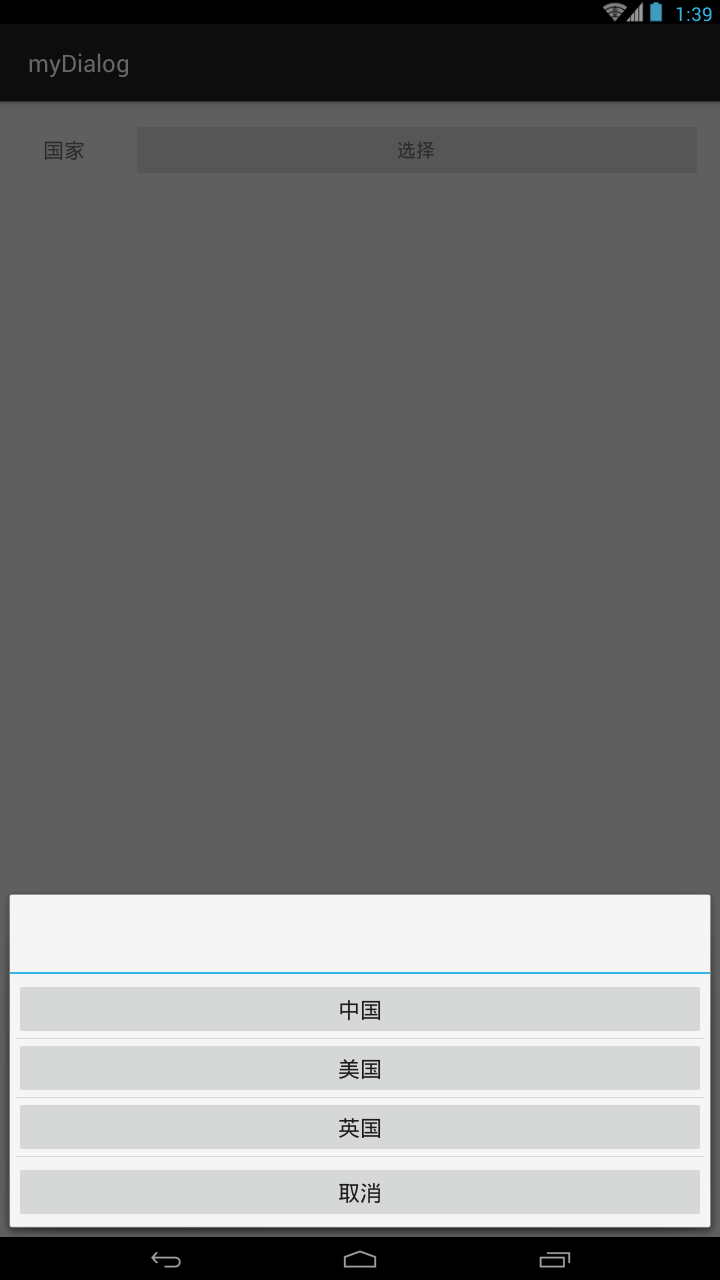 Android 懸浮 Dialog 對話框實現
用 Dialog 打造輕量懸浮互動 在 Android 介面中,Dialog 常用於短暫的選擇、確認或輸入操作。若希望對話框以懸浮方式呈現,並自訂位置與寬度,可以透過 W
 Android 大圖平滑拖動顯示方案
需求場景當圖片尺寸大於螢幕時,直接顯示會只能看到一部分。理想效果是先居中顯示,再讓使用者拖動視窗,像地圖一樣平滑移動。為什麼 ScrollView 不一定合適大圖拖動看似
 LinearLayout 與 RelativeLayout 組合完成精細版面配置
padding 與 margin 的差異padding 是控制項內容與控制項邊緣之間的距離;margin 則是控制項邊緣與父容器之間的距離。兩者都用來處理間距,但參照對象
 Android 實戰教學第十六課:用 SharedPreferences 記住帳號與密碼
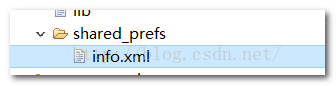
上一課把使用者名稱與密碼暫時放在記憶體裡,App 一關閉資料就跟著消失。這一課改用 SharedPreferences 把資料寫入檔案,下次開啟程式時就能讀回來並自動帶入