

編輯:關於 Android 程式設計
蘋果的 Touch Icon 是為「網頁添加到主屏」場景設計的圖標資源,有了它,網頁快捷方式在視覺上與原生應用幾乎無差別。由於 iOS 設備保有量巨大,絕大多數移動網站都提供了這套資源。Android 早期並沒有對應標準,因此當我們想把網頁添加到桌面時,仍然只能沿用蘋果這一套。
最簡單的形式是聲明一個 png:
<link rel="apple-touch-icon" href="/custom_icon.png">要同時適配 iPhone 和 iPad,需要用 sizes 屬性聲明多個尺寸。默認 sizes 為 60x60:
<link rel="apple-touch-icon" href="touch-icon-iphone.png">
<link rel="apple-touch-icon" sizes="76x76" href="touch-icon-ipad.png">
<link rel="apple-touch-icon" sizes="120x120" href="touch-icon-iphone-retina.png">
<link rel="apple-touch-icon" sizes="152x152" href="touch-icon-ipad-retina.png">
iOS 7 之前,系統會自動為添加到桌面的圖標做圓角化等視覺處理。若想保留原始設計,把 rel 換成 apple-touch-icon-precomposed 即可跳過這一步。
WebView 提供了 onReceivedTouchIconUrl(WebView view, String url, boolean precomposed) 回調,能拿到 touch icon 的地址以及是否為預組合狀態。看似足夠,實際用起來卻有硬傷:回調裡沒有 sizes 信息,我們無從判斷哪個圖片更合適。
舉個真實的例子。某網頁源碼中的聲明順序並不規律:
<link rel="apple-touch-icon-precomposed" sizes="72x72" href="https://www.qiyipic.com/20130423143600/fix/H5-72x72.png">
<link rel="apple-touch-icon-precomposed" sizes="114x114" href="https://www.qiyipic.com/20130423143600/fix/H5-114x114.png">
<link rel="apple-touch-icon-precomposed" sizes="57x57" href="https://www.qiyipic.com/20130423143600/fix/H5-57x57.png">
<link rel="apple-touch-icon-precomposed" href="https://www.qiyipic.com/20130423143600/fix/H5-0x0.png">
加載後回調輸出的日誌:
I/MainActivity( 6995): onReceivedTouchIconUrl url=https://www.qiyipic.com/20130423143600/fix/H5-0x0.png;precomposed=true
I/MainActivity( 6995): onReceivedTouchIconUrl url=https://www.qiyipic.com/20130423143600/fix/H5-57x57.png;precomposed=true
I/MainActivity( 6995): onReceivedTouchIconUrl url=https://www.qiyipic.com/20130423143600/fix/H5-114x114.png;precomposed=true
I/MainActivity( 6995): onReceivedTouchIconUrl url=https://www.qiyipic.com/20130423143600/fix/H5-72x72.png;precomposed=true
由此可以歸納出這個回調的四個問題:
一、URL 沒有硬性命名規範,不能靠字符串裡是否含尺寸來判斷;
二、網頁中 link 元素的書寫順序相對隨意,不能靠回調觸發先後決定;
三、回調參數裡乾脆沒有 sizes,缺少最關鍵的判斷依據;
四、若選「質量最高的那張」再自行壓縮,理論上可行,但把全部 icon 都下載一遍(哪怕只看 Content-Length)都很不划算。
既然系統沒有現成辦法,就自己掃描 DOM。思路很直接:用 JS 找出所有 touch icon 的 link 元素,把屬性組裝成 JSON 交給 Java 層。
JavaScript 部分:
var touchIcons = [];

function gatherTouchIcons(elements) {
    var normalTouchIconLength = elements.length;
    var currentElement;
    for (var i = 0; i < normalTouchIconLength; i++) {
        currentElement = elements[i];
        var size;
        if (currentElement.hasAttribute('sizes')) {
            size = currentElement.sizes[0];
        } else {
            size = '';
        }
        var info = {'sizes': size, 'rel': currentElement.rel, 'href': currentElement.href};
        touchIcons.push(info);
    }
}

function obtainTouchIcons() {
    normalElements = document.querySelectorAll("link[rel='apple-touch-icon']");
    precomposedElements = document.querySelectorAll("link[rel='apple-touch-icon-precomposed']");
    gatherTouchIcons(normalElements);
    gatherTouchIcons(precomposedElements);
    var info = JSON.stringify(touchIcons);
    window.app_native.onReceivedTouchIcons(document.URL, info);
}

obtainTouchIcons();
Java 部分,在頁面加載完成後注入並接收結果:
package com.example.obtaintouchicon;

import java.io.BufferedReader;
import java.io.FileNotFoundException;
import java.io.IOException;
import java.io.InputStream;
import java.io.InputStreamReader;

import android.app.Activity;
import android.os.Bundle;
import android.util.Log;
import android.webkit.JavascriptInterface;
import android.webkit.WebView;
import android.webkit.WebViewClient;

public class MainActivity extends Activity {

    protected String LOGTAG = "MainActivity";

    @Override
    protected void onCreate(Bundle savedInstanceState) {
        super.onCreate(savedInstanceState);
        WebView webView = new WebView(this);
        webView.getSettings().setJavaScriptEnabled(true);
        webView.setWebViewClient(new WebViewClient() {
            @Override
            public void onPageFinished(WebView view, String url) {
                super.onPageFinished(view, url);
                final String touchIconJsCode = getTouchIconJsCode();
                view.loadUrl("javascript:" + touchIconJsCode);
            }
        });
        webView.addJavascriptInterface(new JsObject(), "app_native");
        webView.loadUrl("https://192.168.1.5:8000/html/touchicon.html");
    }

    private class JsObject {
        @JavascriptInterface
        public void onReceivedTouchIcons(String url, String json) {
            Log.i(LOGTAG, "onReceivedTouchIcons url=" + url + ";json=" + json);
        }
    }

    private String getTouchIconJsCode() {
        StringBuilder total = new StringBuilder();
        InputStream inputStream = null;
        BufferedReader bufferReader = null;
        try {
            inputStream = getAssets().open("touchicon.js");
            bufferReader = new BufferedReader(new InputStreamReader(inputStream));
            String line;
            while ((line = bufferReader.readLine()) != null) {
                total.append(line);
            }
        } catch (FileNotFoundException e) {
            e.printStackTrace();
        } catch (IOException e) {
            e.printStackTrace();
        } finally {
            if (null != inputStream) {
                try {
                    inputStream.close();
                } catch (IOException e) {
                    e.printStackTrace();
                }
            }
        }
        return total.toString();
    }
}
返回的 JSON 結構清晰,後續可按需挑選:
[
    { "sizes":"72x72",  "rel":"apple-touch-icon-precomposed", "href":"https://www.qiyipic.com/20130423143600/fix/H5-72x72.png" },
    { "sizes":"114x114","rel":"apple-touch-icon-precomposed", "href":"https://www.qiyipic.com/20130423143600/fix/H5-114x114.png" },
    { "sizes":"57x57",  "rel":"apple-touch-icon-precomposed", "href":"https://www.qiyipic.com/20130423143600/fix/H5-57x57.png" },
    { "sizes":"",       "rel":"apple-touch-icon-precomposed", "href":"https://www.qiyipic.com/20130423143600/fix/H5-0x0.png" }
]
拿到完整信息後,就能按設備密度挑選最合適的那一張,而不必像原來那樣盲猜。
Google 並沒有去修 onReceivedTouchIconUrl,而是另起一套標準。在 Chrome 中,可以通過下面的 link 引入清單文件:
<link rel="manifest" href="manifest.json">清單中能定義標題、起始頁、橫豎屏方向等元數據。一個簡單的例子:
{
    "name": "Web Application Manifest Sample",
    "icons": [
        { "src": "launcher-icon-0-75x.png", "sizes": "36x36",   "type": "image/png", "density": "0.75" },
        { "src": "launcher-icon-1x.png",    "sizes": "48x48",   "type": "image/png", "density": "1.0"  },
        { "src": "launcher-icon-1-5x.png",  "sizes": "72x72",   "type": "image/png", "density": "1.5"  },
        { "src": "launcher-icon-2x.png",    "sizes": "96x96",   "type": "image/png", "density": "2.0"  },
        { "src": "launcher-icon-3x.png",    "sizes": "144x144", "type": "image/png", "density": "3.0"  },
        { "src": "launcher-icon-4x.png",    "sizes": "192x192", "type": "image/png", "density": "4.0"  }
    ],
    "start_url": "index.html",
    "display": "standalone",
    "orientation": "landscape"
}
注意 icons 數組的結構:src 是路徑,sizes 是尺寸,type 是 MIME 類型,density 直接對應 Android 的屏幕密度概念——顯然是刻意向 Android 靠攏的設計。有了 density,選擇哪一張就不再需要猜。
關於這套標準可參考 Add to Homescreen 相關文檔。不過在它普及率足夠之前,實踐中仍需保留蘋果的 touch icon 聲明作為兼容手段——兩者並不衝突,同時寫上即可。
 Cordova 自定義插件開發完整流程解析
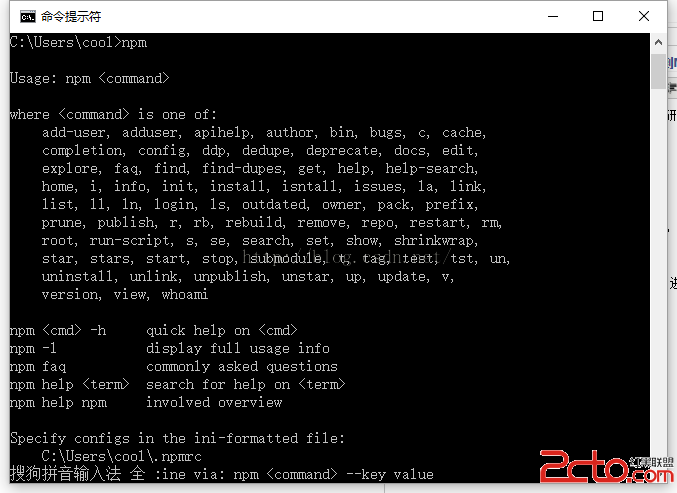
環境準備開發 Cordova 自定義插件前,需要先準備 Node.js、Cordova 命令列工具與 Android SDK。安裝完成後,可透過 npm 與 cordov
 自定義 ListView 實作下拉刷新與加載更多:PullToRefreshListView 完整解析
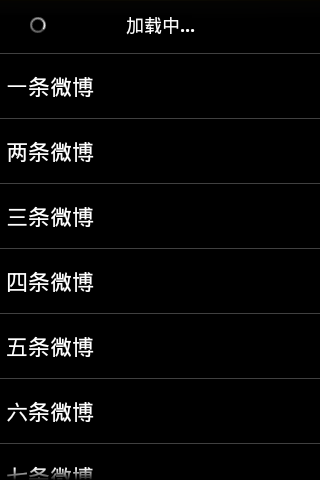
搜「ListView 下拉刷新」會跳出一堆結果,但真正能直接用的不多:有的實作太複雜,有的功能不完整。因為近期要開發新浪微博客戶端,需要一個可靠的下拉刷新元件,於是乾脆自
 深入理解 Android 之 Xposed 框架原理詳解
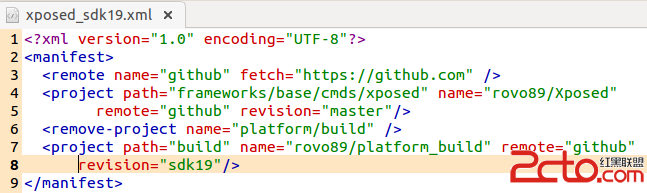
一、背景 Xposed 是 Android 平台上最負盛名的框架。在它的體系下,我們可以加載各種插件 App,而這些插件能直接或間接地操作系統層面的東西——包括那些名義上
 Android 增量更新實作:bsdiff 差分包、服務端與客戶端流程
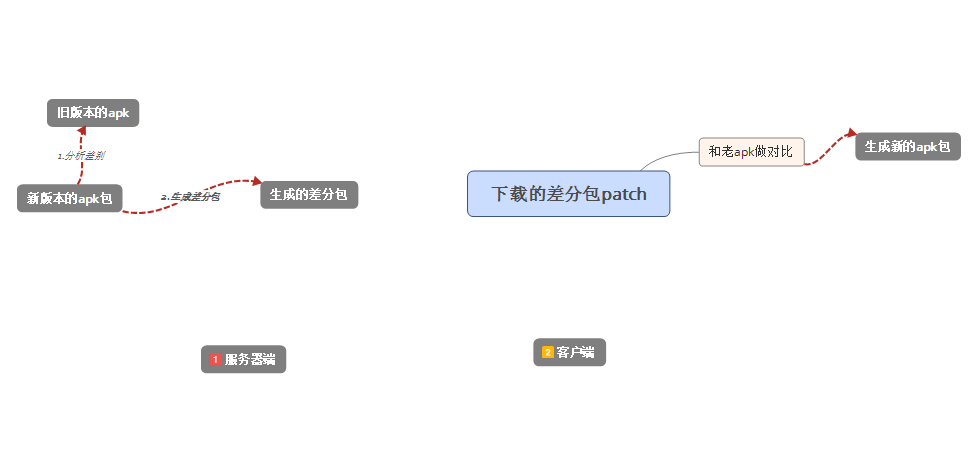
為什麼需要增量更新 當應用安裝包越來越大時,每次更新都要重新下載完整 APK,會消耗較多時間與流量。增量更新,也稱差分更新,做法是只下載新舊版本之間的差異檔,再在裝置端把