

編輯:關於 Android 程式設計
表單裡的兩種基本選擇元件,在 Android 裡分工很清楚:RadioButton 負責「只能選一個」,CheckBox 負責「想選幾個就選幾個」。再配上 Toast 這個會自動消失的小提示視窗,就能即時回饋使用者的操作。
本次實驗環境為 Android 4.1,版面採用 LinearLayout。
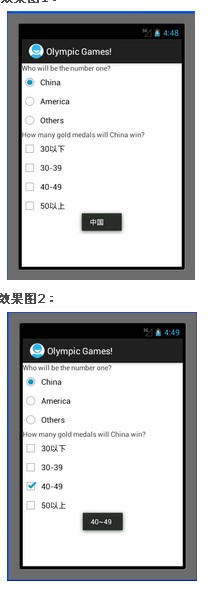
畫面上方三個選項被包在同一個 RadioGroup 裡,無論怎麼點,最多只有一個能亮起;下方四個 CheckBox 則各自獨立,可以多選。不論是選中還是取消選中,都會跳出一個短暫的文字提示。
RadioGroup 與 CheckBox 都用 setOnCheckedChangeListener() 掛監聽器,但傳入的物件型別不同,這是初學時最容易卡住的地方:
RadioGroup 用的是 RadioGroup.OnCheckedChangeListener,回呼參數帶的是「整個群組」與「目前被選中的 id」,因此只要判斷一次就能知道誰被選了。
CheckBox 用的是 CompoundButton.OnCheckedChangeListener,回呼參數是「這個按鈕本身」與「是否被勾選」的布林值,所以每個 CheckBox 都要各自掛一個監聽器。
package com.example.control1;

import android.app.Activity;
import android.os.Bundle;
import android.widget.CheckBox;
import android.widget.CompoundButton;
import android.widget.CompoundButton.OnCheckedChangeListener;
import android.widget.RadioButton;
import android.widget.RadioGroup;
import android.widget.TextView;
import android.widget.Toast;

public class MainActivity extends Activity {

    private TextView who = null;
    private TextView how = null;
    private RadioGroup who_group = null;
    private RadioButton china = null;
    private RadioButton america = null;
    private RadioButton others = null;
    private CheckBox less = null;
    private CheckBox thirty = null;
    private CheckBox forty = null;
    private CheckBox fifty = null;

    @Override
    public void onCreate(Bundle savedInstanceState) {
        super.onCreate(savedInstanceState);
        setContentView(R.layout.activity_main);

        // 取得各控制項
        who = (TextView) findViewById(R.id.who);
        how = (TextView) findViewById(R.id.how);
        who_group = (RadioGroup) findViewById(R.id.who_group);
        china = (RadioButton) findViewById(R.id.china);
        america = (RadioButton) findViewById(R.id.america);
        others = (RadioButton) findViewById(R.id.others);
        less = (CheckBox) findViewById(R.id.less);
        thirty = (CheckBox) findViewById(R.id.thirty);
        forty = (CheckBox) findViewById(R.id.forty);
        fifty = (CheckBox) findViewById(R.id.fifty);

        // RadioGroup 的監聽器:一次判斷即可知道選了誰
        who_group.setOnCheckedChangeListener(new RadioGroup.OnCheckedChangeListener() {
            public void onCheckedChanged(RadioGroup group, int checkedId) {
                if (checkedId == china.getId()) {
                    Toast.makeText(MainActivity.this, "中國", Toast.LENGTH_SHORT).show();
                } else if (checkedId == america.getId()) {
                    Toast.makeText(MainActivity.this, "美國", Toast.LENGTH_SHORT).show();
                } else if (checkedId == others.getId()) {
                    Toast.makeText(MainActivity.this, "其它國家", Toast.LENGTH_SHORT).show();
                }
            }
        });

        // 以下四個 CheckBox 各自掛監聽器
        less.setOnCheckedChangeListener(new OnCheckedChangeListener() {
            public void onCheckedChanged(CompoundButton buttonView, boolean isChecked) {
                if (isChecked) {
                    Toast.makeText(MainActivity.this, "30個以下", Toast.LENGTH_SHORT).show();
                } else {
                    Toast.makeText(MainActivity.this, "不是30個以下", Toast.LENGTH_SHORT).show();
                }
            }
        });

        thirty.setOnCheckedChangeListener(new CompoundButton.OnCheckedChangeListener() {
            public void onCheckedChanged(CompoundButton buttonView, boolean isChecked) {
                if (isChecked) {
                    Toast.makeText(MainActivity.this, "30~39", Toast.LENGTH_SHORT).show();
                } else {
                    Toast.makeText(MainActivity.this, "不是30~39", Toast.LENGTH_SHORT).show();
                }
            }
        });

        forty.setOnCheckedChangeListener(new OnCheckedChangeListener() {
            public void onCheckedChanged(CompoundButton buttonView, boolean isChecked) {
                if (isChecked) {
                    Toast.makeText(MainActivity.this, "40~49", Toast.LENGTH_SHORT).show();
                } else {
                    Toast.makeText(MainActivity.this, "不是40~49", Toast.LENGTH_SHORT).show();
                }
            }
        });

        fifty.setOnCheckedChangeListener(new OnCheckedChangeListener() {
            public void onCheckedChanged(CompoundButton buttonView, boolean isChecked) {
                if (isChecked) {
                    Toast.makeText(MainActivity.this, "50以上", Toast.LENGTH_SHORT).show();
                } else {
                    Toast.makeText(MainActivity.this, "不是50以上", Toast.LENGTH_SHORT).show();
                }
            }
        });
    }
}
RadioGroup 本身也是一個容器,把包在裡面的 RadioButton 自動串成互斥的一組,這點和 CheckBox 需要各自處理完全不同。
<LinearLayout xmlns:android="https://schemas.android.com/apk/res/android"
    xmlns:tools="https://schemas.android.com/tools"
    android:layout_width="match_parent"
    android:layout_height="match_parent"
    android:orientation="vertical">

    <TextView
        android:id="@+id/who"
        android:layout_width="wrap_content"
        android:layout_height="wrap_content"
        android:text="@string/who" />

    <RadioGroup
        android:id="@+id/who_group"
        android:layout_width="wrap_content"
        android:layout_height="wrap_content"
        android:orientation="vertical">

        <RadioButton
            android:id="@+id/china"
            android:layout_height="wrap_content"
            android:layout_width="wrap_content"
            android:text="@string/china" />

        <RadioButton
            android:id="@+id/america"
            android:layout_width="wrap_content"
            android:layout_height="wrap_content"
            android:text="@string/america" />

        <RadioButton
            android:id="@+id/others"
            android:layout_width="wrap_content"
            android:layout_height="wrap_content"
            android:text="@string/others" />

    </RadioGroup>

    <TextView
        android:id="@+id/how"
        android:layout_width="wrap_content"
        android:layout_height="wrap_content"
        android:text="@string/how" />

    <CheckBox
        android:id="@+id/less"
        android:layout_width="wrap_content"
        android:layout_height="wrap_content"
        android:text="@string/less" />

    <CheckBox
        android:id="@+id/thirty"
        android:layout_width="wrap_content"
        android:layout_height="wrap_content"
        android:text="@string/thirty" />

    <CheckBox
        android:id="@+id/forty"
        android:layout_width="wrap_content"
        android:layout_height="wrap_content"
        android:text="@string/forty" />

    <CheckBox
        android:id="@+id/fifty"
        android:layout_width="wrap_content"
        android:layout_height="wrap_content"
        android:text="@string/fifty" />

</LinearLayout>
這次把 RadioGroup、RadioButton、CheckBox 與 Toast 四個元件串起來練了一遍。真正需要記牢的只有兩件事:RadioGroup 用群組等級的監聽器、一次搞定;CheckBox 用 CompoundButton 等級的監聽器、各自為政。剩下的就是 Toast 的 makeText(...).show() 這個固定寫法。
作者:tornadomeet
 自定義 View 實作側滑刪除:ViewDragHelper 的完整拆解
即時通訊與郵件 App 裡那種「往左拉出刪除按鈕」的互動,看起來簡單,自己動手做卻常卡在手勢判定與位置同步上。本文用 ViewDragHelper 一步步實作一個可重複使
 Android 動態布局入門與 NinePatch 圖片解析
擺脫 XML 布局多數 Android 開發者在學習初期,都會透過 layout 目錄下的 XML 檔案來定義畫面。XML 布局結構清楚、可預覽,非常方便。但在某些情境下
 Android 自定義支付密碼軟鍵盤實作(含隨機鍵盤)
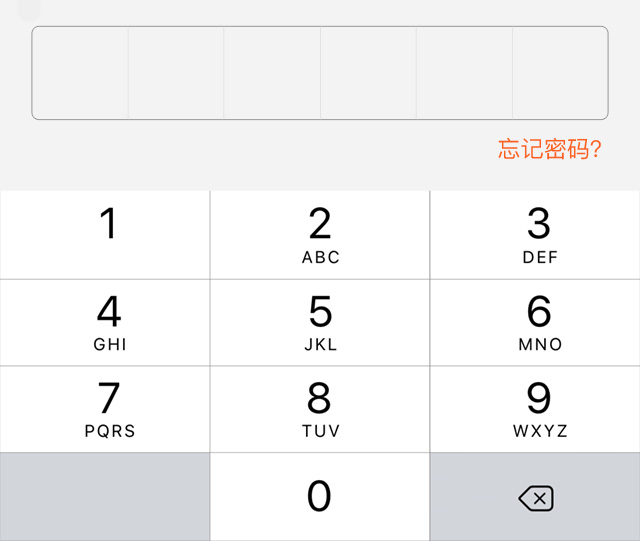
Android 自定義輸入支付密碼的軟鍵盤 專案需要實現一個類似支付寶那樣的密碼鎖功能,帶有自己的軟鍵盤。這裡整理了相關資料供大家參考,若有錯誤歡迎留言指正。 需求:實現
 Android 源碼分析:View 事件分發機制完整探析
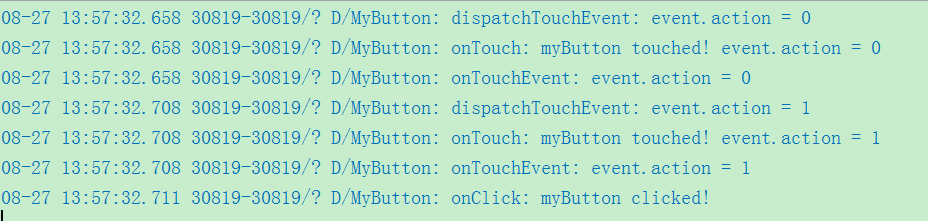
做 Android 開發、寫自定義控制項,很難不碰到 View 的觸摸與點擊事件。網路上關於事件分發原理的文章看過不少,但問題是——當下看懂了,過一陣子又忘光。為了真正記