

編輯:關於 Android 程式設計
Android 的 AnimationDrawable 是最直覺的逐幀動畫方案,用起來就像翻頁動畫一樣,一張張圖片依序播放。整個流程可以拆成「定義動畫清單」與「在程式碼中啟動」兩部分。
先在 drawable 資料夾建立一個 XML 檔,用 animation-list 作為根標籤,把每一幀寫成一個 item:
<animation-list xmlns:android="https://schemas.android.com/apk/res/android"
    android:oneshot="true">
    <item android:drawable="@drawable/compass_1" android:duration="70" />
    <item android:drawable="@drawable/compass_2" android:duration="70" />
    <item android:drawable="@drawable/compass_3" android:duration="70" />
    <item android:drawable="@drawable/compass_4" android:duration="70" />
    <item android:drawable="@drawable/compass_5" android:duration="70" />
</animation-list>
幾個關鍵屬性說明:
android:oneshot:是否只播放一遍。設為 true 就播完停止,設成 false 則會無限循環。android:duration:每一幀停留的時間,單位是毫秒。這裡每幀 70ms,五幀大約 0.35 秒跑完一輪。android:drawable:該幀要顯示的圖片資源。定義好 XML 之後,在程式碼中把它轉成 AnimationDrawable:
AnimationDrawable ad = (AnimationDrawable) getResources().getDrawable(R.drawable.bootanimation);
接著把這個物件設成目前 View 的背景:
mView.setBackgroundDrawable(ad);
然後就能呼叫 ad.start() 與 ad.stop() 來啟動與停止動畫。
要特別注意:這個 Drawable 必須先被設為該 View 的背景,否則 start() 和 stop() 完全不會有任何效果。這是最容易踩到的一個坑。
 Android 進程間通信:AIDL 的適用場景與完整實戰
一、先分清兩種 Service 本地服務(Local Service):只在當前 apk 內部被調用。 遠程服務(Remote Service):可以被另一個 apk 調
 實作 CSDN 部落格客戶端:如何抓到評論列表的 JSON 介面
前面的文章已經完成了部落格文章列表與文章詳情的業務邏輯,這一篇要處理最後一項功能:載入評論列表。這個功能與前兩者有本質差異——CSDN 的評論不是隨頁面一起輸出,而是由前
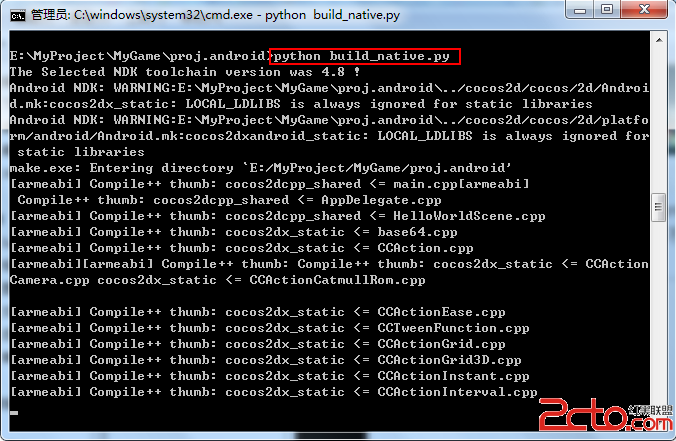 Cocos2d-x 3.0 實戰:在 Eclipse 上架起 Android 專案
2014 年 4 月末。前一篇介紹了如何在 Visual Studio 2012 上編譯 Cocos2d-x 專案並把 HelloWorld 跑起來;與以往版本類似,只是
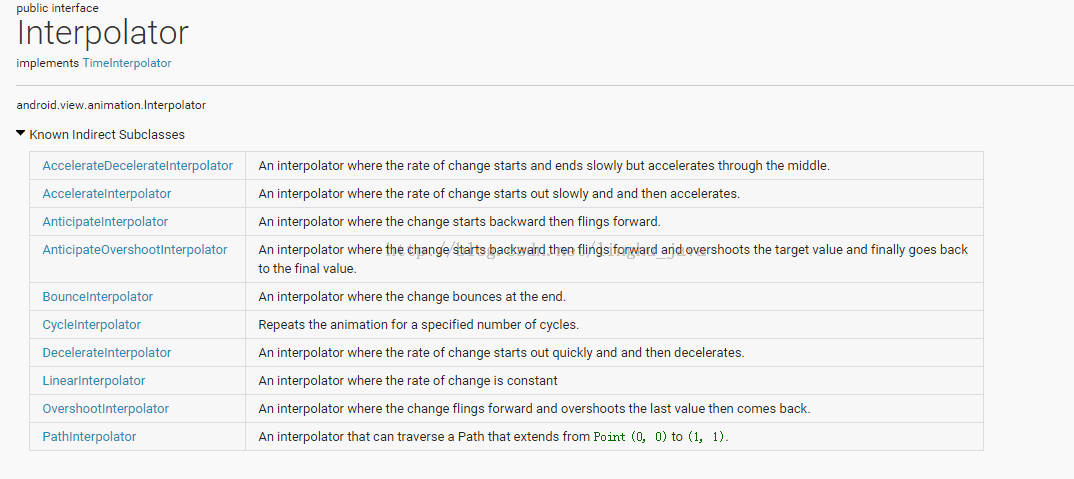 Android 動畫插值器 Interpolator 全解析
備註:在 AnimationSet 中,Scale 應該比 Translate 更早加入。 Interpolator 是時間插值類,用來定義動畫變換的速度曲線,能為 a