

編輯:關於 Android 程式設計
Android 的 TextView 本身就支援一部分 HTML 標籤,包括字型粗細、大小、顏色設定與超連結等常用項目。使用方式非常直覺,只要透過 Html.fromHtml() 轉一手即可:
textView.setText(Html.fromHtml(str));
把樣式直接寫進字串裡,粗體用 <b>、連結用 <a href>,fromHtml 會解析成 Spanned 再交給 TextView 顯示:
import android.text.Html;

TextView t3 = (TextView) findViewById(R.id.text3);
t3.setText(Html.fromHtml(
        "<b>text3:</b> Text with a "
        + "<a href=\"https://www.google.com\">link</a> "
        + "created in the Java source code using HTML."));
值得注意的是,這裡的 <a> 標籤只會把文字染上連結顏色,點擊其實不會有任何反應。要讓它真的能跳轉,得在 TextView 上掛 LinkMovementMethod,或者在版面中加上 android:autoLink="web"。
解析並顯示 HTML 碼本身很簡單:
Spanned text = Html.fromHtml(source);
tv.setText(text);
但預設情況下,HTML 裡 <img> 節點的圖片是不會出現的。還好 fromHtml 還有一個多參數的重載版本:
fromHtml(String source, Html.ImageGetter imageGetter, Html.TagHandler tagHandler)
只要自己實作 ImageGetter,告訴系統「拿到一個 src 字串時該怎麼取得 Drawable」,圖片就能正常顯示了:
ImageGetter imgGetter = new Html.ImageGetter() {
    @Override
    public Drawable getDrawable(String source) {
        Drawable drawable = null;
        drawable = Drawable.createFromPath(source);// 或改成從網路下載
        // Important:必須設定邊界,否則圖片不會顯示
        drawable.setBounds(0, 0, drawable.getIntrinsicWidth(),
                drawable.getIntrinsicHeight());
        return drawable;
    }
};
最後那個 setBounds 是最容易漏掉的一步。Drawable 若沒有邊界,繪製時等於沒有可畫的區域,畫面自然一片空白——很多人卡在這裡,以為是路徑或權限的問題。
至於第三個參數 TagHandler,我們這裡沒有自訂標籤要處理,直接傳 null 即可:
tv.setText(Html.fromHtml(source, imgGetter, null));
若圖片來源是網路,getDrawable 內不能同步下載(會卡住主執行緒),必須先自行抓圖、處理好再觸發刷新,並留意圖片高度未知時 TextView 可能出現版面跳動。另外 fromHtml 只支援有限的標籤集合,像 <div>、<style>、CSS 版面這些是完全不支援的;真的需要完整網頁排版時,改用 WebView 會合適得多。
 Android Studio 必裝外掛 GsonFormat:一鍵把 JSON 轉成 Java Bean
寫過網路相關的 Android 專案的人,大概都做過這件事:拿著服務端給的 JSON 文件,一個欄位一個欄位地手刻 Java Bean——屬性名稱、型別、getter/s
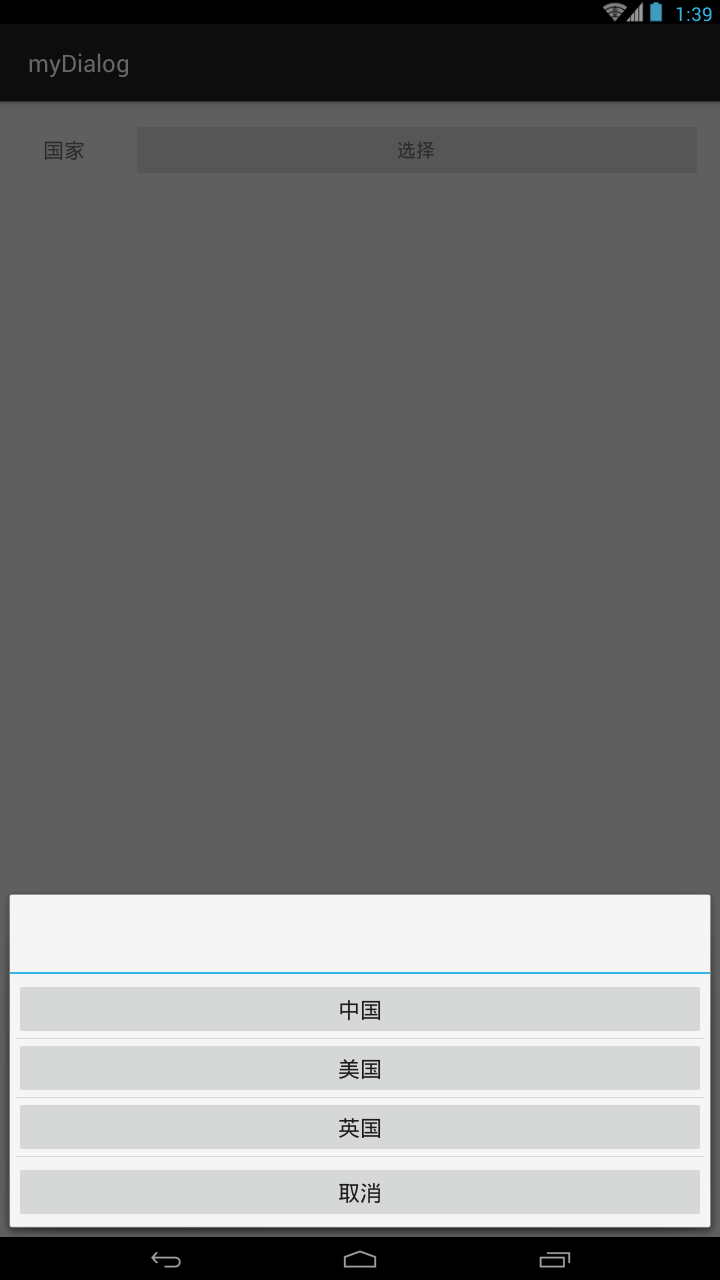 Android 懸浮 Dialog 對話框實現
用 Dialog 打造輕量懸浮互動 在 Android 介面中,Dialog 常用於短暫的選擇、確認或輸入操作。若希望對話框以懸浮方式呈現,並自訂位置與寬度,可以透過 W
 Android SwipeRefreshLayout 下拉刷新控件使用方法詳解
如今 Material Design 十分流行,而 SwipeRefreshLayout 就是原生提供的下拉刷新控件(也就是 Facebook 那種效果)。它幾乎可以包裹
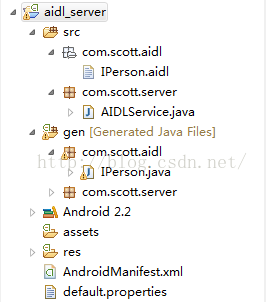 Android AIDL 實作跨進程通信教學
在 Android 中,當不同進程需要互相呼叫方法或傳遞資料時,可以使用 AIDL。AIDL 全名為 Android Interface Definition Langu