

編輯:關於 Android 程式設計
最近在開發一個應用時,有個想法:把設定頁面和應用頁面放在一起,讓使用者能即時看到自己調整設定後對 UI 的影響,這樣操作起來會更方便。琢磨了好一陣子,最後發現 SlidingDrawer 這個控制項正好能實現這樣的效果——也就是一個「抽屜」。拉開抽屜會佔據半個螢幕,另外半個螢幕仍顯示應用頁面,效果相當不錯。
其實 Android 的 launcher 本身就是一個抽屜,打開它就能看到已安裝的應用,相信大家都見過、用過。下面我們就來做一個類似的效果,當然只在 UI 呈現上追求相近。
SlidingDrawer 使用起來非常簡單,基本上在 XML 中設定好即可:
<?xml version="1.0" encoding="utf-8"?><RelativeLayout xmlns:android="https://schemas.android.com/apk/res/android" android:layout_width="fill_parent" android:layout_height="fill_parent"> <TextView android:layout_width="fill_parent" android:layout_height="wrap_content" android:text="@string/hello" android:textSize="20sp" /> <SlidingDrawer android:id="@+id/sd" android:layout_width="match_parent" android:layout_height="match_parent" android:handle="@+id/iv" android:content="@+id/myContent" android:orientation="vertical"> <ImageView android:id="@+id/iv" android:layout_width="wrap_content" android:layout_height="wrap_content" android:src="@drawable/open1" /> <GridView android:id="@id/myContent" android:layout_width="wrap_content" android:layout_height="wrap_content" android:numColumns="3" android:background="@drawable/background" android:gravity="center" /> </SlidingDrawer></RelativeLayout>
在 SlidingDrawer 標籤中,android:handle 指的是抽屜的把手圖片,android:content 則指向抽屜內部的佈局內容。有了這兩個設定,一個抽屜的雛形就出來了。
接著在 Activity 中載入佈局,並為抽屜設定開關的監聽事件,讓把手圖片能依狀態切換:
sd.setOnDrawerOpenListener(new SlidingDrawer.OnDrawerOpenListener() { public void onDrawerOpened() { iv.setImageResource(R.drawable.close1); // 開啟時設為向下箭頭 }});sd.setOnDrawerCloseListener(new SlidingDrawer.OnDrawerCloseListener() { public void onDrawerClosed() { iv.setImageResource(R.drawable.open1); // 關閉時恢復 }});
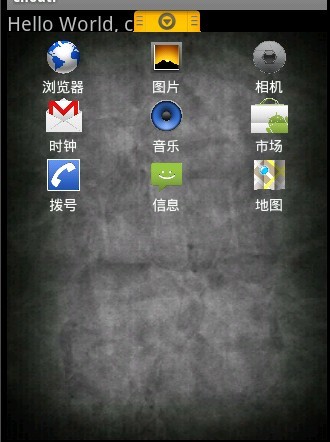
抽屜內部我用 GridView 搭配一個自定義的 MyAdapter,來顯示「圖標 + 文字」的項目效果。MyAdapter 繼承 BaseAdapter,在 getView 中透過 LayoutInflater 載入自定義佈局並綁定圖片與文字即可。
以下是最終的執行效果:
SlidingDrawer 是個非常實用的控制項,除了本文所述的應用場景外,還有許多發揮空間。只要善加利用,它一定能為你的應用增添不少亮點。
 Android 讀取 asset 大文件報錯的解決方案
在 Android 中,把文件放進 assets 目錄時其實存在大小限制。一旦單個文件超過 1M,就可能出 Data exceeds UNCOMPRESS_DATA_MA
 自定義控件之 Android 列表分組及字母導航
有了前幾篇的重構基礎,現在把 ListView 分組列表進一步重構為自定義控件就非常簡單了,只需要把初始化操作放到自定義控件的構造函數裡面即可。重構後的自定義控件以前一篇
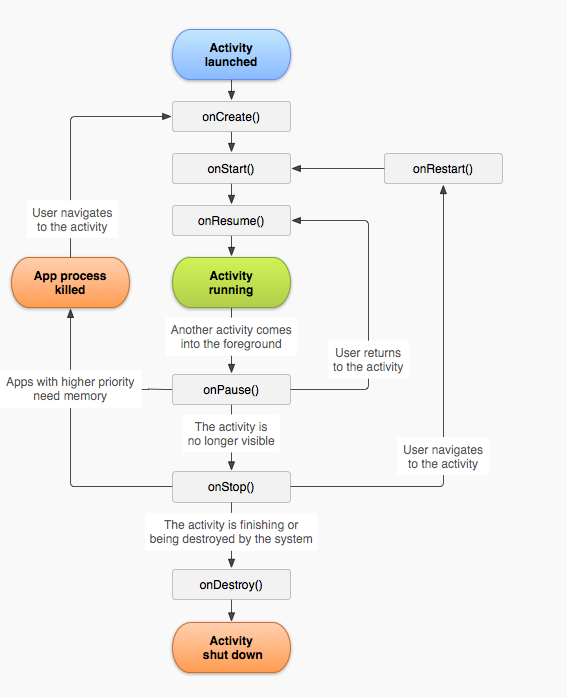 Activity 數據保存機制探索與實踐
開發中我遇到過這樣一個問題:當我通過 Intent 打開一個此前已經打開過的 Activity 時,新打開的界面狀態會丟失。而當我直接按 home 鍵將 Activity
 微信怎麼群發訊息?用群發助手一次通知所有朋友
現在很少人再用簡訊或飛信聯絡了。微信出現之後,慢慢取代了這些老工具,成為多數人日常溝通的首選。問題是到了過年過節,想給幾百位朋友統統送上一句祝福,一個個點開對話實在太費工