

編輯:關於 Android 程式設計
更換壁紙、設置頭像這類需求,往往要求使用者先裁剪一張合適的圖。與其自己實現縮放手柄,不如直接調用系統相冊自帶的裁剪界面。本文以「裁剪後設為壁紙」為例說明整個流程。
private static final int PHOTO_PICKED_WITH_DATA = 3021;
private static Uri mCropUri;
裁剪結果往往是大圖,通過 Intent 的 extras 回傳會超出 Binder 緩衝上限導致崩潰。可靠做法是把裁剪結果直接寫入文件,再用 Uri 讀回來。
public void setWallPaper(View v) {
    // 取得圖片在本地的緩存文件
    File file = ImageLoader.getInstance(this).getImageFile(picUrl);
    // 指定裁剪結果的輸出文件
    mCropUri = Uri.fromFile(new File(file.getParentFile(), "crop"));
    Uri uri = Uri.fromFile(file);

    Intent intent = getCropImageIntent(uri);
    startActivityForResult(intent, PHOTO_PICKED_WITH_DATA);
}/** 構造裁剪圖片的 Intent */
public static Intent getCropImageIntent(Uri photoUri) {
Intent intent = new Intent("com.android.camera.action.CROP");
intent.setDataAndType(photoUri, "image/*");
intent.putExtra("crop", true);
intent.putExtra("scale", true); // 允許縮放
intent.putExtra(MediaStore.EXTRA_OUTPUT, mCropUri);
intent.putExtra("outputFormat", Bitmap.CompressFormat.JPEG.toString());
intent.putExtra("aspectX", 5); // 裁剪框寬高比
intent.putExtra("aspectY", 4);
intent.putExtra("return-data", false); // 結果寫文件,不走 extras
return intent;
}常用可選參數還有:circleCrop 把選框變成圓形(頭像場景常用)、outputX 與 outputY 指定輸出圖片的像素尺寸、FaceDetection 開啟人臉識別定位。
@Override
protected void onActivityResult(int requestCode, int resultCode, Intent data) {
    super.onActivityResult(requestCode, resultCode, data);
    if (requestCode != PHOTO_PICKED_WITH_DATA || resultCode != RESULT_OK) return;

    Bitmap bitmap = decodeUriAsBitmap(mCropUri);
    if (bitmap != null) {
        WallpaperManager wallpaperManager = WallpaperManager.getInstance(this);
        try {
            wallpaperManager.setBitmap(bitmap);
            Toast.makeText(this, "壁紙設置成功", Toast.LENGTH_LONG).show();
        } catch (IOException e) {
            e.printStackTrace();
        }
    }
}
解碼時記得先做降採樣(BitmapFactory.Options 的 inSampleSize),高OLUTION 圖片直接 decode 很容易 OOM。若只需要返回給上一頁,也可改成 return-data 為 true 並從 data 中取 Bitmap,但僅適用於小尺寸輸出。
com.android.camera.action.CROP 並非 Android 標準 Intent,屬於各家相冊 App 的私有約定。實戰中会遇到:部分 ROM 沒有任何應用能處理該 action,直接 startActivityForResult 會拋 ActivityNotFoundException;有些 ROM 忽略 aspectX/aspectY,有些忽略 outputX/outputY;還有的裁剪後不寫文件,導致 mCropUri 為空。
因此新項目更推薦使用成熟的裁剪庫(如 UCrop、Android-Image-Cropper),它們自己實現裁剪界面,行為在各設備上一致,還能自定義 UI 與手勢。若堅持調用系統實現,至少要包一層 try-catch,並準備「無法裁剪時直接使用原圖」的降級分支。
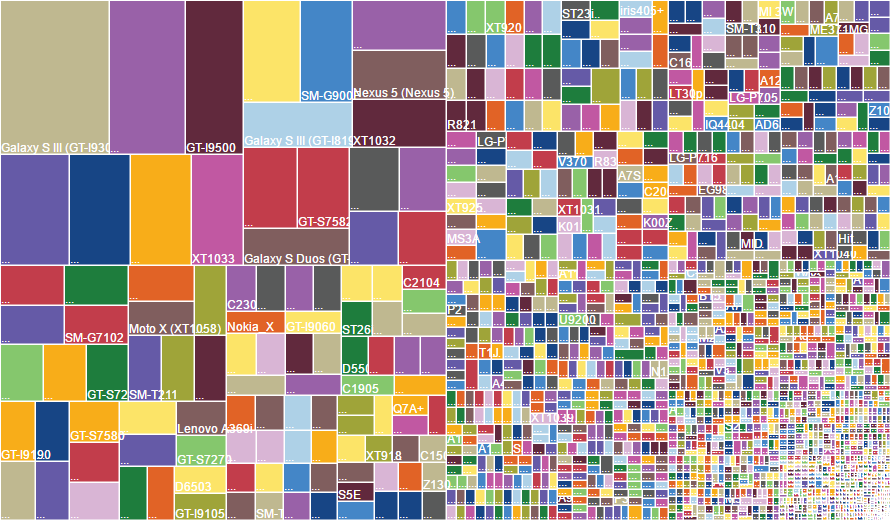 Android 分辨率與屏幕適配詳解
屏幕適配是每個 Android 開發者都繞不開的話題。本文從原理講到實踐,系統梳理了分辨率與屏幕適配的知識體系。 一、為什麼要做屏幕適配 最根本的原因是碎片化。由於 An
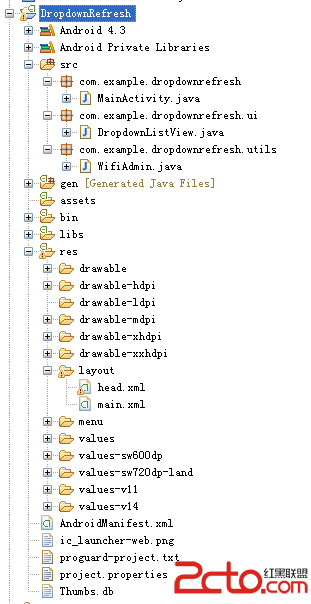 Android下拉刷新實作:以Wi-Fi列表為例
下拉刷新是行動應用常見互動,使用者可以透過手勢主動更新列表內容。本文以Wi-Fi列表為例,說明如何將下拉刷新元件與網路掃描結合。自訂下拉列表元件DropdownListV
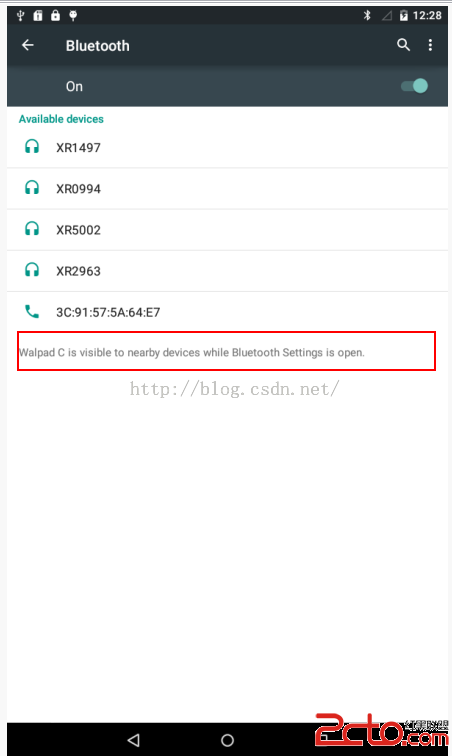 Android系統定制之路(初識MTK):藍牙名稱、WiFi熱點、通知彈窗與休眠選項
今天接到一個客戶的新訂單需求,總共有40多項,先記錄其中幾個較典型的系統定制項目:修改系統藍牙名稱、WiFi熱點名稱、通知彈窗預設值,以及在休眠選項中新增「永不休眠」。以
 Android 入門:Button 點擊事件與 Toast 提示控件綜合實戰
前面我們已經在 main.xml 裡定義了 Button 物件,接下來就來看看 Button 如何實現事件響應。 Button 按鈕觸發的事件處理,我們稱之為 Even