

編輯:關於 Android 程式設計
視圖動畫(又稱補間動畫)是最早的一套動畫方案,使用簡單但有明確邊界:
視圖動畫一共四種:縮放 ScaleAnimation、平移 TranslateAnimation、漸變 AlphaAnimation、旋轉 RotateAnimation;再加上一個用來組合它們的 AnimationSet,基本覆蓋了日常需求。
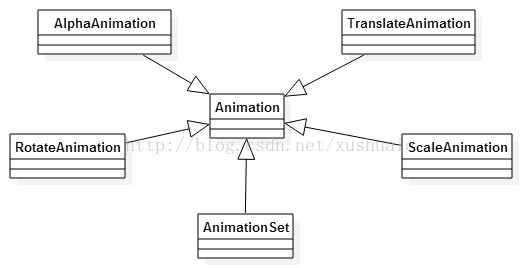
先記住一個常用開關:
animation.setFillAfter(true); // 動畫結束後保持終态,不回彈到起始畫面
(1)以 View 左上角為縮放中心,水平放大一倍、垂直縮小為一半:
float fromXScale = 1.0f, toScaleX = 2.0f;
float fromYScale = 1.0f, toScaleY = 0.5f;
Animation animation = new ScaleAnimation(fromXScale, toScaleX, fromYScale, toScaleY);
animation.setDuration(3000);
textView.startAnimation(animation);

(2)以 View 中心為縮放中心,橫縱都縮小一半:
float pivotX = textView.getWidth() / 2;
float pivotY = textView.getHeight() / 2;
Animation animation = new ScaleAnimation(
        1.0f, 0.5f, 1.0f, 0.5f, pivotX, pivotY);
animation.setDuration(3000);
textView.startAnimation(animation);

(3)用相對值指定中心,效果同上,但不必依賴 getWidth/getHeight:
int pivotXType = Animation.RELATIVE_TO_SELF;
float pivotXValue = 0.5f;
int pivotYType = Animation.RELATIVE_TO_SELF;
float pivotYValue = 0.5f;
Animation animation = new ScaleAnimation(
        1.0f, 0.5f, 1.0f, 0.5f, pivotXType, pivotXValue, pivotYType, pivotYValue);
animation.setDuration(3000);
textView.startAnimation(animation);

(1)以像素為單位的構造方法:
int fromXDelta = 0;
int toXDelta = getResources().getDisplayMetrics().widthPixels / 2;
int fromYDelta = 0, toYDelta = 0;
Animation animation = new TranslateAnimation(fromXDelta, toXDelta, fromYDelta, toYDelta);
animation.setDuration(5000);
textView.startAnimation(animation);

四個參數分別是動畫開始/結束時,View 相對原位置在 X、Y 方向的偏移量。
(2)帶類型標識的構造方法,靈活性更高:
int fromXType = Animation.ABSOLUTE;
float fromXValue = textView.getX();
int toXType = Animation.RELATIVE_TO_PARENT;
float toXValue = 0.5f;
int fromYType = Animation.ABSOLUTE;
float fromYValue = textView.getY();
int toYType = Animation.RELATIVE_TO_SELF;
float toYValue = 3.0f;
Animation animation = new TranslateAnimation(
        fromXType, fromXValue, toXType, toXValue,
        fromYType, fromYValue, toYType, toYValue);
animation.setDuration(3000);
textView.startAnimation(animation);
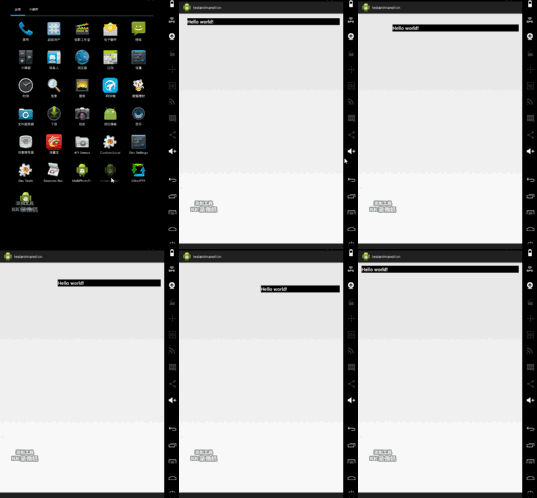
類型標識決定了數值的含義,共三種:
float fromAlpha = 0.0f; // 0.0 全透明,1.0 完全不透明
float toAlpha = 1.0f;   // 由全透明漸顯;反過來即為漸隱
Animation animation = new AlphaAnimation(fromAlpha, toAlpha);
animation.setDuration(5000);
textView.startAnimation(animation);

(1)以 View 左上角為軸心,旋轉 60 度:
Animation animation = new RotateAnimation(0, 60);
animation.setDuration(3000);
textView.startAnimation(animation);
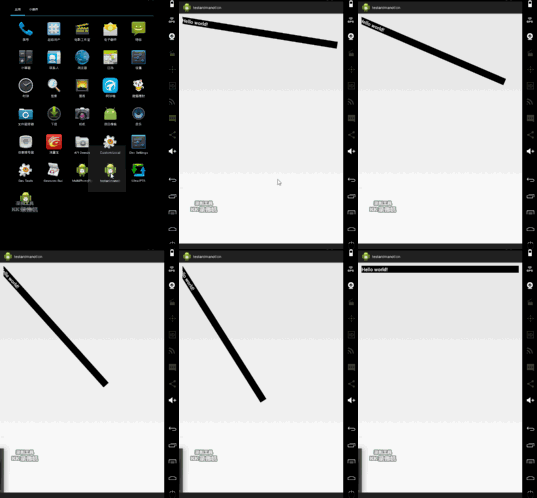
(2)以 View 自身中心為軸心,旋轉 90 度。這裡有個坑:View 在 getWidth() 返回 0 之前就取值,會拿到錯誤的中心點,因此需要放到 post 裡等佈局完成:
textView.post(new Runnable() {
    @Override
    public void run() {
        float pivotX = textView.getWidth() / 2;
        float pivotY = textView.getHeight() / 2;
        Animation animation = new RotateAnimation(0, 90, pivotX, pivotY);
        animation.setDuration(3000);
        textView.startAnimation(animation);
    }
});

(3)以父容器中心為軸心,旋轉一圈:
int pivotXType = Animation.RELATIVE_TO_PARENT;
float pivotXValue = 0.5f;
int pivotYType = Animation.RELATIVE_TO_PARENT;
float pivotYValue = 0.5f;
Animation animation = new RotateAnimation(
        0, 360, pivotXType, pivotXValue, pivotYType, pivotYValue);
animation.setDuration(3000);
textView.startAnimation(animation);

TranslateAnimation translateAnimation = new TranslateAnimation(0.1f, 100.0f, 0.1f, 100.0f);
AlphaAnimation alphaAnimation = new AlphaAnimation(0.0f, 1.0f);

AnimationSet set = new AnimationSet(true);
set.addAnimation(translateAnimation);
set.addAnimation(alphaAnimation);
set.setDuration(3000); // 該時長會作用到集合中的每個動畫
textView.startAnimation(set);

構造 AnimationSet 時傳入的 true 表示共用同一個插值器,多個動畫的節奏才會保持協調。
 Android 話筒音頻採樣與應用
Android 手機話筒採樣的部分程式碼是從網上找到的,具體出處已不復記憶,這裡主要記錄使用採樣結果並整合進自身 App 功能的做法。1. 在一些 App 中會需要對話筒
 利用 AbSlidingPlayView 打造高互動廣告輪播
在許多新聞與內容型 App 中,首頁常會出現可自動切換的橫幅或資訊卡片。這類效果不一定需要複雜的第三方元件,只要掌握 ViewPager、計時器與指示點的組合,就能完成流
 自定義 LinearLayout 實現左右側滑菜單:完美兼容 ListView、ScrollView、ViewPager 等滑動控件
國際慣例,先看效果: 閱讀本文之前,請先確認自己熟悉 Scroller 的相關知識;如果不熟悉,建議先補上這一課再回來。 一、結構拆解 反覆觀察上面的效果圖,可以得出
 Android 源碼解析:setContentView() 背後系統做了什麼
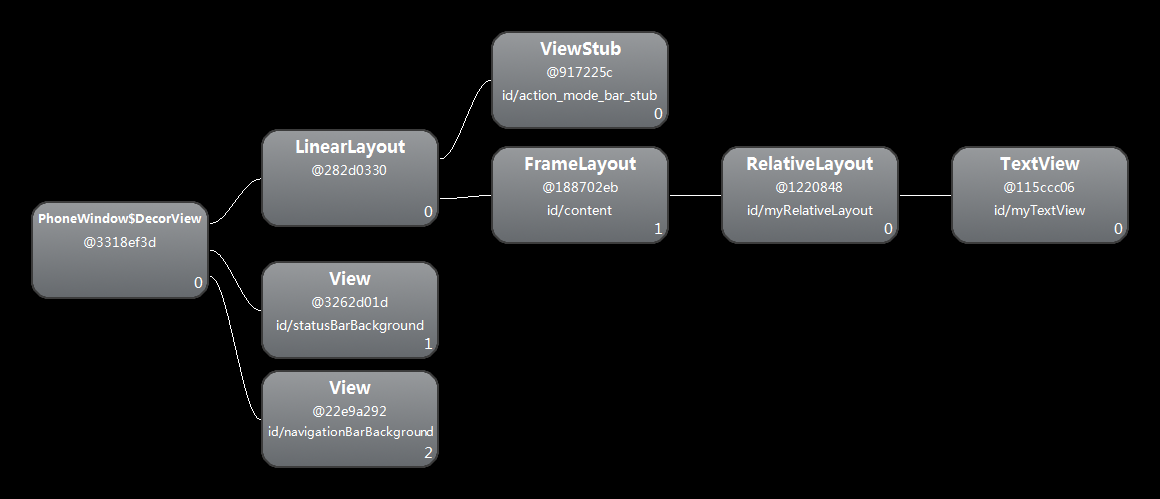
前言 在 Activity 中,我們幾乎都會在第一行調用 setContentView(R.layout.XXX),但這行代碼背後系統究竟做了哪些工作?要理解這一點,需要