

編輯:關於 Android 程式設計
本篇要完成兩件事:讓歌詞隨播放進度自動捲動並可手動拖動定位,以及用 ViewPager 把「專輯封面頁」與「歌詞頁」包成一個可左右滑動的播放介面。
後續文章會補上本地已下載音樂的掃描,以及歌詞的自動下載。由於沒有自建伺服器,所有依賴網路的功能(搜尋、下載歌曲、下載歌詞)都無法保證長期可用;若來源規則變動導致失效,歡迎留言,我會在可行時更新。
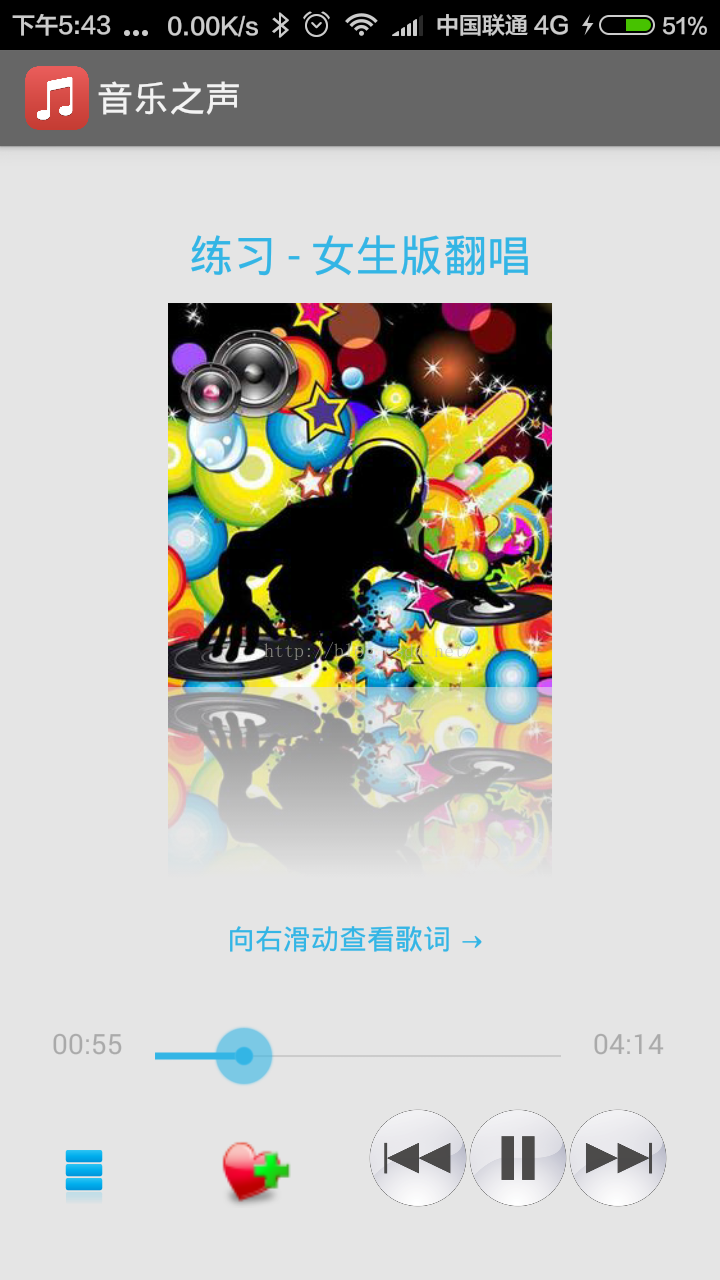
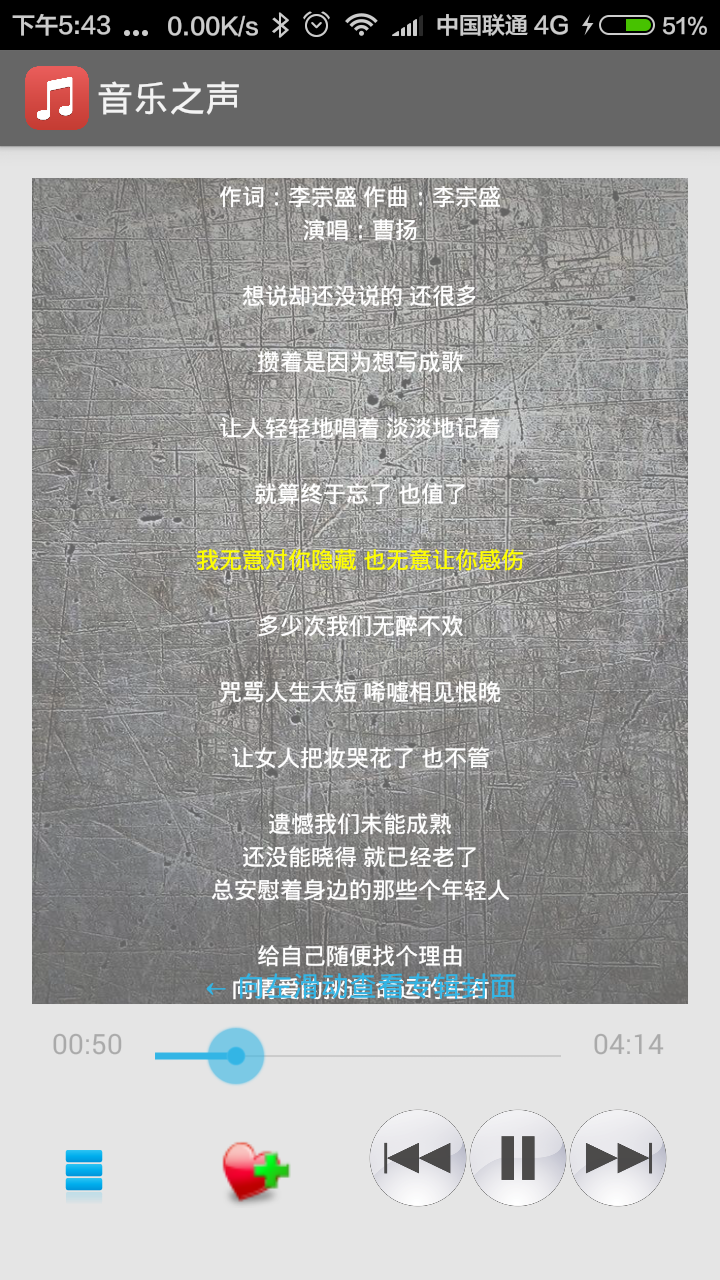
播放頁原本只有一張專輯封面,現在把它抽成一個獨立 Layout,再準備一個歌詞 Layout,兩者放進同一个 ViewPager。封面頁負責歌名、封面與倒影;歌詞頁負責 LrcView。進度條、播放控制列則留在 Activity 主版面,屬於兩頁共用的部分。
這裡最容易踩的坑是 findViewById 的作用域:子頁的元件必須從 inflate 出來的 View 上找,直接對 Activity 呼叫 findViewById 會拿到 null。
private void initViewPager() {
    View albumLayout = LayoutInflater.from(getApplicationContext())
            .inflate(R.layout.album_image_layout, null);
    // 必須從 albumLayout 取,否則 textView2_title 為 null
    textView2_title = albumLayout.findViewById(R.id.textView2_title);
    imageView1_ablum = albumLayout.findViewById(R.id.imageView1_ablum);
    imageView1_ablum_reflection = albumLayout.findViewById(R.id.imageView1_ablum_reflection);
    views.add(albumLayout);

    View lrcLayout = LayoutInflater.from(getApplicationContext())
            .inflate(R.layout.lrc_layout, null);
    lrcView = lrcLayout.findViewById(R.id.lrcView);
    lrcView.setLoadingTipText("正在加載歌詞......");
    lrcView.setBackgroundResource(R.mipmap.app_splash_bg);
    lrcView.getBackground().setAlpha(150);
    // 使用者拖動歌詞 → 反過來定位播放進度
    lrcView.setListener(new ILrcView.LrcViewListener() {
        @Override
        public void onLrcSeeked(int newPosition, LrcRow row) {
            if (playService.isPlaying()) {
                playService.seekTo((int) row.time);
            }
        }
    });
    views.add(lrcLayout);

    adapter = new ViewPagerAdapter(views);
    viewPager.setAdapter(adapter);
    viewPager.addOnPageChangeListener(this);
}
播放服務每次 publish 進度時,同時送出兩則訊息:一則更新時間文字與進度條,一則讓 LrcView 跳到對應時間戳。UI 更新一律走 Handler,因為背景執行緒不能直接改介面。
@Override
public void publish(int progress) {
    myHandler.obtainMessage(UPDATE_TIME, progress).sendToTarget();
    seekBar1.setProgress(progress);
    myHandler.obtainMessage(UPDATE_LRC, progress).sendToTarget();
}

static class MyHandler extends Handler {
    private final WeakReference<PlayActivity> weak;
    MyHandler(PlayActivity activity) {
        weak = new WeakReference<>(activity);
    }
    @Override
    public void handleMessage(Message msg) {
        PlayActivity activity = weak.get();
        if (activity == null) return;
        switch (msg.what) {
            case UPDATE_TIME:
                activity.textView1_start_time.setText(MediaUtils.formatTime((int) msg.obj));
                break;
            case UPDATE_LRC:
                activity.lrcView.seekLrcToTime((int) msg.obj);
                break;
            default:
                break;
        }
    }
}
String songName = mp3Info.getTitle();
String lrcPath = Environment.getExternalStorageDirectory()
        + Constant.DIR_LRC + "/" + songName + ".lrc";
File lrcFile = new File(lrcPath);
if (!lrcFile.exists()) {
    // 尚未下載歌詞,此處先略過
} else {
    loadLRC(lrcFile);
}
private void loadLRC(File lrcFile) {
    StringBuilder buf = new StringBuilder();
    char[] chars = new char[1024];
    try (BufferedReader in = new BufferedReader(
            new InputStreamReader(new FileInputStream(lrcFile)))) {
        int len;
        while ((len = in.read(chars)) != -1) {
            buf.append(chars, 0, len);
        }
    } catch (IOException e) {
        e.printStackTrace();
    }
    ILrcBuilder builder = new DefaultLrcBuilder();
    List<LrcRow> rows = builder.getLrcRows(buf.toString());
    lrcView.setLrc(rows);
}
上半部交給 ViewPager,下半部固定放時間、進度條與播放控制列。
<RelativeLayout xmlns:android="https://schemas.android.com/apk/res/android"
    android:layout_width="match_parent"
    android:layout_height="match_parent"
    android:padding="@dimen/activity_horizontal_margin">

    <android.support.v4.view.ViewPager
        android:id="@+id/viewpager"
        android:layout_width="match_parent"
        android:layout_height="match_parent"
        android:layout_above="@+id/control_bar" />

    <LinearLayout
        android:id="@+id/control_bar"
        android:layout_width="match_parent"
        android:layout_height="wrap_content"
        android:layout_alignParentBottom="true"
        android:orientation="vertical"
        android:padding="10dp">

        <LinearLayout
            android:layout_width="match_parent"
            android:layout_height="wrap_content"
            android:layout_marginBottom="10dp"
            android:orientation="horizontal">

            <TextView
                android:id="@+id/textView1_start_time"
                android:layout_width="wrap_content"
                android:layout_height="wrap_content"
                android:text="00:00"
                android:textColor="@android:color/darker_gray" />

            <SeekBar
                android:id="@+id/seekBar1"
                android:layout_width="235dp"
                android:layout_height="wrap_content" />

            <TextView
                android:id="@+id/textView1_end_time"
                android:layout_width="wrap_content"
                android:layout_height="wrap_content"
                android:text="00:00"
                android:textColor="@android:color/darker_gray" />
        </LinearLayout>

        <RelativeLayout
            android:layout_width="match_parent"
            android:layout_height="50dp">

            <ImageView
                android:id="@+id/imageView1_play_mode"
                android:layout_width="wrap_content"
                android:layout_height="wrap_content"
                android:layout_alignParentLeft="true"
                android:src="@mipmap/app_music_order" />

            <ImageView
                android:id="@+id/imageView1_favorite"
                android:layout_width="40dp"
                android:layout_height="40dp"
                android:layout_toRightOf="@+id/imageView1_play_mode"
                android:layout_marginLeft="50dp"
                android:src="@mipmap/app_love_unselected" />

            <ImageView
                android:id="@+id/imageView3_previous"
                android:layout_width="50dp"
                android:layout_height="50dp"
                android:layout_toLeftOf="@+id/imageView2_play_pause"
                android:src="@mipmap/app_music_previous" />

            <ImageView
                android:id="@+id/imageView2_play_pause"
                android:layout_width="50dp"
                android:layout_height="50dp"
                android:layout_toLeftOf="@+id/imageView1_next"
                android:src="@mipmap/app_music_play" />

            <ImageView
                android:id="@+id/imageView1_next"
                android:layout_width="50dp"
                android:layout_height="50dp"
                android:layout_alignParentRight="true"
                android:src="@mipmap/app_music_next" />
        </RelativeLayout>
    </LinearLayout>
</RelativeLayout>
public class ViewPagerAdapter extends PagerAdapter {
    private final List<View> list;

    public ViewPagerAdapter(List<View> list) {
        this.list = list;
    }

    @Override
    public int getCount() {
        return list == null ? 0 : list.size();
    }

    @Override
    public boolean isViewFromObject(View view, Object object) {
        return view == object;
    }

    @Override
    public void destroyItem(ViewGroup container, int position, Object object) {
        container.removeView((View) object);
    }

    @Override
    public Object instantiateItem(ViewGroup container, int position) {
        container.addView(list.get(position));
        return list.get(position);
    }

    @Override
    public int getItemPosition(Object object) {
        return POSITION_NONE;
    }
}
補上已下載音樂的掃描清單,以及依歌名自動下載對應 lrc 檔,讓歌詞不再依賴手動放置測試檔案。
 Android 彈窗樣式大全:一套基於 AlertDialog 與 Dialog 的封裝實踐
簡介 在 Android 專案裡,彈窗幾乎是每個 App 都躲不開的需求:提示確認、加載等待、列表選擇、登錄輸入框等等。如果每次都要重新寫一遍 Dialog 的樣式與樣板
 Android 5.0 RecyclerView 使用指南:適配器、布局管理器與分割線
RecyclerView 的定位 Android 5.0 引入 RecyclerView 後,列表與網格類應用有了更靈活的選擇。相比傳統 ListView 與 GridV
 Android 安全機制七大支柱完全解析
Android 之所以能在開放的前提下維持相對可控的安全邊界,靠的不是單一防線,而是多層機制疊加出來的縱深防禦。從安裝那一刻的沙箱隔離,到執行期的大小配件檢查,再到核心層
 Android TextView 關鍵字變色實作
在 Android 介面中,若想讓 TextView 的部分文字以不同顏色標示,可以使用 SpannableStringBuilder 或 SpannableString