

編輯:關於 Android 程式設計
Gallery 提供橫向滾動的縮圖列表,ImageSwitcher 則負責在其上方展示大圖並支援切換動畫。兩者搭配,就能做出經典的圖片瀏覽器效果。
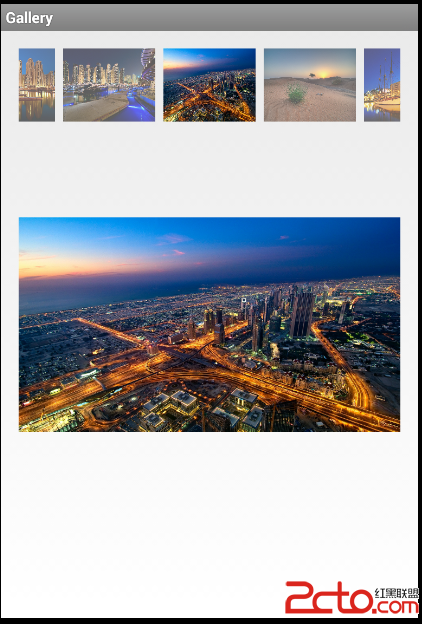
用 RelativeLayout 上下排列:ImageSwitcher 在上、Gallery 在下。unselectedalpha 用來設定未選中縮圖的透明度。
<RelativeLayout xmlns:android="https://schemas.android.com/apk/res/android"
    xmlns:tools="https://schemas.android.com/tools"
    android:layout_width="match_parent"
    android:layout_height="match_parent"
    android:paddingBottom="@dimen/activity_vertical_margin"
    android:paddingLeft="@dimen/activity_horizontal_margin"
    android:paddingRight="@dimen/activity_horizontal_margin"
    android:paddingTop="@dimen/activity_vertical_margin"
    tools:context=".MainActivity">

    <ImageSwitcher
        android:id="@+id/imageSwitcher"
        android:layout_width="wrap_content"
        android:layout_height="wrap_content"
        android:layout_weight="2"
        android:paddingTop="30px" />

    <Gallery
        android:id="@+id/gallery1"
        android:layout_width="match_parent"
        android:layout_height="wrap_content"
        android:layout_weight="1"
        android:spacing="5px"
        android:unselectedalpha="0.6" />
</RelativeLayout>關鍵點有三個:為 ImageSwitcher 設定進出動畫、透過 ViewFactory 提供它要顯示的 ImageView,以及監聽 Gallery 的 OnItemSelectedListener 同步切換大圖。
public class MainActivity extends Activity {

    private int[] imageId = new int[] {
            R.drawable.a, R.drawable.b, R.drawable.c, R.drawable.d, R.drawable.e,
            R.drawable.f, R.drawable.g, R.drawable.h, R.drawable.i, R.drawable.j,
            R.drawable.k
    };

    private ImageSwitcher imageSwitcher;
    private Gallery gallery;

    @Override
    protected void onCreate(Bundle savedInstanceState) {
        super.onCreate(savedInstanceState);
        setContentView(R.layout.activity_main);

        imageSwitcher = (ImageSwitcher) findViewById(R.id.imageSwitcher);
        gallery = (Gallery) findViewById(R.id.gallery1);

        // 進出場動畫
        imageSwitcher.setInAnimation(AnimationUtils.loadAnimation(this, android.R.anim.fade_in));
        imageSwitcher.setOutAnimation(AnimationUtils.loadAnimation(this, android.R.anim.fade_out));

        // ImageSwitcher 需要一個 ViewFactory 來產生它要展示的 View
        imageSwitcher.setFactory(new ViewFactory() {
            @Override
            public View makeView() {
                ImageView imageView = new ImageView(MainActivity.this);
                imageView.setScaleType(ImageView.ScaleType.FIT_CENTER);
                imageView.setLayoutParams(new ImageSwitcher.LayoutParams(
                        LayoutParams.WRAP_CONTENT, LayoutParams.WRAP_CONTENT));
                return imageView;
            }
        });

        gallery.setAdapter(new GalleryAdapter(MainActivity.this, imageId));
        // 預設選中中間那張
        gallery.setSelection(imageId.length / 2);

        gallery.setOnItemSelectedListener(new OnItemSelectedListener() {
            @Override
            public void onItemSelected(AdapterView<?> parent, View view,
                                       int position, long id) {
                imageSwitcher.setImageResource(imageId[position]);
            }

            @Override
            public void onNothingSelected(AdapterView<?> arg0) { }
        });
    }
}繼承 BaseAdapter,在 getView() 中產生縮圖 ImageView。這裡用了 convertView 複用,並透過 obtainStyledAttributes 取得 Gallery 的項目背景樣式。
public class GalleryAdapter extends BaseAdapter {

    private int[] imageId;
    private Context mContext;

    public GalleryAdapter(Context mContext, int[] imageId) {
        this.mContext = mContext;
        this.imageId = imageId;
    }

    @Override
    public int getCount() {
        return imageId.length;
    }

    @Override
    public Object getItem(int position) {
        return imageId[position];
    }

    @Override
    public long getItemId(int position) {
        return position;
    }

    @Override
    public View getView(int position, View convertView, ViewGroup parent) {
        ImageView imageView;
        if (convertView == null) {
            imageView = new ImageView(mContext);
            imageView.setScaleType(ImageView.ScaleType.FIT_XY);
            imageView.setLayoutParams(new Gallery.LayoutParams(180, 135));

            TypedArray typedArray = mContext.obtainStyledAttributes(R.styleable.Gallery);
            imageView.setBackgroundResource(typedArray.getResourceId(
                    R.styleable.Gallery_android_galleryItemBackground, 0));
            typedArray.recycle();  // 記得回收 TypedArray

            imageView.setPadding(5, 0, 5, 0);
        } else {
            imageView = (ImageView) convertView;
        }
        imageView.setImageResource(imageId[position]);
        return imageView;
    }
}
記得在 res/values/attrs.xml 中宣告 Gallery 的 styleable,並在 res/values/styles.xml 裡給 android:galleryItemBackground 一個實際的樣式資源,否則 obtainStyledAttributes 會拿不到值。
Gallery 在 API 16 就已被標記為 deprecated,官方建議改用 HorizontalScrollView 搭配 RecyclerView(設定 LinearLayoutManager 且方向為 HORIZONTAL)來實作同等效果,並能自由客製選中態的縮放動畫。不過理解 Gallery + ImageSwitcher 的「Adapter 提供資料、ViewSwitcher 負責展示與動畫」這層分工,對後續學習 RecyclerView 仍有幫助。
 仿開心消消樂:大樹星星無限循環滾動與點擊效果(自訂 View 實作)
先上效果圖這是我專案中的實際效果:下面是我抽取出來的 demo,各項適配基本都已處理好:下面來說說思路。先講原理:我用 Bitmap 建立兩張圖,一開始一張在下方(記為
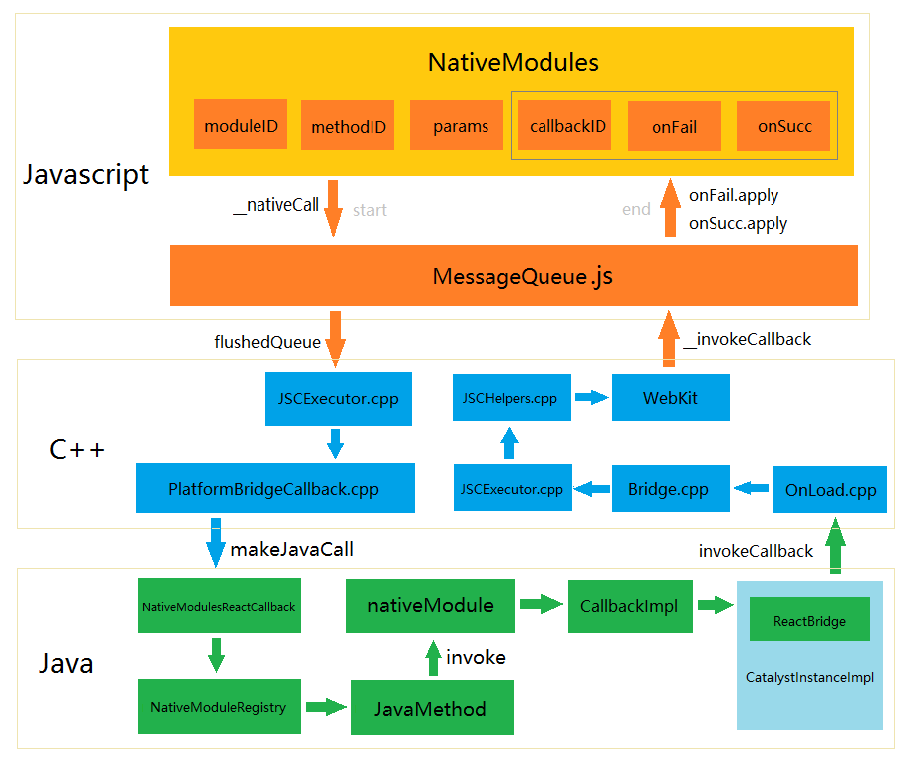 React-Native 通信原理(三):Native 被動應答 Javascript 的 callbackID 之旅
前面兩篇我們已詳細剖析了 Native 與 Javascript 的通信過程,足以應對絕大多數相互調用場景,但仍有一塊拼圖缺席——當 Javascript 需要實時獲取
 設計模式筆記:模板方法模式與流程封裝
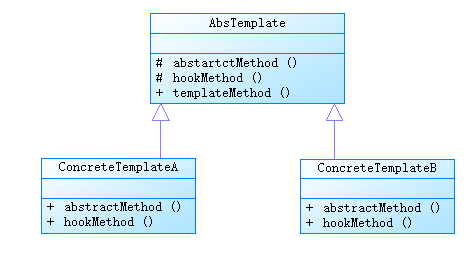
模板方法模式屬於行為型設計模式。它適合用在「流程固定,但某些步驟要交給子類實作」的情境。父類別定義演算法骨架,子類別只負責補上差異部分。 核心概念 模板方法通常定義在父
 Android 事件分發、攔截與回傳機制詳解
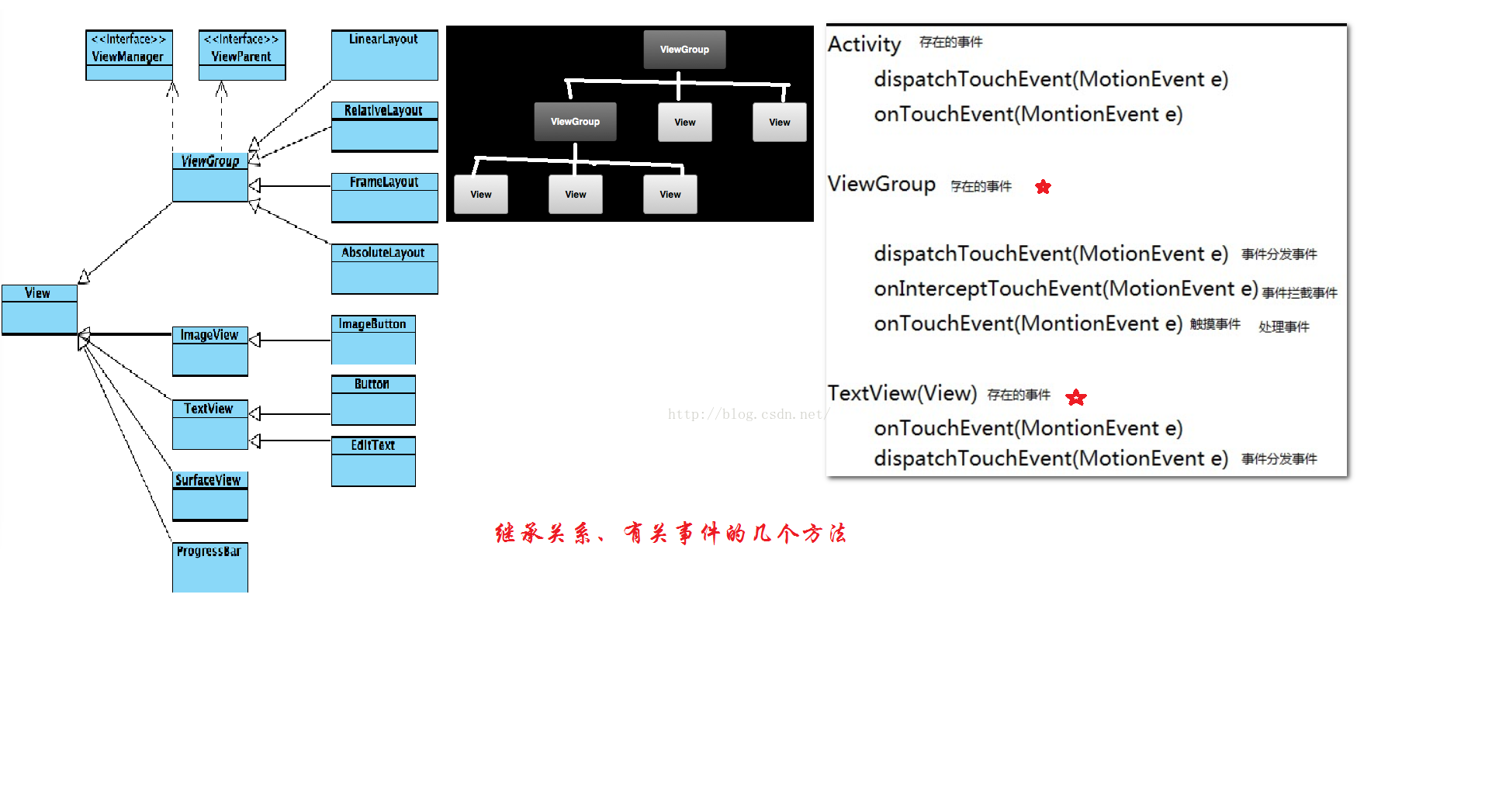
事件機制為何重要 在 Android 開發中,滑動衝突、點擊穿透、手勢優先級等問題,幾乎都與事件分發機制有關。若不了解 dispatchTouchEvent、onInte