

編輯:關於 Android 程式設計
Android Support Library 23.2 版帶來了若干新 API 與既有函式庫的功能擴充,其中 Bottom Sheet 是最受矚目的一個。它對應 Material Design 規範中的「底部面板」設計,通常用於從螢幕底部滑出表單或操作選單。
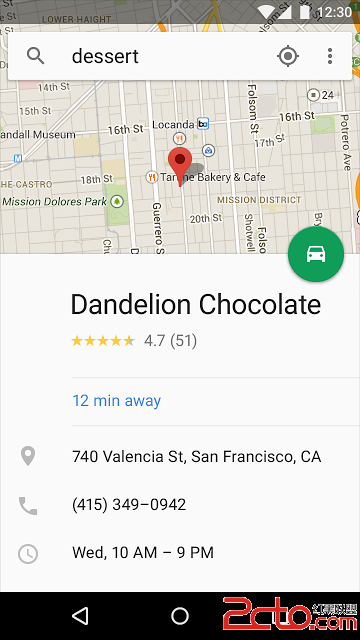
只要為 CoordinatorLayout 的某個子 View 加上 BottomSheetBehavior 即可。
<?xml version="1.0" encoding="utf-8"?>
<RelativeLayout
    android:id="@+id/bottom_sheet"
    android:layout_width="match_parent"
    android:layout_height="wrap_content"
    android:layout_alignParentBottom="true"
    app:behavior_hideable="true"
    app:behavior_peekHeight="@dimen/peek_height"
    app:layout_behavior="android.support.design.widget.BottomSheetBehavior">

    <include layout="@layout/layout_bottom_sheet" />
</RelativeLayout>
layout_bottom_sheet.xml 裡放的就是面板內容,怎麼寫端看需求。
唯一的硬性要求:這個 View 必須是 CoordinatorLayout 的直接子 View。
從原始碼可以看到這個約束的由來:
public static <V extends View> BottomSheetBehavior<V> from(V view) {
    ViewGroup.LayoutParams params = view.getLayoutParams();
    if (!(params instanceof CoordinatorLayout.LayoutParams)) {
        throw new IllegalArgumentException("The view is not a child of CoordinatorLayout");
    }
    CoordinatorLayout.Behavior behavior =
            ((CoordinatorLayout.LayoutParams) params).getBehavior();
    if (!(behavior instanceof BottomSheetBehavior)) {
        throw new IllegalArgumentException(
                "The view is not associated with BottomSheetBehavior");
    }
    return (BottomSheetBehavior<V>) behavior;
}
不是 CoordinatorLayout 的子 View,呼叫 from() 就會抛出 IllegalArgumentException。
STATE_COLLAPSED:折疊狀態。可透過 app:behavior_peekHeight 設定預設露出來的高度。
STATE_SETTLING:拖拽放開後、抵達終點位置(collapsed 或 expanded)之前的過渡狀態。
STATE_EXPANDED:完全展開。
STATE_HIDDEN:隱藏狀態。預設為 false,需透過 app:behavior_hideable 屬性開放。
STATE_DRAGGING:正在被拖拽。
監聽狀態變化:
View bottomSheet = findViewById(R.id.bottom_sheet);
BottomSheetBehavior behavior = BottomSheetBehavior.from(bottomSheet);
behavior.setBottomSheetCallback(new BottomSheetBehavior.BottomSheetCallback() {
    @Override
    public void onStateChanged(View bottomSheet, int newState) {
        String state = "null";
        switch (newState) {
        case 1: state = "STATE_DRAGGING";  break;
        case 2: state = "STATE_SETTLING";  break;
        case 3: state = "STATE_EXPANDED";  break;
        case 4: state = "STATE_COLLAPSED"; break;
        case 5: state = "STATE_HIDDEN";    break;
        }
        Log.d("MainActivity", "newState:" + state);
    }

    @Override
    public void onSlide(View bottomSheet, float slideOffset) {
        // slideOffset 範圍為 -1(collapsed)到 1(expanded)
    }
});
實務上建議用 BottomSheetBehavior.STATE_* 常數而非魔法數字,並注意 setState() 是控制面板的正式入口——程式要展開或收合面板時呼叫它,比操作 View 本身可靠。
如果面板內部有需要捲動的內容,該 View 必須支援巢狀滑動。可用的選擇包括 NestedScrollView、RecyclerView,或 API 21 以上的 ListView、ScrollView。使用不支援巢狀滑動的元件,會導致內部捲動與面板拖拽互相搶手勢,滑動體驗直接崩壞。
23.2 同時提供了這兩個現成元件,用法與一般 Dialog 幾乎相同:
Button dialogBtn = (Button) findViewById(R.id.bottom_sheet_dialog_btn);
dialogBtn.setOnClickListener(new View.OnClickListener() {
    @Override
    public void onClick(View v) {
        BottomSheetDialog dialog = new BottomSheetDialog(BottomSheetDemo.this);
        dialog.setContentView(R.layout.bottom_sheet_dialog_layout);
        dialog.show();
    }
});
bottom_sheet_dialog_layout.xml:
<?xml version="1.0" encoding="utf-8"?>
<LinearLayout
    android:layout_width="match_parent"
    android:layout_height="wrap_content"
    android:orientation="vertical"
    android:paddingLeft="15dp"
    android:paddingRight="15dp">

    <TextView
        android:layout_width="wrap_content"
        android:layout_height="wrap_content"
        android:minHeight="30dp"
        android:gravity="center"
        android:text="選取方式"
        android:textColor="?attr/colorAccent" />

    <Button
        android:id="@+id/photo"
        android:layout_width="match_parent"
        android:layout_height="wrap_content"
        android:minHeight="48dp"
        android:gravity="center"
        android:text="照片"
        android:textColor="@color/gray" />

    <View
        android:layout_width="match_parent"
        android:layout_height="1dp"
        android:background="@color/color_gray" />

    <Button
        android:id="@+id/camera"
        android:layout_width="match_parent"
        android:layout_height="wrap_content"
        android:minHeight="48dp"
        android:gravity="center"
        android:text="相機"
        android:textColor="@color/gray" />

    <View
        android:layout_width="match_parent"
        android:layout_height="1dp"
        android:background="@color/color_gray" />

    <Button
        android:id="@+id/tv_dialog_cancel"
        android:layout_width="match_parent"
        android:layout_height="wrap_content"
        android:gravity="center"
        android:text="取消"
        android:textColor="?attr/colorAccent" />
</LinearLayout>
效果如下:
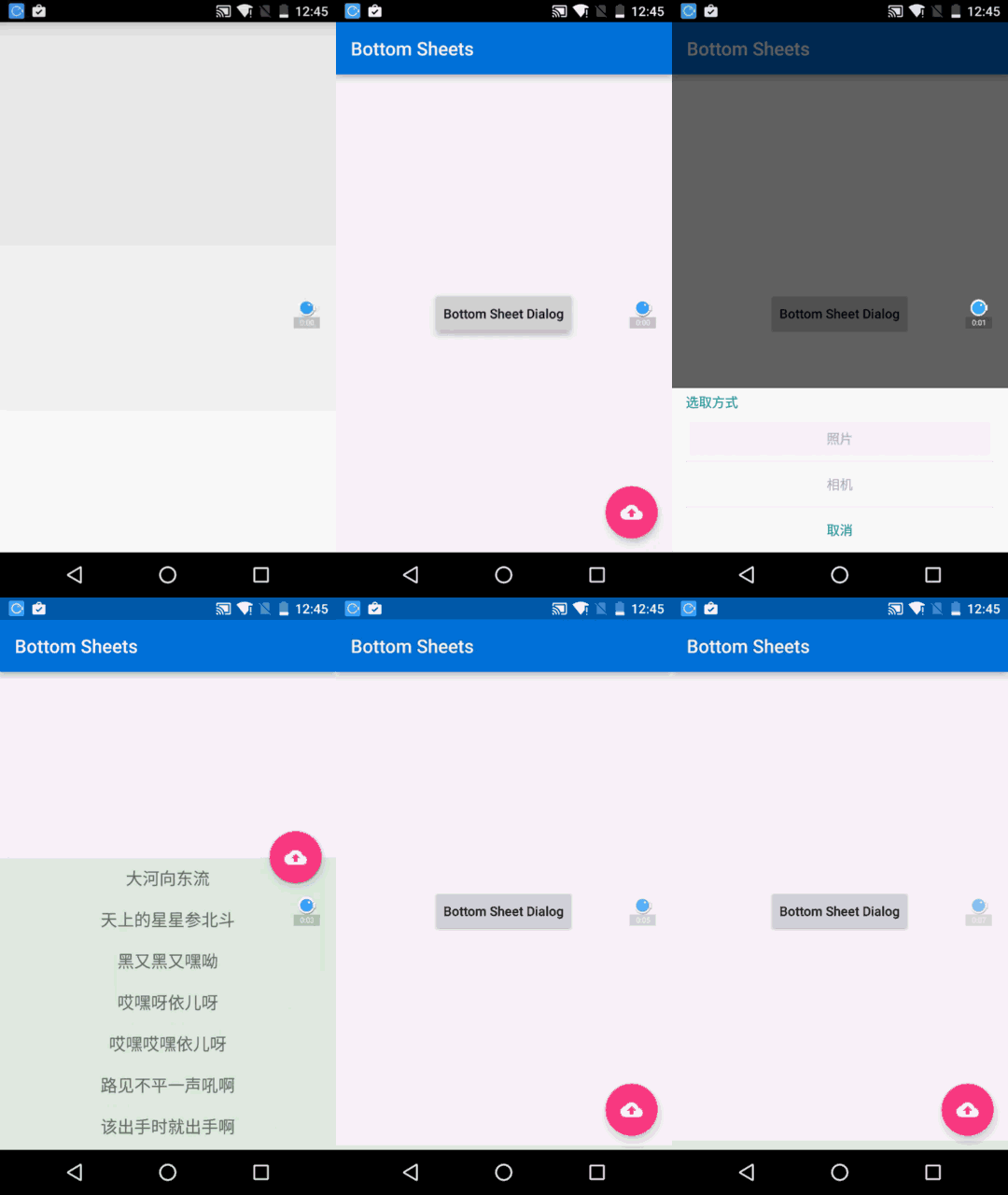
peekHeight 是使用者體驗的關鍵。設得太小會讓內容看不清,設得太大則近乎打開一個新頁面,失去「補充資訊」的輕量感。Material Design 的建議是讓它露出足以暗示「下面還有更多」的程度。
Bottom Sheet 適合的是「次要操作」與「補充資訊」,例如地圖應用中的地點詳情、媒體播放器。若某個操作是該頁面的主要任務,應該放在畫面上,而非藏進面板裡。
此外要注意,behavior_hideable 預設關閉,也就是使用者無法把面板完全滑走。若你的設計需要支援下滑關閉,記得明確設為 true,否則會出現「怎麼滑都滑不掉」的困惑。
最後提醒版本問題:Bottom Sheet 屬於 design support library,需確認依賴版本一致(23.2 或以上),並在需要巢狀滑動的舊版元件上留意 API level 限制。
 CoordinatorLayout 實作入門:滑動刪除與 Behavior 自訂(CoordinatorDemo)
CoordinatorLayout 是 Material Design 元件庫中相當核心的容器,它的價值在於提供了一套「子元件之間互相協調」的機制,讓我們能用宣告式的方式
 Android Fragment 完全入門:核心概念、生命週期與動態操作
自 Android 3.0 起,Fragment 這位新成員正式登場。它被引入的初衷很明確:讓平板這類大螢幕裝置也能擁有靈活多變的介面。平板的面積遠比手機寬裕,可以同時塞
 基於 Service 的 Android 音樂播放器實作
這是一個以 Service 為核心的 Android 音樂播放器範例。前台 Activity 負責操作介面,後台 Service 負責播放,兩者透過廣播溝通。架構設計使用
 百度地圖實戰:動態添加 Marker 與自訂 InfoWindow
本文示範如何在百度地圖上動態生成覆蓋物、為每個覆蓋物綁定商家資料,並在點擊時彈出自訂的資訊窗與詳情面板。 需求是這樣的:使用者點擊「衣食住行」或進行周邊搜尋,伺服器回傳