

編輯:關於 Android 程式設計
Toast 是最輕量的提示元件,但變化比許多人想像的多。以下從最簡單的預設用法,一路寫到完全自訂版面與跨線程呼叫。
Toast toast = Toast.makeText(getApplicationContext(),
        "默認的 Toast", Toast.LENGTH_SHORT);
toast.show();
三個參數分別是:Context(可用 getApplicationContext() 或 this)、要顯示的文字(也可傳 R.string 的資源 ID)、顯示時長。LENGTH_SHORT 約 2 秒、LENGTH_LONG 約 3.5 秒。雖然 API 看起來收 int,實際上傳自訂毫秒數並不會生效,系統會就近對應到這兩種。
Toast toast = Toast.makeText(getApplicationContext(),
        "自定義顯示位置的 Toast", Toast.LENGTH_SHORT);
toast.setGravity(Gravity.TOP | Gravity.CENTER, 0, 100);
toast.show();
setGravity(gravity, xOffset, yOffset) 的第一個參數決定基準位置,第二、三個參數是 X/Y 軸偏移量,正值右/下移,負值左/上移。若偏移超出螢幕範圍,Toast 會貼在該側邊界顯示。
Toast 預設的版面是一個 LinearLayout,可以直接把 ImageView 塞進去:
Toast toast = Toast.makeText(getApplicationContext(),
        "顯示帶圖片的 Toast", 3000);
toast.setGravity(Gravity.CENTER, 0, 0);

ImageView imageView = new ImageView(getApplicationContext());
imageView.setImageResource(R.drawable.ic_launcher);

LinearLayout toastView = (LinearLayout) toast.getView();
toastView.setOrientation(LinearLayout.HORIZONTAL);
toastView.addView(imageView, 0);
toast.show();
版面檔 toast.xml:
<LinearLayout xmlns:android="https://schemas.android.com/apk/res/android"
    android:layout_width="wrap_content"
    android:layout_height="wrap_content"
    android:orientation="vertical">

    <ImageView
        android:id="@+id/image"
        android:layout_width="wrap_content"
        android:layout_height="wrap_content" />

    <TextView
        android:id="@+id/title"
        android:layout_width="wrap_content"
        android:layout_height="wrap_content" />

    <TextView
        android:id="@+id/content"
        android:layout_width="wrap_content"
        android:layout_height="wrap_content" />
</LinearLayout>
public class ToastActivity extends Activity {
    @Override
    protected void onCreate(Bundle savedInstanceState) {
        super.onCreate(savedInstanceState);
        setContentView(R.layout.main);
        Button bt = (Button) findViewById(R.id.bt);
        bt.setOnClickListener(new View.OnClickListener() {
            @Override public void onClick(View v) { showToast(); }
        });
    }

    private void showToast() {
        LayoutInflater inflater = getLayoutInflater();
        View view = inflater.inflate(R.layout.toast, null);

        ImageView image = (ImageView) view.findViewById(R.id.image);
        TextView title = (TextView) view.findViewById(R.id.title);
        TextView content = (TextView) view.findViewById(R.id.content);

        image.setBackgroundResource(R.drawable.ic_launcher);
        title.setText("自定義 Toast");
        content.setText("hello, self toast");

        Toast toast = new Toast(getApplicationContext());
        toast.setGravity(Gravity.CENTER, 0, 0);
        toast.setDuration(Toast.LENGTH_SHORT);
        toast.setView(view);
        toast.show();
    }
}
Toast 必須在主線程操作,子線程直接呼叫會出問題。兩種常見解法:
// 方法一:Handler.post
handler.post(new Runnable() {
    @Override public void run() { showToast(); }
});

// 方法二:透過 Message 派工
Handler handler = new Handler() {
    @Override
    public void handleMessage(Message msg) {
        if (msg.what == 1) showToast();
        super.handleMessage(msg);
    }
};

// 子線程中
handler.sendEmptyMessage(1);
專案裡通常會包一層靜態方法,避免到處 new Toast 造成物件堆積:
public class Util {
    private static Toast mToast = null;

    /** 純文字提示 */
    public static void TextToast(Context context, CharSequence text, int duration) {
        mToast = Toast.makeText(context, text, duration);
        mToast.setGravity(Gravity.CENTER, 0, 0);
        mToast.show();
    }

    /** 帶圖片的提示 */
    public static void ImageToast(Context context, int imageResourceId,
                                  CharSequence text, int duration) {
        mToast = Toast.makeText(context, text, Toast.LENGTH_LONG);
        mToast.setGravity(Gravity.CENTER, 0, 0);

        View toastView = mToast.getView();
        ImageView imageView = new ImageView(context);
        imageView.setImageResource(imageResourceId);

        LinearLayout container = new LinearLayout(context);
        container.setLayoutParams(new LinearLayout.LayoutParams(
                LinearLayout.LayoutParams.WRAP_CONTENT,
                LinearLayout.LayoutParams.WRAP_CONTENT));
        container.setOrientation(LinearLayout.HORIZONTAL);
        container.addView(imageView);
        container.addView(toastView);

        mToast.setView(container);
        mToast.show();
    }
}
快取一個 Toast 實例反覆 show(),是避免大量建立物件造成效能與記憶體壓力的常見技巧。要注意的是,Android 11 之後系統會攔截連續重複出現的自訂 Toast,改用 Snackbar 或自繪浮層會更可控。
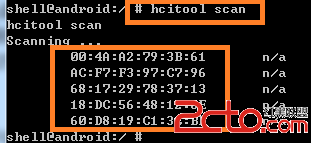 Android 藍牙掃描設備機制解析:從 hcitool 到 Framework 與 BlueZ
本文以 Android 4.1 與 BlueZ 為例,整理藍牙設備掃描的常見路徑。掃描可以透過 Linux 命令列工具 hcitool 直接觸發,也可以由 Android
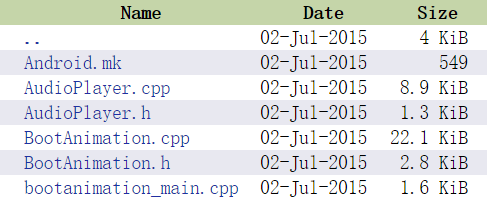 Android Framework之路:BootAnimation開機動畫執行流程(2)
前言 上一篇說明了BootAnimation的由來與啟動時機。本篇接著分析開機動畫的執行流程,包含入口程式、SurfaceComposerClient、EGL初始化、動畫
 Android 高仿微信轉帳金額輸入框規則
微信轉帳輸入框的金額輸入規則,重點在於小數點處理、位數限制與首字驗證。以下整理常見規則與實作方式。 輸入規則 小數點後最多兩位。 使用者若一開始就輸入小數
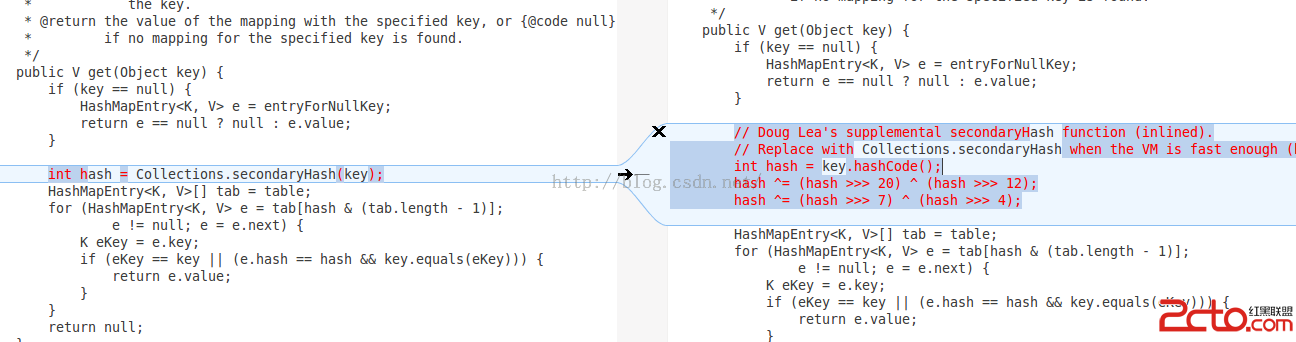 Android 5.0 之後 HashMap 的實現變了:一次接口出包事故帶出的坑
這個問題是從一個線上 bug 開始的:某個做了緩存的接口,在 Android 5.0 以上的機子上偶爾拿不到數據,在 5.0 以下的機子上卻一切正常。追查下去發現,放在