

編輯:關於 Android 程式設計
Android 的動畫分為三大類:
本文聚焦在 Tween Animation 的基本使用。
這四種動畫都是透過 Animation 類別與 AnimationUtils 搭配實作,動畫效果可以預先配置在 res/anim 目錄下的 XML 檔中。
參數:
android:fromXScale:起始的 X 方向上相對自身的縮放比例,浮點值。例如 1.0 代表無變化,0.5 代表起始時小一半,2.0 代表放大一倍。android:toXScale:結束時 X 方向上相對自身的縮放比例。android:fromYScale / android:toYScale:Y 方向同上。android:pivotX / android:pivotY:縮放起點座標,可用數值、百分比、百分比兩種形式(注意:起點指的是目前 View 左上角為原點的座標)。res/anim/anim_scale.xml
<?xml version="1.0" encoding="utf-8"?>
<scale xmlns:android="https://schemas.android.com/apk/res/android"
    android:duration="700"
    android:fromXScale="0.0"
    android:fromYScale="0.0"
    android:pivotX="150"
    android:pivotY="300"
    android:toXScale="1.4"
    android:toYScale="1.4"
    android:fillAfter="true"
    android:repeatCount="10"
    android:repeatMode="reverse" />
res/layout/tween_animation_layout.xml
<?xml version="1.0" encoding="utf-8"?>
<LinearLayout xmlns:android="https://schemas.android.com/apk/res/android"
    android:layout_width="match_parent"
    android:layout_height="match_parent"
    android:orientation="vertical" >

    <LinearLayout
        android:layout_width="match_parent"
        android:layout_height="wrap_content"
        android:orientation="horizontal" >

        <Button
            android:id="@+id/alpha_button"
            android:layout_width="wrap_content"
            android:layout_height="wrap_content"
            android:layout_weight="1"
            android:text="@string/alpha" />

        <Button
            android:id="@+id/scale_button"
            android:layout_width="wrap_content"
            android:layout_height="wrap_content"
            android:layout_weight="1"
            android:text="@string/scale" />

        <Button
            android:id="@+id/rotate_button"
            android:layout_width="wrap_content"
            android:layout_height="wrap_content"
            android:layout_weight="1"
            android:text="@string/rotate" />

        <Button
            android:id="@+id/trans_button"
            android:layout_width="wrap_content"
            android:layout_height="wrap_content"
            android:layout_weight="1"
            android:text="@string/trans" />
    </LinearLayout>

    <ImageView
        android:id="@+id/anim_image"
        android:layout_width="wrap_content"
        android:layout_height="wrap_content"
        android:layout_gravity="center_horizontal"
        android:contentDescription="@null"
        android:src="@drawable/splash_logo" />
</LinearLayout>
TweenAnimationTest.java
import android.app.Activity;
import android.os.Bundle;
import android.view.View;
import android.view.View.OnClickListener;
import android.view.animation.Animation;
import android.view.animation.AnimationUtils;
import android.widget.Button;
import android.widget.ImageView;

public class TweenAnimationTest extends Activity implements OnClickListener {

    private Button alphaButton, scaleButton, rotateButton, transButton;
    private ImageView animImageView;

    @Override
    protected void onCreate(Bundle savedInstanceState) {
        super.onCreate(savedInstanceState);
        setContentView(R.layout.tween_animation_layout);
        initView();
    }

    private void initView() {
        animImageView = (ImageView) findViewById(R.id.anim_image);
        alphaButton = (Button) findViewById(R.id.alpha_button);
        scaleButton = (Button) findViewById(R.id.scale_button);
        rotateButton = (Button) findViewById(R.id.rotate_button);
        transButton = (Button) findViewById(R.id.trans_button);

        alphaButton.setOnClickListener(this);
        scaleButton.setOnClickListener(this);
        rotateButton.setOnClickListener(this);
        transButton.setOnClickListener(this);
    }

    @Override
    public void onClick(View v) {
        switch (v.getId()) {
            case R.id.scale_button:
                Animation animation = AnimationUtils.loadAnimation(this, R.anim.anim_scale);
                animImageView.startAnimation(animation);
                break;
            // 其餘按鈕類似
        }
    }
}參數只有兩個:
android:fromAlpha:動畫開始的透明度,範圍 0.0~1.0。0.0 完全透明,1.0 完全不透明。android:toAlpha:動畫結束的透明度,範圍同上。res/anim/anim_alpha.xml
<?xml version="1.0" encoding="utf-8"?>
<alpha xmlns:android="https://schemas.android.com/apk/res/android"
    android:duration="1000"
    android:fromAlpha="1.0"
    android:toAlpha="0.0"
    android:fillAfter="true" />
觸發程式碼
case R.id.alpha_button:
    Animation alphaAnimation = AnimationUtils.loadAnimation(this, R.anim.anim_alpha);
    animImageView.startAnimation(alphaAnimation);
break;參數:
android:fromDegrees:開始旋轉的角度。正數代表順時針,負數代表逆時針。android:toDegrees:結束時旋轉到的角度,正負號規則同上。android:pivotX / android:pivotY:旋轉起點的座標。res/anim/anim_rotate.xml
<?xml version="1.0" encoding="utf-8"?>
<rotate xmlns:android="https://schemas.android.com/apk/res/android"
    android:duration="1000"
    android:fillAfter="true"
    android:fromDegrees="0"
    android:pivotX="0"
    android:pivotY="0"
    android:repeatCount="3"
    android:toDegrees="810" >
</rotate>
這裡 toDegrees="810" 是 0 度加上兩圈半(810 = 360×2 + 90),配合 pivotX/pivotY 設為 0 會繞左上角轉;想繞中心旋轉應該改用 50% 或 0.5。
觸發程式碼
case R.id.rotate_button:
    Animation rotateAnimation = AnimationUtils.loadAnimation(this, R.anim.anim_rotate);
    animImageView.startAnimation(rotateAnimation);
break;參數:
android:fromXDelta / android:fromYDelta:起始座標android:toXDelta / android:toYDelta:結束座標這四個值支援三種寫法:純數值(像素)、百分比(相對於自身尺寸)、以及 pX 後綴(相對於父容器尺寸)。京東 splash 頁面的進度條動畫用的就是 translate。
res/anim/anim_translate.xml
<?xml version="1.0" encoding="utf-8"?>
<translate xmlns:android="https://schemas.android.com/apk/res/android"
    android:duration="1000"
    android:fillAfter="true"
    android:fromXDelta="0"
    android:fromYDelta="0"
    android:toXDelta="100%p"
    android:toYDelta="0" />
觸發程式碼
case R.id.trans_button:
    Animation transAnimation = AnimationUtils.loadAnimation(this, R.anim.anim_translate);
    animImageView.startAnimation(transAnimation);
break;以下屬性四種動畫都能用:
android:duration:動畫持續時間,單位毫秒。android:fillAfter:設為 true,控制項動畫結束時保持最後狀態。android:fillBefore:設為 true,動畫結束後還原到開始前的狀態。android:fillEnabled:與 fillBefore 效果相同。android:repeatCount:重複次數。設為 -1 可無限循環。android:repeatMode:重複類型。reverse 倒序回放,restart 重新放一遍。android:interpolator:速度曲線,可指定加速、減速、彈跳等效果。Tween Animation 只是「視覺上的位移」,View 實際的座標、大小、透明度都沒有變。這會導致一個經典的坑:圖片動畫移動到新位置後,你點擊舊位置仍然會觸發事件,點新位置反而沒反應。
要真正改變屬性、讓事件區域跟著移動,應該使用 API 11 之後的 Property Animation(ObjectAnimator、ViewPropertyAnimator)。新專案幾乎都該直接用它,Tween Animation 主要保留在背景圖片、frame 動畫這類場景。
 Android 全新数据加载模式:Loader 完全解析
Android 3.0 引入了加载器(Loader),让在 Activity 或 Fragment 中异步加载数据变得轻而易举。加载器具备以下几个特点: 可用于每个 Ac
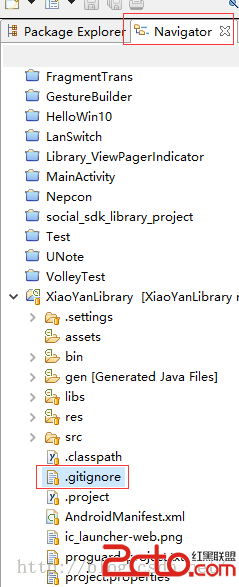 egit 教學:用 .gitignore 讓檔案退出版本控制
多人協作開發已經是常態,Git 幾乎是標配。實務上常遇到某個檔案(編譯產物、IDE 設定、測試用的本機設定檔)根本不該進版控,這時候就要靠 .gitignore。以下說明
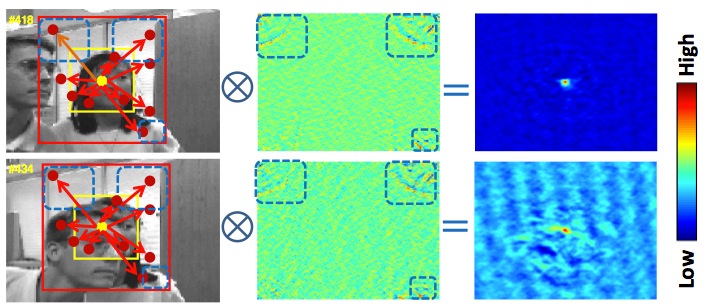 目標跟蹤系列(八):深入解析時空上下文(STC)跟蹤原理
從核心原理不難推斷,STC 演算法在相機本身也在移動的場景中表現通常差強人意,尤其是在高速運動的環境下。因為此時背景幾乎與前景一同移動,這與演算法賴以運作的基本假設恰好相
 Android 圖像處理實戰:為圖片添加水印
用過美圖、P 圖、Prisma 這類修圖軟件的朋友應該都注意過,它們處理完圖片後往往會附上一個水印,主要目的是為自家產品做宣傳——這一點我本人深有體會。 那麼在 Andr