

編輯:關於 Android 程式設計
第一篇 Fragment 實例裡,我用的是 FragmentTransaction.replace(),這大概也是多數人剛入門時的寫法。但很快會碰到一個惱人的問題。
replace() 的行為等於「先 remove 掉容器裡所有現存的 fragments,再 add 進新的那一個」。所以當你切到別頁再切回來,等於把這個 Fragment 從頭重建一次——原本的捲動位置、輸入內容、清單狀態全部消失。這顯然不符合日常使用經驗。
思路其實很簡單:先把所有 Fragment 都 add 進來,切換時把全部 hide(),再把要顯示的那一個 show()。Fragment 沒有被移除,狀態自然還在。
程式碼較長,這裡只講核心部分。
public class MainActivity extends ActionBarActivity implements OnClickListener {

    private View weixinLayout, tongxunluLayout, faxianLayout, woLayout;
    private TextView weixinTv, tongxunluTv, faxianTv, woTv;
    private ImageView weixinIv, tongxunluIv, faxianIv, woIv;

    private Fragment1 fragment1;
    private Fragment2 fragment2;
    private Fragment3 fragment3;
    private Fragment4 fragment4;

    private FragmentManager fm;

    @Override
    protected void onCreate(Bundle savedInstanceState) {
        super.onCreate(savedInstanceState);
        setContentView(R.layout.activity_main);
        initViews();
        fm = getFragmentManager();
        // 初始狀態顯示「微信」
        weixinIv.setBackgroundResource(R.drawable.weixin2);
        weixinTv.setTextColor(getResources().getColor(R.color.green));
        showFragment(1);
    }

    void initViews() {
        weixinIv = (ImageView) findViewById(R.id.weixin_iv);
        tongxunluIv = (ImageView) findViewById(R.id.tongxunlu_iv);
        faxianIv = (ImageView) findViewById(R.id.faxian_iv);
        woIv = (ImageView) findViewById(R.id.wo_iv);

        weixinTv = (TextView) findViewById(R.id.weixin_tv);
        tongxunluTv = (TextView) findViewById(R.id.tongxunlu_tv);
        faxianTv = (TextView) findViewById(R.id.faxian_tv);
        woTv = (TextView) findViewById(R.id.wo_tv);

        weixinLayout = (View) findViewById(R.id.weixin_layout);
        tongxunluLayout = (View) findViewById(R.id.tongxunlu_layout);
        faxianLayout = (View) findViewById(R.id.faxian_layout);
        woLayout = (View) findViewById(R.id.wo_layout);

        weixinLayout.setOnClickListener(this);
        tongxunluLayout.setOnClickListener(this);
        faxianLayout.setOnClickListener(this);
        woLayout.setOnClickListener(this);
    }

    @Override
    public void onClick(View arg0) {
        // 每次點擊先清除狀態(圖示與文字顏色)
        clearState();
        switch (arg0.getId()) {
            case R.id.weixin_layout:
                weixinIv.setBackgroundResource(R.drawable.weixin2);
                weixinTv.setTextColor(getResources().getColor(R.color.green));
                showFragment(1);
                break;
            case R.id.tongxunlu_layout:
                tongxunluIv.setBackgroundResource(R.drawable.tongxunlu2);
                tongxunluTv.setTextColor(getResources().getColor(R.color.green));
                showFragment(2);
                break;
            case R.id.faxian_layout:
                faxianIv.setBackgroundResource(R.drawable.faxian2);
                faxianTv.setTextColor(getResources().getColor(R.color.green));
                showFragment(3);
                break;
            case R.id.wo_layout:
                woIv.setBackgroundResource(R.drawable.wo2);
                woTv.setTextColor(getResources().getColor(R.color.green));
                showFragment(4);
                break;
        }
    }

    public void clearState() {
        weixinIv.setBackgroundResource(R.drawable.weixin1);
        tongxunluIv.setBackgroundResource(R.drawable.tongxunlu1);
        faxianIv.setBackgroundResource(R.drawable.faxian1);
        woIv.setBackgroundResource(R.drawable.wo1);

        weixinTv.setTextColor(getResources().getColor(R.color.black));
        tongxunluTv.setTextColor(getResources().getColor(R.color.black));
        faxianTv.setTextColor(getResources().getColor(R.color.black));
        woTv.setTextColor(getResources().getColor(R.color.black));
    }

    public void showFragment(int index) {
        FragmentTransaction ft = fm.beginTransaction();
        // 先隱藏所有 Fragment,避免重疊
        hideFragments(ft);
        switch (index) {
            case 1:
                if (fragment1 != null) {
                    ft.show(fragment1);
                } else {
                    fragment1 = new Fragment1();
                    ft.add(R.id.content, fragment1);
                }
                break;
            case 2:
                if (fragment2 != null) {
                    ft.show(fragment2);
                } else {
                    fragment2 = new Fragment2();
                    ft.add(R.id.content, fragment2);
                }
                break;
            case 3:
                if (fragment3 != null) {
                    ft.show(fragment3);
                } else {
                    fragment3 = new Fragment3();
                    ft.add(R.id.content, fragment3);
                }
                break;
            case 4:
                if (fragment4 != null) {
                    ft.show(fragment4);
                } else {
                    fragment4 = new Fragment4();
                    ft.add(R.id.content, fragment4);
                }
                break;
        }
        ft.commit();
    }

    /** 已實例化的 Fragment 一律先隱藏 */
    public void hideFragments(FragmentTransaction ft) {
        if (fragment1 != null) ft.hide(fragment1);
        if (fragment2 != null) ft.hide(fragment2);
        if (fragment3 != null) ft.hide(fragment3);
        if (fragment4 != null) ft.hide(fragment4);
    }
}
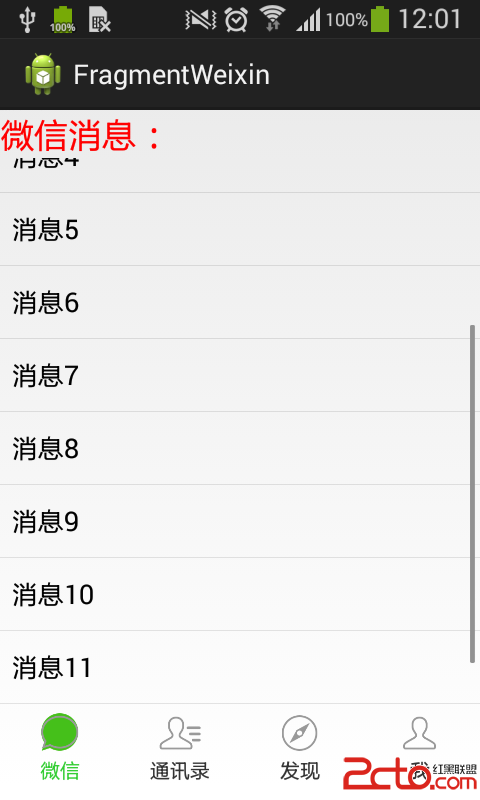
一開始把微信 Fragment 的 ListView 往下捲如上圖,切到通訊錄,再切回微信——此時 ListView 仍停在原位。因為它並未被重新載入,只是先被 hide、再被 show 回來。
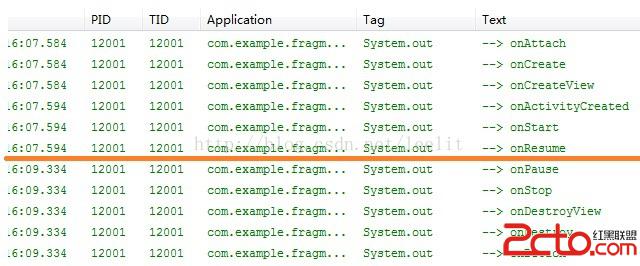
如果用 replace(),切換到當前 Fragment 時走的是紅線以上的生命週期(onCreateView、onActivityCreated 等會重跑),切換離開時則走紅線以下(onDestroyView、onDetach 等)。而改用 hide() 與 show() 之後,切換回來依然只走紅線以上,切換離開時則不會觸發任何銷毀相關的生命週期,只是單純被標記為不可見。這樣就很清楚了。
hide/show 用記憶體換取體驗:所有 Fragment 都一直活在記憶體裡,切換快、狀態完整,代價是記憶體佔用隨頁數線性成長。若某個頁面很吃記憶體(例如滿版影片、大圖 galleries),可以在切離時手動暫停其網路請求或釋放快取。
另外記得兩點:一是 hide 只是設 View.GONE,被隱藏的 Fragment 裡若有動畫、影音播放或 Timer,仍會繼續執行,需要自己在 setUserVisibleHint() 或 onHiddenChanged() 裡暫停;二是這類底部導覽列切換在今天的標準做法是 BottomNavigationView 搭配 Navigation Component,或直接用 ViewPager2,能省下大量手寫的事務管理程式碼。
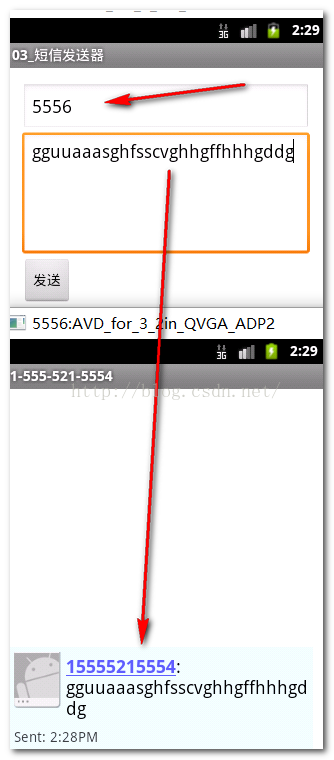 Android 實戰第四話:動手做一個最簡易的簡訊發送器
今天我們用最少的程式碼,做出一個能真正發送簡訊的小 App。整個流程不複雜,只要一個版面配置加上幾行程式即可。 先來配置版面。我們放兩個輸入框——一個填對方號碼、一個填簡
 Android 開發瑣記:如何準確記錄與恢復 ListView 的滾動位置
這個需求本身並不複雜,但項目裡的場景一多,實現起來就没那麼直觀了。網上搜索一下,流傳最廣的寫法大致是這樣: int scrollPos = refreshListView
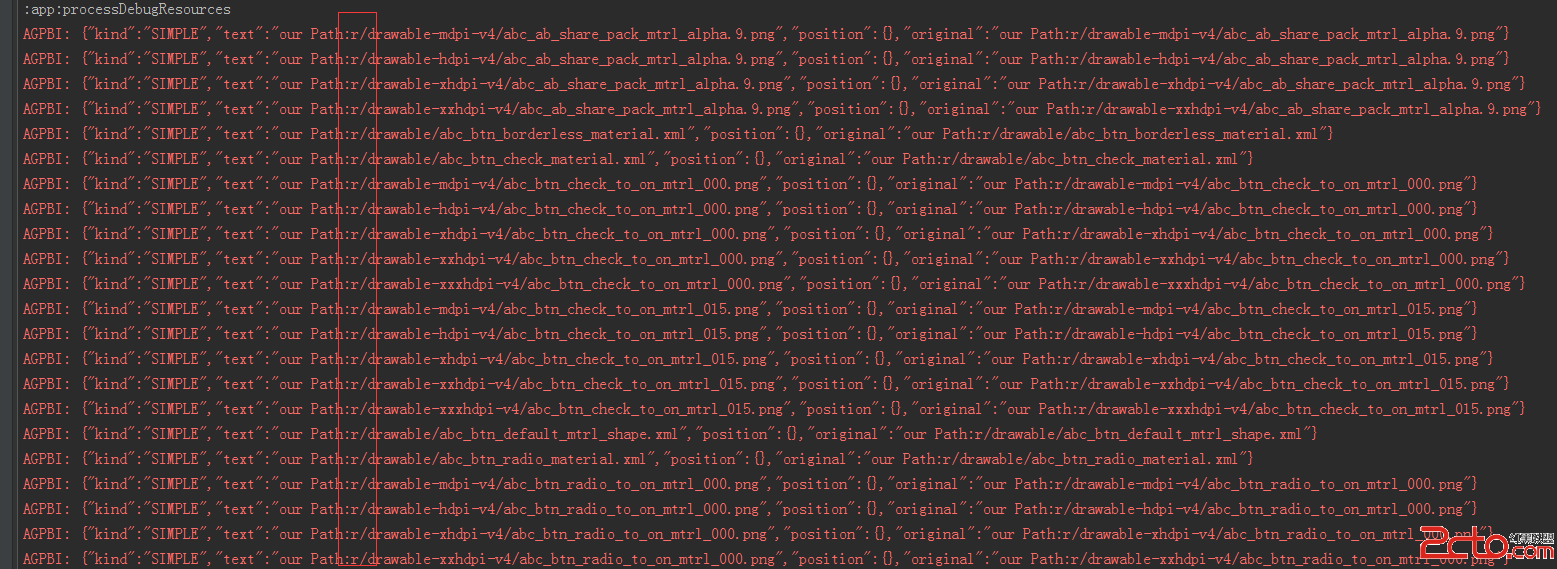 動手實作 Android 資源混淆:改寫 AAPT 的 Resource.cpp
美團那篇《Android 資源混淆保護實踐》讀完,方向很清楚,但關鍵的那個函式並沒有公開——它把 getObfuscationName() 當成一個黑盒,實作留給讀者。本
 Android Studio 右鍵選單裡找不到 Git?兩張圖教你搞定
從 Git clone 一個專案並打開後,許多人會習慣性地像在 Eclipse 裡那樣,選中工程按右鍵,想找出 Git 的版本控制選項。 但如下圖所示,你會發現右鍵選單裡