

編輯:關於 Android 程式設計
上一篇我們談到,透過啟動 App 再打開網頁的方式來實現桌面快捷連結,做法雖然簡單,但使用體驗上總是差了那麼一點意思——使用者還得先經過 App 這一層,顯得多此一舉。
這篇文章要帶大家換個思路,借助 Android 的 Broadcast 廣播機制來完成同樣的事情。這套做法不僅效果更貼近原生體驗,最大的優勢在於:不必再依賴任何 App 作為中介,就能直接從桌面圖標跳轉到指定網址。
具體實作步驟如下:
首先在 AndroidManifest.xml 中加入讀取設定與安裝捷徑的權限:
<uses-permission android:name="com.android.launcher.permission.READ_SETTINGS" />
<uses-permission android:name="com.android.launcher.permission.INSTALL_SHORTCUT" />
接著在 MainActivity 的 onCreate 方法中,設定並發送對應的廣播 Intent:
final Intent shortCutIntent = new Intent("com.android.launcher.action.INSTALL_SHORTCUT");
final Parcelable icon = ((BitmapDrawable) context.getResources().getDrawable(R.drawable.ic_launcher)).getBitmap();
// 取得快捷方式的圖示
Uri uri = Uri.parse("https://blog.csdn.net/wanggsx918");
Intent pendingIntent = new Intent(Intent.ACTION_VIEW, uri);
// 桌面快捷方式圖標
shortCutIntent.putExtra(Intent.EXTRA_SHORTCUT_ICON, icon);
// 桌面快捷方式標題
shortCutIntent.putExtra(Intent.EXTRA_SHORTCUT_NAME, context.getString(R.string.app_name));
// 桌面快捷方式動作:點擊圖標時執行的行為
shortCutIntent.putExtra(Intent.EXTRA_SHORTCUT_INTENT, pendingIntent);
context.sendBroadcast(shortCutIntent);
沒錯,就是這麼乾淨俐落。透過廣播向 Launcher 發送 INSTALL_SHORTCUT 動作,就能在桌面上生成一個直接指向網址的捷徑,既正統又完整,正是我們想要的效果。
 策略模式在 Android 中的應用:以 Wi-Fi 連線為例
策略模式是什麼策略模式屬於行為型設計模式,核心概念是將一組可互相替換的演算法封裝成獨立類別,讓它們能在不改動呼叫端的情況下自由切換。在 Android 開發中,當同一個功
 Glide 快取大小查詢與清理的完整工具類實作
一、Glide 內建的清快取方法 Glide 本身提供了兩個清理方法:clearDiskCache() 清除磁碟快取,clearMemory() 清除記憶體快取。使用時有
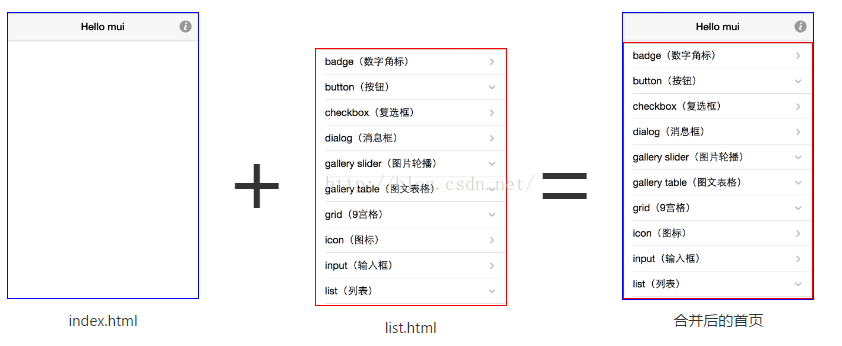 MUI窗口管理全解:初始化、子頁面、打開關閉與預加載
窗口管理是MUI開發的核心之一。本文系統講解頁面初始化、創建子頁面、打開與關閉頁面、以及預加載技術。 一、頁面初始化 在App開發中,若要使用HTML5+擴展API,必須
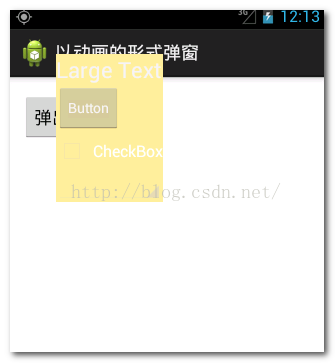 Android 初級教程:讓 PopupWindow 帶着動畫弹出
這一篇把動畫知識與彈出窗體結合起來,做出一個帶進場動畫的 PopupWindow。動畫基礎在前面幾篇已經詳細介紹過,這裡直接進入實踐。 一、PopupWindow 的基