

編輯:關於 Android 程式設計
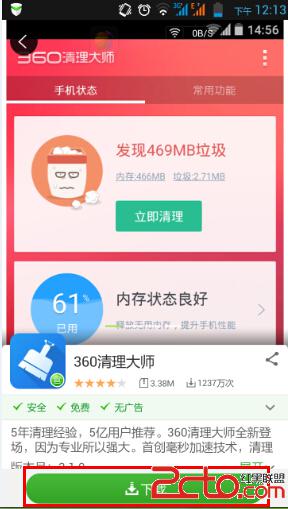
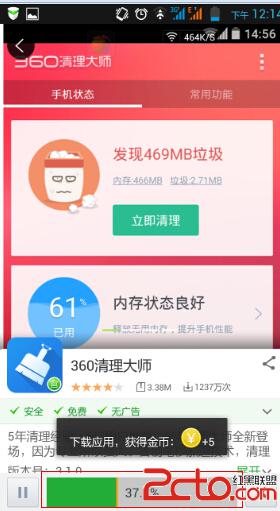
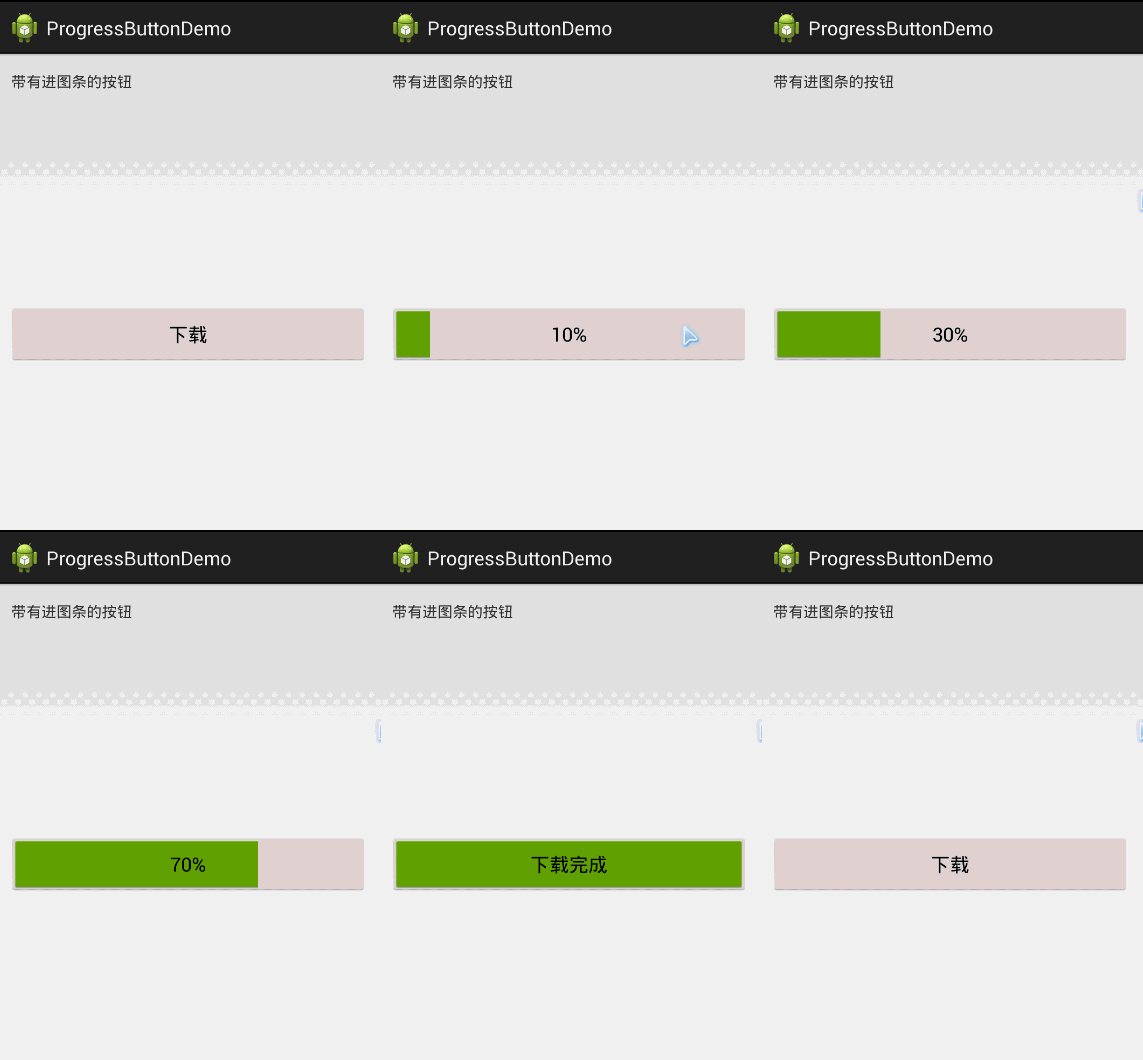
本系列是繼「Android UI 組件實例大全」之後的進階篇,將帶大家進一步深入學習各類 UI 組件。建議先讀完實例大全、掌握基礎組件的用法,再來學習本系列(當然你也可以直接上手)。廢話不多說,第一節我們要實現的,就是一個點擊後顯示下載進度的按鈕——相信你在 360 手機助手之類的應用裡見過它。
1. 進度條的常用屬性:
background:設置背景圖片;max:設置最大值;progress:設置當前進度值;style="?android:attr/progressBarStyleHorizontal":定義為水平方向的進度條風格;progressDrawable:當不想使用系統默認 Progress 時,可自定義一個——通常在 drawable 下建立一個 .xml 文件,用 layer-list 來組織這些圖標。
2. Handler 的相關方法:對 UI 的操作必須在主線程或 Handler 中進行,切忌在新線程裡直接操作 UI 組件,否則會拋異常。handleMessage(msg) 是處理消息時需重寫的主要方法,通過 msg.what 判斷標識碼並執行對應操作;sendEmptyMessage(0x123) 發送一個標識碼為 0x123 的空消息;sendEmptyMessageDelayed(0x321, 500) 則延遲 500 毫秒發送。
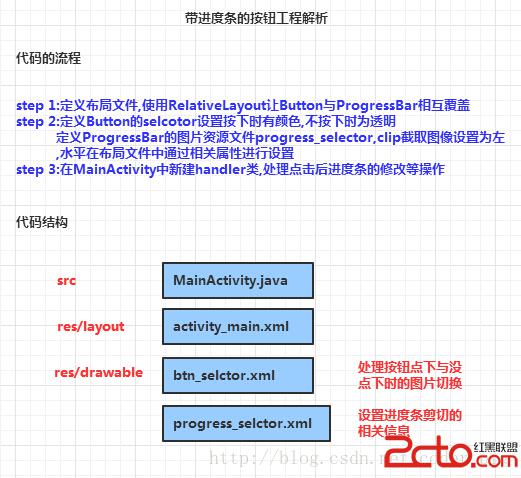
MainActivity.java
package com.jay.uidemo.progressbuttondemo;
import android.app.Activity;
import android.os.Bundle;
import android.os.Handler;
import android.os.Message;
import android.view.View;
import android.widget.Button;
import android.widget.ProgressBar;
import android.widget.TextView;
public class MainActivity extends Activity {
    int i = 0;
    ProgressBar progressBar = null;
    Button downLoadBtn = null;
    Handler handler = new Handler() {
        public void handleMessage(Message msg) {
            switch (msg.what) {
                case 0x123:
                    downLoadBtn.setClickable(false);
                    i += 20;
                    progressBar.setProgress(i);
                    if (i != 100) {
                        handler.sendEmptyMessageDelayed(0x123, 500);
                        downLoadBtn.setText(i + "%");
                    } else if (i == 100) {
                        downLoadBtn.setText("下載完成");
                        handler.sendEmptyMessageDelayed(0x321, 500);
                    }
                    break;
                case 0x321:
                    downLoadBtn.setText("打開");
                    downLoadBtn.setClickable(true);
                    downLoadBtn.setBackgroundResource(R.drawable.aa_button_after);
                    handler.sendEmptyMessageDelayed(0x110, 1000);
                    break;
                case 0x110:
                    progressBar.setProgress(0);
                    downLoadBtn.setBackgroundResource(R.drawable.btn_selector);
                    downLoadBtn.setText("下載");
                default:
                    break;
            }
        }
    };
    @Override
    protected void onCreate(Bundle savedInstanceState) {
        super.onCreate(savedInstanceState);
        setContentView(R.layout.activity_main);
        TextView tx = (TextView) findViewById(R.id.texttitle);
        progressBar = (ProgressBar) findViewById(R.id.progressBar);
        downLoadBtn = (Button) findViewById(R.id.downLoadBtn);
        downLoadBtn.setOnClickListener(new View.OnClickListener() {
            @Override
            public void onClick(View v) {
                i = 0;
                handler.sendEmptyMessage(0x123);
            }
        });
    }
}
drawable 中的 btn_selector.xml
<selector xmlns:android="https://schemas.android.com/apk/res/android">
    <item android:drawable="@android:color/transparent" android:state_pressed="false"></item>
    <item android:drawable="@drawable/aa_button_gray_pressed" android:state_pressed="true"></item>
</selector>
drawable 中的 progress_selector.xml
<layer-list xmlns:android="https://schemas.android.com/apk/res/android">
    <item android:id="@android:id/progress">
        <clip android:clipOrientation="horizontal"
              android:drawable="@drawable/aa_button_normal"
              android:gravity="left">
        </clip>
    </item>
</layer-list>
activity_main.xml
<RelativeLayout xmlns:android="https://schemas.android.com/apk/res/android"
    xmlns:tools="https://schemas.android.com/tools"
    android:layout_width="match_parent"
    android:layout_height="match_parent"
    android:paddingBottom="@dimen/activity_vertical_margin"
    android:paddingLeft="@dimen/activity_horizontal_margin"
    android:paddingRight="@dimen/activity_horizontal_margin"
    android:paddingTop="@dimen/activity_vertical_margin"
    tools:context="com.jay.uidemo.progressbuttondemo.MainActivity">
    <TextView
        android:id="@+id/texttitle"
        android:layout_width="wrap_content"
        android:layout_height="wrap_content"
        android:text="帶有進度條的按鈕" />
    <RelativeLayout
        android:layout_width="fill_parent"
        android:layout_height="50dp"
        android:layout_centerHorizontal="true"
        android:layout_centerVertical="true"
        android:gravity="bottom">
        <ProgressBar
            android:id="@+id/progressBar"
            android:layout_width="fill_parent"
            android:layout_height="fill_parent"
            android:background="@drawable/aa_button_gray_normal"
            android:max="100"
            android:progress="0"
            android:progressDrawable="@drawable/progress_selector">
            <Button
                android:id="@+id/downLoadBtn"
                android:layout_width="fill_parent"
                android:layout_height="fill_parent"
                android:layout_centerHorizontal="true"
                android:layout_centerVertical="true"
                android:background="@drawable/btn_selector"
                android:text="下載">
            </Button>
        </ProgressBar>
    </RelativeLayout>
</RelativeLayout>
 Android 官方文件翻譯:把 Eclipse 專案遷移到 Android Studio
翻譯耗時費神,如果你覺得這份譯文還算通順,歡迎按個「推」;若有錯漏之處,也請不吝指正。 Eclipse 專案遷移 把 Eclipse 專案轉成 Android Stud
 Android 菜單半透明效果實作:Shape + GridView + PopupWindow 三步驟
用過「天天動聽」的朋友,大概都對它那層半透明的彈出菜單有印象:浮在介面上方,隱隱透出背後的內容,質感相當細膩。本文就以這種效果為目標,把整個實作過程拆解開來,並附上可以直
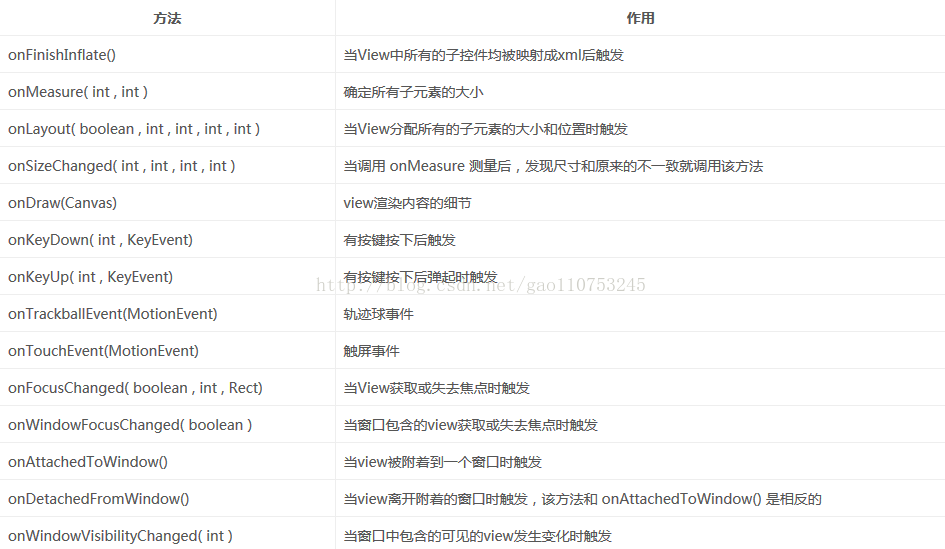 自定義 ViewGroup 生命週期執行順序全解析
為什麼要搞清執行順序 自定義 ViewGroup 時,最容易犯的錯誤就是把邏輯寫在了錯誤的回調裡——比如在構造方法中獲取寬高(此時必然是 0),或者在 onMeasure
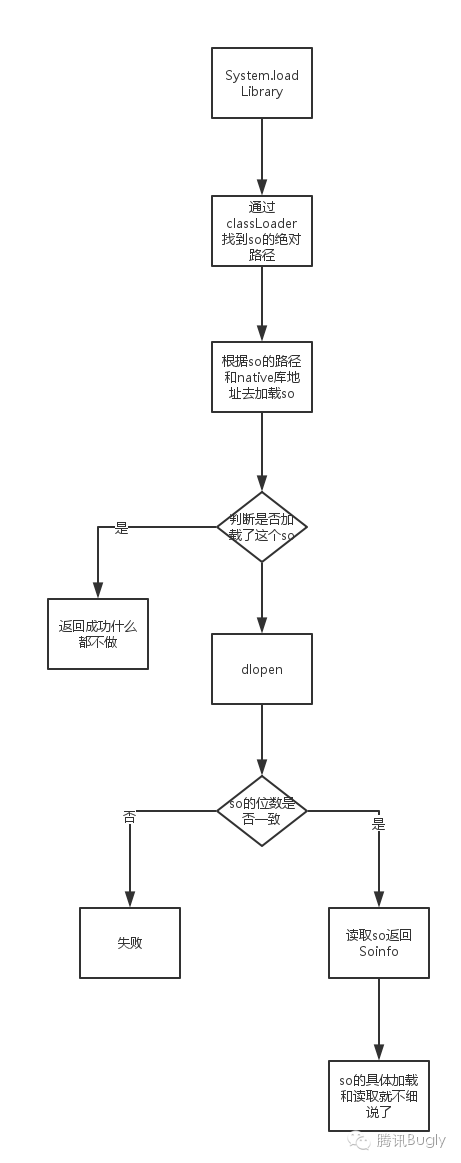 Android 動態連結庫載入原理與 HotFix 修復思路
引言在 Android 專案中,動態連結庫數量增加後,常會遇到只在部分機型或特定系統版本出現的 UnsatisfiedLinkError。即使 so 名稱、ABI 與方法